GPT Image 2.6 Prompts: How to Write, Edit, and Animate Images with OpenAI's Latest Model
Learn to write GPT Image 2.6 prompts for generation and precise edits, compare Flare and Sunburst, and animate finished stills with PixVerse.
GPT Image 2.6 prompts are plain-language descriptions that start with the desired image, then spell out subject, composition, style, and constraints. This guide explains how to structure those prompts, refine edits one change at a time, choose between the Flare and Sunburst variants, and turn finished stills into video with PixVerse. People now create 4 billion images per week across ChatGPT, Codex, and the API, which makes a repeatable prompting method worth learning.
Key Takeaways
- GPT Image 2.6, released on November 4, 2026, generates images 50% faster than before.
- The model adds motion output through GIF creation, so a character, brand mascot, or product shot can become a short looping animation.
- GPT Image 2.6 ships in two API variants: Flare for speed and Sunburst for detail and precise edits.
- A strong prompt names the subject, camera position, lighting, and what must stay out of the shot.
What is GPT Image 2.6?
GPT Image 2.6 is OpenAI’s latest image generation model, available across ChatGPT, Codex, and the API since November 4, 2026. It generates images 50% faster than before, a gain that matters for production teams shipping visual assets every day.
The model also introduces motion output through GIF creation, so a static brand mascot becomes an animated loop and a product shot turns into an eye-catching motion asset. A single prompt can now deliver more than a still.
GPT Image 2.6 prompts follow a straightforward structure: describe the subject, composition, style, and constraints in plain sentences. Think of a prompt as a short creative brief for a photographer.
What can GPT Image 2.6 do?
The model handles three core tasks:
- Text-to-image generation with faster iteration than prior releases
- GIF animation for characters, brand mascots, and product shots
- Consistent editing that preserves characters, products, and brand details across revisions
How does GPT Image 2.6 handle edits?
The model is built for edits that keep visual identity stable: characters stay recognizable, product details stay accurate, and brand elements hold across multiple refinements. That consistency reduces rework for designers managing multi-asset campaigns.
The previous generation set the baseline for speed and reference-image fidelity, which the GPT Image 2.5 review and prompt guide covers in detail. The 2.6 update builds on it with a further 50% speed gain and GIF output.
What are the two GPT Image 2.6 variants?
In the API, GPT Image 2.6 ships in two variants: GPT-Image-2.6 Flare and GPT-Image-2.6 Sunburst. Flare is the smaller model for workflows where speed matters most, while Sunburst is the base model for workflows that need more detail or precise edits. Both variants support image generation, editing, and transparent backgrounds.
Which variant is faster?
Flare is the faster of the two. When quality is set to low, it can generate images in as little as six seconds, which makes it a strong choice for rapid concept exploration and high-volume generation.
Which variant handles precise edits better?
Sunburst is the stronger option for detail-heavy work. It delivers higher-quality generation and greater image consistency across edits at medium or high quality, so designers refining product shots or maintaining character consistency should reach for Sunburst. The same pairing existed in the previous generation, and PixVerse’s breakdown of GPT Image 2.5 Flare vs Sunburst compares the ideal use cases for each model.
| Variant | Strength | Best For |
|---|---|---|
| Flare | Speed | Rapid iteration, high-volume generation |
| Sunburst | Detail and precision | Complex edits, refined visuals |
In practice, the choice comes down to the workflow’s priority: speed-sensitive projects favor Flare, and quality-sensitive projects favor Sunburst. If Sunburst meets a workflow’s requirements, rerun the same prompts, reference images, dimensions, and quality setting on Flare and compare the results and response times.
How do you structure a GPT Image 2.6 prompt?
The best GPT Image 2.6 prompts read like a clear creative brief. Plain sentences work well, so creators can write the way they talk.
What belongs in a GPT Image 2.6 prompt?
Start with the image needed, then describe the subject, composition, style, and constraints: who appears, where the camera sits, how the light falls, and what stays excluded. For complex requests, organize the prompt as scene, subject, details, and constraints in labeled sections. This structure removes guesswork from generation.
Follow this sequence for consistent results:
- State the image type first, such as a product shot, character portrait, or looping GIF.
- Name the subject and any key attributes that define it.
- Describe composition, including camera angle and framing.
- Specify lighting, materials, and text treatment.
- List exclusions, the elements that must not appear.
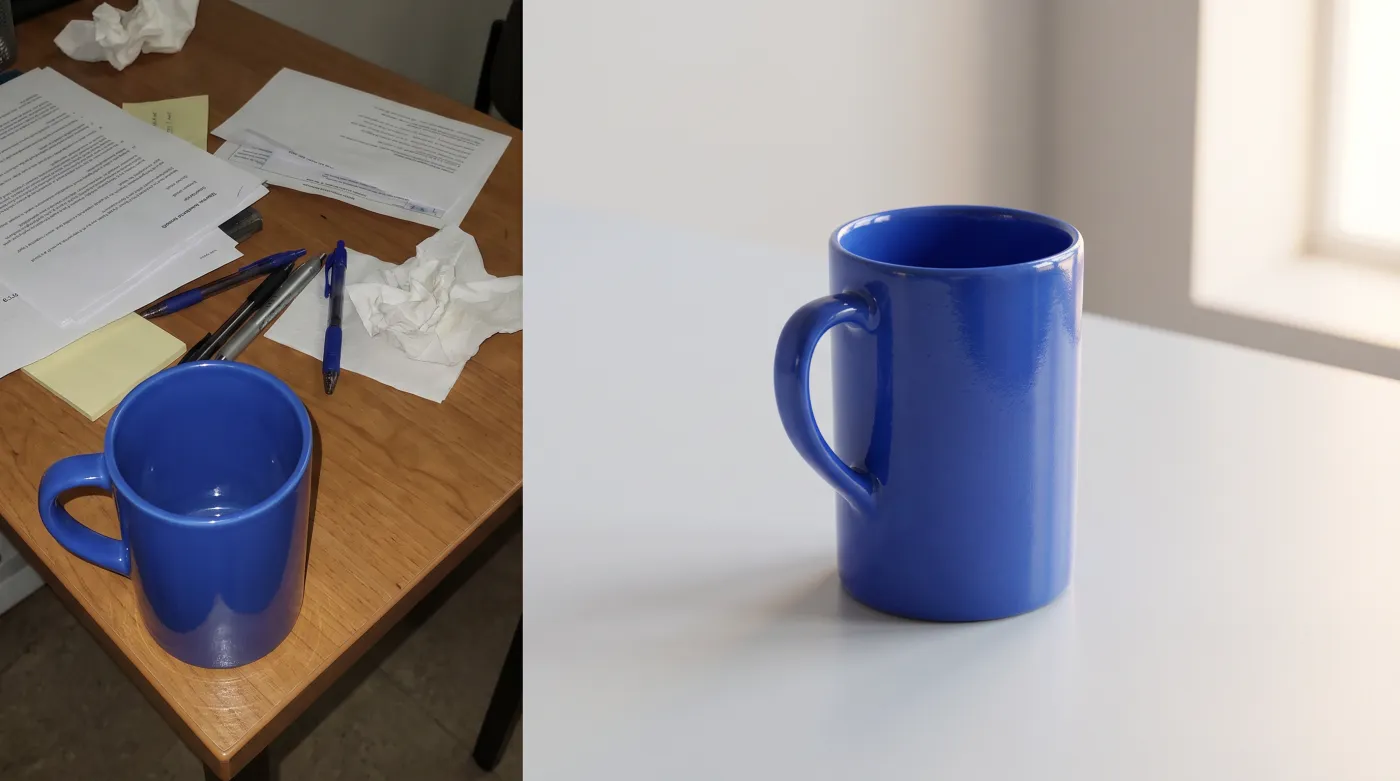
Illustrative image generated with Nano Banana Pro on PixVerse. The panels show how composition and lighting direction change the presentation; they are not GPT Image 2.6 test outputs.
How do you refine a GPT Image 2.6 prompt?
For edits, identify what should change and what must stay the same. Refine one thing at a time and inspect the result before moving on; skipping that step produces edits that drift from the original asset.
Creators who want ready-made formulas can start from PixVerse’s GPT Image 2 prompt guide, which collects 80 categorized examples covering posters, product ads, character designs, and UI mockups.
What makes a GPT Image 2.6 prompt fail?
Vague prompts waste generation cycles. A prompt that omits camera position or lighting leaves the model guessing, and one that bundles five changes at once makes errors hard to isolate. Precise, single-idea prompts return more predictable output.
What are copy-paste prompts for commercial use?
Copy-paste prompts for commercial use are reusable prompt templates built to produce polished visuals quickly and refine them with precision. They keep characters, products, and brand details consistent across edits, which matters when a campaign asset drifts off-brand and forces a reshoot. A reusable prompt library reduces that risk by locking composition, subject, and style into repeatable text blocks.
Commercial teams can lose hours rewriting prompts from scratch for every product variant. A copy-paste prompt solves this by encoding the essential direction once and swapping only the variable elements. The workflow follows a clear sequence:
- Start with a reference image that defines the subject, composition, and style.
- Write a natural-language prompt describing what must stay consistent and what changes.
- Set the output size, then choose the quality level, complexity, file type, and image count.
- Generate multiple variations and select the strongest output for the campaign.
What settings matter most for commercial prompts?
Three API settings do most of the work. Size takes a custom WIDTHxHEIGHT value with both edges in multiples of 16 and no edge above 3840 pixels. Quality accepts low, medium, high, xhigh, or max and controls how much visual detail the model can render, such as texture or small lettering. Complexity accepts low, medium, or high and controls how much the model plans before rendering; it defaults to high and carries no separate fee.
Quality also changes cost. OpenAI lists image output at $30 per million tokens, so a 1024x1024 render comes to roughly 2.5 cents at low quality, 4.4 cents at medium, and 5.3 cents at high (estimated from OpenAI’s published calculator, output tokens only).
How do reference images improve commercial consistency?
Uploading reference images guides composition, subject, and style, while natural-language prompts steer the final direction. Identify each reference by number and give it one job, such as the mascot, the setting, or the color palette, then explain how the inputs should combine and which elements should move where. This reference-guided generation helps keep a brand mascot or product silhouette stable across many variations, and fast iteration lets a creative team compare several concepts in one session.
How do you edit images with GPT Image 2.6?
GPT Image 2.6 supports precise, iterative image editing without rebuilding entire scenes. Editors isolate specific elements and adjust details while preserving character and brand consistency. Teams that skip targeted editing workflows spend extra time on full regenerations and risk losing the visual continuity that defines professional campaigns.
What is the fastest way to isolate an edit in GPT Image 2.6?
The most direct method is marking the element that needs changing. Markup-guided edits use a transparent PNG annotation layer, the same pixel size as the first input image, that shows where the change should happen; it is sent to the /v1/images/edits endpoint for GPT-Image-2.5 and GPT-Image-2.6 along with a prompt describing the change. Additional input images serve as references. This approach removes the need to rewrite full prompts for minor adjustments.
How does iterative refinement work?
Pass the previous output back in as the next edit input, request one change, and repeat the details to preserve. A designer might adjust facial expression in one pass, then tweak background lighting in the next, so each iteration builds on the previous output. Requesting several changes in a single step gives the model more chances to drift from the original.
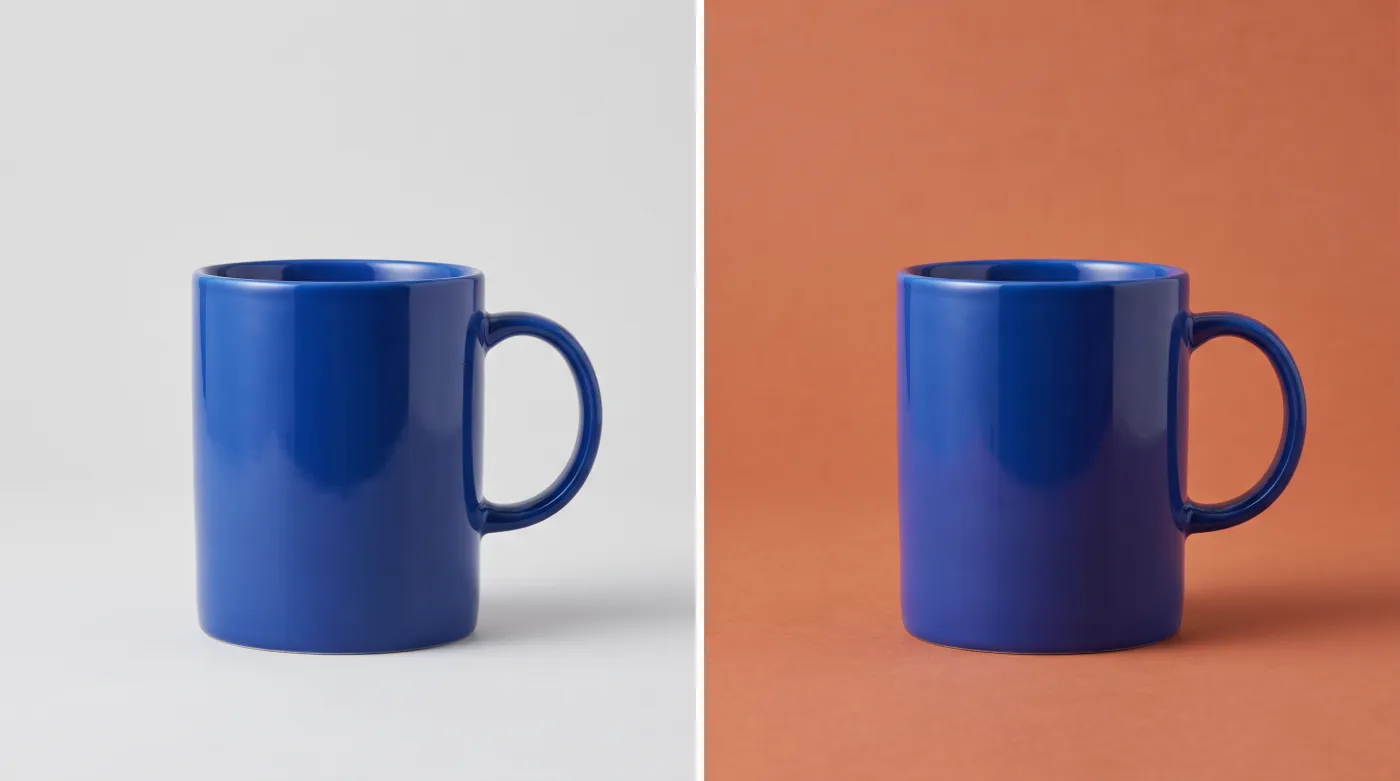
Illustrative image generated with Nano Banana Pro on PixVerse to show one intended background change. Both panels were generated together, so this is not an API edit test.
GPT Image 2.6 prompts for editing follow a clear sequence:
- Upload the base image and identify the target element.
- Mark the area requiring modification with a markup overlay.
- Write a concise natural-language instruction describing only the desired change.
- Generate the edit and inspect the result before proceeding.
- Repeat the process for each additional adjustment, one element at a time.
Edit prompts work best when they say “change only X” and list what must stay the same, such as faces, logos, or lighting. Low complexity suits most edits and keeps them fast. Transparent backgrounds are available for compositing work: set the background to transparent and the output format to PNG or WebP in the API. Throughout every edit, character features, product details, and brand elements are meant to stay consistent.
How do you turn GPT Image 2.6 stills into video?
PixVerse turns still images into video through its Image-to-Video tool, powered by proprietary video foundation models. Polished GPT Image 2.6 outputs can be imported and animated with the cinematic control and physics simulation that PixVerse offers across its models.
The transition from static image to video takes five deliberate steps, each designed to protect the visual quality of the original still while introducing controlled movement.
What preparation does a GPT Image 2.6 still need before animation?
A still image benefits from clean composition and clear subject separation before entering the PixVerse pipeline. High-fidelity portraits and product shots translate most reliably into motion, and a GPT Image 2.6 prompt written with video in mind asks for defined foreground elements and intentional negative space.
- Export the still at full resolution. Start the video from the sharpest source available, with every detail from the GPT Image 2.6 output intact.
- Upload the image to PixVerse. The Image-to-Video tool accepts the still as the primary input asset.
- Define motion parameters. Specify camera movement, subject action, or environmental dynamics, and state what must stay locked, such as the product shape and any readable text.
- Use PixVerse’s Character feature for identity consistency. When the still contains a person or recurring character, the Character feature helps keep that character consistent across generated shots.
- Generate and review. Check the clip against the still for identity, text, and product details before approving it.
How does PixVerse maintain visual consistency from still to video?
PixVerse relies on proprietary video foundation models built for cinematic control and high-fidelity portraits. Consistency still depends on the inputs: a clean still and a focused motion prompt that describes what moves and what stays locked.
Creators building longer sequences can follow the Astra-to-PixVerse cinematic video workflow, which pairs a preview video for motion and layout with a reference image for appearance. Pairing the two keeps every shot aligned to the same visual language.
What are common GPT Image 2.6 prompting mistakes?
Most GPT Image 2.6 prompts fail for four predictable reasons: creators stack keywords instead of writing sentences, skip edit constraints, pick the wrong model variant, or ignore quality and complexity settings. Each mistake costs time and output quality.
Why do stacked keywords hurt image quality?
A keyword list such as “4k, ultra detailed, masterpiece” tells the model very little about the image. Plain sentences that name materials, lighting, colors, and the visual medium work better, and mood words alone leave too much open: for wide, cinematic, low-light, rainy, or neon scenes, specify scale, atmosphere, and color instead. Long prompts work best when they are split into labeled blocks, such as scene, subject, art style, and constraints, so each block holds one kind of detail.
What happens when edit constraints are missing?
Failing to specify what must stay the same during edits leads to unwanted changes. Without that distinction, the model can alter elements the creator intended to preserve, and character features, product details, and brand colors drift. For edits, creators should identify what should change and what must stay the same.
Which model variant should creators choose?
Not choosing the right model variant for the task slows workflows. Start with GPT-Image-2.6 Flare if response time matters most, and choose Sunburst for workflows needing more detail or precise edits. A common routine is to draft in Flare and finish in Sunburst.
How do resolution and quality settings affect output?
Ignoring size, quality, and complexity settings results in suboptimal outputs. Small text and dense labels benefit from medium or high quality, while complexity decides how much planning goes into the layout. When comparing the two, change one setting at a time. Creators who skip these controls accept defaults that may not match the final use case.
What does a quick-reference prompt cheat sheet look like?
A GPT Image 2.6 cheat sheet works as a short checklist for production workflows. It breaks prompt construction into ordered habits, covering light, materials, text, and targeted editing.
What core prompting habits does the cheat sheet cover?
Six habits cover most prompts:
- Define the result. Name the subject and its intended use, such as a product photograph, advertisement, or diagram, plus composition, aspect ratio, and placement constraints.
- Describe visible details. Name materials, lighting, colors, and the visual medium. Ask for “photorealistic” or “real photograph” explicitly when that is the goal.
- Specify exact text. Put required wording in quotes, describe its position and typography, spell unusual words letter by letter when needed, and ask for no extra text.
- Separate changes from constraints. Say “change only X,” list what to preserve, and state exclusions such as unwanted text, logos, or watermarks.
- Assign roles to references. Identify each input by number and purpose: subject, style, clothing, or background.
- Iterate deliberately. Request one change, restate the details to preserve, and compare results before adding more instructions.
Run through the list in order and the prompt builds itself: subject, camera position, lighting conditions, then constraints.
How do you prompt for GIF and SVG outputs?
Motion and vector workflows need different instructions than static images. For a smooth GIF loop, give the subject a starting pose to return to and say whether the camera should move. In the API, set output_format to gif, choose a frame_count from 2 to 16 (default 9), and set frame_duration_ms between 20 and 2000 (default 200), which produces a 1.8-second loop. For SVG, use the generations endpoint with n set to 1, and describe the brand and the shapes that define the mark so the silhouette stays recognizable on a small label or a large sign.
For teams scaling beyond individual prompt work, PixVerse Enterprise offers an AI video platform with API automation and workspace controls. PixVerse serves users in more than 177 countries, and creators who master prompt structure can carry those skills straight into PixVerse’s video generation workflows.
FAQ
Which GPT Image 2.6 variant generates images faster?
Flare. When quality is set to low, GPT-Image-2.6 Flare can generate images in as little as six seconds.
How does GPT Image 2.6 handle edits across revisions?
Editing keeps visual identity stable, preserving characters, products, and brand elements across multiple refinements. For the best results, change one thing at a time and list what must stay the same.
Conclusion
Mastering GPT Image 2.6 prompts builds the foundation for reliable still generation. Creators who invest in clean composition, precise constraints, and the right model variant get stills that are ready for motion. Those stills can then move into PixVerse’s Image-to-Video tool, where a focused motion prompt and the Character feature help preserve identity and detail. The path from prompt to production video starts with disciplined prompting and ends with cinematic motion.