Choose the Starting Point
Start from text for a written brief. Add an image when a product, person, character, environment, composition, or visual style should anchor the result.
GPT Image 2.5 helps turn your direction into a new image or a focused edit, so the team can judge subject fidelity, layout, lighting, text, and visual consistency before the asset moves into a larger production workflow.
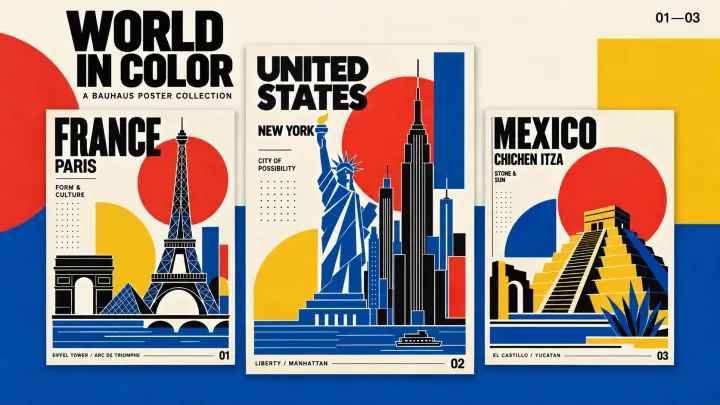 Bauhaus Vibe Create a 3:4 Bauhaus travel poster with Paris landmarks, bold geometry, and English typography.
 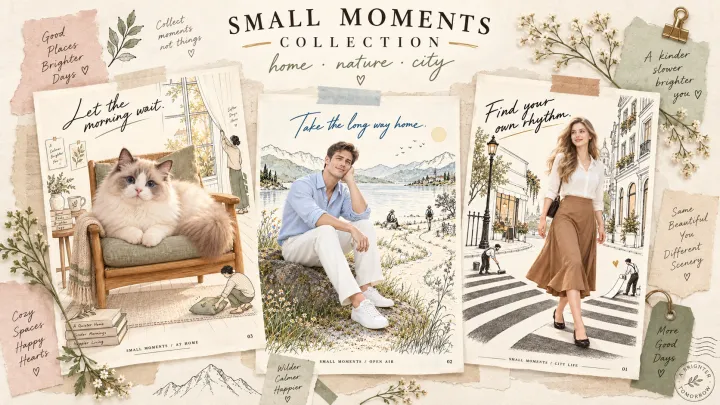 Collage Vibe Poster Create a 3:4 editorial collage poster that blends a European woman with a hand-drawn city.
 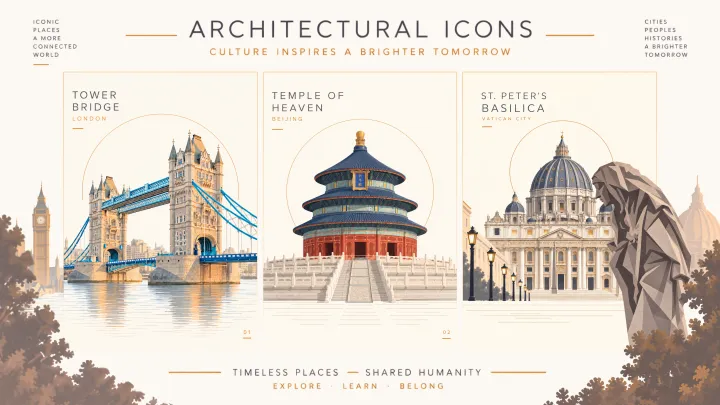 Landscapes Poster Turn a reference photo into a refined 3:4 architectural illustration poster with preserved landmark details.
 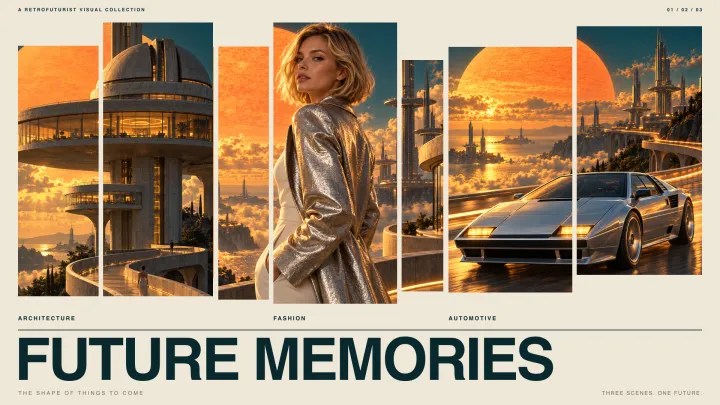 Vintage Poster Create a 3:4 retrofuturist poster with space-age towers, a giant orange sun, and vintage typography.
 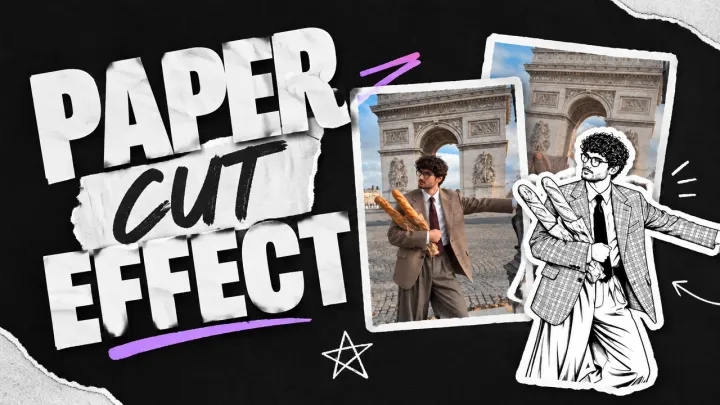 Paper Cut Effect Turn the main subject of an uploaded photo into a high-contrast black-and-white paper-cut sticker.
 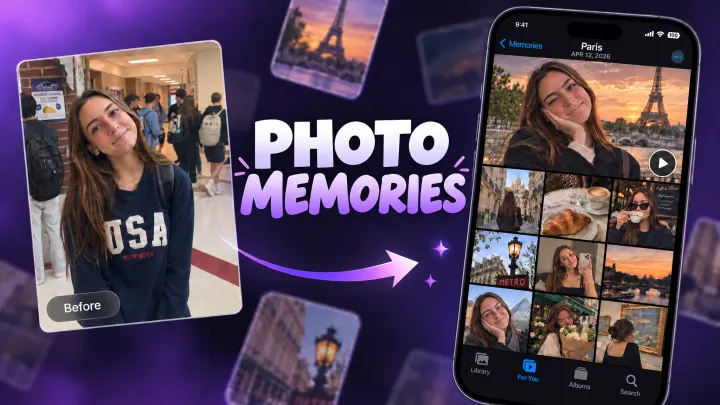 Photo Memories Turn one character reference into an authentic 9:16 iPhone Photos Memories page with a day of candid images.
 Image generation becomes difficult when one part of the brief must remain stable. Start from text or image references, review the result against the original brief, and refine the direction inside the same creative workspace.
| Creator Pressure | Model Workflow | Production Payoff |
|---|---|---|
| The product or person must stay recognizable | Add the strongest reference image and state which details must remain fixed. | The first result starts closer to the approved source. |
| One part of an existing image needs to change | Name the edit target and list the surrounding details to preserve. | The team can improve the weak area without discarding the whole composition. |
| A campaign needs several related visual assets | Keep the subject, layout rules, palette, and brand treatment consistent across versions. | Each variation can be reviewed as part of the same campaign system. |
| A still image will become a video | Design the frame with clear depth, a readable subject, and room for motion. | The approved image is easier to carry into image-to-video production. |
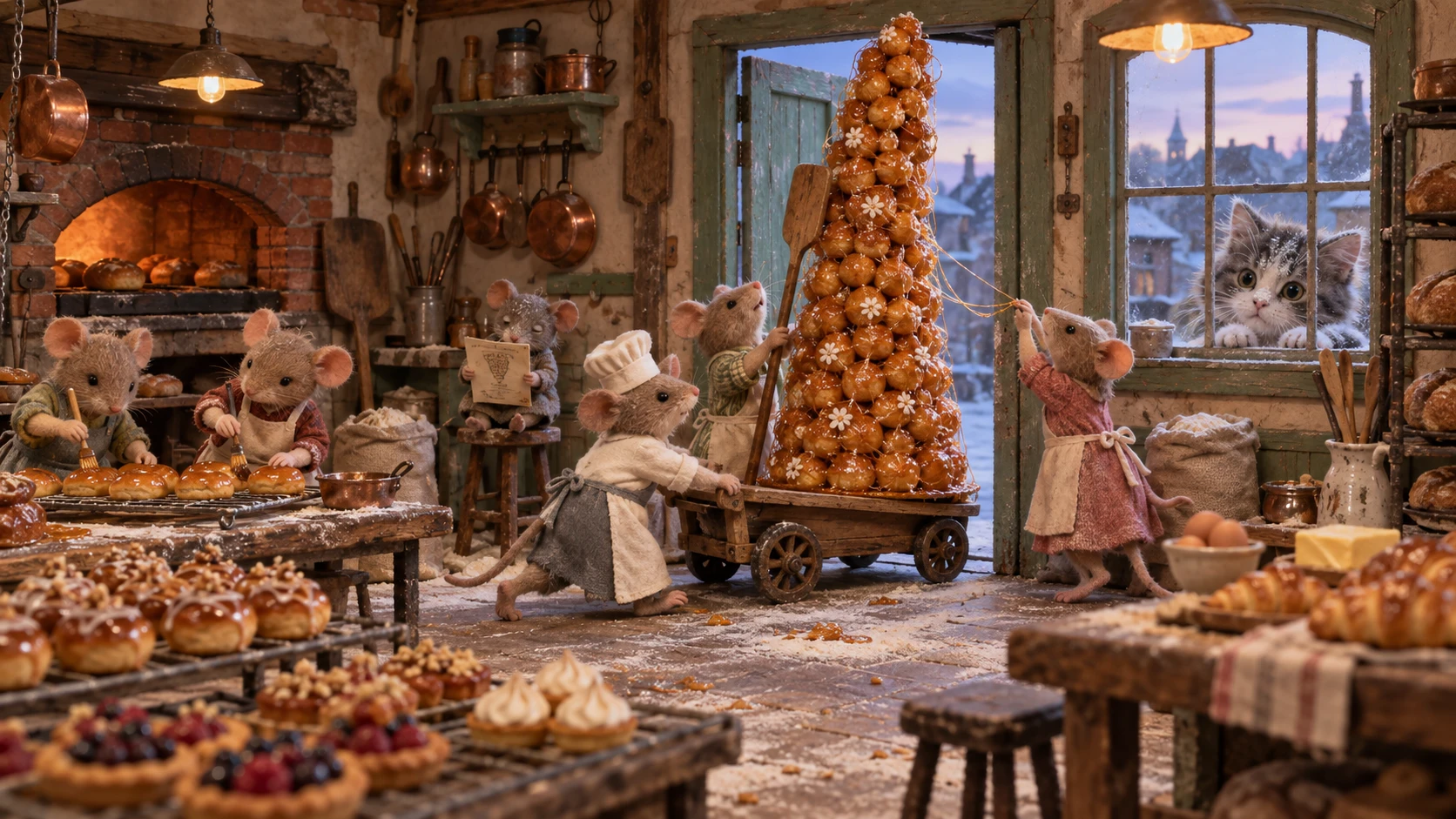
GPT Image 2.5 can turn a detailed scene brief into one complete visual world. In this bakery example, the mouse characters, pastries, tools, warm lighting, and old workshop support one clear story instead of looking like unrelated details.
This makes the image useful beyond a single still. Keep the strongest composition as a campaign visual, storyboard keyframe, or approved starting frame for motion, then refine only the details that need to change.
Treat the first generation as a production test with one visible objective. Make the constraints explicit and keep the first version narrow enough to evaluate.
Start from text for a written brief. Add an image when a product, person, character, environment, composition, or visual style should anchor the result.
State what each reference contributes. Separate the desired change from the preservation rules and remove references that do not affect a visible decision.
Choose size, orientation, and quality for the final channel. A product tile, social post, campaign banner, presentation visual, and video first frame need different layouts.
Create at least two versions with the same core intent. Keep the stronger result, then change one variable without rewriting the whole brief.
GPT Image 2.5 is OpenAI’s image generation and editing model family. It accepts text and image inputs and produces images inside a wider PixVerse image and video workflow.
Use text when the visual does not yet exist. Add references when the output must stay connected to a real person, product, character, place, composition, or approved design. State which features define the subject and which details may change.
Define the deliverable, destination, subject, environment, composition, lighting, materials, palette, exact text, and exclusions.
Preserve recognizable identity, packaging, color, proportion, texture, or other distinctive approval criteria.
Change one object, background, or line of copy while keeping the surrounding scene stable.
Direct visual hierarchy and text placement for posters, ads, presentations, and social creative.
Keep the core brief fixed while testing a crop, prop, background, material, palette, or light direction.
Design a readable subject, clear depth, and room for motion before continuing with Image to Video.
The output is most useful when it resolves one production decision—whether that decision is identity, composition, campaign consistency, client direction, or the first frame of a moving scene.
Turn a visual hook, thumbnail brief, product idea, or story moment into a direction that remains readable at social-feed size.
Test campaign layouts, headlines, product placement, seasonal treatments, backgrounds, and channel formats one variable at a time.
Develop packshots, lifestyle settings, comparison graphics, launch visuals, and video-ready frames from approved product references.
Compare composition, palette, setting, and typography while keeping the same product, identity rules, and client approval criteria.
Develop character references, environments, storyboard panels, props, key art, and first frames that resolve composition and direction.
Keep reference selection, prompt constraints, output purpose, review criteria, and the reason a version was approved visible in repeatable systems.
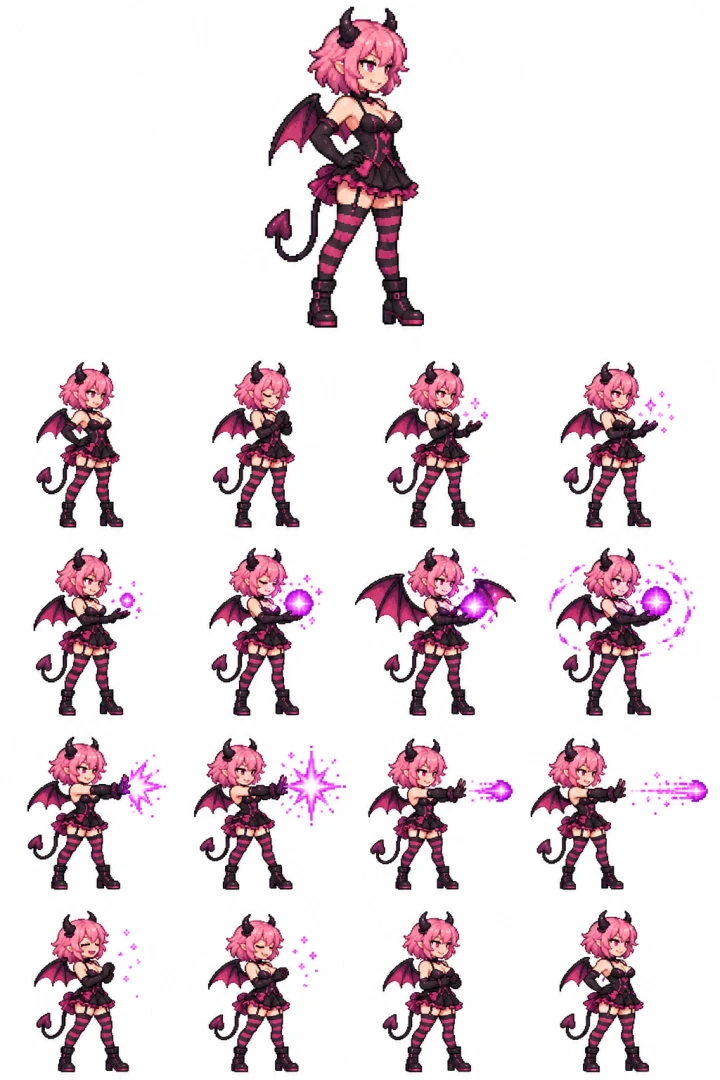
Use one structured prompt to generate a consistent character and a complete 16-frame spell-casting animation sequence.
Create a single white-background pixel-art character and animation sheet.

TOP SECTION — upper 30%:
One large, full-body static sprite of an original adult pink-haired devil heroine, facing right. Short fluffy pink bob, small black horns, bat wings, spade-tipped tail, black-and-magenta dress, striped stockings, boots and gloves. Mischievous expression, confident idle stance. Crisp anime game pixel art.

BOTTOM SECTION — lower 70%:
Exactly 16 smaller animation sprites arranged in a strict 4×4 grid, read left to right, top to bottom:
Idle → focus → hands lift → first sparks →
small orb → growing orb → wings flare → casting preparation →
hands thrust forward → starburst release → projectile → energy trail →
recoil → fading sparks → settle → idle.

All 16 sprites must depict the exact same character, costume, proportions and pixel scale. Keep a consistent body pivot and foot baseline within every cell. Magic effects must not shift the character’s placement. Frame 16 closely matches frame 1.

Keep every complete sprite, horn, wing, tail and spell effect inside the central 68% of its cell, with generous pure-white gutters. Violet-magenta pixel magic, with a compact projectile and starburst that never obscure the face. Separate the top portrait from the animation grid with a wide white gap.

Pure opaque white background. Hard pixel edges, limited palette, no blur. No grid lines, labels, numbers, text, watermark, enemies, cropped limbs or overlapping cells.
Choose the model according to the production priority, then judge whether the result reduces the corrections that matter to the workflow.
| Production priority | Start with | Review criterion |
|---|---|---|
| Faster everyday generation and iteration | GPT-Image-2.5 Flare | Does it meet the brief at the speed and quality the workflow needs? |
| Demanding generation or focused editing | GPT-Image-2.5 Sunburst | Does the stronger control reduce corrections on the important details? |
| Creating inside PixVerse | The GPT Image 2.5 option shown in the live app | Do the available controls and output meet the current project requirement? |
Check the live PixVerse model selector for the exact option, controls, access, and credit estimate available in your account.
Use a clear brief and explicit review criteria so each image answers a production question instead of serving as a vague aesthetic experiment.
Create hero images, campaign layouts, feature graphics, and launch concepts while keeping the product accurate, the visual priority clear, and space available for intended copy.
Move an approved product or look into new settings, seasons, colors, and compositions while preserving details that affect customer expectations.
Create feed images, thumbnails, posters, memes, and campaign variations around one message. Quote required text and keep it short enough to inspect.
Turn a written scene, sketch, character sheet, or environment reference into a frame that resolves composition and visual direction before motion production begins.
Make visual directions tangible enough to compare, annotate, and approve while prompts, references, and selected outputs stay connected.
Carry an approved still into PixVerse, add a focused motion prompt, and review whether the subject, layout, and important text remain stable as the scene moves.
Start with GPT Image 2 guides for prompts and model comparison, then carry the strongest still into a production-ready PixVerse video workflow.
Practical answers for creators planning a GPT Image 2.5 generation, editing, or image-to-video workflow.

PixVerse maintains an information security management system certified by DNV to ISO/IEC 27001, supporting a structured approach to protecting information across our operations.
Start with one deliverable, one visible priority, and one approval risk. Add only the references that clarify that decision, compare the first versions, and refine the image that gives the team the strongest direction.
Try GPT Image 2.5 on PixVerse