GPT Image 2 Prompt Guide: 80 Prompts, Review & API Tips (2026)
Explore 80 copy-ready GPT Image 2 prompts for ads, posters, products, characters, and video workflows, plus API notes and hands-on review results.
This is a GPT Image 2 prompt guide and hands-on review for creators who need usable prompts first: product ads, posters, thumbnails, characters, social images, UI mockups, edits, and video-ready first frames.
Use the quick paths below if you already know what you need:
- Copy prompts: see the 80 copy-ready GPT Image 2 prompt examples below.
- See test results: check the hands-on review scores and limitations.
- Turn images into video: follow the PixVerse image-to-video workflow.
GPT Image 2 is strongest when the image needs to behave like a designed asset: readable text, clean layouts, product compositions, UI mockups, infographics, editable references, and video-ready first frames. It is less reliable when the job depends on exact brand-logo reproduction, tiny compliance copy, proprietary fonts, or a transparent final asset that must ship without manual QA.
OpenAI introduced ChatGPT Images 2.0 on April 21, 2026. Creators often search for the same experience as GPT Image 2, gpt-image-2, or ChatGPT Images 2.0. We first tested it during launch week and reviewed this guide again on June 22, 2026 against OpenAI’s official prompting guide, API pricing page, and ChatGPT Images help documentation.
OpenAI has since announced ChatGPT Images 2.5 with faster generation, two API model choices, and a stronger focus on reference fidelity and precise editing. Read our GPT Image 2.5 review and prompt guide for the new features, launch-day community reactions, Flare vs Sunburst guidance, and scenario-based prompts.
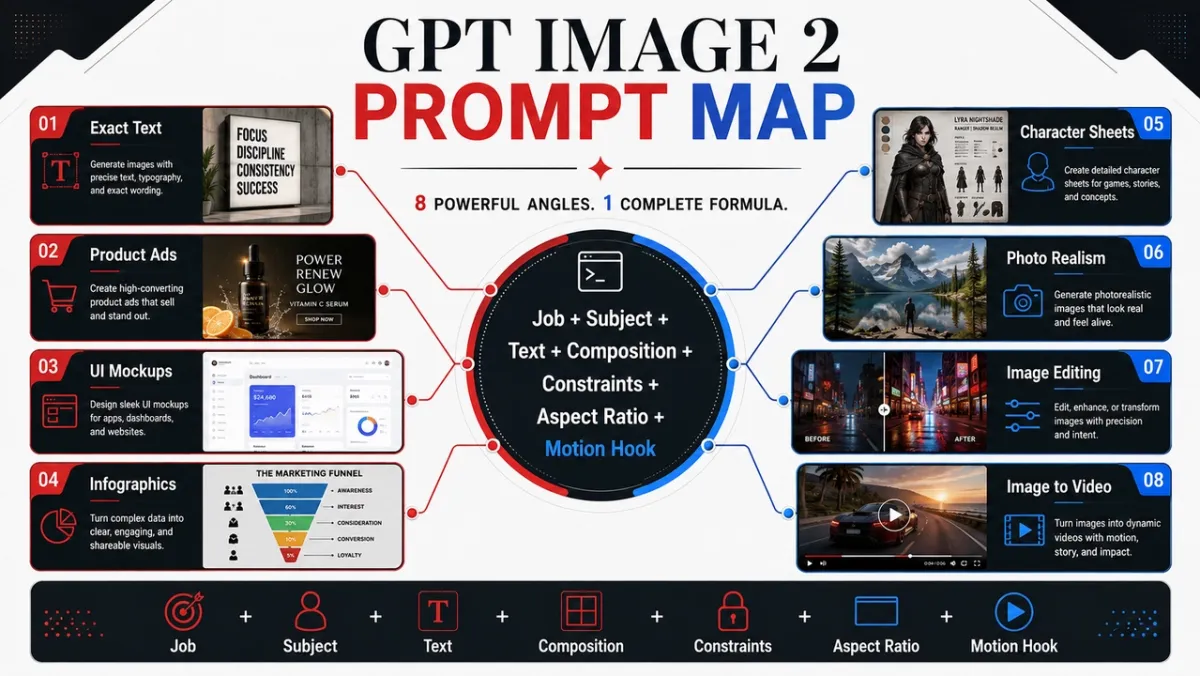
5 GPT Image 2 Prompts to Copy First
These five prompts cover the highest-value use cases in this guide. Each one follows the same format: use case, prompt, best for, and tip.
Prompt Example 1: Product Photography
Use case: Ecommerce product hero image
Prompt:
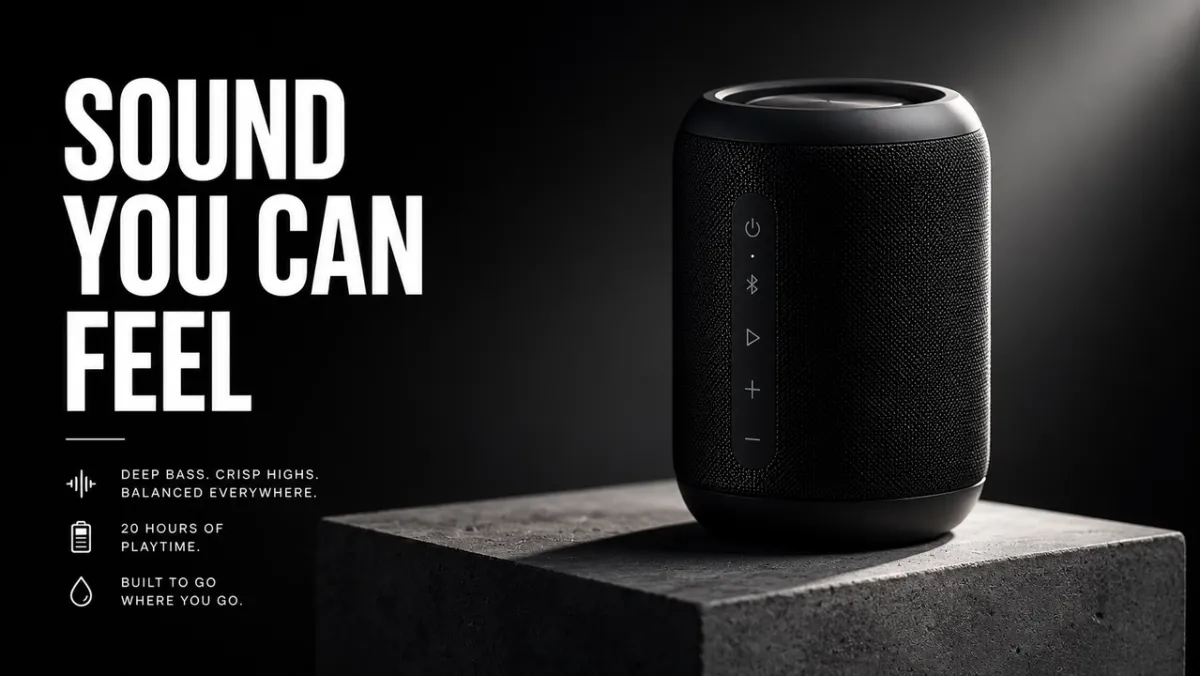
Create a premium ecommerce hero image for a matte black wireless speaker on a concrete plinth. The product sits on the right third with sharp edges, realistic material texture, clean contact shadow, and dramatic rim light. Leave the left third as negative space for a headline. No fake brand logo, no watermark, no extra objects. Aspect ratio 16:9.
Best for: Product listings, paid social ads, landing page hero images
Tip: If you provide a reference image, add “preserve the product shape, color, label, and proportions exactly.”
Prompt Example 2: AI Ad Creative
Use case: Campaign poster with exact text
Prompt:
Create a vertical product launch poster for a fictional design tool. Headline: “CREATE FASTER”. Subheadline: “FROM PROMPT TO CAMPAIGN”. Clean Swiss grid, off-white background, black typography, one electric blue accent shape, strong hierarchy, exact text only, no extra words, no watermark. Aspect ratio 9:16.
Best for: Ad concepts, poster tests, launch graphics, social campaign images
Tip: Keep headline text short and quote it exactly. Long text is harder to render cleanly.
Prompt Example 3: Character Consistency
Use case: Character reference sheet
Prompt:
Create a professional character reference sheet for an original sci-fi courier named “NOVA”. Include front, side, and back views; four facial expressions; jacket, boots, and backpack callouts; and a color palette row. Keep the same face, hairstyle, outfit, and proportions across every view. Clean white background, readable labels, concept art style. Aspect ratio 16:9.
Best for: Game characters, animation references, brand mascots, storyboards
Tip: Repeat the identity anchors in every regeneration: name, face, hairstyle, outfit, color palette, and role.
Prompt Example 4: Thumbnail or Social Image
Use case: YouTube thumbnail or social post
Prompt:
Create a bold YouTube thumbnail for a video about AI image prompting. Main text: “BETTER PROMPTS”. Show a split-screen before-and-after image result, with a messy prompt card on the left and a polished campaign visual on the right. High contrast, clear face-free composition, readable text, no fake logos, no extra words. Aspect ratio 16:9.
Best for: Thumbnails, social explainers, blog graphics, creator content
Tip: Tell the model exactly how many words should appear and where they should go.
Prompt Example 5: Image-to-Video First Frame
Use case: First frame for PixVerse image-to-video
Prompt:
Create a cinematic first frame for an image-to-video clip: a glass perfume bottle standing on wet black stone, a thin ribbon of mist behind it, strong foreground silhouette, visible depth layers, subtle reflection, empty space for camera movement, no hands, no text, no watermark. Aspect ratio 16:9.
Best for: Product reveals, short ads, music-video openings, cinematic social clips
Tip: Add one motion cue in the still image, such as mist, dust, steam, fabric, screen glow, or reflections.
Turn Your GPT Image 2 Still into a Video with PixVerse
If the still needs preparation before animation, PixVerse Mini Apps group focused workflows for image cleanup, frame expansion, and related production tasks.
A strong GPT Image 2 prompt can create the still image. PixVerse is the next step when that still needs motion, camera movement, or a short campaign clip.
- Generate a first frame with GPT Image 2.
- Upload the approved image to PixVerse.
- Add a focused motion prompt.
- Export a short video for testing, ads, social posts, or product pages.
For focused visual cleanup before animating, use the image region editor. Motion prompts to try:
- Use the image as the first frame. Slowly push the camera toward the product while mist drifts behind it. Preserve the product shape, label, lighting, and position.
- Use the image as the first frame. Add a gentle handheld camera move, fabric moving in the wind, and soft background parallax. Do not change the character’s face or outfit.
- Use the image as the first frame. Animate the city lights turning on one by one while the camera pans slightly left. Preserve all readable poster text.
- Use the image as the first frame. Rotate the product subtly on the plinth, add a moving rim light, and keep the background clean.
- Use the image as the first frame. Add steam, reflections, and a slow top-down camera drift. Preserve food shape, plate position, and color.
For deeper motion prompt structure, see the AI video prompt guide, the image-to-video tool guide, and the AI video ad generator workflow.
How to Write GPT Image 2 Prompts That Actually Work
The best GPT Image 2 prompts do not just describe a picture. They describe the job the picture needs to do. A prompt for a social ad should read differently from a prompt for a product cutout, an infographic, a UI screen, or a first frame for video.
A reliable starting pattern looks like this:
Create [type of image] for [use case].
Main subject: [specific subject and visible details].
Exact text, if any: “[copy that must appear]”.
Composition: [framing, layout, negative space, subject placement].
Style and lighting: [visual language, medium, mood, light direction].
Constraints: [what must not change, no extra words, no watermark].
Output format: [aspect ratio, transparent background, video-ready frame].
Formula:
Subject + visual style + composition + lighting + details + constraints + output use case
Skill 1: Name the Job Before the Style
Start with the output type: poster, product ad, app screen, character sheet, educational diagram, edit, or image-to-video first frame. GPT Image 2 is better at following the prompt when it understands the success standard.
Weak prompt:
A cool futuristic speaker, cinematic, high detail.
Better prompt:
Create a premium product ad for a matte black wireless speaker. The image should work as a 16:9 campaign banner, with the product on the right, a short headline on the left, clean negative space, and sharp product edges.
The second prompt tells the model how the image will be judged: not only by beauty, but by layout, hierarchy, and usability.
Skill 2: Treat Text Like a Locked Asset
If text matters, put it in quotation marks and tell the model how to render it. Do not ask for “a slogan” unless you want the model to invent words.
Use this pattern:
Headline: “SOUND YOU CAN FEEL”. Render the headline verbatim. No extra words, no duplicate text, no fake logo. Bold white sans-serif type, left side of the composition, readable from a distance.
For long copy, split the text into separate lines in the prompt. If the result misspells a word, regenerate with less text, larger type, and stricter “exact text only” language.
Skill 3: Give the Model a Camera and a Layout
GPT Image 2 can follow composition cues, but it needs them stated clearly. Add camera distance, angle, subject placement, negative space, and aspect ratio.
Useful phrases:
- Close-up for product texture, hands, faces, materials, labels.
- Wide shot for environments, story scenes, city posters, and video-ready frames.
- Top-down for food, desk scenes, flat-lays, packaging kits.
- Left third / right third for ad layouts with text and product balance.
- Clean grid for UI mockups, character sheets, diagrams, and infographics.
Skill 4: Write Edits in Three Sentences
Editing prompts work best when they separate the change, the locked elements, and the physical realism.
Replace the parked car with a vintage bicycle.
Preserve the house, fence, driveway, landscaping, lighting direction, camera angle, and time of day exactly.
Match the bicycle scale, contact shadow, and perspective to the existing scene.
That pattern is stronger than “make this look better” because it tells GPT Image 2 where creativity is allowed and where it is not.
Skill 5: Add Motion Cues When the Image Will Become Video
If the still image will become a PixVerse image-to-video source, prompt for depth and motion-readiness. Ask for foreground, midground, background, a clean subject silhouette, and one visible motion cue: dust, fabric, hair, rain, reflection, vehicle movement, rotating product, or a camera push path.
Instead of:
An astronaut in a desert.
Use:
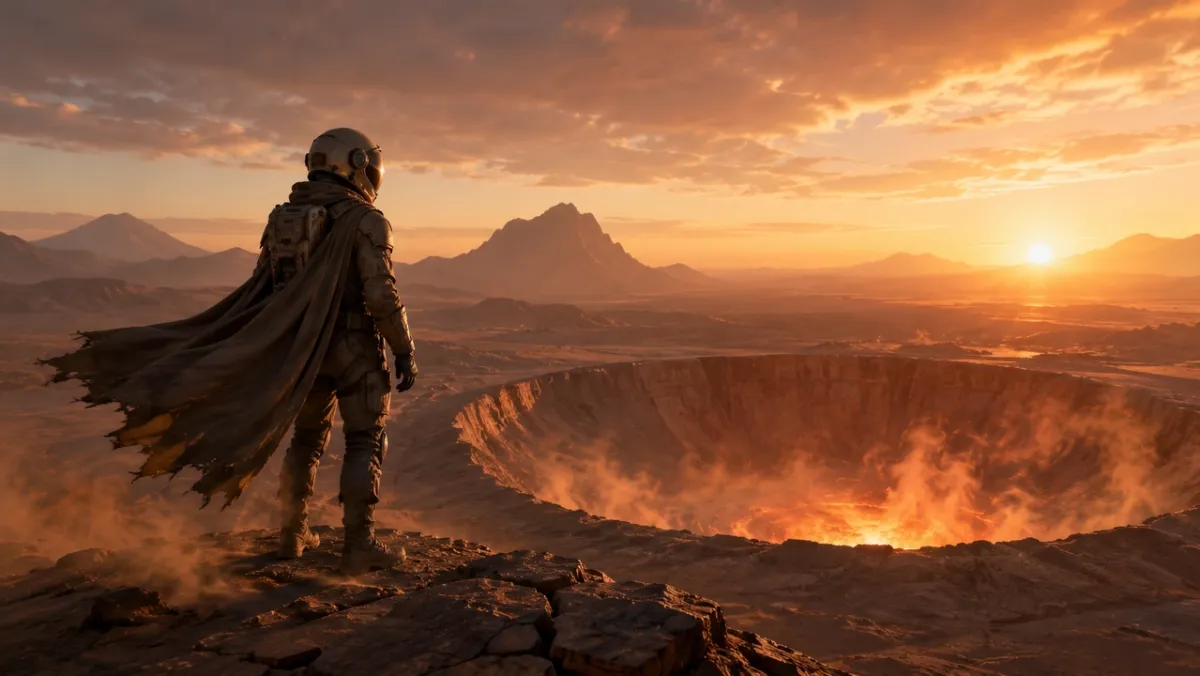
A cinematic first frame for an image-to-video clip: a lone astronaut standing at the edge of a glowing desert crater at dawn, cape and dust ready to move in the wind, strong foreground silhouette, clear depth layers, and warm horizon light.
GPT Image 2 Prompt Library: 80 Copy-Ready Examples
Each angle below includes ten prompts. The first prompt in each group is the best candidate for a visual example because it stresses the capability that angle is meant to demonstrate; the other prompts are text-only examples you can copy, adapt, and test.
| Prompt module | Prompt numbers | Best for |
|---|---|---|
| Product photography and AI ad creative prompts | 21-30 | Product listings, paid ads, ecommerce hero images, packaging mockups |
| Logo and text rendering prompts | 11-20 | Posters, menu boards, thumbnails, album covers, exact headline tests |
| Character consistency prompts | 41-50 | Character sheets, mascots, game assets, expression rows |
| Poster, thumbnail, and cinematic scene prompts | 1-10 | Hero imagery, editorial stills, atmospheric scenes, visual hooks |
| Social media image and infographic prompts | 31-40 | Blog visuals, explainers, comparison graphics, shareable educational assets |
| UI mockup prompts | 51-60 | App screens, dashboards, social profiles, product UI concepts |
| Style transfer and narrative art prompts | 61-70 | Comics, story panels, editorial art, concept exploration |
| Image-to-video first-frame prompts | 71-80 | PixVerse motion workflows, product reveals, edits, multi-reference source frames |
1. Poster, Thumbnail, and Cinematic Scene Prompts
This angle is best for portraits, editorial images, lifestyle scenes, and atmospheric stills where lighting and realism matter.
Prompt 1:
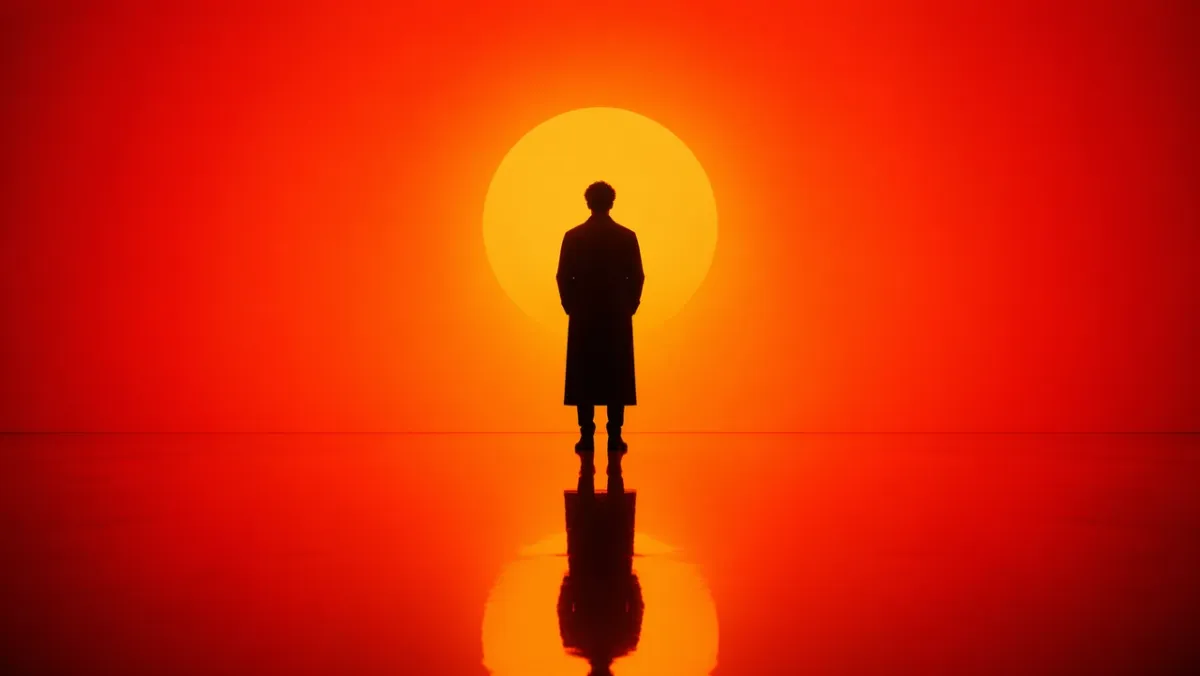
Generate a cinematic portrait of a solitary figure standing in an intense orange-to-red gradient environment. Strong silhouette lighting from behind, deep shadow contrast, reflective glossy floor mirroring the figure. Symmetrical composition, minimal set design, no background clutter. The mood is contemplative and powerful, like a still from a science-fiction film. Aspect ratio 16:9.
Prompt 2:
A candid photorealistic street scene in Seoul after rain. A florist closes a small shop at blue hour, wet pavement reflections, warm shop light, tired natural posture, 50mm documentary feel, realistic skin texture, no glamour pose, no watermark. Aspect ratio 3:2.
Prompt 3:
Close-up of weathered hands repairing an old film camera on a scratched wooden desk. Window light from camera-left, visible dust, brass and black leather texture, shallow depth of field, quiet workshop mood, photorealistic, no text overlay. Aspect ratio 4:3.
Prompt 4:
A quiet overnight train platform in northern Europe during light snow. One traveler in a long coat stands under a warm station lamp, breath visible in cold air, train windows glowing in the background, cinematic realism, restrained color palette, 35mm documentary feel, no text. Aspect ratio 16:9.
Prompt 5:
A top-down editorial food photograph of handmade noodles on a dark ceramic plate, steam rising, chopsticks resting at an angle, worn wooden table, soft side light, realistic oil sheen and texture, no branding, no text overlay. Aspect ratio 4:5.
Prompt 6:
A realistic documentary-style portrait of a ceramic artist trimming a clay bowl on a pottery wheel. Medium close-up, hands and spinning clay in sharp focus, apron with natural stains, soft workshop window light, shelves of unfinished bowls in the background, honest texture, no glamour retouching, no text. Aspect ratio 3:2.
Prompt 7:
A wide cinematic still of a small mountain town after a summer storm. Mist rises from dark green pine trees, warm lights appear in cottage windows, wet road reflections lead toward the center, one person walking with an umbrella in the distance, natural scale, realistic atmosphere, no text. Aspect ratio 16:9.
Prompt 8:
A close-up photorealistic shot of a vintage wristwatch resting on a folded linen cloth. Visible brushed metal, tiny scratches on the case, readable but fictional watch face markings, soft directional morning light, shallow depth of field, refined editorial product-photo mood, no real brand logos. Aspect ratio 4:5.
Prompt 9:
A candid indoor scene of a small architecture studio late at night. Two designers review foam models and printed floor plans under a desk lamp, coffee cups nearby, realistic shadows, practical workspace clutter, calm focused mood, 35mm film look, no text overlay. Aspect ratio 16:9.
Prompt 10:
A natural fashion editorial image of a model in a simple cream coat standing near a subway entrance at dusk. Streetlights beginning to glow, muted city background, realistic fabric folds, relaxed posture, eye-level framing, subtle film grain, no visible brand names, no text. Aspect ratio 2:3.
What to look for: The result should have believable light direction, physically plausible reflections or shadows, and a natural subject pose. If the image looks too polished, add more documentary details and remove vague quality language.
2. Logo and Text Rendering Prompts
GPT Image 2 is strongest when the prompt treats text as a design requirement, not decoration.
Prompt 11:
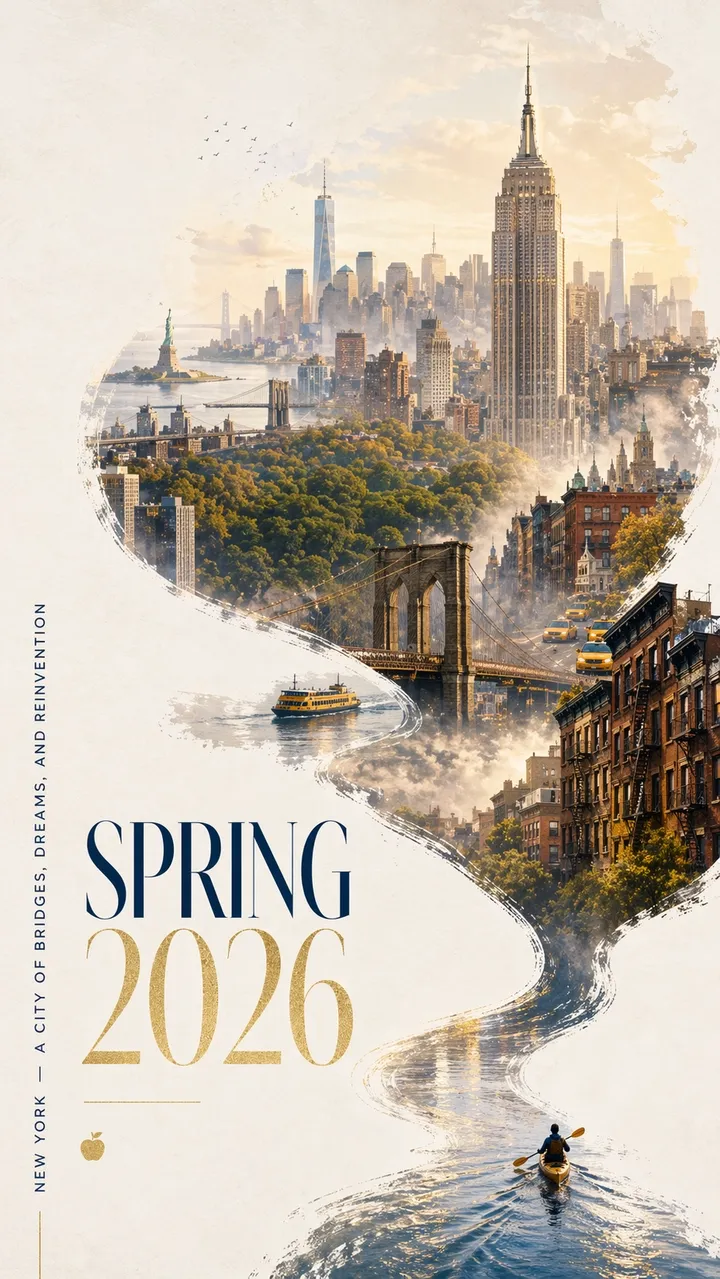
A striking Spring 2026 city poster for New York with a bold contemporary design and an elegant celebratory mood. Clean off-white textured background with generous negative space. A miniature kayaker paddles across a narrow ribbon of reflective water in the lower-right corner. The wake sweeps upward in a dynamic calligraphic curve, gradually transforming into the Hudson River and then into a dreamlike hand-painted panorama of Manhattan. Inside the flowing river-shaped composition: the Empire State Building, Brooklyn Bridge, Central Park canopy, One World Trade Center, brownstone rooftops, yellow cabs, harbor ferries, and the Statue of Liberty in soft distance. Soft morning fog, golden spring light, subtle accents in navy and gold. Elegant typography in the lower left reads “SPRING 2026” with a vertical slogan “NEW YORK - A CITY OF BRIDGES, DREAMS, AND REINVENTION”. Text must be sharp and beautifully composed. No extra words. Premium graphic design, aspect ratio 9:16.
Prompt 12:
Create a vertical launch poster for a fictional design conference called “FRAME 2026”. Large headline: “FRAME 2026”. Subtitle: “DESIGNING WITH MACHINE IMAGINATION”. Clean Swiss grid, off-white background, black typography, one red geometric accent, generous negative space, perfectly legible text, no extra words, no watermark. Aspect ratio 9:16.
Prompt 13:
Create a minimalist album cover titled “SOFT SIGNALS”. Artist name: “MIRA VALE”. Centered typography, muted blue paper texture, small silver line illustration of a radio tower, elegant spacing, no extra text, no logo, aspect ratio 1:1.
Prompt 14:
Create a bookstore window poster reading “READ MORE SLOWLY” in large serif type. Smaller line: “SPRING READING WEEK”. Warm evening street reflections in the glass, cream paper texture, readable typography, no extra words, no watermark. Aspect ratio 4:5.
Prompt 15:
Create a museum exhibition poster titled “OBJECTS OF TOMORROW”. Subtitle: “A DESIGN HISTORY OF 2026”. Black text on off-white paper, one abstract chrome object in the center, clean modernist layout, exact readable text only, no fake logos. Aspect ratio 9:16.
Prompt 16:
Create a vertical music festival poster with the exact headline “AFTERLIGHT SESSIONS”. Smaller text: “JUNE 12-14”. Use a deep navy background, one glowing circular stage light, elegant condensed sans-serif typography, balanced negative space, exact text only, no extra words, no watermark. Aspect ratio 9:16.
Prompt 17:
Create a clean cafe menu board titled “MORNING MENU”. Include exactly four items: “ESPRESSO”, “MATCHA LATTE”, “CARDAMOM BUN”, “COLD BREW”. Warm cream background, black serif type, simple divider lines, readable from a distance, no prices, no extra items. Aspect ratio 4:5.
Prompt 18:
Create a square social campaign graphic for a fictional running club. Main text: “RUN THE RIVER”. Secondary line: “SATURDAY 7 AM”. Bold kinetic typography, abstract river line, bright green and black palette, clear hierarchy, no extra text, no real logos. Aspect ratio 1:1.
Prompt 19:
Create a book cover for a fictional novel titled “THE QUIET MACHINE”. Author name: “ELENA ROWE”. Minimalist cover with a small silver mechanical bird silhouette, matte black background, refined typography, exact text only, no publisher logos, no extra copy. Aspect ratio 2:3.
Prompt 20:
Create a classroom poster titled “ASK BETTER QUESTIONS”. Include three short lines: “Observe”, “Explain”, “Test”. Friendly editorial design, soft yellow background, simple line icons, high contrast readable text, no extra words, no watermark. Aspect ratio 4:5.
What to look for: Every letter should be readable. If the model adds extra words, restate the copy as “exact text only” and put each line on its own line in the prompt.
3. Product Photography and AI Ad Creative Prompts
Use this angle for campaign visuals, hero shots, social ads, e-commerce mockups, and product storytelling.
Prompt 21:
A premium product ad for a matte black wireless speaker on a concrete plinth. Headline: “SOUND YOU CAN FEEL”. Product on the right, bold white type on the left, dramatic rim light, clean shadow, luxury tech campaign style, sharp product edges, no fake brand logo, no watermark. Aspect ratio 16:9.
Prompt 22:
Editorial skincare serum photo on frosted glass. A translucent bottle with a simple label reading “LUMA SERUM”, soft diffused light, pale green background, high-end beauty campaign style, label text sharp, clean reflection, no extra props, aspect ratio 4:5.
Prompt 23:
Square social ad for a durable travel bottle on a mountain trail at golden hour. Tagline: “BUILT FOR THE LONG WAY”. Product clearly visible in the foreground, natural hand grip, warm sunlight, crisp readable text in lower third, no extra words, aspect ratio 1:1.
Prompt 24:
A clean e-commerce product photo of wireless headphones on a pure white background. Straight-on angle, crisp silhouette, subtle contact shadow, visible ear cushion texture, no text, no logo, no props, high-resolution product photography. Aspect ratio 1:1.
Prompt 25:
A billboard-style campaign visual for a ceramic coffee cup. Headline: “MORNINGS, REHEATED”. Product large in the foreground, warm kitchen window light, soft steam, bold readable type in upper left, no extra copy, no watermark. Aspect ratio 16:9.
Prompt 26:
A premium ecommerce hero image of a minimalist hiking backpack on a stone ledge. Product centered, front pocket and straps visible, soft alpine morning light, clean shadow, no person, no logo, no text overlay, realistic nylon texture and zipper details. Aspect ratio 1:1.
Prompt 27:
A polished skincare campaign image for a frosted glass moisturizer jar. Headline: “CALM IN A JAR”. Product in lower right, pale blue background, soft water reflections, crisp label area with no fake brand, elegant white typography, no extra words. Aspect ratio 4:5.
Prompt 28:
A cinematic product photo of matte white wireless earbuds in an open charging case. Dark charcoal background, thin rim light, subtle reflection underneath, clean negative space for a campaign headline, no logo, no text, sharp product edges. Aspect ratio 16:9.
Prompt 29:
A square snack packaging mockup for a fictional granola brand called “NOVA OATS”. Show one pouch standing upright on a light wood surface, label text sharp, oats and dried fruit around the base, warm natural light, premium but approachable packaging design, no extra brands. Aspect ratio 1:1.
Prompt 30:
A luxury jewelry product shot of a silver ring with a small blue stone on a dark velvet surface. Macro detail, realistic metal reflections, soft spotlight from upper left, clean shadow, no hands, no text, no watermark, product clearly separated from background. Aspect ratio 4:5.
What to look for: The product should remain the visual hero. If the model invents too much packaging detail, specify “plain packaging” or “preserve the input product exactly” when using a reference image.
4. Social Media Image and Infographic Prompts
This angle is useful for diagrams, explainers, workflow maps, charts, classroom visuals, and blog illustrations that need readable labels.
Prompt 31:
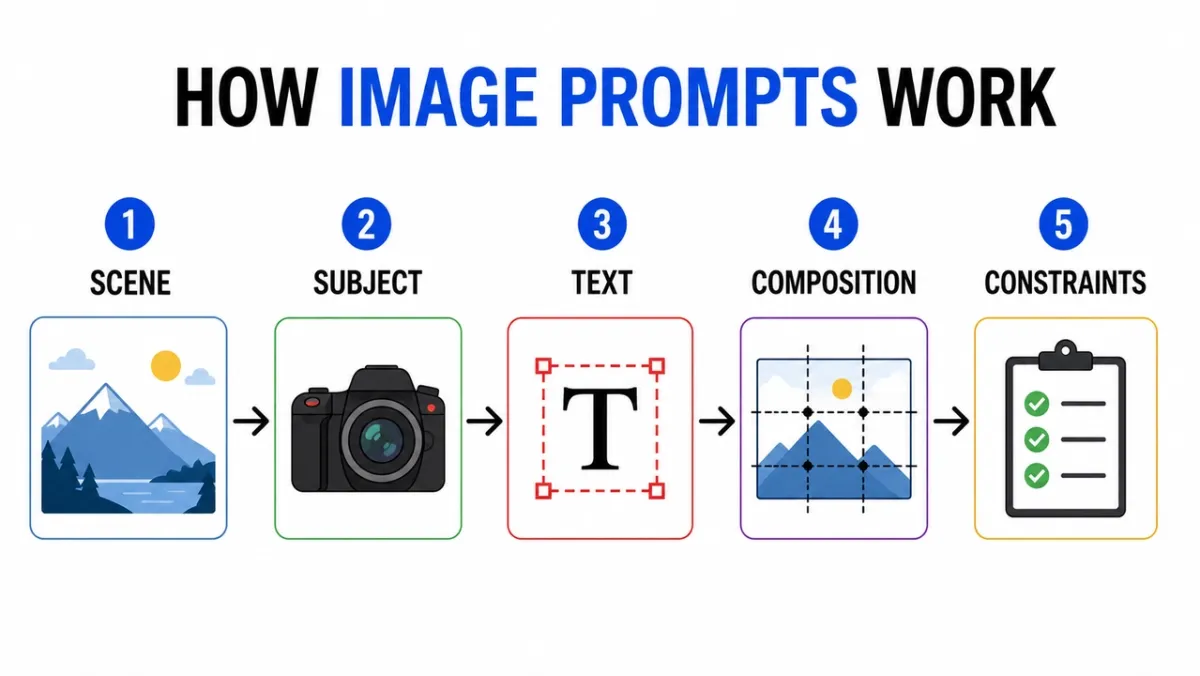
Create a clean infographic titled “HOW IMAGE PROMPTS WORK”. Five labeled steps: “Scene”, “Subject”, “Text”, “Composition”, “Constraints”. Flat editorial icons, arrows between steps, high contrast, white background, readable sans-serif labels, consistent spacing, no extra text, no watermark. Aspect ratio 16:9.
Prompt 32:
Educational diagram showing the layers of a camera lens. Include labeled parts: “Front Element”, “Aperture”, “Focus Group”, “Image Sensor”. Clean cutaway illustration, white background, textbook style, clear leader lines, readable labels, no decorative clutter. Aspect ratio 16:9.
Prompt 33:
Comparison infographic titled “POSTER PROMPT VS PRODUCT PROMPT”. Two columns, six rows, concise labels, neutral background, black text, blue accent lines, professional blog graphic style, all copy readable, no extra text. Aspect ratio 16:9.
Prompt 34:
Create a step-by-step instructional visual titled “HOW TO MAKE COLD BREW”. Five illustrated steps with short labels: “Grind”, “Steep”, “Filter”, “Pour”, “Serve”. Warm earth tones, clear arrows, consistent icon style, readable text, no extra words. Aspect ratio 16:9.
Prompt 35:
Create a clean comparison chart titled “AI IMAGE WORKFLOW”. Three columns: “Draft”, “Refine”, “Animate”. Use simple icons, short labels, high contrast, generous spacing, white background, professional blog graphic style, all text readable. Aspect ratio 16:9.
Prompt 36:
Create a clean timeline infographic titled “FROM PROMPT TO POSTER”. Five stages: “Brief”, “Layout”, “Text”, “Review”, “Export”. Horizontal flow, simple numbered circles, blue and black accent palette, high contrast labels, no extra text, no watermark. Aspect ratio 16:9.
Prompt 37:
Create an educational diagram titled “REFERENCE IMAGE ROLES”. Three labeled cards: “Subject”, “Style”, “Background”. Show simple image thumbnails, arrows into one final output frame, clear labels, white background, consistent spacing, no extra text. Aspect ratio 16:9.
Prompt 38:
Create a decision tree titled “WHICH IMAGE PROMPT?”. Branches: “Text”, “Product”, “Scene”, “Edit”. Use clean boxes and arrows, readable sans-serif typography, minimal gray background, one green accent color, no extra words, no decorative clutter. Aspect ratio 16:9.
Prompt 39:
Create a safety checklist infographic titled “BEFORE YOU GENERATE”. Four checks: “Rights”, “Privacy”, “Text”, “Brand”. Use simple check icons, concise labels, white background, professional SaaS help-center style, high contrast, no extra copy. Aspect ratio 4:5.
Prompt 40:
Create a visual explainer titled “IMAGE EDITING PROMPT”. Three stacked rows: “Change”, “Preserve”, “Match”. Include tiny example icons for each row, clean leader lines, readable labels, restrained colors, no extra text, no watermark. Aspect ratio 16:9.
What to look for: Check labels first. If the visual is beautiful but the words are wrong, the output is not usable. For dense charts, reduce the number of labels and regenerate.
5. Character Consistency Prompts
Character sheets are useful because they compress identity, wardrobe, palette, and expressions into one reference frame.
Prompt 41:
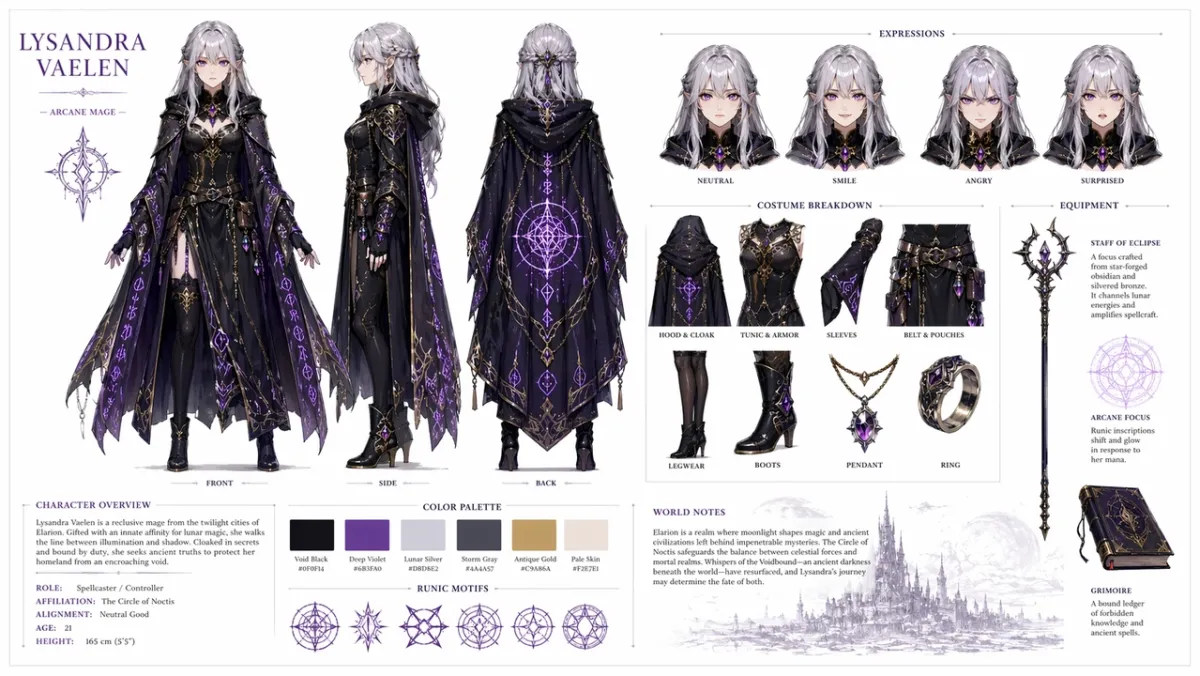
Create a professional character reference sheet for an original fantasy RPG character: a young female mage with silver hair and violet eyes, wearing an ornate dark cloak with glowing rune patterns. Include on a clean white background: a three-view turnaround showing front, side, and back; facial expression variations showing neutral, smiling, angry, and surprised; detailed breakdowns of costume and equipment pieces; a color palette swatch row; and brief world-building notes in clean typography. Organized grid layout, concept art style, high resolution. Aspect ratio 16:9.
Prompt 42:
Create a sci-fi courier character sheet for an original character named “NOVA”. Include front, side, and back views, four facial expressions, jacket and backpack callouts, color palette swatches, clean white background, readable labels, consistent face and jacket across all views. Aspect ratio 16:9.
Prompt 43:
Create a children’s book character sheet for a small forest helper in a green raincoat. Include expression row, prop row, walking pose, waving pose, color palette, simple readable notes, soft illustration style, no extra characters. Aspect ratio 16:9.
Prompt 44:
Create a cyberpunk detective character sheet for an original character named “REI”. Include front view, side view, back view, three expressions, trench coat callouts, device props, neon color palette, clean labels, consistent face and hairstyle. Aspect ratio 16:9.
Prompt 45:
Create a mascot reference sheet for a friendly robot baker. Include full-body pose, three facial display expressions, apron details, pastry props, color palette swatches, simple turnaround, clean white background, readable labels. Aspect ratio 16:9.
Prompt 46:
Create a mobile game character sheet for an original desert scout named “KAI”. Include front, side, and back views, three action poses, scarf and utility-belt callouts, color palette swatches, readable labels, consistent face and outfit, clean off-white background. Aspect ratio 16:9.
Prompt 47:
Create a cozy fantasy village merchant character sheet for an original character named “MARN”. Include full-body front view, side view, prop row with lantern and ledger, four expression studies, fabric texture callouts, warm color palette, clean grid layout, readable notes. Aspect ratio 16:9.
Prompt 48:
Create a sci-fi maintenance drone design sheet. Include top, side, and front views, small detail panels for sensors, landing feet, tool arm, battery pack, and warning lights. Clean technical concept-art layout, neutral background, readable labels, consistent industrial design. Aspect ratio 16:9.
Prompt 49:
Create a children’s animation character sheet for an original classroom inventor named “MILO”. Include one standing pose, one thinking pose, one excited pose, expression row, backpack and notebook props, bright but restrained palette, readable labels, no extra characters. Aspect ratio 16:9.
Prompt 50:
Create a tactical costume reference sheet for an original cyberpunk courier. Include front, back, and side views, jacket callouts, shoe detail, messenger bag detail, color swatches, three silhouette poses, crisp label text, consistent hairstyle and face across views. Aspect ratio 16:9.
What to look for: The same face, costume, and color palette should survive across views. If the side view changes the outfit, regenerate with stronger “preserve” language.
6. UI Mockup and Social Screenshot Prompts
This angle works when you need a realistic app concept, dashboard, social profile, or product UI that looks structured enough to discuss with a team.
Prompt 51:
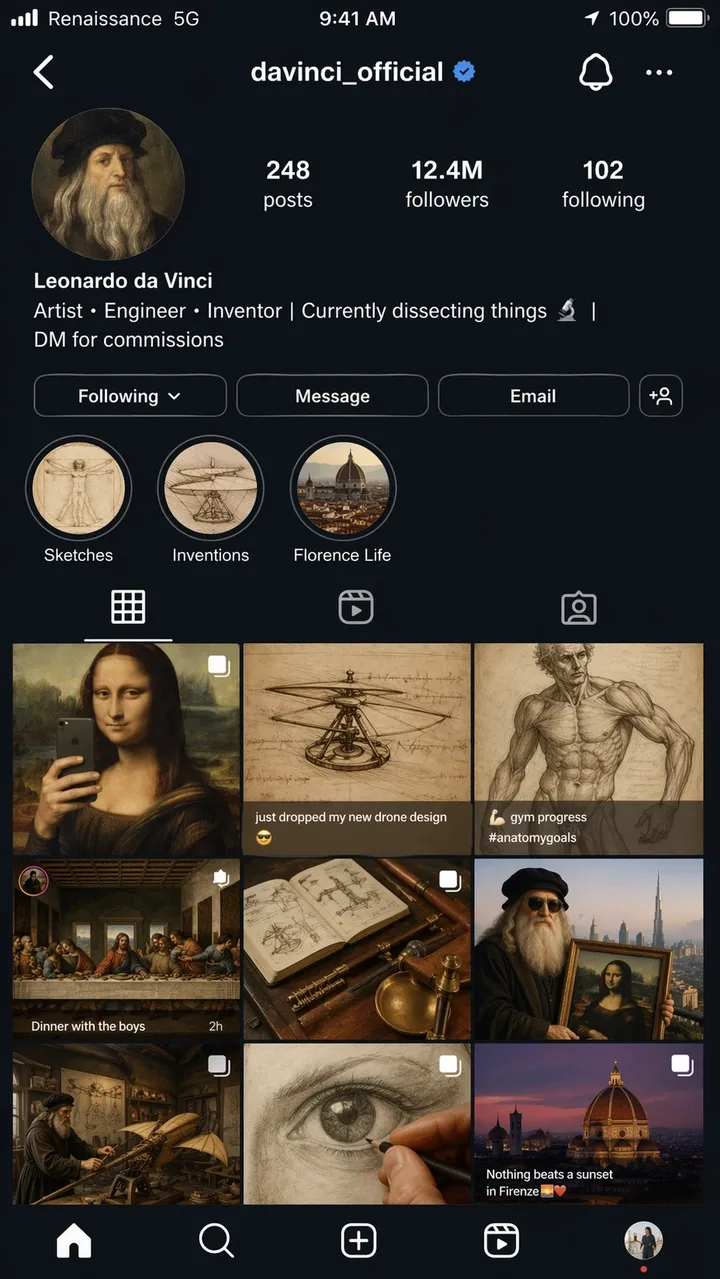
A hyper-realistic iPhone screenshot of a fictional Instagram profile page for Leonardo da Vinci, username @davinci_official, as if he were a modern influencer in 2026. Profile photo is a Renaissance self-portrait in a circle crop. Bio reads: “Artist, Engineer, Inventor | Currently dissecting things | DM for commissions”. The grid shows 9 posts: the Mona Lisa reframed as a mirror selfie, a helicopter sketch captioned “just dropped my new drone design”, an anatomy study posted as a gym progress photo, The Last Supper staged as a dinner party group shot, and other creative anachronistic mashups. Follower count: 12.4M. Story highlights labeled Sketches, Inventions, and Florence Life. Complete iOS status bar with carrier text reading “Renaissance 5G”, battery icon, and current time. Dark mode UI throughout. Photorealistic screenshot quality, aspect ratio 9:16.
Prompt 52:
A realistic mobile onboarding screen for a fictional habit app called “LUMA”. Headline: “BUILD BETTER DAYS”. Buttons: “Start now” and “View demo”. Clean iOS-style layout, soft white background, blue accent, readable UI text, shown straight-on inside a phone frame. Aspect ratio 9:16.
Prompt 53:
Desktop SaaS dashboard for an e-commerce analytics tool. Left sidebar, top KPI cards for Revenue, Orders, Conversion Rate, a line chart, and a top-products table. Clean white interface, realistic spacing, readable labels, no real brand names. Aspect ratio 16:9.
Prompt 54:
A realistic mobile weather app screen for a fictional app called “SKYLINE”. Current city: “Lisbon”. Headline temperature: “22C”. Cards for Wind, Humidity, UV, and Sunset. Calm blue interface, readable labels, iPhone frame, no real app branding. Aspect ratio 9:16.
Prompt 55:
A restaurant booking app screen showing a reservation confirmation. Restaurant name: “North Table”. Date: “June 18”. Time: “7:30 PM”. Party size: “4 guests”. Warm editorial food photo at top, clean CTA button reading “Add to calendar”, readable UI text. Aspect ratio 9:16.
Prompt 56:
A realistic desktop analytics dashboard for a fictional creator studio. Left navigation, top cards for Views, Watch Time, Revenue, and New Followers, a line chart, and a campaign table. Clean white UI, blue accent, readable labels, practical spacing, no real brand names. Aspect ratio 16:9.
Prompt 57:
A mobile checkout screen for a fictional outdoor gear shop called “TrailCart”. Show product thumbnail, quantity stepper, shipping address card, discount field, total price, and a CTA button reading “Place order”. Modern iOS style, readable UI text, no real logos. Aspect ratio 9:16.
Prompt 58:
A tablet UI mockup for a prompt library app. Show tabs labeled “Posters”, “Products”, “UI”, and “Edits”. Main panel includes three prompt cards with short preview text, copy buttons, and category chips. Clean interface, high legibility, no real brand names. Aspect ratio 4:3.
Prompt 59:
A SaaS settings screen for a fictional AI image tool. Sections labeled “Model”, “Quality”, “Aspect Ratio”, “Reference Images”, and “Safety”. Use toggles, dropdowns, sliders, and a clear Save button. Quiet professional UI, readable labels, no decorative clutter. Aspect ratio 16:9.
Prompt 60:
A mobile travel itinerary app screen for a fictional trip to Kyoto. Header reads “Kyoto Weekend”. Cards for “Day 1”, “Day 2”, “Temple Walk”, and “Dinner”. Soft neutral UI, realistic spacing, small map preview, readable text, no real app branding. Aspect ratio 9:16.
What to look for: The layout should feel like a real interface, not a decorative poster. Check navigation labels, button text, icon spacing, and whether the screen hierarchy is usable.
7. Style Transfer and Narrative Art Prompts
Short narrative prompts test whether GPT Image 2 can reason through visual jokes, multi-panel storytelling, and small text inside a scene.
Prompt 61:
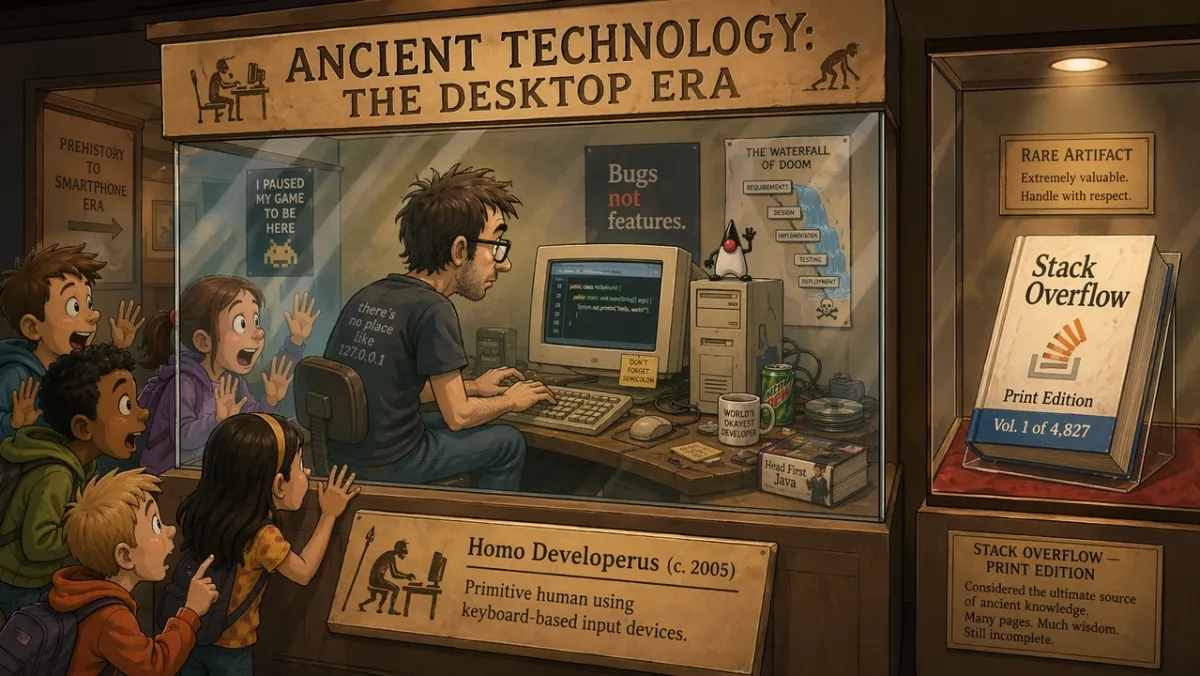
Inside a museum exhibit titled “Ancient Technology: The Desktop Era”, a programmer in a glass display case is live-demonstrating coding on a CRT monitor while amazed schoolchildren press their faces against the glass. The exhibit placard reads: “Homo Developerus (c. 2005) - Primitive human using keyboard-based input devices.” A second display case nearby shows a physical book labeled “Stack Overflow - Print Edition, Vol. 1 of 4,827”. 2D cartoon illustration style, warm museum lighting, humorous and nostalgic tone. Aspect ratio 16:9.
Prompt 62:
A four-panel comic strip titled “MORNING ROUTINE”. Panel 1: alarm goes off. Panel 2: character makes coffee. Panel 3: character sits down to work. Panel 4: character is already asleep at the desk. Warm minimal illustration style, expressive character, readable title, no extra text. Aspect ratio 16:9.
Prompt 63:
A single editorial illustration for an article about creative automation. A designer and an AI assistant arrange paper storyboards on a large table, soft studio light, subtle humor, modern magazine illustration style, no visible brand logos, no text. Aspect ratio 3:2.
Prompt 64:
A newspaper front-page style illustration titled “THE MORNING HERALD”. Main headline: “CITY APPROVES ROOFTOP GARDENS”. Two-column layout, one photorealistic city council photo area, classic broadsheet design, readable masthead and headline, no extra article text. Aspect ratio 4:5.
Prompt 65:
A two-panel comic about a robot learning to paint. Panel 1: the robot carefully studies a blank canvas. Panel 2: the robot proudly shows a messy but charming painting. Warm studio lighting, expressive body language, no speech bubbles, simple title: “FIRST ATTEMPT”. Aspect ratio 16:9.
Prompt 66:
A three-panel editorial comic titled “THE DEADLINE”. Panel 1: a designer calmly opens a blank file. Panel 2: the clock jumps forward and sticky notes cover the desk. Panel 3: the designer presents a polished poster with surprised relief. Minimal expressive illustration style, readable title, no speech bubbles. Aspect ratio 16:9.
Prompt 67:
A surreal magazine illustration about creative focus: a person sits at a small desk floating in a quiet library of glowing windows, each window showing a different unfinished idea. Soft cinematic lighting, thoughtful mood, clean composition, no visible brand logos, no text. Aspect ratio 3:2.
Prompt 68:
A four-panel storyboard for a product launch teaser. Panel 1: closed box on a table. Panel 2: light leaking from the box. Panel 3: hands lifting the lid. Panel 4: glowing product silhouette revealed. No readable brand, no dialogue, cinematic lighting, clear panel borders. Aspect ratio 16:9.
Prompt 69:
A humorous museum diorama titled “THE FIRST GROUP CHAT”. Show ancient-looking figures gathered around stone tablets with message bubbles carved above them, warm museum lighting, playful editorial illustration, readable title only, no extra text. Aspect ratio 16:9.
Prompt 70:
A split-screen narrative poster showing “before” and “after” creative iteration. Left side: messy sketch wall and rough notes. Right side: clean polished campaign board. Modern editorial illustration, strong contrast, no logos, no extra words beyond “BEFORE” and “AFTER”. Aspect ratio 16:9.
What to look for: The scene should communicate the idea visually. If the joke depends entirely on text, simplify the setup and make the physical action clearer.
8. Image-to-Video First-Frame Prompts and Reference Edits
This angle is where GPT Image 2 becomes more than a first-pass generator. It is useful for product cutouts, outfit swaps, background changes, reference-based edits, and still frames designed for motion.
Prompt 71:
Create a cinematic first frame for an image-to-video clip: a lone astronaut standing at the edge of a glowing desert crater at dawn, cape and dust ready to move in the wind, strong foreground silhouette, clear depth layers, warm horizon light, no text, no watermark. Aspect ratio 16:9.
Prompt 72:
Use Image 1 as the product photo and Image 2 as the background style reference. Place the product into the scene from Image 2. Preserve the product shape, label text, proportions, color, and material exactly. Match lighting, scale, shadow, and perspective. Do not restyle the product. No extra logos or watermark.
Prompt 73:
Remove the background from the input product image. Output a transparent background with crisp silhouette, clean edges, no halos, no fringing. Preserve bottle geometry, cap shape, label text, label colors, and print sharpness exactly. Do not change proportions.
Prompt 74:
Change only the weather and lighting in the input image. Make the scene look like a winter evening with light snowfall. Preserve the people, buildings, signs, camera angle, object placement, and composition exactly. Keep all readable text unchanged.
Prompt 75:
Image 1 is the person to preserve. Image 2 is the jacket reference. Image 3 is the boots reference. Dress the person from Image 1 using the clothing from Images 2 and 3. Preserve face, body shape, pose, hands, background, camera angle, and lighting exactly. Replace only the clothing.
Prompt 76:
Use the input product photo as the locked subject. Place the product on a clean marble bathroom counter with soft morning window light. Preserve product shape, label text, cap color, proportions, and material exactly. Match contact shadow, scale, and perspective. Do not add extra labels, logos, or props.
Prompt 77:
Create a cinematic first frame for an image-to-video clip: a glass perfume bottle standing on wet black stone as a thin ribbon of mist moves behind it. Product centered, strong silhouette, clear foreground and background depth, no hands, no text, no watermark. Aspect ratio 16:9.
Prompt 78:
Edit the input portrait by changing only the background to a clean editorial studio backdrop in warm gray. Preserve the face, hair, clothing, pose, skin tone, camera angle, lighting direction, and expression exactly. Match the new background shadow and depth naturally.
Prompt 79:
Use Image 1 as the room photo and Image 2 as the wall-art reference. Add the artwork from Image 2 to the empty wall in Image 1. Preserve furniture, floor, window light, camera angle, color balance, and room layout exactly. Match frame scale, perspective, and wall shadow.
Prompt 80:
Create a video-ready first frame for a product reveal: a closed matte black box on a table, thin blue light leaking from the seam, dust particles visible in the beam, camera positioned low and close, strong depth layers, empty space for motion, no text, no logo. Aspect ratio 16:9.
What to look for: For edits, the output is successful only if the locked details stay locked. For video-ready frames, check subject separation, foreground/background depth, and whether the scene gives PixVerse room for motion.
GPT Image 2 Review: Test Results and Scores
Tested and updated: June 23, 2026.
This review section is intentionally after the prompt library because most readers landing on this page need examples first. The review still matters: GPT Image 2 is useful when text, structure, and instruction following are more important than loose visual exploration.
| Review dimension | Score (1-5) | What we saw in hands-on tests |
|---|---|---|
| Text accuracy | 4 | Large headlines, short labels, poster titles, menu items, infographic steps, and simple UI labels were easier to control when the exact copy was quoted. Tiny legal copy and dense paragraphs still need careful review. |
| Character consistency | 3 | Character sheets, expression rows, costume callouts, and palette swatches were useful as references, but faces, proportions, and costume details can drift across side and back views. |
| Style control | 4 | The model followed broad visual direction well when the prompt named the use case, layout, medium, lighting, and constraints instead of only stacking style keywords. |
| Product realism | 4 | Product-ad layouts, campaign negative space, clean surfaces, and product-first compositions were strong, but real labels, logos, packaging geometry, and regulated claims still need manual QA. |
| Editing ability | 3 | The “change, preserve, match” pattern worked better than broad edit requests, but selection boundaries, transparent-background output, and exact product preservation still need review. |
| Search question | Practical answer |
|---|---|
| Best for | Exact-text posters, product ad concepts, UI mockups, infographics, character sheets, reference edits, and first frames for image-to-video. |
| Main limitations | Tiny text, exact brand marks, proprietary fonts, legal copy, complex transparent-background deliverables, and locked product labels still need review. |
| API availability | Use OpenAI’s gpt-image-2 API route for developer workflows. ChatGPT Images 2.0 access and API billing are separate paths. |
| API notes | As of June 22, 2026, OpenAI lists GPT-Image-2 token pricing for image input, cached image input, image output, text input, and cached text input. |
| Video workflow | Prompt for clean subject edges, depth layers, and one motion cue if the image may become an image-to-video source later. |
| Alternatives to compare | Use Nano Banana 2 for fast photorealistic tests, Midjourney for stylized exploration, and PixVerse when the approved still needs to become a video asset. |
How We Tested GPT Image 2
We tested GPT Image 2 across portraits, text-heavy posters, product-style compositions, character sheets, UI mockups, and experimental narrative scenes. The goal was not to produce benchmark-grade scores; it was to see whether a designer, marketer, or creator could use the output with light edits instead of rebuilding the asset from scratch.
| Test area | Sample prompts | What we checked |
|---|---|---|
| Portraits and cinematic stills | 12 | Lighting control, skin texture, reflections, mood, and scene consistency. |
| Poster and typography layouts | 14 | Headline spelling, multi-line text, hierarchy, negative space, and brand-like polish. |
| Character and concept sheets | 9 | Multi-view consistency, costume details, palette alignment, and label accuracy. |
| UI and social mockups | 8 | Layout realism, small text, icon spacing, feed grids, and screenshot believability. |
| Experimental prompts | 10+ | Humor, narrative reasoning, object placement, and small-caption accuracy. |
The pattern was clear: GPT Image 2 rewards precise briefs more than keyword chains. When the prompt names a job and defines success, the model tends to preserve structure. When the prompt asks for a beautiful image without constraints, the result can still look polished, but it is harder to reuse.
Review Results by Use Case
| Use case | What worked well | What still needs review |
|---|---|---|
| Text rendering | Large headlines, short labels, poster titles, menu items, infographic steps, and simple UI labels were easier to control when the exact copy was quoted. | Tiny legal copy, dense paragraphs, stylized fonts, and repeated words can still drift. Keep copy short and check every letter. |
| Product images | GPT Image 2 handled product-ad layouts, campaign negative space, clean surfaces, and product-first compositions well. | Real labels, logos, packaging geometry, and regulated claims should be checked manually or composited from approved assets. |
| UI mockups | Mobile screens, dashboards, cards, buttons, menus, and app-like hierarchy looked plausible when the prompt named real interface elements. | Treat outputs as concept mockups, not production UI. Small labels, icon alignment, and exact data often need cleanup. |
| Character consistency | Character sheets, expression rows, costume callouts, and palette swatches were useful as creative references. | Faces, costume details, and proportions may change across views. Repeat identity anchors and regenerate if side or back views drift. |
| Image-to-video first frames | Wide frames with foreground, midground, background, and one motion cue gave PixVerse more usable source material. | Overcrowded images, heavy text, and ambiguous motion cues make later video generation harder. |
| Editing and compositing | The “change, preserve, match” prompt pattern worked better than broad edit requests. | Selection boundaries, transparent-background output, exact product preservation, and fine detail still require QA. |
For model comparison, the useful distinction is not brand versus brand. GPT Image 2 behaves more like a structured design assistant for communication-heavy images. Midjourney remains useful for stylized exploration and art-direction breadth. Nano Banana 2 is a strong comparison point for photorealism, material detail, and fast visual iteration. PixVerse is the next workflow layer when the still image has to become a clip, ad, product reveal, or story shot.
Common GPT Image 2 Prompting Mistakes
- Asking for accuracy without giving exact copy. If the image needs text, write the text exactly and say where it should appear.
- Overloading one prompt with every possible detail. Start with the core scene, then refine one variable at a time.
- Forgetting invariants during edits. Tell the model what must stay unchanged: identity, background, pose, lighting, product shape, label text, or camera angle.
- Using decorative quality words for functional tasks. “Beautiful” does not make a label readable. Use phrases like “sharp label text”, “clean kerning”, and “readable from a distance”.
- Skipping aspect ratio. A good square image may fail as a vertical ad or video thumbnail.
- Treating logos like generic text. GPT Image 2 can design logo concepts, but exact brand marks should usually be composited from approved brand assets.
GPT Image 2 API and Pricing Notes
OpenAI’s API pricing page lists GPT-Image-2 with token-based pricing. As of June 22, 2026, the listed rates are:
| Item | Listed price |
|---|---|
| Image input | $8.00 / 1M tokens |
| Cached image input | $2.00 / 1M tokens |
| Image output | $30.00 / 1M tokens |
| Text input | $5.00 / 1M tokens |
| Cached text input | $1.25 / 1M tokens |
Actual generation cost depends on prompt length, reference images, output size, caching, quality, and the access path you use. If you are using ChatGPT rather than the API, plan limits and quotas are separate from API token pricing. OpenAI’s GPT Image Generation Models Prompting Guide is also worth reading if you are building a repeatable app or batch workflow.
To expand the image frame or background first, use magic extend. That distinction matters for searchers asking whether GPT Image 2 is free or how much the GPT Image 2 API costs. ChatGPT Images 2.0 availability, ChatGPT plan quotas, OpenAI API billing, and PixVerse credits are separate commercial paths. For high-volume work, compare cost per accepted asset after retries, not only the listed price of one generation attempt.
| Workflow choice | Practical prompt and settings advice |
|---|---|
| Text-heavy posters or diagrams | Use fewer words per image, quote exact copy, specify hierarchy, and use a higher quality setting when budget allows. |
| Product photos | Lock the product shape, label, color, material, and camera angle. If using references, repeat the preserve list on every edit. |
| UI mockups | Describe the screen as a shipped interface: navigation, cards, buttons, states, labels, and spacing. Avoid concept-art language. |
| Multi-reference edits | Label each image by role: subject, style, background, outfit, product, or material reference. |
| Batch generation | Compare cost per accepted image, not only cost per attempt. A cheaper run is not cheaper if it needs many retries. |
| PixVerse production | Generate or import the still image, then use image-to-video when the asset needs motion, camera movement, or campaign variants. |
For teams deciding whether to use an API-first image workflow or a creator workflow, the practical question is not only “Can GPT Image 2 make the still image?” It is also “What happens after the still image is approved?” If you want to compare first-pass image quality, see our GPT Image 2 vs Nano Banana 2 same-prompt test. If you need automated generation from a terminal or AI agent workflow, the PixVerse CLI guide covers image and video generation from command-line pipelines.
Detailed PixVerse Image-to-Video Workflow
Once the GPT Image 2 image is approved, you can treat it as a first frame for video. The important part is to prepare the still before you animate it. A video model will not magically fix misspelled poster text, a warped product label, or a UI mockup that already looks wrong.
1. Generate the still as a first frame
If you know the image may become a clip, add motion-readiness to the image prompt. Ask for clear subject edges, foreground and background depth, a camera path, and one physical cue that can move: fabric, dust, steam, rain, hair, screen glow, product reflection, or a shifting light source.
Instead of prompting only for a product poster, prompt for a product poster that can become a video opening frame:
Create a 16:9 campaign first frame for a matte black speaker on a concrete plinth.
Keep the speaker sharp on the right side with clean negative space on the left.
Add soft dust in the light beam and a subtle blue LED glow that could animate later.
No extra text, no fake logo, no watermark.
2. Review the image before adding motion
Check the still image like a final design file. Look at spelling, product geometry, labels, hands, faces, UI alignment, claims, and rights-sensitive elements. If the source image fails any of those checks, regenerate or edit the still before moving to video.
3. Write a separate motion prompt
The video prompt should not repeat the whole image prompt. It should describe what moves and what stays locked.
Use the image as the first frame.
The camera slowly pushes in toward the speaker.
The blue LED turns on, dust moves through the light beam, and the background reflection shifts slightly.
Preserve the speaker shape, material, position, and all visible design details.
Do not add new text, logos, hands, or extra products.
4. Animate only after the still works
If you are using PixVerse, you can generate GPT Image 2 images in the app or import a finished image, then use image-to-video to add motion. Use image-to-video for direct motion from a still, PixVerse V6 for broader 15-second creative workflows, and C1 when the shot needs more cinematic reference control.
To plan a connected sequence from one image, try director shots.
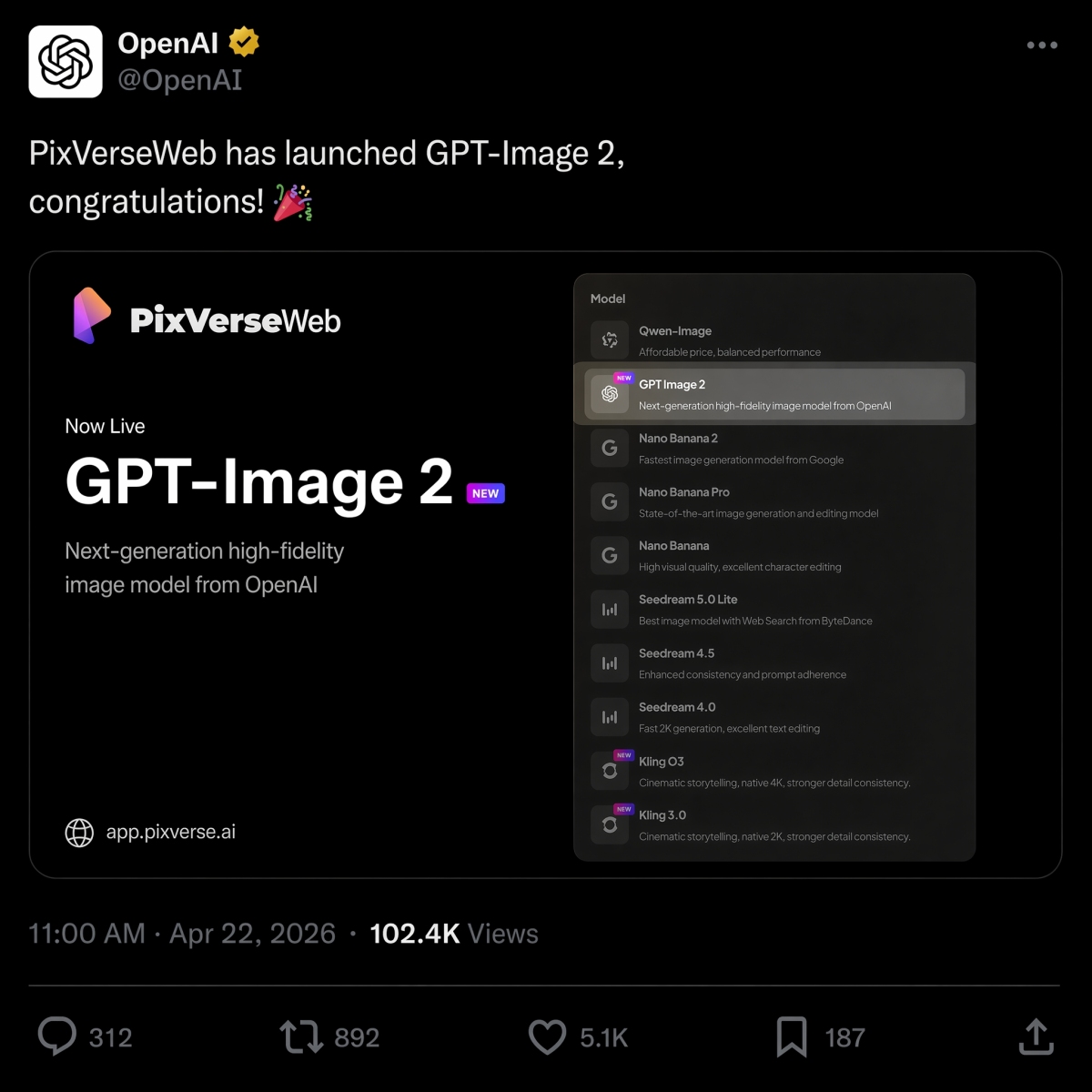
On April 22, 2026, PixVerse launched GPT Image 2 as a text-to-image option, joining Nano Banana 2, Seedream, and HappyHorse 1.0 in the model lineup.
If you are deciding between OpenAI and Google image models for the same brief, see our GPT Image 2 vs Nano Banana 2 comparison for side-by-side results from identical prompts.
If your prompt work is mostly about video, our best image-to-video AI tool guide explains how to choose the right motion workflow after the still image is ready.
Try PixVerse: open the PixVerse app.
FAQ
What are the best GPT Image 2 prompts?
The best GPT Image 2 prompts describe a clear production job, not just a visual style. Strong prompts usually include the subject, output type, exact text if needed, composition, lighting, constraints, aspect ratio, and final use case. Product ads, exact-text posters, character sheets, UI mockups, infographics, and image-to-video first frames are especially good prompt categories to start with.
How do I write better GPT Image 2 prompts?
Use this formula: subject plus visual style plus composition plus lighting plus details plus constraints plus output use case. Tell GPT Image 2 what the image needs to do, quote exact text, specify layout and aspect ratio, and list what must not change. For edits, separate the change, the locked elements, and the realism requirements.
Is GPT Image 2 good for product images?
Yes. GPT Image 2 is useful for product ad concepts, ecommerce hero images, packaging mockups, product cutouts, and campaign visuals. Product teams should still review product geometry, label text, regulated claims, logos, and packaging details before using the output in ads or product listings.
Can GPT Image 2 create images with text?
Yes, GPT Image 2 can create images with readable text, especially short headlines, labels, posters, menu items, infographic steps, and UI labels. For best results, put the exact text in quotation marks, specify where it appears, keep copy short, and add constraints such as “exact text only”, “no extra words”, and “no duplicate text”.
How do I turn GPT Image 2 images into videos?
Generate or approve the still image first, then upload it to PixVerse image-to-video. Write a separate motion prompt that describes what moves and what stays locked. Good motion prompts mention camera movement, subject preservation, background motion, and constraints such as no new text, no new logos, and no extra products.
GPT Image 2 vs Nano Banana 2: which is better?
GPT Image 2 is usually better for structured design outputs such as text-heavy posters, diagrams, UI mockups, editable visual briefs, and image-to-video first frames. Nano Banana 2 is worth comparing when photorealism, material detail, and fast visual iteration matter more. See the GPT Image 2 vs Nano Banana 2 comparison for same-prompt results.
Is GPT Image 2 the same as ChatGPT Images 2.0?
For search intent, yes. Many users use GPT Image 2, gpt-image-2, and ChatGPT Images 2.0 to describe OpenAI’s newer ChatGPT image generation experience. OpenAI’s product-facing name is ChatGPT Images 2.0, while gpt-image-2 is the model-style phrase developers and creators often use when discussing API workflows.
Is GPT Image 2 free, and how much does the API cost?
OpenAI Help lists ChatGPT Images 2.0 as available on all tiers, but plan quotas and API billing are separate. As of June 22, 2026, OpenAI lists GPT-Image-2 image output at $30.00 per 1M tokens; actual cost depends on prompt length, references, output size, quality, and caching.