From Still to Motion
Turn a product photo, campaign still, portrait, or concept image into a testable motion draft.
Turn a product photo, campaign still, portrait, or concept image into a testable motion draft.
Explore a subtle camera push, a reveal, looping action, or a richer cinematic mood from the same visual.
Make more testable ad, social, landing-page, and launch creative from a library your team already owns.
Keep idea exploration and generation together so the next move is visible before the concept goes cold.
Start with a composition you already like. Add a motion direction, then compare how one frame becomes a scene with pacing, camera movement, and atmosphere.
01Source Image
Reference Loaded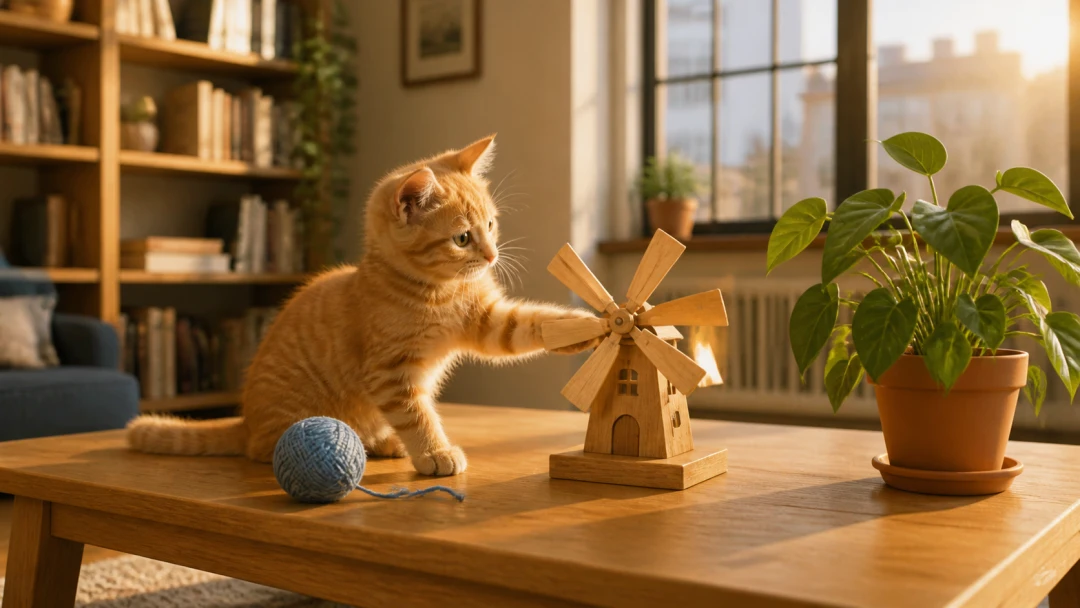
The source image defines the kitten, props, and warm apartment scene.
02Generated Video
Motion GeneratedNatural kitten movement and a subtle camera push extend the frame.
Use the input image as the exact visual reference and first frame. Create a single continuous 10-second cinematic 16:9 shot in the same warm sunlit apartment.
The orange tabby kitten gently taps the wooden windmill with its front paw, making the wooden blades rotate slowly and naturally. The kitten watches the blades with focused curiosity. A moment later, the kitten notices the blue yarn ball, gives it one playful soft bat, and the yarn ball rolls a short distance across the table. The kitten follows it with its eyes, then turns its head toward the houseplant as a light breeze makes a few leaves sway gently in the golden window light. End with the kitten sitting calmly, looking curious and content.
Keep the kitten’s identity, fur pattern, anatomy, table layout, windmill, yarn ball, plant, lighting, and background consistent with the source image. Natural feline motion, realistic paw contact, subtle ear and whisker movement, physically believable object motion. Smooth locked-off camera with a very subtle slow push-in. Photorealistic animal cinematography, warm golden-hour lighting, shallow depth of field.
No new animals, no people, no object duplication, no morphing, no warped paws, no sudden jumps, no camera shake, no text, no watermark.
A brand team has one product shot. A creator has one character visual. A marketer has one ad still. This is the workflow for turning that one asset into usable motion.
Start with a product image, portrait, campaign still, illustration, or concept frame. The clearest subject and visual direction give you the best base for adding motion.
Describe what should happen next: a slow push, a dramatic reveal, looping action, animated environment, or a more cinematic kind of energy.
Generate several takes from the same image, choose the one that works best, then refine it for ads, story clips, product pages, or social publishing.
Still images usually cost time, budget, or creative effort to make. Adding motion extends their usefulness across more channels and campaign formats.
Animate product shots, launch graphics, concept art, and ad stills for faster paid-social testing and more dynamic landing-page media.
Camera movement, pacing, subject animation, and environmental detail turn a still scene into something calm, playful, premium, or dramatic.
Any team with visual assets can use this workflow to increase speed and explore more creative options.
Representative workflow feedback written for this layout. Replace it with verified customer feedback before publishing.
Maya Patel
Social Video Producer
“I used a product photo we had already posted and tried three movement ideas. The slow push-in was the one I kept — it made the shot feel much more intentional.”
Sample feedback — replace with verified review
Daniel Kim
Creative Director
“The useful part was seeing options side by side. We could agree on the mood in an afternoon instead of trading notes on a static mockup for days.”
Sample feedback — replace with verified review
Practical comparisons and prompt guidance for turning a stronger visual direction into a better moving draft.
Common questions from creators and teams turning existing visual assets into motion-led content.

PixVerse maintains an information security management system certified by DNV to ISO/IEC 27001, supporting a structured approach to protecting information across our operations.
Start with the product shots, campaign stills, and concepts you already have. Compare a few motion directions and move forward with a clearer creative call.