Seedream 5.5 Transparent PNG Guide: Stickers and Assets
Create transparent PNG assets with Seedream 5.5. See tested sticker and lettering prompts, verify the alpha channel, and avoid common export mistakes.

A transparent PNG is useful when a character, sticker, product cutout, or title needs to sit over different backgrounds. Seedream 5.5 can generate an image with an alpha channel rather than painting a white or checkerboard backdrop into the pixels. The key is to request transparency explicitly, keep the subject isolated, and inspect the downloaded file before using it in a layout.
ByteDance describes native RGBA output for Seedream 5.5, including fully and partly transparent regions. On PixVerse, the CLI model reference exposes --background transparent for this model. We generated two separate PNGs and checked their downloaded files: both were RGBA, with alpha values from fully transparent to opaque and partially transparent edge pixels. These are two examples, not a guarantee that every fine edge will be perfect.
Example 1: A Reusable Character Sticker
For the first test, we asked for one plush blue whale in a yellow raincoat, without a floor, panel, frame, or extra object. The 2048 × 2048 result gave us a clean cutout with soft fabric detail and a transparent outer area. The fur and clothing edges include partially transparent pixels, which is useful for a natural-looking sticker but still needs inspection over both light and dark backgrounds.

Open the original 2048 × 2048 transparent PNG to check the fur and clothing edges.

Image prompt — plush whale sticker:
One playful 3D plush blue whale mascot with a stitched smile and a tiny yellow raincoat, shown full body in a three-quarter view. Soft fuzzy fabric texture, clean silhouette, visible flipper edges, cheerful expression. Make this a reusable isolated sticker asset with a fully transparent background and no floor, scenery, frame, extra objects, letters, or text.
The request for “no floor” matters. A generated shadow, wall, or colored panel can make a file look isolated at first glance while limiting how it can be reused.
Example 2: Lettering Without a Background Panel
Our second test was a wide typographic asset rather than a character. The 2816 × 1584 PNG rendered “GOOD TIDES” on two lines with felt-like texture and a small wave below. Its surrounding area was transparent. This tests a different edge problem: gaps inside letters and around stitched outlines, where a solid fringe would become obvious on a new background.
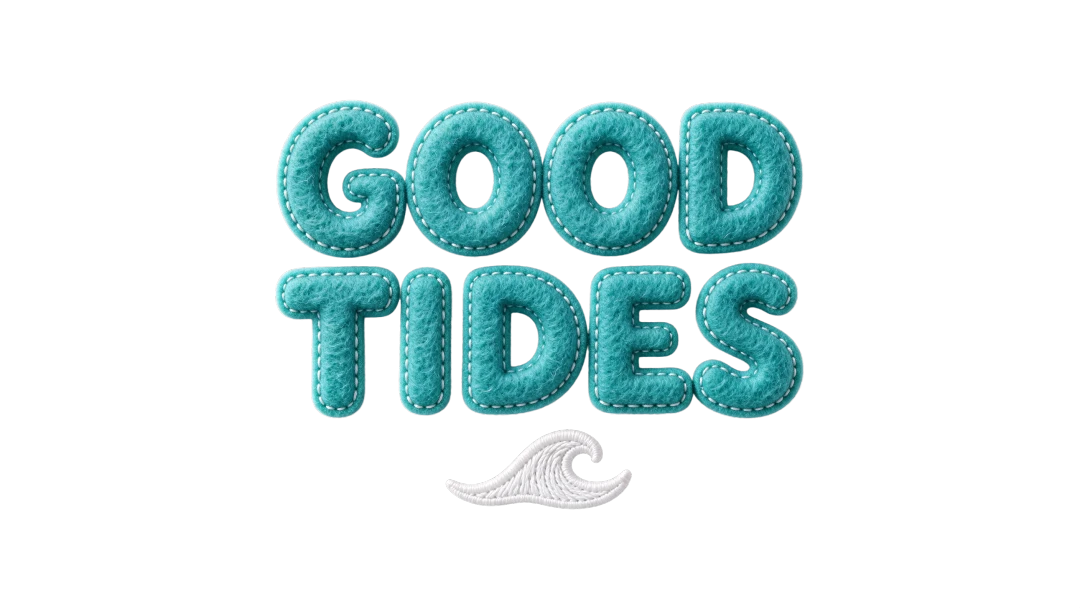
Open the original 2816 × 1584 transparent PNG to inspect the letter counters and stitched edges.

Image prompt — transparent lettering:
A standalone typographic sticker asset reading exactly GOOD TIDES in two lines. Chunky rounded sans-serif letters made of turquoise felt with visible soft fibers and thin white stitched edges. A small simplified white wave curls below the words. Keep the lettering clean, legible, centered, and separated from the canvas edges. Fully transparent background outside the letters and wave, with no colored panel, paper, scenery, frame, shadow, or other text.
Both words were legible in our output. Check all lettering against approved copy before using a text asset commercially; a successful short phrase does not establish reliability for a long title or legal text.
How to Generate and Verify a Transparent PNG
- Select Seedream 5.5 and request a transparent background. In PixVerse CLI, use
--model seedream-5.5 --background transparent; do not assume that saying “transparent” in the prompt alone sets the output mode. - Describe one isolated subject, its materials and edges, and what must be absent outside it. For text assets, quote the exact words and forbid additional lettering.
- Download the original PNG. A preview over white, black, or a checkerboard is not proof that the downloaded file contains an alpha channel.
- Open the PNG in an editor that shows transparency, or inspect its channel information. Our two files were RGBA with alpha values spanning 0 to 255.
- Place the asset over at least one light and one dark background. Look for colored halos, missing fine detail, and unwanted shadows around the subject.
On PixVerse, selecting a transparent background fixes the output format to PNG so the alpha channel can be retained. The current CLI does not expose a separate --output-format flag for Seedream 5.5. Our downloaded files were PNGs with verified alpha; keep the originals when passing assets to a designer or compositing tool.
What Transparency Does Not Solve
An alpha channel makes a subject reusable, but it does not certify accurate brand marks, exact product geometry, or clean edges at every scale. Fine fur, translucent material, and small type can reveal artifacts after resizing or placement. To cut a subject out of an existing photo, use the PixVerse image background remover and inspect the exported edges. If the source needs a selective change before export, follow the Seedream 5.5 image editing guide. Our Seedream 5.5 review covers a separate set of quality and editing tests.
ByteDance’s Seedream 5.5 announcement describes native RGBA generation from text and references. Our PixVerse test confirms transparent outputs from text prompts; we did not test reference-based extraction in this guide.