PixVerse & each::labs: Turning One Approved AI Video Into Every Ad Placement
Generate one master take in PixVerse V6, then turn it into 24 ad variants for 9:16, 4:5, 1:1 and 16:9 with a finishing workflow on each::labs.
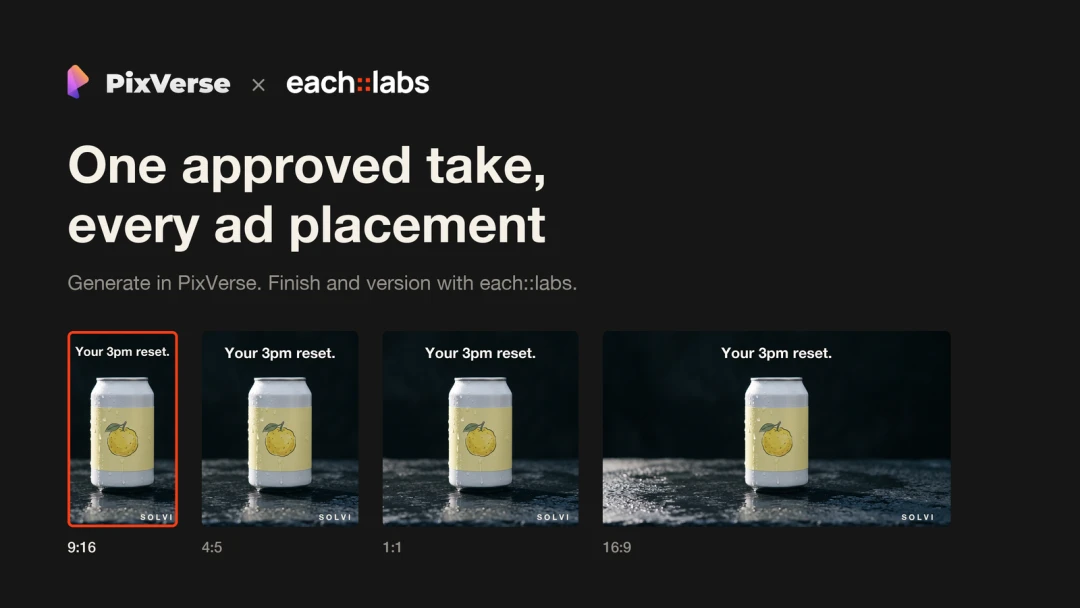
The take is approved. PixVerse V6 gave you ten seconds of 1080p product video with its own sound, and everyone on the thread likes it. Then the delivery list arrives: a 9:16 cut for TikTok, Reels and Shorts, a 4:5 cut for the feed, a square for testing, the 16:9 original for YouTube. Three different opening lines. Two languages. One loudness level across all of it, and a cover image for every file.
That’s 24 videos from one take. By hand, it’s 24 exports, 24 text layers, and at least one logo in the wrong corner.
So split the job in two. PixVerse makes the creative call: what the product looks like and how it moves. each::labs takes the repetitive finishing, and one approved take turns into a full set of ad files without anyone opening an editor two dozen times.
Note: Solvi Yuzu Sparkling is a fictional product used to illustrate the workflow. It is not a real brand or a real campaign.
Version the approved take, don’t regenerate it
PixVerse V6 generates natively in 16:9, 9:16, 1:1 and several other ratios, so the obvious move is to run the same prompt once per format. For a first draft, that’s the right call. For an ad that has already been approved, it usually isn’t.
Every generation is a new performance. The camera move lands a little differently, the light shifts, a detail on the label changes. Great while you’re exploring. A problem once legal has signed off on one specific take, or when you want to compare three hook lines and need everything else held still, because if the can opens differently in the vertical version than in the square one, you’re no longer testing the hook.
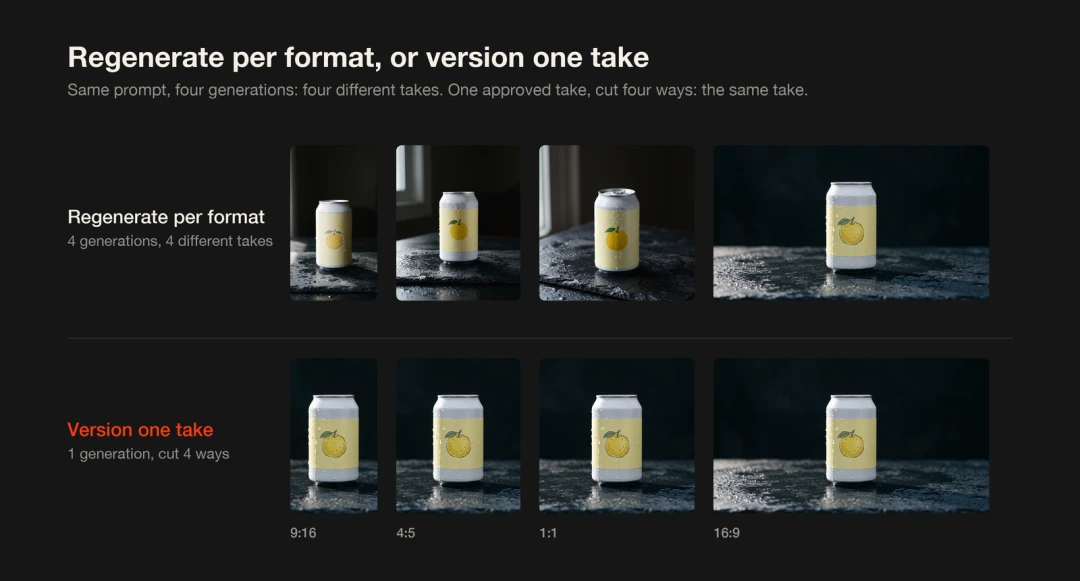
Same prompt, four generations, four different takes. One approved take cut four ways stays the same take.
Our rule of thumb: regenerate when the composition has to change, version when it doesn’t. When a crop would cut off something that matters, PixVerse can expand the frame to the new ratio with outpainting instead of cropping it. For everything else, cutting and finishing the one approved take keeps every placement identical where it counts.
Step 1: Generate a master take in PixVerse that survives cropping
Start in PixVerse with V6 at 16:9, 1080p, 10 seconds, audio on. The wide frame gives you the most room to cut from. And since V6 generates sound with the picture, the crack of the can and the fizz are part of the take from the start.
The prompt carries more weight than usual, since every placement gets cut from this one frame. The math is simple. A 9:16 crop keeps about 32 percent of a 16:9 frame’s width. A 4:5 crop keeps 45 percent, a square 56 percent. So the vertical version loses everything outside the middle third of the frame, and a sliver of the middle third too.
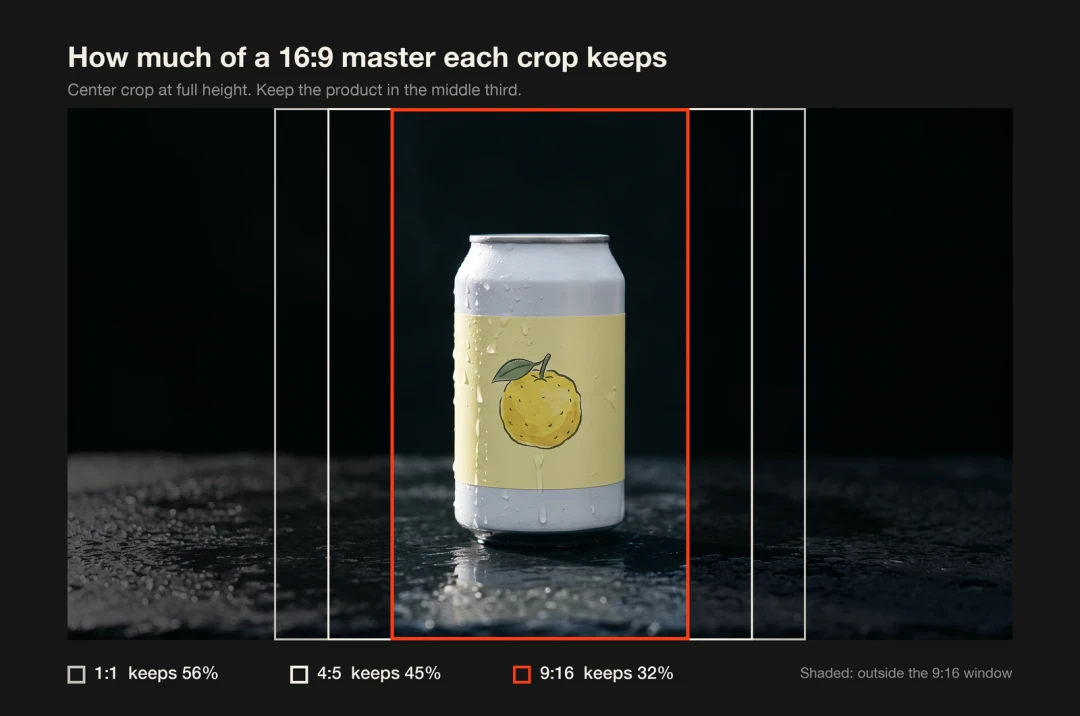
How much of a 16:9 master each crop keeps.
The PixVerse V6 guide notes that the model “responds best to literal, descriptive prompting,” which is good news here. Describe where things sit in the frame:
A single matte white aluminum can with a pale yellow label stands on wet dark slate in the exact center of the frame. Medium close up, the can sits well inside the middle third of the frame, empty dark space above it. Cold condensation runs down the can. Soft morning light from a window on the left. Slow camera push in. Halfway through, a hand reaches in from the top of the frame and opens the can, a fine mist rises from the opening. Sound: the crack of the tab, a soft fizz, a quiet room. No text, no logo.
A few phrases in there do the cropping work. “Exact center” and “well inside the middle third” keep the can inside the 9:16 window. “Empty dark space above it” leaves room for a headline. The hand comes in from the top, so it stays in shot on every crop. And “no text, no logo” is on purpose. Brand text goes on later as a real layer, sharp at any size and easy to swap per language.
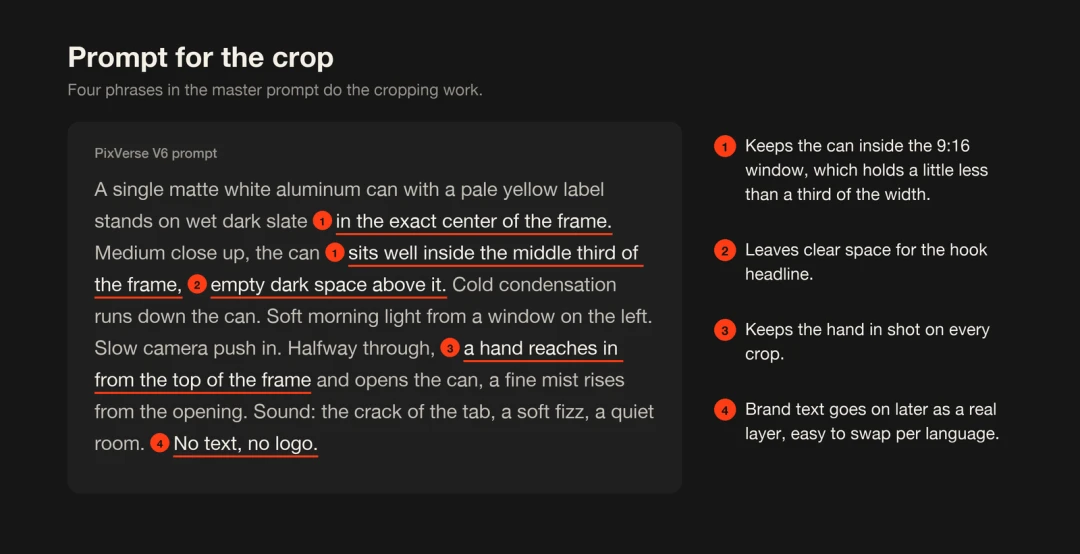
The four phrases that let one master survive every crop.
Generate a handful of takes. If you’re weighing several takes or models against each other, PixVerse Canvas lets you tag winners and rejects on one board. Pick the take where the can reads clearly from the first frame and the opening lands cleanly, then export it. That file is your master.
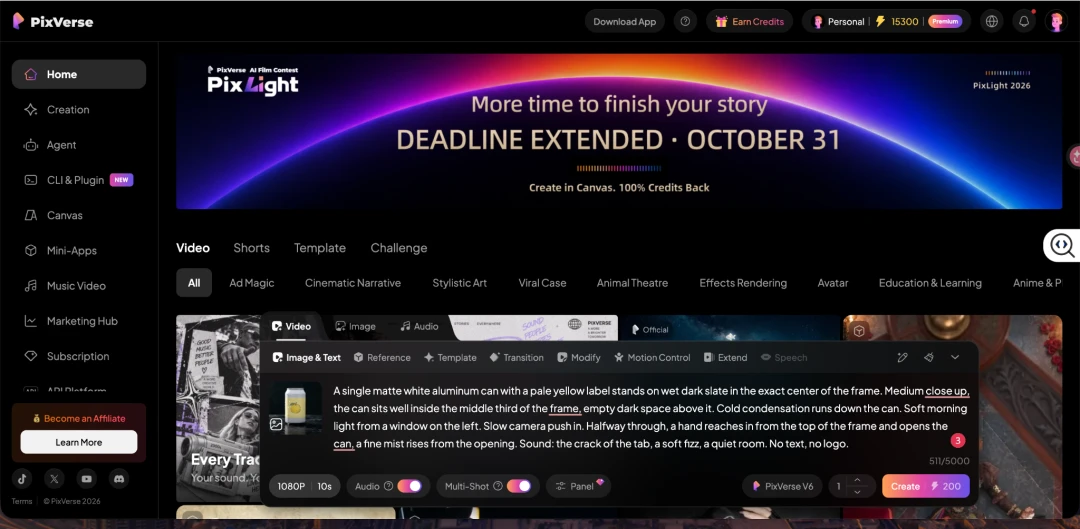
The PixVerse creation panel with the prompt and V6 settings for the master take.
The approved 16:9 master take, generated in PixVerse V6 from the prompt above.
Step 2: Write down the variant matrix
If you only take one step from this guide, take this one. The matrix is the brief for everything that follows, and it heads off the “could we also get a version with…” messages after launch.
For Solvi there are four placements:
| Placement | Ratio | Output size | Where it runs |
|---|---|---|---|
| Vertical | 9:16 | 1080 × 1920 | TikTok, Instagram Reels, YouTube Shorts |
| Feed | 4:5 | 1080 × 1350 | Instagram and Facebook feed |
| Square | 1:1 | 1080 × 1080 | Feed tests, product listings |
| Wide | 16:9 | 1920 × 1080 | YouTube, landing page |
Three hook lines, each shown in the first two seconds:
- A: “Yuzu, not syrup.”
- B: “Your 3pm reset.”
- C: “Zero sugar. Real bite.”
And two languages, English and Spanish. Four placements, three hooks, two languages: 24 videos, plus a cover image for each.
Name the files before you make them. Something like solvi_hookB_9x16_es_v1.mp4 feels fussy right up until a media buyer asks which file is running in Mexico.
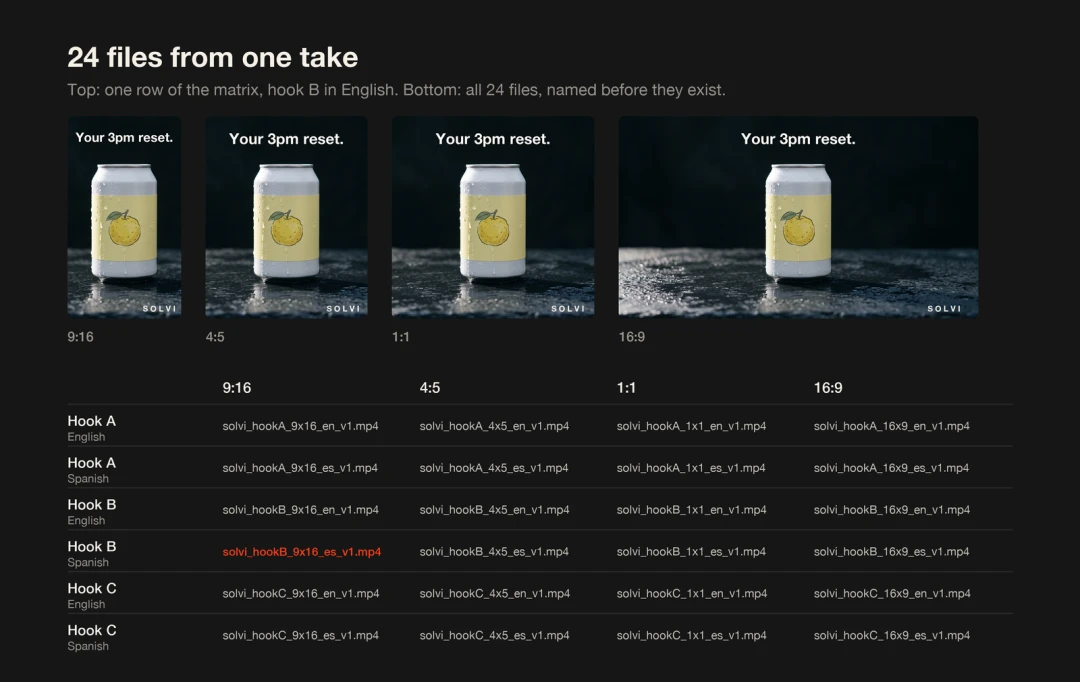
One row of the matrix in all four placements, and all 24 files named before they exist.
Step 3: Build the finishing chain once on each::labs
Nobody should be doing this step by hand.
each::labs is an AI media company built for production, and its Video API is made for this moment: the model makes the clip, the Video API gets it ready to ship. Every finishing operation is one API call, and the calls chain. For one hook in one language:
loudnormruns once on the master, before anything branches, so every placement carries the same audio at one loudness target, -14 LUFS by default.reframecuts that master into the four ratios and output sizes. If a crop clips the product on one placement, switch that placement from crop mode to pad mode.title_cardsets the hook at the top of the frame for the first two seconds, in the font, size and color you pick. A secondtitle_cardadds the call to action for the last two seconds.overlayputs the logo in a corner.posterwrites the final H.264 MP4 and a JPEG cover frame in one pass.
If the ad has a voiceover, subtitle_compose burns in animated captions, word by word, from a transcript, and can carry the hook at the same time.
Here’s the reframe call for the vertical cut:
{
  "model": "eachlabs-video-api",
  "input": {
    "capability": "reframe",
    "input_url": "https://your-cdn.com/solvi_master_16x9.mp4",
    "params": { "aspect": "9:16", "mode": "crop" }
  }
}
It returns a 1080 × 1920 file, which becomes the input for the next call.
None of this has to live in code. On each::labs you can build the same chain visually as a workflow: drop the steps onto a canvas as cards and wire them in order, and the wires carry each output into the next input. Give the workflow four placement branches after the loudness step. Independent branches run at the same time, so all four ratios for a hook come back together. Then trigger the workflow once per hook and language, six runs for the full set of 24, each with its own hook line and call to action.
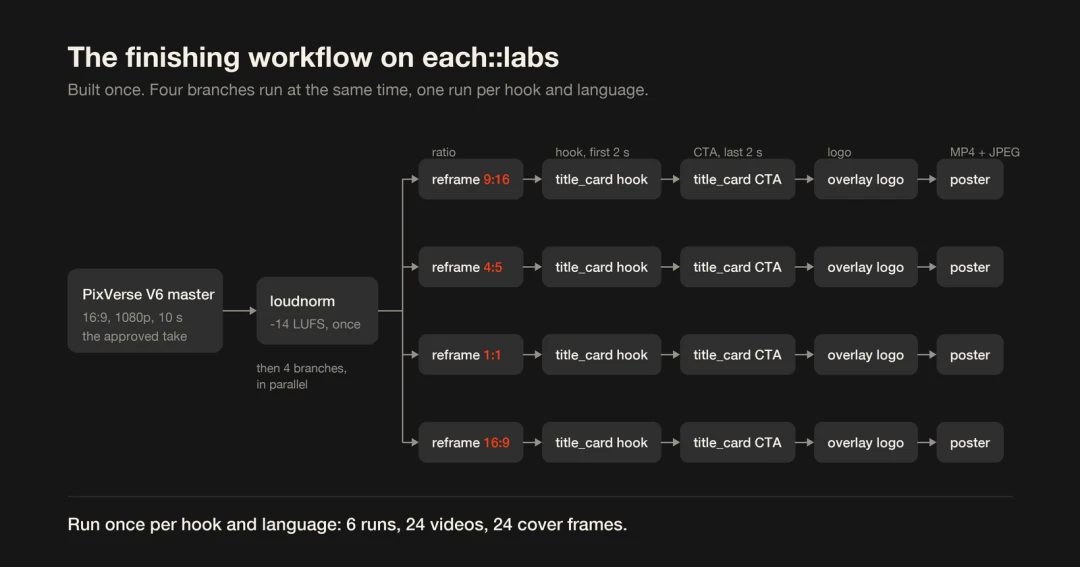
The finishing workflow: one loudness pass, then four branches in parallel.
PixVerse V6 and C1 also run on each::labs, so a team that wants generation inside the same pipeline can make it the first card.
Step 4: Review the set, then feed the winner back into PixVerse
Lay the 24 files out as one grid. Problems you’d never spot in a single file jump out of a grid: a Spanish hook wrapping onto three lines, a cover frame that caught the hand mid motion, a square crop that clips the label.
Check every placement for five things:
- The product stays fully visible for the whole clip.
- The hook reads in the first two seconds with the sound off.
- On 9:16, nothing important sits at the bottom of the frame or along the right edge, where TikTok and Reels put their captions and buttons.
- A native speaker has read every translated line on screen.
- The cover frame shows the product, not a transition.
Then run the test. When the results come back, read them as notes for the next generation as much as for the next media plan. If “Your 3pm reset” beats “Yuzu, not syrup,” maybe the next PixVerse prompt moves the can from slate at sunrise to a desk at three in the afternoon. Generate that take, approve it, drop it into the same workflow, and the second round goes out without anyone redoing a single export.
Where this helps, and where it doesn’t
It helps most when one creative has to show up in many places at once: a launch across four platforms, a hook test with three or more lines, a campaign running in several markets. One approved take stays one approved take everywhere, with the same color, the same can opening and the same audio level.
It also makes a test easy to widen. A fourth hook line or a third language means a few more runs of the same workflow.
The limits are worth knowing before you start:
- A 9:16 cut uses about 608 of the master’s 1920 pixels of width and scales them up to 1080, so it looks softer than the master. When vertical is the lead placement, generate it natively in 9:16, expand the frame in PixVerse, or upscale the master in PixVerse before cutting.
- The crop window stays put. If your subject travels across the frame, compose for the crop in the prompt or use pad mode.
- Text burned into the video needs a native speaker’s read in every language.
- Platform specs change. Check each placement’s current requirements before launch.
- Picking the master take and writing the hook lines stays with the creative team, as it should.
FAQ
Can I just generate every format natively in PixVerse?
Yes. While you’re still exploring, or when vertical is the lead placement, it’s often the better choice. Native generation gives each format its own composition. Versioning keeps one approved take identical everywhere, which matters once a take is signed off or when you’re testing one variable at a time.
Do I need to write code?
No. Developers can call the Video API directly, but the same chain can be built visually as a workflow on each::labs, by wiring cards together, and run from there. The finished workflow can also be triggered from your own systems.
Which PixVerse model should I use for the master?
For product and social ads, V6 is a solid default: up to 15 seconds, up to 1080p, with sound generated in the same job. PixVerse C1 is built for film production, so it suits cinematic brand spots.
Can the captions come from a voiceover?
Yes. Transcribe the audio with a speech to text model that returns word timings, then pass the words to subtitle_compose. It renders word by word captions and can show the hook headline at the same time.
Conclusion
PixVerse is where the creative decisions get made: what the product looks like, how the light hits it, how it moves. The finishing chain on each::labs is there so those decisions reach every placement unchanged. Start with one hook in one language, check that the master survives every crop, then run the rest.