How to Expand a Video Frame with AI in 2026
Expand any video frame with AI outpainting — no cropping, no black bars. Convert 16:9 to 9:16, 1:1, and 21:9 for TikTok, Reels, YouTube, and ads in PixVerse Video Expand.
Short answer: To expand a video frame without cropping, upload your clip to an AI video expander, pick a target ratio like 9:16, 1:1, or 21:9, and let AI outpainting generate new content around the original frame. Your subject stays fully intact while the scene grows to fit the new format. In PixVerse Video Expand, this takes one upload and one click. For the generation workflow before or after an expand pass, use the PixVerse AI video generator.
Before you start, it helps to separate a few terms that often get mixed together. Video expand means changing the frame size or aspect ratio by generating new visual space around the original clip. Video extend usually means making the clip longer in time. Auto reframe tracks the subject inside a new crop, but it can still remove content at the edges. Resizing changes the dimensions of the file, but it does not create new scene detail. This guide focuses on video expand: using AI outpainting to turn one clip into a new aspect ratio while keeping the original content visible.
| Term | What it changes | What happens to video data | Common tools |
|---|---|---|---|
| AI video expand / video outpainting | Frame size and aspect ratio | Original footage stays visible while AI generates matching detail around it | PixVerse Video Expand, VEED, CapCut |
| Video extend | Duration of video | New frames are generated over time | AI video editors |
| Auto reframe | Crop position | The subject is tracked, but edge content can still be removed | CapCut, VEED video editor |
| Resize / scale | Resolution or output dimensions | No new scene detail is generated | Traditional editors |
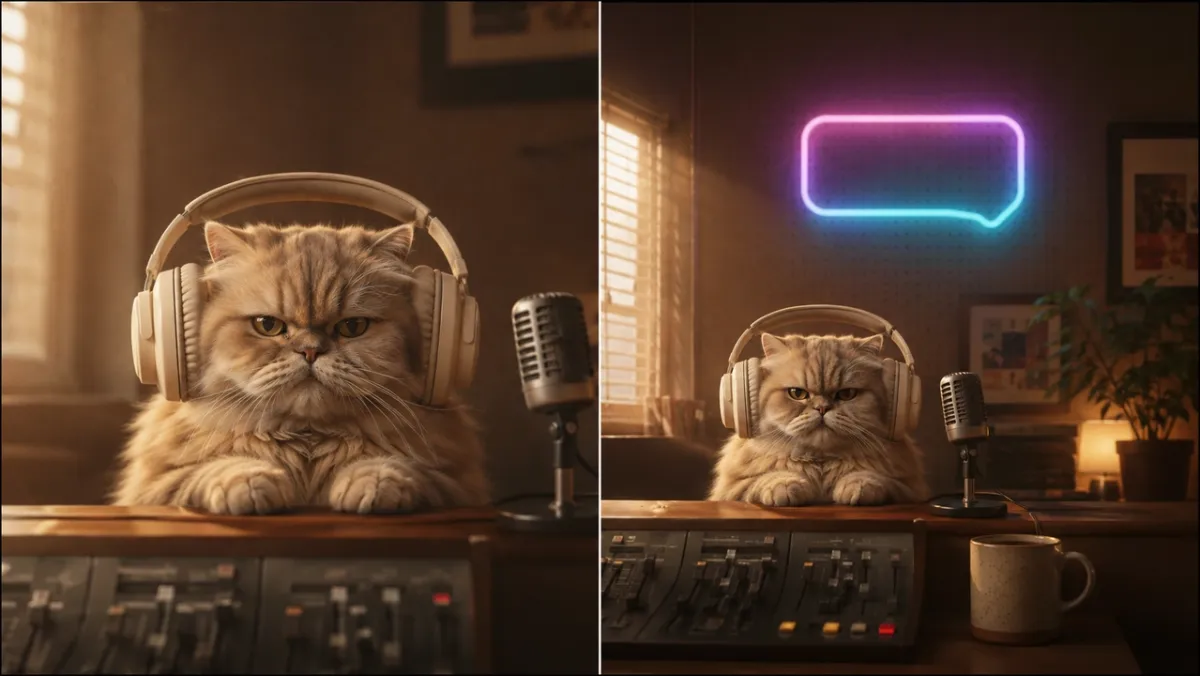
A clip shot in 16:9 rarely fits the next place you want to post it. Reels, TikTok, and Shorts want tall 9:16; a feed post wants 1:1; a website hero wants ultrawide 21:9. The usual fixes all cost you something: cropping cuts off faces and product, stretching distorts everything, and letterboxing leaves dead black bars.
Expanding the frame solves this differently. Instead of removing pixels, AI generates new ones around your footage so the original stays untouched and the scene simply grows. This guide explains what video outpainting is, which ratios to target for each platform, and how to expand a video frame step by step in PixVerse — including a real before-and-after test.
Why Cropping and Black Bars Ruin Repurposed Video
When you force a wide clip into a tall frame, a standard crop throws away everything outside the new shape. That often means losing a subject’s head, a product label, on-screen action, or the background context that made the shot work. Two common workarounds are no better.
- Stretching warps faces, logos, and proportions the moment the aspect ratio changes.
- Letterboxing keeps the full frame but pads it with black bars, which look unfinished in a feed and waste valuable screen space on mobile.
Expanding the canvas avoids all three problems. The original frame is preserved exactly, and AI fills the new area with content that matches the scene — so a repurposed clip looks native to its new platform instead of recycled.
What Is Video Outpainting (Expanding a Video Frame)?
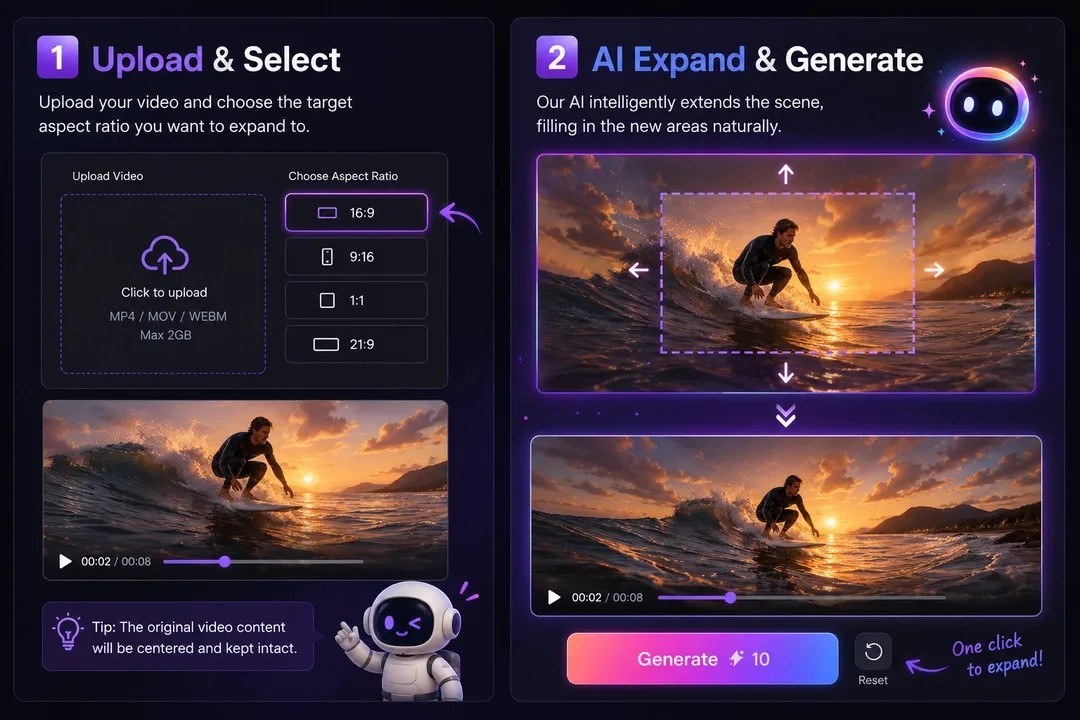
Video outpainting is an AI video editing technique used to expand the visible frame of a video by generating new visual content beyond its original boundaries. Unlike traditional cropping or resizing, it preserves the original video data while extending the scene with AI. The model reads your clip and continues the scene outward into a new aspect ratio while keeping the motion and the subject consistent across every frame.
This makes video outpainting useful inside broader repurposing workflows. A creator might expand a clip for TikTok, then add subtitles, localize the text, adjust the soundtrack, or prepare a YouTube version from the same source. The key difference is that the frame grows before those finishing steps happen, so the main composition stays intact.
- Subject stays intact: New pixels are added around the original frame, never on top of it.
- Context-aware fill: AI matches the original lighting, color, perspective, and texture in the extended area.
- Temporal consistency: The generated edges stay stable as the video plays, so there is no flicker between frames.
- No manual masking: You choose a target ratio and the tool handles the rest.
The difference from “auto reframe” tools matters here. Auto reframe still crops — it just pans and scans to keep a subject centered, so content outside the new frame is still lost. Outpainting does the opposite: it keeps the whole original frame and builds new space around it.
Aspect Ratios for Every Platform
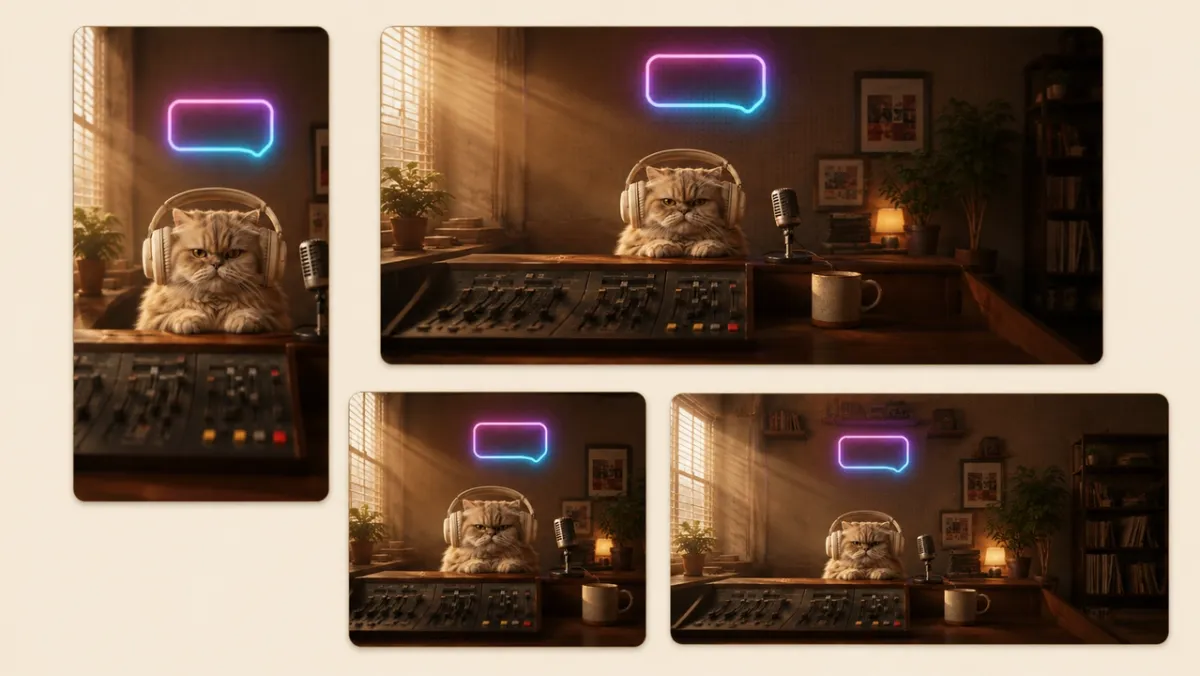
One source video can be expanded to fit every channel. Use this reference to pick the target ratio before you expand.
| Ratio | Best for |
|---|---|
| 9:16 | TikTok, Reels, YouTube Shorts |
| 16:9 | YouTube, websites, widescreen players |
| 1:1 | Instagram and Facebook feed posts |
| 4:3 / 3:4 | Older feeds, slideshows, mobile carousels |
| 21:9 | Cinematic shots and website hero banners |
9:16 for TikTok, Reels and Shorts
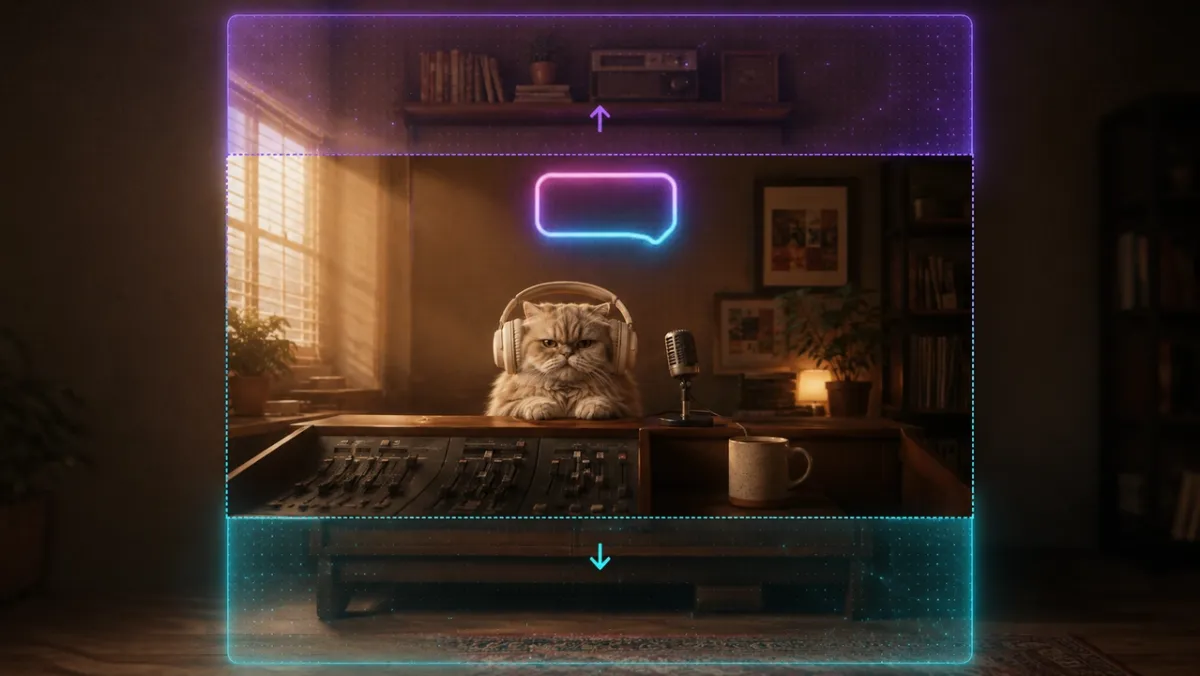
Vertical platforms like TikTok, Reels, and Shorts expect full-screen 9:16. With an AI video editor, you can expand a horizontal video upward and downward while preserving the subject and generating new visual data above and below the original frame.
16:9 for YouTube and Websites
For YouTube and website players, widescreen 16:9 remains the standard. AI video expansion can turn vertical clips into 16:9 by generating side context, which keeps the original video visible instead of cropping it or padding it with black side bars.
1:1 and 21:9 for Feeds and Banners
Square 1:1 works well for social feeds, while ultrawide 21:9 gives cinematic banners and video covers more room. An AI-powered video editor can keep motion, lighting, and composition consistent while preserving the original video data in each format.
How to Expand a Video Frame in PixVerse
Video Expand handles the full workflow in three simple stages.
-
Upload your video in an AI video editor. Open Video Expand and add an MP4, MOV, or WEBM file up to 50MB and 20 seconds. PixVerse analyzes the original video data and prepares the clip for expansion.
-
Choose an aspect ratio and generate. Select a target format like 9:16, 1:1, 16:9, 21:9, 4:3, or 3:4, then set 720p or 1080p. The preview frame updates live to show how far the scene will extend. Click Generate, and AI outpainting fills the new frame area while keeping the subject stable.
-
Export and enhance the workflow. Use the expanded clip as a platform-ready output, or continue refining it with editing, audio, lip sync, subtitles, localization, or branded overlays before publishing on TikTok, YouTube, Reels, Shorts, or your website.
Before and After: A Real Expansion Test
To show what the result looks like, here is the same clip before and after expanding from 16:9 to 9:16. The original footage stays in the center, and AI generates the space above and below so the clip fills a phone screen with no black bars and nothing cropped.
Original — 16:9 source clip
Expanded — 9:16 after Video Expand
The subject never moves or shrinks. Only the surrounding scene grows, which is exactly what makes an expanded clip read as native to its new platform.
How to Judge the Expanded Result
A good expanded video should not only fill the new frame. It should still feel like the same shot, just captured with a wider or taller camera view. When reviewing the 16:9 to 9:16 result above, look at these six dimensions.
| Evaluation area | What to check | Why it matters |
|---|---|---|
| Subject preservation | The main subject keeps the same shape, scale, and position. | Faces, products, animals, and key actions should not warp or drift. |
| Composition | The subject has enough headroom, bottom space, and visual balance in the new frame. | A vertical video should feel intentionally framed, not simply padded. |
| Edge continuity | Lighting, color, texture, and perspective continue naturally into the generated area. | Viewers should not notice where the original frame ends. |
| Motion consistency | The expanded background stays stable as the clip plays. | Flicker or sudden background changes make the edit feel artificial. |
| Semantic logic | New objects and background details make sense for the scene. | AI should not invent random props, duplicate subjects, or add impossible objects. |
| Platform readiness | The final ratio works for the intended channel. | A 9:16 result should fill a phone screen without black bars, stretching, or cropped action. |
In this test, the key win is subject preservation: the original character remains centered and intact while the added vertical space gives the scene room to breathe. The result is also easy to evaluate because the background has clear visual logic — wall, desk, light, and room details — which gives AI a natural pattern to continue. For more complex footage, especially clips with dense crowds, product UI, repeated text, or irregular objects, run at least one extra generation and compare the edges before publishing.
Tips for Better Video Expansion Results
A successful AI video editing workflow starts with clean source footage. A few habits produce cleaner extensions across any clip, and knowing where AI expansion is strong — and where it needs a second pass — sets the right expectations.
- Start with modest expansions. Small ratio changes are more reliable than aggressive jumps like horizontal-to-ultrawide-vertical, which ask the model to invent the most new content.
- Favor simple backgrounds. Plain walls, sky, studio backdrops, and open ground extend cleanly. Busy crowds, dense foliage, and repeating patterns may need another try.
- Keep the subject centered. Anchor the subject in the original frame so the new space sits naturally around it rather than behind it.
- Avoid text and interface footage. Screens, captions, logos, and product UI can break or misalign at the edges, so expand these clips conservatively.
- Regenerate when an edge looks off. Small variations between runs often resolve a soft seam or an awkward addition.
Take the Expanded Clip Straight Into Video Tools
Because Video Expand lives inside PixVerse, a reframed clip does not have to leave the platform. You can carry it into the broader PixVerse toolset for editing, audio, and lip sync, or pair it with the image workflow in the Magic Extend guide to changing aspect ratio without cropping when you need the same reframing for stills. One source asset can become a full set of platform-ready videos and images.
For focused visual cleanup before animating, use the image region editor.
To expand the image frame or background first, use magic extend.
Conclusion
Expanding a video frame is a modern AI video editing workflow that grows the canvas instead of cutting it. AI outpainting helps a video editor repurpose one clip across TikTok, Reels, YouTube, social feeds, and cinematic banners while preserving the original composition — no crops, no stretching, no black bars.
With an AI video expander, the original video data stays intact while new pixels are generated around it. That turns one source video into multiple platform-ready assets, from vertical short-form posts to widescreen website videos and ultrawide campaign visuals.
Upload a clip to PixVerse Video Expand, pick your target ratio, and generate a platform-ready video in minutes — then reuse the same source across every channel you publish to.
For a more organized multi-shot workflow, move the project into canvas.
FAQ
How do I expand a video frame without cropping?
Upload your clip to an AI video editor, choose a target aspect ratio, and generate. The tool uses AI video outpainting to expand the frame while keeping the original video data intact, so nothing is cropped or stretched. PixVerse Video Expand, CapCut, and VEED video editor support this type of AI video editing for formats used on TikTok, Reels, Shorts, and YouTube.
What is the difference between video expand and video extend?
Video expand changes the frame size or aspect ratio by generating new content around the footage with AI outpainting. Video extend increases the duration of a video by generating new frames over time. Video Expand in PixVerse is about reframing the picture, not lengthening it.
Can I convert a 16:9 video to 9:16 without losing content?
Yes. AI video expansion generates new space above and below the original 16:9 video, converting it into 9:16 while preserving all original video data. Unlike cropping or auto reframe, nothing is removed.
How is video outpainting different from auto reframe?
Auto reframe crops and pans the video to follow the subject. Video outpainting keeps the full frame and uses AI to generate new surrounding areas, preserving all original video data.
What video formats and limits does Video Expand support?
Video Expand supports MP4, MOV, and WEBM files up to 50MB and 20 seconds. Output options include 720p or 1080p and aspect ratios like 16:9, 9:16, 21:9, 4:3, 3:4, and 1:1 for TikTok, Reels, Shorts, YouTube, feeds, and website videos.