PixVerse Canvas Launch: Build a Repeatable AI Video Workflow
PixVerse Canvas makes its debut as a visual AI video workflow workspace — organize assets, storyboards, batch tasks, and multi-model results on one canvas instead of one-off prompts.
You rarely sit down to make one AI video anymore. You sit down to make a project — a dozen shots, recurring characters, multiple models to test, and variations for different platforms. The generator is rarely the problem; the mess around it is. Clips scatter across tabs, prompts get lost, alternates are hard to compare, and character consistency drifts by shot five. That gap between running an AI video generator and running an AI video workflow is where most projects stall.
Modern AI video production has outgrown the single text box. A real project needs assets, storyboards, multiple models, batch tasks, and consistency across every clip — and one-off prompts provide none of that structure. PixVerse Canvas is a visual workspace for building a complete AI video workflow: instead of creating videos one prompt at a time, creators and teams organize assets, storyboards, model outputs, batch tasks, and project memory on a single canvas. This guide explains how it turns scattered prompts into a repeatable workflow you can run, compare, and reuse.
PixVerse Canvas is launching now. PixVerse Canvas makes its debut on PixVerse as a visual AI video workflow workspace. To mark the launch, Seedance 2.0 — one of the video models you can run on the canvas — is available at a limited-time discount of up to 70% off its credit cost for eligible plans on the web, through June 25, 2026. It is a low-cost way to put multi-model comparison and batch workflows to the test on your own shots.
What Is PixVerse Canvas? A Visual AI Video Workflow Workspace
PixVerse Canvas is a visual AI video workflow workspace where every part of a project lives on one infinite board. It is not another generation box, and it is not a generic infinite canvas for moving files around. It is an AI video workflow workspace that holds your idea, references, script, storyboard, generated results, and batch tasks in the same place, connected by the relationships that actually drive production.
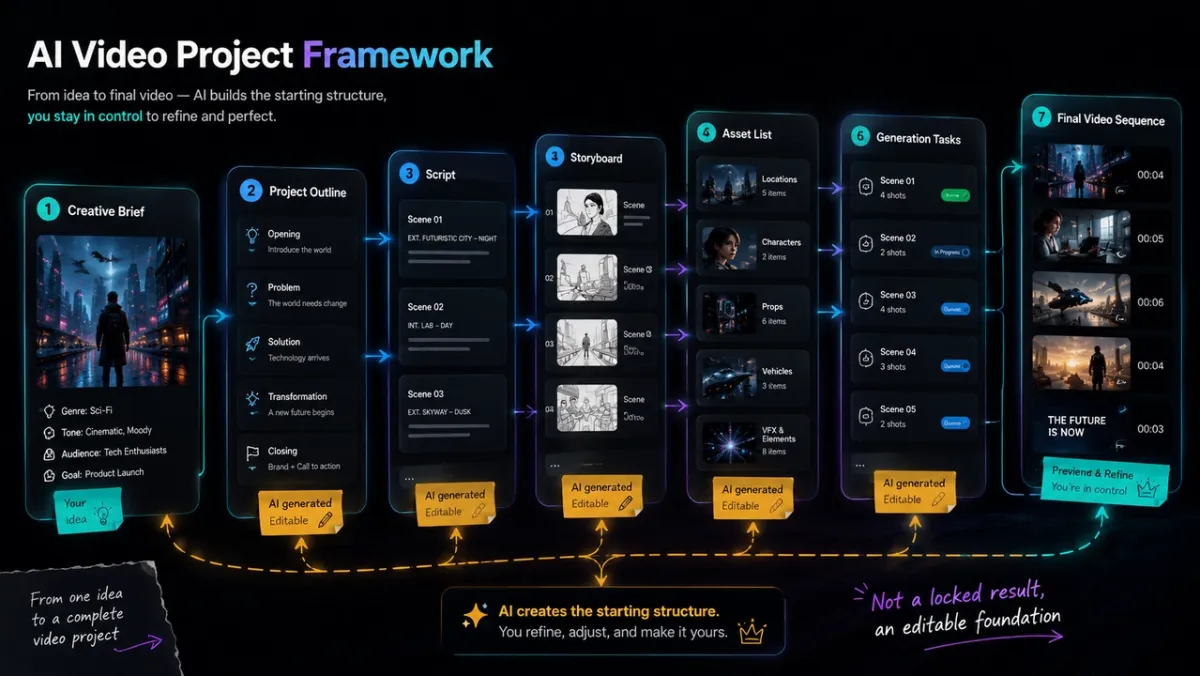
PixVerse Canvas turns a brief into a connected project framework — outline, script, storyboard, assets, generation tasks, and final video — that stays editable on one visual workspace.
The core unit is a node. Each node is a card on the canvas — a text note, a reference image, a generated image, a video clip, an audio track, or a structured shot list. You link nodes together so the output of one feeds the input of another. A character image can feed a video shot. A script can feed a storyboard. A storyboard can fan out into a full set of shots. This is what separates a workflow workspace from a single generator: the work is connected, visible, and editable as a whole.
For focused visual cleanup before animating, use the image region editor.
| One-off AI video generator | PixVerse Canvas workflow | |
|---|---|---|
| Unit of work | One prompt, one result | A connected project of nodes |
| Where results live | Scattered across pages | Organized on one canvas |
| Reuse | Re-type prompts each time | Save and reuse the whole workflow |
| Consistency | Manual, easy to lose | Carried by references and project memory |
| Scale | One clip at a time | Batch tasks across many shots |
To expand the image frame or background first, use magic extend.
Why One-Off AI Video Prompts Need a Production Workflow
A single prompt is great for testing one idea. It falls apart the moment you need to deliver a real project — a campaign, a short film, a product launch, or a batch of social videos. Searching for an AI video workflow usually starts here: the generator works, but the process around it does not.
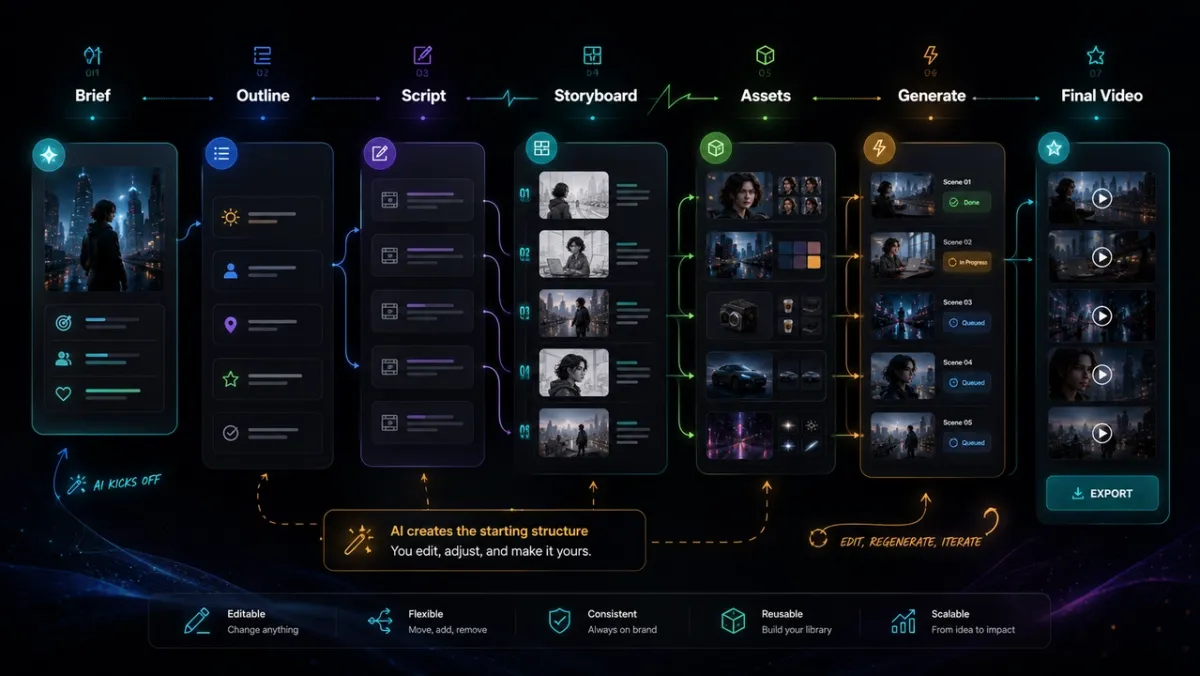
One-off prompts are useful for testing ideas, but real projects need a workflow that can track, compare, and reuse decisions.
One-off prompting breaks down in predictable ways:
- Results get scattered. Good takes, rejected takes, and references end up spread across tabs and folders with no structure.
- Choices are hard to trace. When a clip works, it is hard to remember which prompt, model, and parameters produced it.
- Versions are hard to compare. Putting two or three alternates side by side means juggling downloads and file names.
- Batches are uncontrolled. Generating twenty variations one at a time is slow and easy to lose track of.
- Consistency drifts. Characters change face, style shifts, and brand rules get forgotten across shots.
- Nothing carries forward. The next project starts from zero instead of reusing a proven process.
A production workflow fixes the process, not just the output. The goal of PixVerse Canvas is to take you from “I need a generator” to “I have a repeatable AI video production workflow” that survives across shots, versions, and projects.
Organize Assets, Storyboards, and AI Video Results in One Canvas
The first job of a workflow is order. PixVerse Canvas keeps an entire project legible even when it grows large, which is where most AI video project management actually fails.
- Automatic zones. Assets, scripts, characters, storyboards, video shots, and final picks each get their own area instead of piling up at random.
- Result tags. Mark any output as winner, backup, reject, or needs review, so the strong results are never lost in the noise.
- Filtered views. Show only winners, only failed runs, only one character, only one scene, or only one batch when you need to focus.
- Result lineage. Every generated node records the prompt, model, and parameters behind it, so any result can be reproduced or explained.
- Reference trays. Pin characters, styles, locations, and props so the same reference is reused across scenes instead of re-found every time.
The payoff is practical AI video project management: a large project stays a structured production board rather than a folder of disconnected clips. You can step away, come back, and immediately see what is done, what is approved, and what still needs work.
Run Batch AI Video Generation Without Losing Control
Professional teams rarely need one video. They need twenty, fifty, or a hundred variations — different products, hooks, formats, and platforms. PixVerse Canvas is built so batch AI video generation stays visible and controllable instead of becoming a black box.
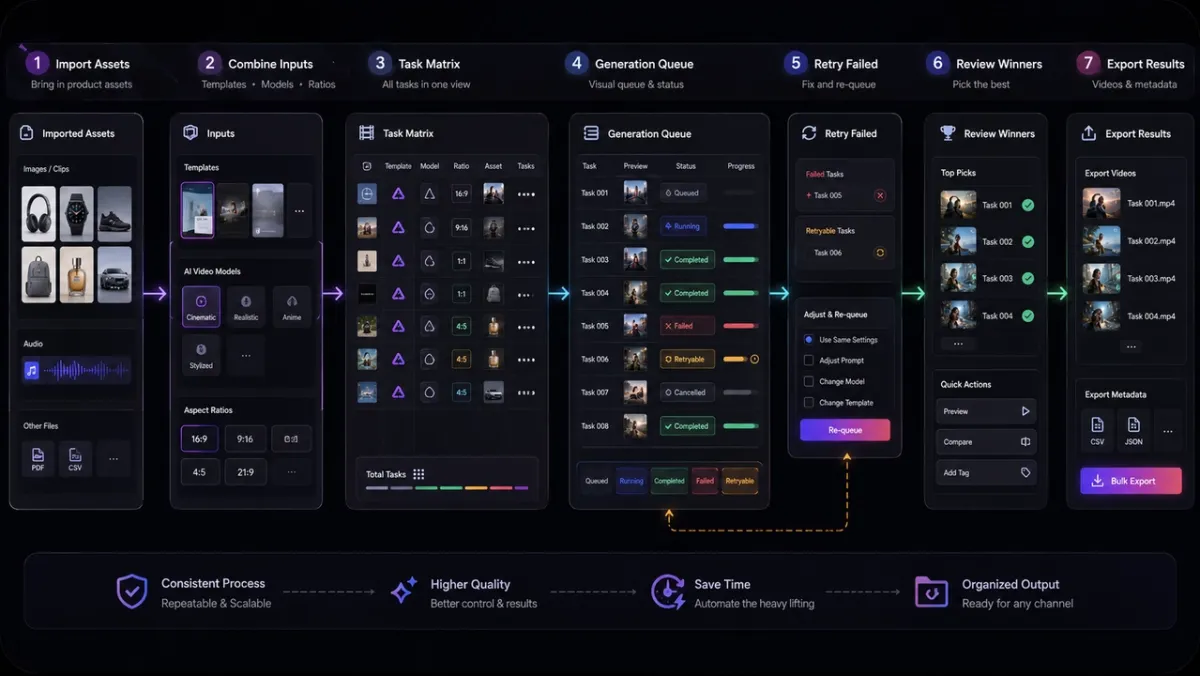
A controlled batch workflow keeps every task source, status, result, and next action visible from import to export.
- Drop in your files. Add a folder or multiple assets at once and the canvas creates source nodes automatically.
- Build a task matrix. Combine assets, templates, models, and aspect ratios into a list of generation tasks instead of setting up each one by hand.
- Watch a visual queue. Track every AI video task as queued, running, completed, failed, retryable, or cancelled.
- Retry failures. Re-run failed tasks without rebuilding the whole batch.
- Estimate before you run. Check expected cost and completion time before committing a large job.
- Export in bulk. Pull finished videos and metadata out by project, scene, model, or status.
This is the difference between generating at scale and generating in chaos. A catalog of fifty products becomes one upload and one queue rather than fifty separate production cycles — and you can still inspect, approve, or rerun any single result. For teams focused on storefronts, this pairs naturally with the broader approach in our guide to the best AI video generator for ecommerce.
Compare Multiple AI Video Models in the Same Workflow
There is no single best model for every shot. A multi-model AI video workflow lets you stop guessing and start comparing on a shared, repeatable basis — which is one of the clearest reasons to work on a canvas instead of in isolated tabs.
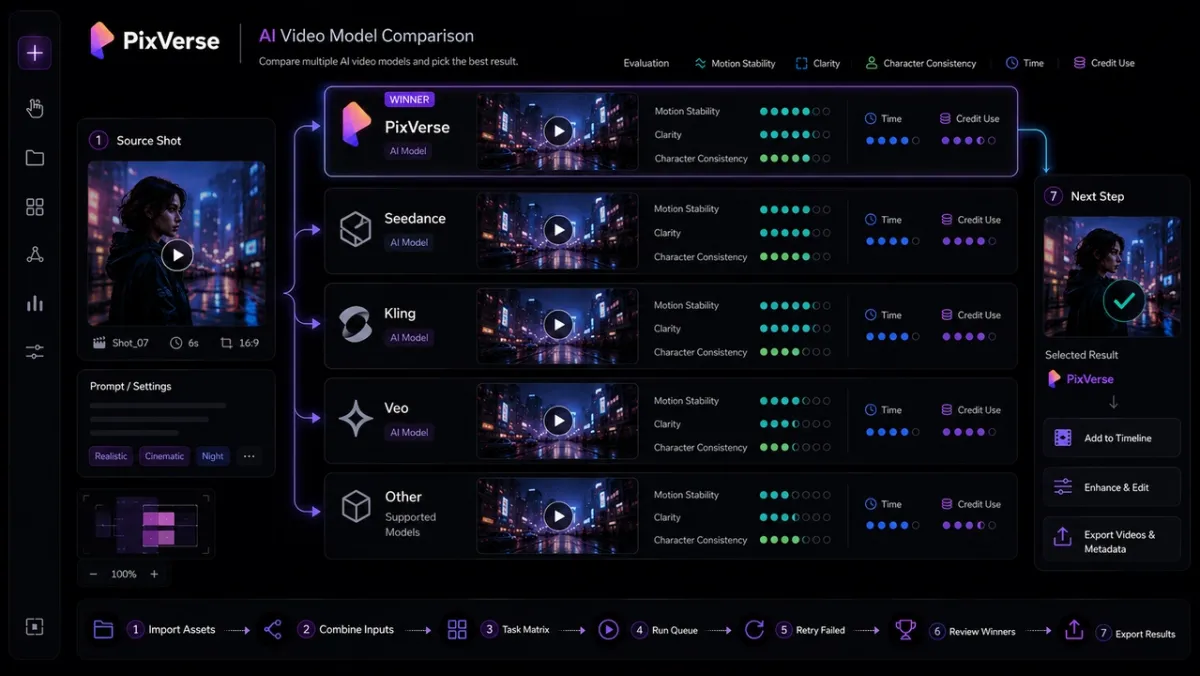
Run the same shot across multiple models, compare results on the same criteria, then move the strongest take into the next step.
- Run the same shot across models. Generate one shot with PixVerse, Seedance, Kling, Veo, and more from the same node.
- Keep the input identical. Same prompt, same reference images, same first and last frame, so the comparison is fair.
- Compare on real criteria. Line up results by cost, time, clarity, motion stability, and character consistency rather than gut feeling.
- Review blind when needed. Hide model names first to remove brand bias from the decision.
- Promote the winner. Push the best result straight into the next step of the workflow with one action.
- Bank the lesson. Save which kind of model fits which kind of shot, so the next project starts smarter.
The differentiator here is not how many models exist — it is that the comparison is structured, fair, and traceable. Independent benchmarks make the same point: across the same prompt, models diverge on consistency and control, not just raw quality, so production teams benefit from comparing on their own shots rather than trusting a single demo. PixVerse already brings these models together, as covered in our overview of the best AI video models in one platform and the head-to-head in Sora vs Veo vs PixVerse.
Supported Models and Credit Pricing at a Glance
PixVerse Canvas keeps model choice practical by showing the most relevant options for the task you are building, rather than asking teams to compare every model in a long spreadsheet before they start.
| Task in Canvas | Common model choices |
|---|---|
| Video generation and shot variations | PixVerse, Seedance, Kling, Veo, and other supported video models |
| Script, planning, and rewrite nodes | Qwen, Doubao-Seed, Claude, and other supported text models |
| Image or video understanding | Multimodal models that can read references, frames, and project context |
| Audio-aware analysis when available | Supported audio-capable models for transcripts, timing, or prompt support |
Pricing is measured in credits, where the number shown is the final cost of a run. To give a rough sense of scale, a lightweight text node — a quick script tweak or prompt rewrite — often costs well under a credit, while a premium reasoning model on the same node may use a few credits, and attaching image or video references raises the count as more context is read. Video generation is priced separately by model, length, and settings.
There is no need to memorize a full price list. Exact availability and credit cost vary by plan, region, model, and feature as the catalog changes, so the most reliable number is the credit estimate Canvas shows before you run a task — it reflects the selected model, input assets, output settings, plan benefits, and any active promotional discounts. That gives teams a clearer planning number than a static table, especially for multimodal tasks where images, video, audio, and longer context can change final credit use.
Keep Characters, Style, and Brand Consistent Across the Project
The hardest part of an AI video project is not generating one good shot — it is keeping every shot consistent. PixVerse Canvas treats consistency as project context rather than something you re-describe in each prompt.
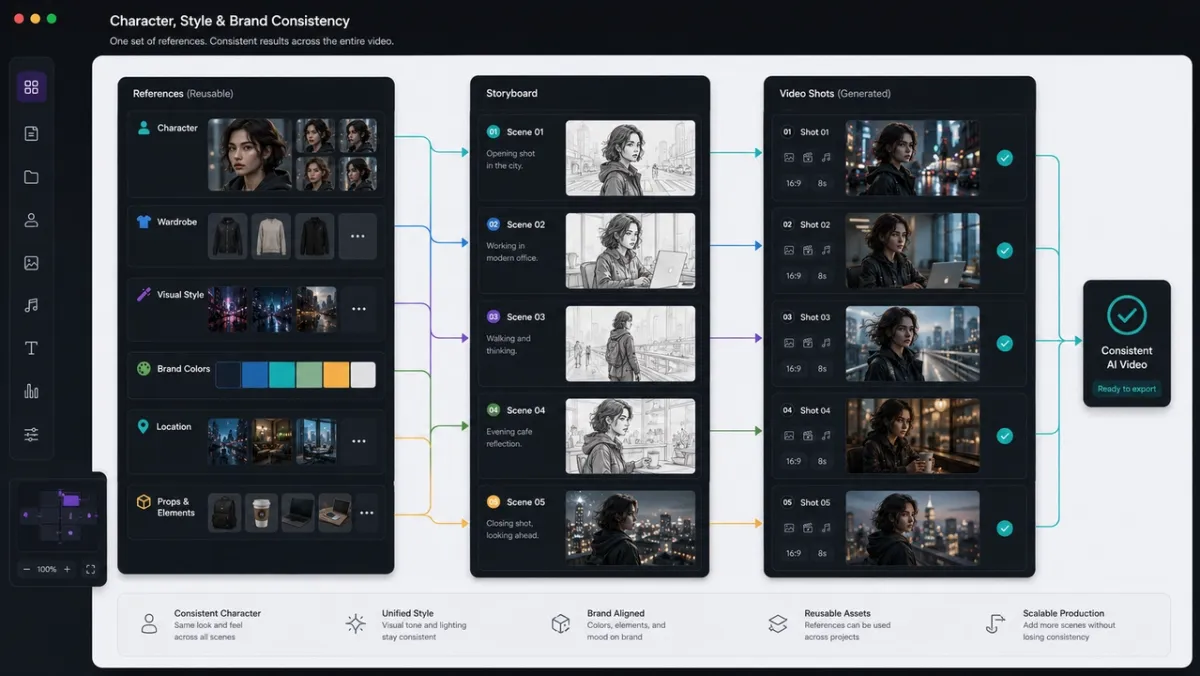
Reusable references help carry characters, style, locations, and brand rules across every shot in a project.
- Reusable references. Character, style, and brand references live on the canvas and can be attached to any downstream node.
- Project memory. A project remembers its goal, audience, characters, style, and brand rules, then feeds that context into new generations.
- Inherited context. New nodes pick up the project’s references automatically, so a character or look stays stable from shot to shot.
This keeps a campaign visually coherent without forcing creators to copy and paste the same description into every node. If character control is your main concern, our deeper walkthrough on how to create consistent characters with AI covers the techniques that PixVerse Canvas builds on at the project level.
Start Your AI Video Creation Workflow With an AI-Generated Framework
A blank canvas is intimidating. The fastest way into an AI video creation workflow is to start from a framework the AI builds for you, then take over wherever you want.
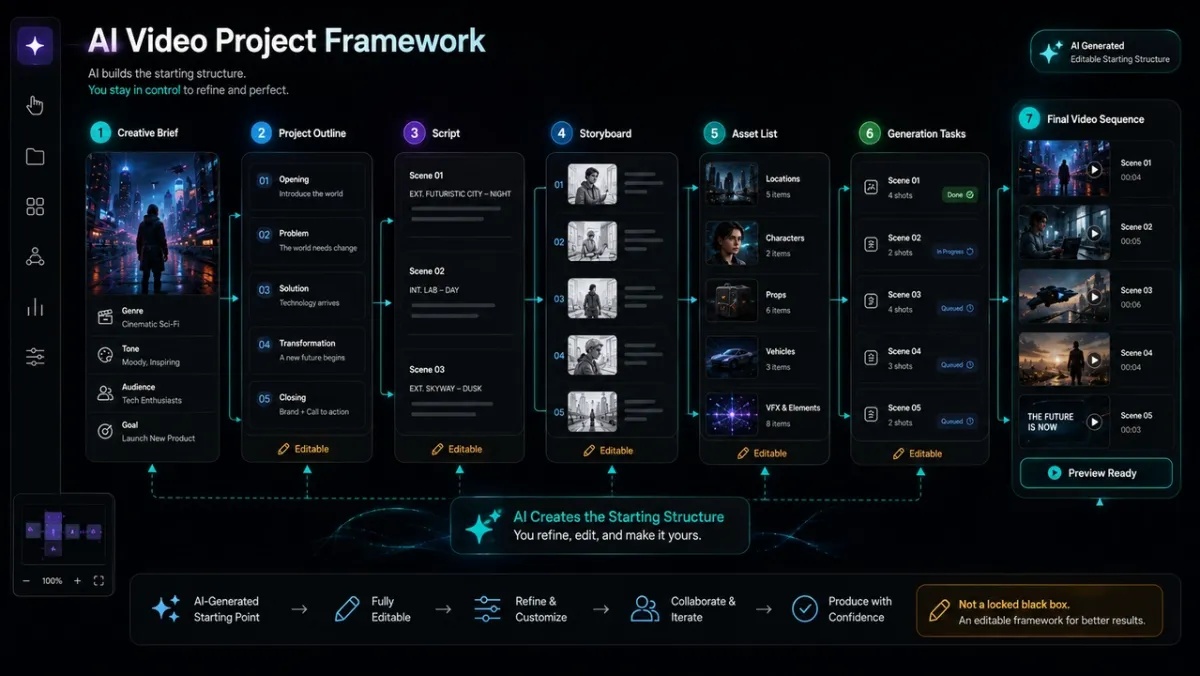
Start from a short brief, let AI build an editable framework, then refine the script, storyboard, assets, and generation tasks.
- Scenario starts. Begin from a goal such as an ecommerce product video, a short-drama trailer, a brand ad, or a music video.
- An editable framework. From a short brief, the canvas can lay out a project outline, a script, a storyboard, an asset list, and generation tasks.
- Full creative control. Every part of that framework is editable — swap a character, change a shot, replace a model, or rewrite a prompt.
The point is that you never face an empty board. New creators get a running start, and experienced creators keep control of every step. From there, a workflow like script → storyboard → shots → final cut is just a matter of refining what is already in front of you. For a song-driven example of this end-to-end flow, see how to make an AI music video from a song.
Who Should Use PixVerse Canvas for AI Video Workflow?
PixVerse Canvas is built for anyone who has moved past single clips and into real AI video production. It fits best when a project has many moving parts and a need for consistency.
| Who | Why PixVerse Canvas fits |
|---|---|
| Professional AI video creators | Manage multi-shot projects, compare models, and keep a reusable workflow |
| Marketing and ecommerce teams | Batch-generate variations across products, hooks, and platforms with control |
| Short-drama and short-form creators | Move from script to storyboard to shots without switching tools |
| Teams with brand or character rules | Hold style, characters, and brand context as shared project memory |
If your work has already grown from “make a clip” to “produce a set of videos,” a workflow workspace saves more time than any single faster model. This reflects the broader shift covered in how PixVerse evolved from a creation tool into a production platform.
Conclusion
The shift behind PixVerse Canvas is simple: stop generating videos one prompt at a time, and start running a workflow. By organizing assets and storyboards, batching generation, comparing models on the same shot, and carrying characters and brand rules as project memory, a canvas turns scattered prompts into a repeatable AI video production workflow.
Explore PixVerse Canvas to build your next AI video project as a workflow you can run, compare, and reuse — not a result you have to recreate from scratch every time.
FAQ
What is PixVerse Canvas?
PixVerse Canvas is a visual AI video workflow workspace. Instead of generating one clip per prompt, you organize assets, scripts, storyboards, model results, and batch tasks as connected nodes on a single canvas, so an entire video project lives and runs in one place.
How is an AI video workflow different from an AI video generator?
An AI video maker produces one result from one prompt. An AI video workflow manages the whole process around generation — references, shots, multiple models, versions, batches, and consistency — so you can deliver and reuse a complete project rather than a single clip.
Can PixVerse Canvas generate AI videos in batches?
Yes. You can add many assets at once, build a task matrix across assets, models, and aspect ratios, run them in a visible queue, retry failures, and export results in bulk — so batch AI video generation stays controllable instead of becoming a black box.
Can I compare multiple AI video models on the same shot?
Yes. PixVerse Canvas lets you run the same shot across models like PixVerse, Seedance, Kling, and Veo using identical inputs, compare them on cost, time, and consistency, and promote the best result into the next step of your workflow.
Who is PixVerse Canvas for?
PixVerse Canvas suits professional AI video creators, marketing and ecommerce teams, short-form and short-drama creators, and any team that needs to keep characters, style, and brand rules consistent across a multi-shot AI video project.
When a story needs to continue beyond a single clip, Video Expand can help extend the sequence.