MiniMax H3-Image 4K Guide: Native Output and Tests
See two original MiniMax H3-Image 4K tests on PixVerse, with export dimensions, exact prompts, visual checks, and practical delivery advice.

MiniMax H3-Image can generate 4K still images. For this guide, we made two examples on November 24, 2026: a square watch photograph exported at 4096 × 4096 pixels and a wide ceramics-workshop scene exported at 5472 × 3072 pixels. The images and exact prompts are below, along with the checks to make before using a large export.
MiniMax describes H3-Image as producing roughly 16-megapixel images directly, without a separate upscaler. Our downloaded PNGs confirm their delivered dimensions. Pixel counts alone cannot establish that every small detail is correct, so we checked the subject, materials, text, hands, and composition against each prompt.
Both examples were generated through PixVerse CLI, which currently offers MiniMax H3-Image at 4K. You can use the PixVerse image creator to test your own prompt and inspect the output before using it in a project.
Square 4K Example: Watch Detail and Small Text
We asked for one field watch with a short dial word, brushed metal, and a woven strap. The output shows a readable “NORTH” on the dial, clear reflections on the case, and visible strap texture. The watch rests above a slate block against a dark background. The dial markers are a detail to inspect at full size before using this as a product asset: a convincing preview does not guarantee that each marker matches a real watch specification.
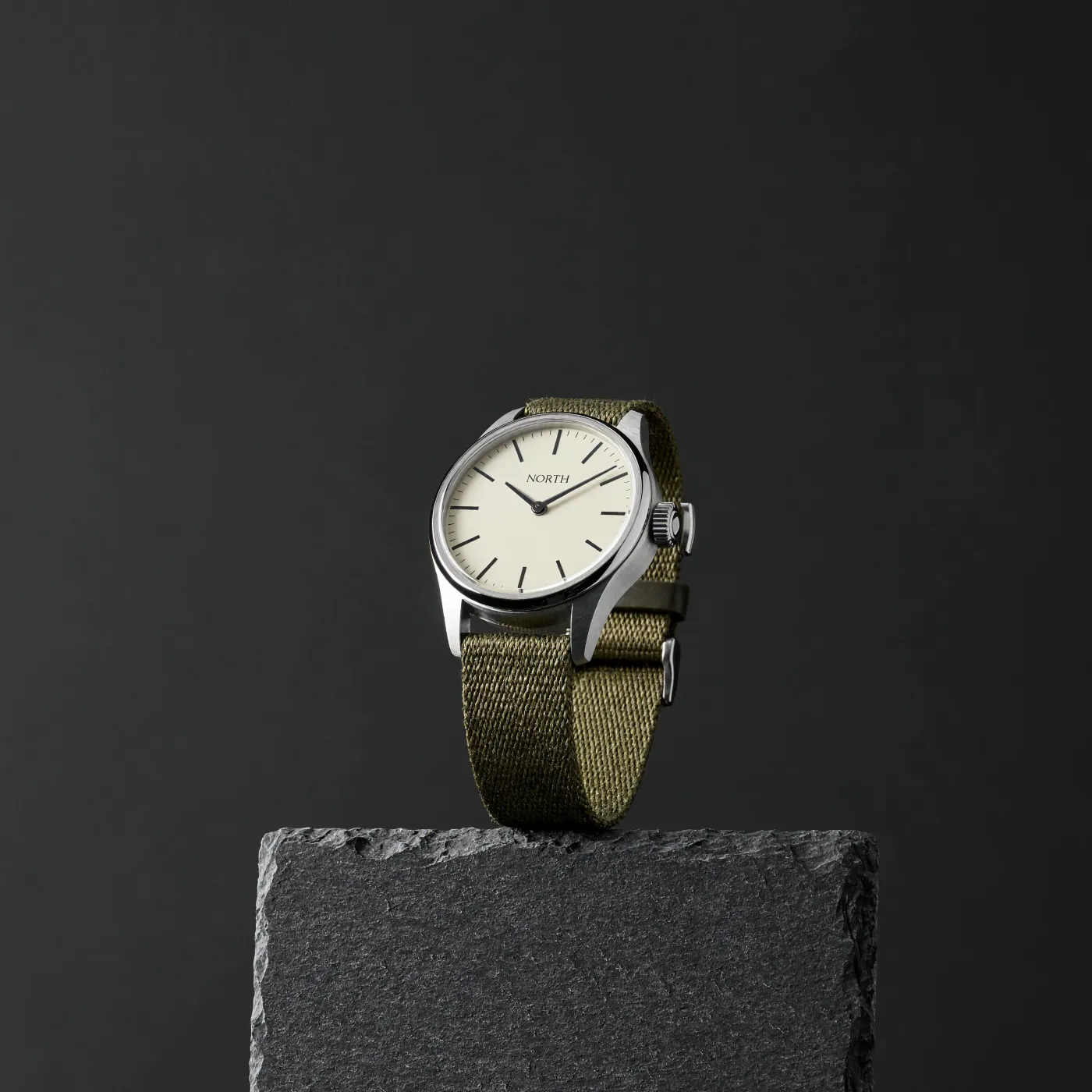
This is a resized WebP preview. Open the original 4096 × 4096 PNG to inspect the dial and material detail.
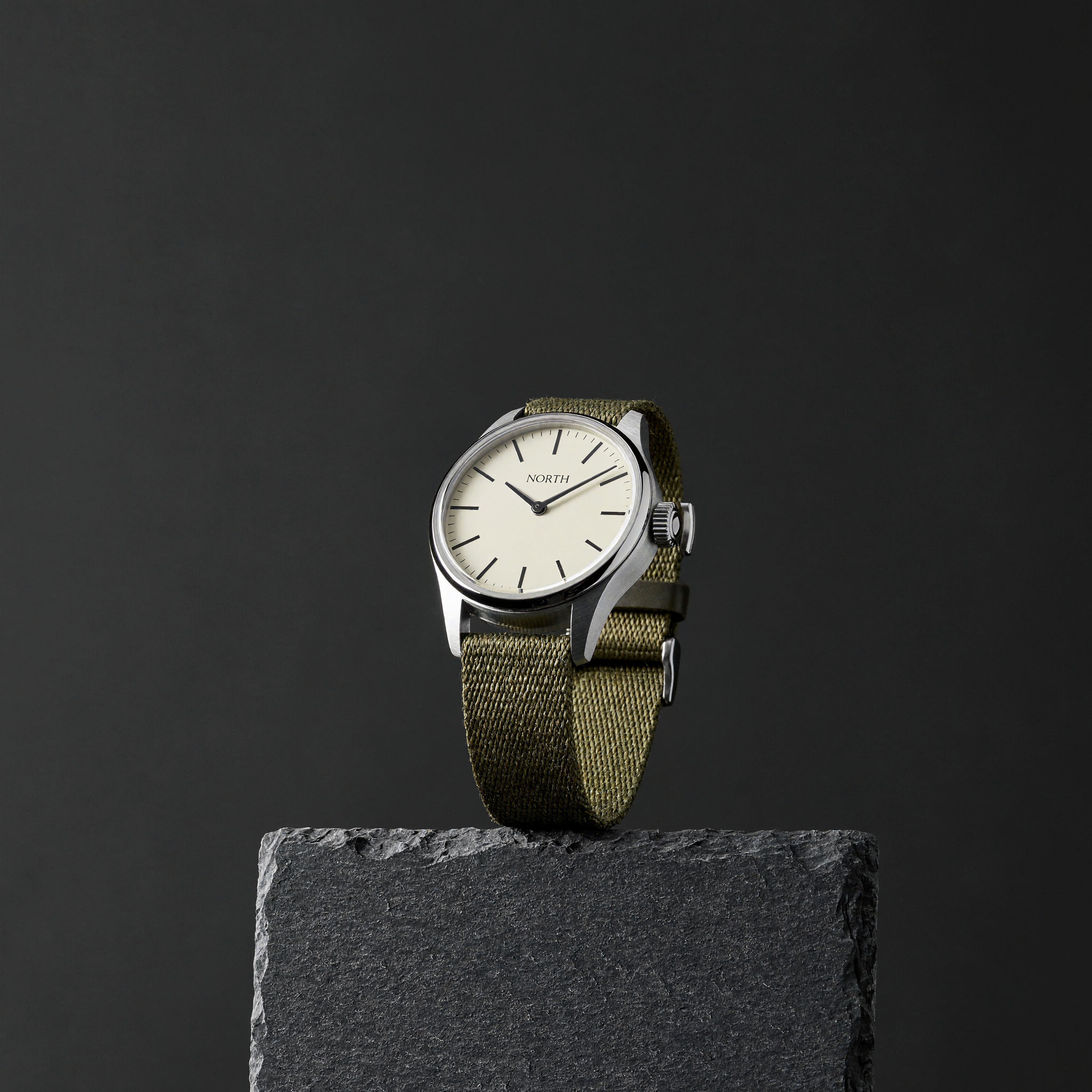
Image prompt — square watch test:
A photorealistic square catalog photograph of one stainless-steel analog field watch resting on a dark slate block. The watch has a cream dial, twelve black hour markers, a brushed silver case, and an olive woven canvas strap. A small word NORTH appears at the top of the dial. Side light from the upper left reveals fine metal brushing, individual strap fibers, crisp dial markings, realistic glass reflections, and a soft contact shadow. Clean charcoal background. One watch only, no other objects, logos, or readable text.
The short word worked in this run. That does not establish reliable accuracy for a full dial, technical markings, or regulated packaging copy. Check those elements against approved source material, especially after cropping or resizing.
Wide 4K Example: People, Materials, and a Sign
Our second test used a 16:9 workshop brief with two people, a spinning wheel, wet clay, shelves, and a short wall sign. The result kept the warm window light and rendered “CLAY ROOM” legibly. The foreground hands and wheel are prominent. The potter’s face is cropped by the right edge, although the prompt did not ask for that framing; it is a useful reminder to inspect the entire composition, not just the surface detail.

Open the original 5472 × 3072 PNG to inspect hands, clay, shelves, and the sign at full size.

Image prompt — wide workshop test:
A photorealistic wide editorial photograph inside a small ceramics workshop in morning light. In the foreground, a potter wearing a navy apron shapes one round bowl on a spinning wheel with both hands; wet clay texture and a few water droplets are visible. In the middle ground, a second person glazes a vase at a worktable. Narrow shelves of finished bowls line the back wall. White painted brick, a large window on the left, warm natural daylight, realistic hands and tools, documentary 35mm framing. A small wall sign reads exactly CLAY ROOM. No other readable text.
This example is a separate generation from the watch image, with its own prompt. It tests a different kind of 4K value: enough pixels to inspect a busy scene and make tighter editorial crops. A large export still needs a human check for anatomy, action, and framing.
What the PixVerse 4K Setting Delivers
The PixVerse CLI image reference lists 1K, 2K, and 4K settings for MiniMax H3-Image. In the CLI, --quality 2160p is the 4K choice. The output dimensions depend on aspect ratio: our 1:1 watch was 4096 × 4096, while the 16:9 workshop was 5472 × 3072. Both are roughly 16.8 million pixels.
Use the original PNG to judge the result. The smaller WebP images in this article are for page loading and may hide mistakes that become visible at 100% zoom. Inspect any short text, reflective surface, hand, product edge, and subject crop against the creative brief.
How to Generate and Review a 4K Image
- Choose MiniMax H3-Image in PixVerse and set the output to 4K. In the CLI, specify
--model minimax-h3-image --quality 2160p. - State the subject, object count, material, camera view, lighting, and any exact text in the prompt.
- Download the completed PNG and check its actual pixel dimensions. Keep the original even if the blog uses an optimized preview.
- Review the full composition first, then inspect the most demanding details at full resolution. Our watch needs a dial check; our workshop needs a framing and hand check.
- Approve an image for the job it will do. A blog example, product catalog image, and paid campaign asset can have different tolerances for small errors.
For rapid creative exploration, 1K or 2K may be enough. Move to 4K when the chosen composition needs a larger delivery file or more room for crops. The setting changes the export size; it does not promise perfect text or anatomy.
Can a 4K output become the next edit reference?
Yes, but use a smaller input copy on PixVerse when the reference exceeds its upload limit. In our separate MiniMax H3-Image editing test, a 4096 × 4096 image ID was rejected as a reference because each side had to be at most 1920 pixels. A resized local copy worked. Keep the full-resolution export for delivery and use the smaller copy for subsequent edits.
MiniMax announced H3-Image on November 11, 2026 and reports 4K generation in under 10 seconds in its own setting. Our two PixVerse CLI calls took about 22 and 27 seconds end to end, including request handling and polling. These are different measurements, and real queue times can vary.