How to Change Aspect Ratio Without Cropping (2026 AI Guide)
Change a photo's aspect ratio without cropping using AI outpainting. Expand images to 9:16, 16:9, and 1:1 for TikTok, YouTube, and Instagram in seconds.
Cropping is the fastest way to ruin a good photo. The moment you force a landscape shot into a vertical frame, you cut off faces, products, or the part of the scene that made the shot work. The better approach is to change the aspect ratio without cropping — by expanding the canvas instead of slicing it.
This guide explains how AI outpainting lets you reframe any image for any platform, which ratios to use for TikTok, YouTube, and Instagram, and how to do it step by step in PixVerse Magic Extend.
Why Cropping Cuts Off What Matters
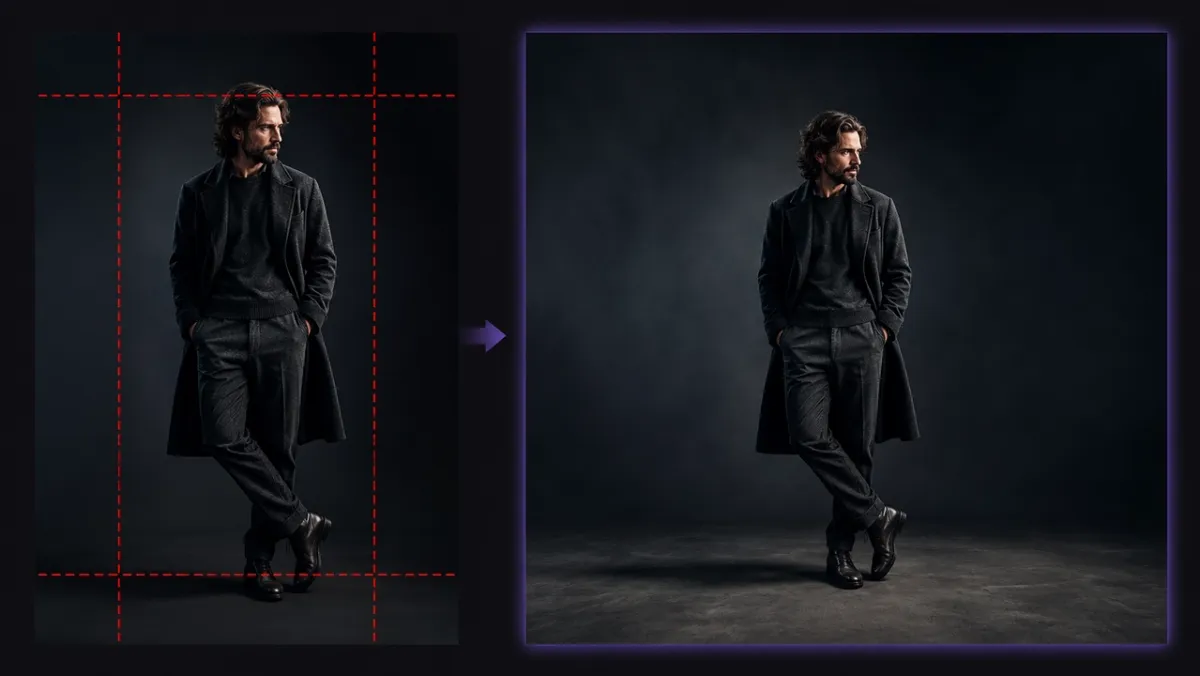
Traditional cropping throws pixels away. To fit a wide photo into a 9:16 frame, you delete everything outside the new shape — and that often means losing a subject’s head, hands, or background context. The two common workarounds are no better: stretching distorts faces and products, while letterboxing wastes space with black bars.
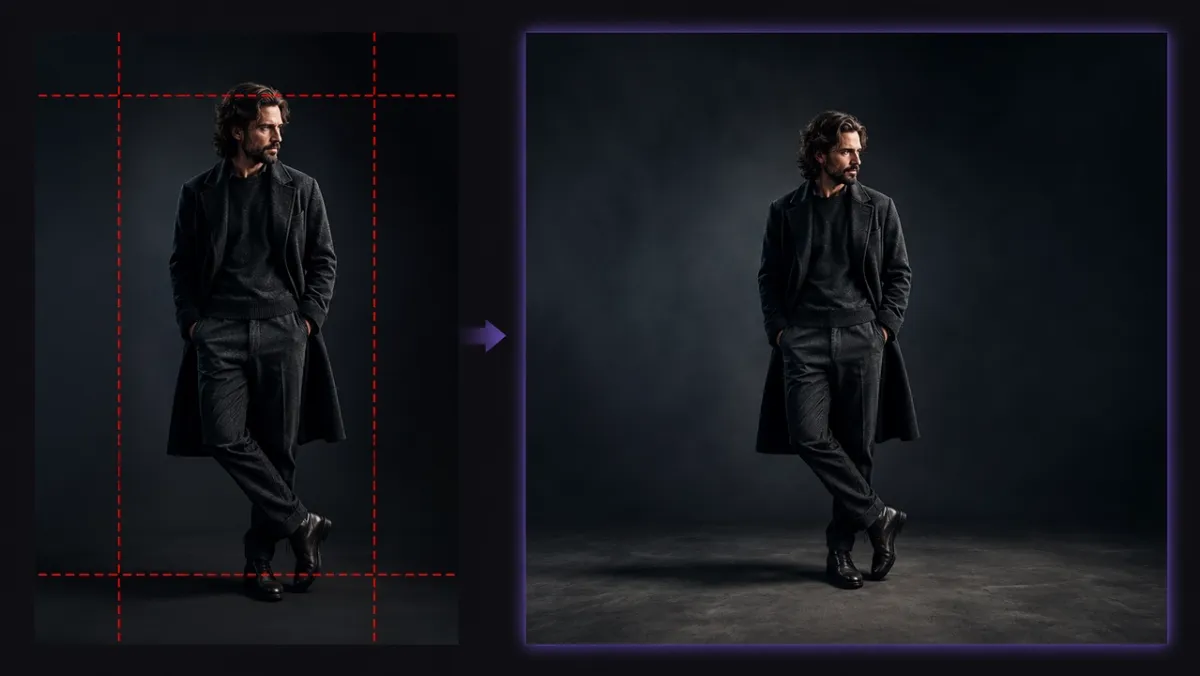
Expanding the canvas solves this. Instead of removing pixels, AI generates new ones around your original image, so your subject stays exactly where it was.
What Is AI Outpainting (Image Extending)?
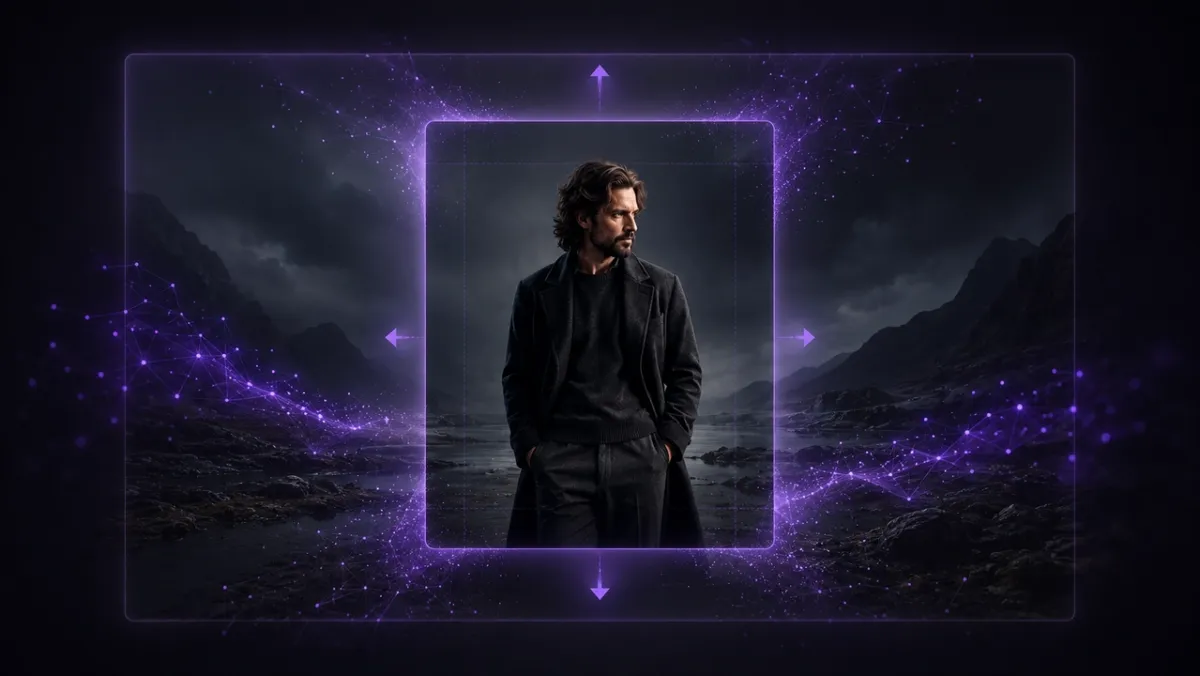
AI outpainting — also called image extending or uncropping — generates new content beyond the edges of an existing photo. The model reads your image and continues the scene outward to fill a new aspect ratio.
If you want to change an object or selected area inside the original image instead of extending the canvas, use an AI inpainting tool rather than an outpainting workflow.
- Subject stays intact: New pixels are added around the original, never on top of it.
- Context-aware fill: The AI matches the original lighting, color, perspective, and texture.
- No manual masking: You pick a target ratio and the tool handles the rest.
The result looks like the photo was shot in the new format from the start, not edited after the fact.
Aspect Ratios for Every Platform
A single image can be reframed for every channel. Use this quick reference to pick the right target ratio before you expand.
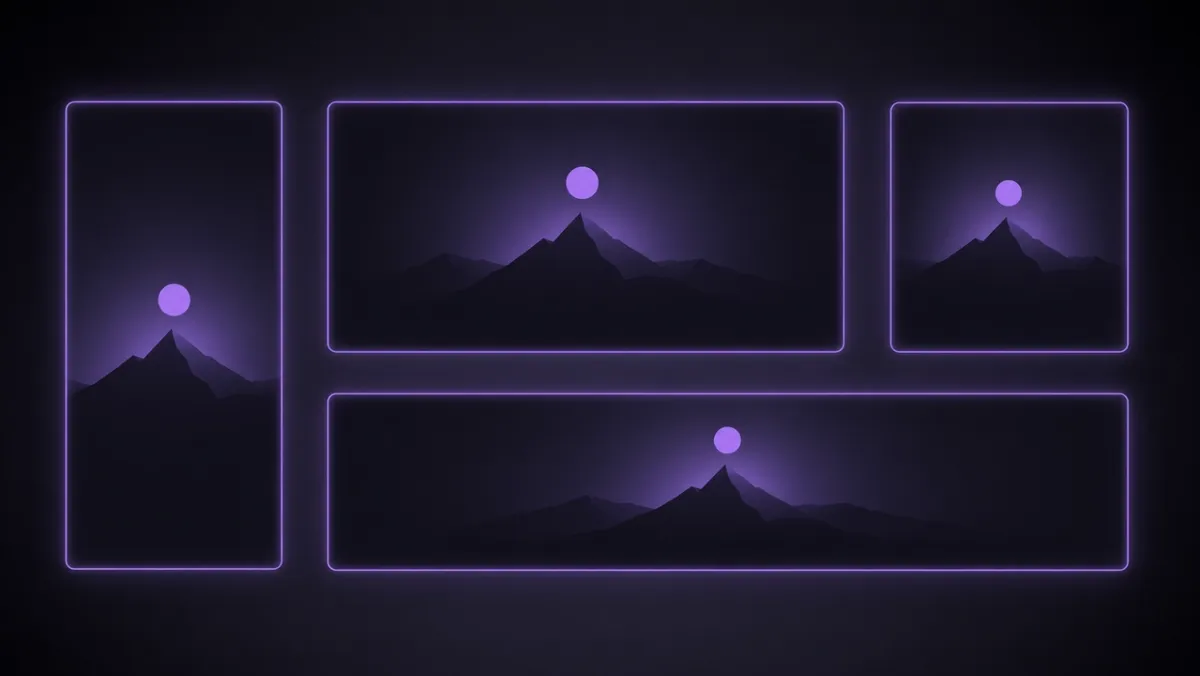
| Ratio | Best for |
|---|---|
| 9:16 | TikTok, Reels, YouTube Shorts |
| 16:9 | YouTube, widescreen displays |
| 1:1 / 4:5 | Instagram feed posts |
| 21:9 / 2.35:1 | Cinematic shots, website banners |
9:16 for TikTok, Reels and Shorts
Vertical video platforms need full-bleed 9:16 frames. Expand a landscape or square photo upward and downward so your subject stays centered and nothing gets cut for the feed.
16:9 for YouTube and Widescreen
YouTube thumbnails and widescreen layouts use 16:9. Convert a portrait shot to landscape by generating background on the left and right — ideal for turning a phone photo into a clickable thumbnail.
1:1 and 4:5 for Instagram
Square 1:1 and portrait 4:5 dominate the Instagram feed. Extending to these ratios keeps products and faces fully visible instead of trimming the edges of a wider original.
21:9 Cinematic for Film and Banners
For ultrawide and cinematic looks, PixVerse supports film ratios like 21:9 and 2.35:1 — formats most consumer extenders skip. These are useful for hero banners, video covers, and a more dramatic frame.
How to Change Aspect Ratio Without Cropping in PixVerse
Magic Extend handles the full workflow in three steps.
- Upload your image. Open Magic Extend and add a JPG, PNG, or WEBP file up to 20MB.
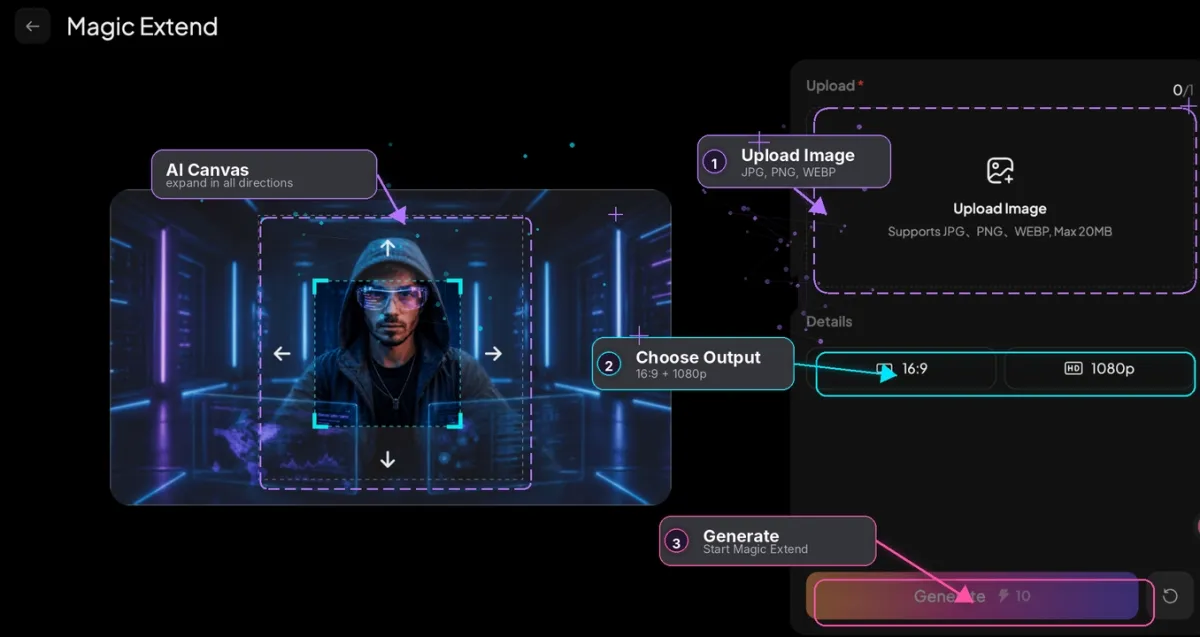
- Pick a target ratio and resolution. Choose a preset ratio or free canvas, set 720p or 1080p, and add an optional prompt to guide what fills the new space.
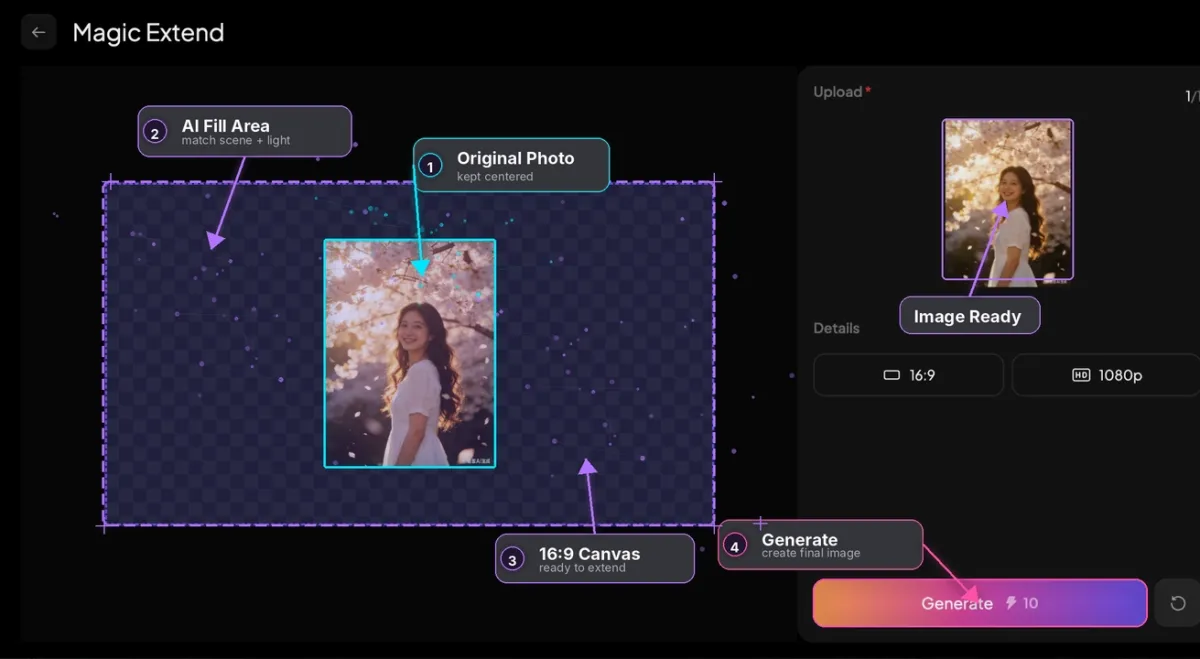
- Generate. The AI extends your image and fills the new area seamlessly, keeping your subject untouched.
Turn Your Extended Image into a Video
Reframing is often just the first step. Because Magic Extend lives inside PixVerse, you can take the extended image straight into image-to-video on the same platform — no exporting or switching tools. Expand a product photo to 9:16, then animate it into a short ad in minutes.
Tips for Better Outpainting Results
A few habits produce cleaner extensions across any image.
- Start small: Modest expansions are more reliable than aggressive portrait-to-ultrawide jumps.
- Guide with a prompt: Describe the new area, such as “extend the sky” or “add more studio background.”
- Mind the background: Plain backdrops extend cleanly; busy crowds, text, and patterns may need extra tries.
- Keep the subject framed: Center or anchor the subject so the new space sits around it naturally.
- Regenerate when needed: If an edge looks off, run it again — small variations often fix it.
Conclusion
Changing a photo’s aspect ratio without cropping comes down to one shift: expand the canvas instead of cutting it. AI outpainting reframes a single image for TikTok, YouTube, Instagram, and cinematic formats while keeping your subject fully intact.
Upload a photo to PixVerse Magic Extend, pick your target ratio, and generate a platform-ready image in seconds — then carry it into video without leaving the platform.
FAQ
How do I change aspect ratio without cropping?
Upload your photo to an AI image extender, choose the target ratio, and generate. The tool expands the canvas and fills the new space with matching content, so your subject is never cropped.
Is AI outpainting the same as resizing?
No. Resizing scales or stretches existing pixels, which can distort the image. Outpainting generates entirely new pixels around the original to fill a different aspect ratio.
Can I convert a portrait photo to landscape?
Yes. Extend the left and right sides of a vertical photo to reach 16:9 or other landscape ratios. The AI generates background that matches the original scene.
What image formats and sizes does Magic Extend support?
Magic Extend accepts JPG, PNG, and WEBP files up to 20MB, with output at 720p or 1080p.