Seedance 2.5 Now on PixVerse: AI Video Up to 30 Seconds
Seedance 2.5 is now available on PixVerse for Pro, Premium, and Ultra members. Create 4-30 second AI videos with Video, Transition, and Reference modes.
Seedance 2.5 is now available on PixVerse as an independent AI video model for Pro, Premium, and Ultra members. It adds a flexible route for creators who want to build a complete scene with a prompt, a first-frame image, a pair of transition frames, or a focused set of image, video, and audio references.
Explore Seedance 2.5, then select the model in the creation workspace to see the controls enabled for your account. It is a separate model option and does not replace the existing Seedance 2.0 on PixVerse workflow.
Limited-time Seedance 2.5 1080p offer
Create with Seedance 2.5 at 1080p on Web and Canvas for a limited time. The offer ends September 18, 2026, at 3:00 PM Beijing Time (12:00 AM PDT).
- Pro and Premium: 30% off the regular Seedance 2.5 1080p credit cost.
- Ultra: member and promotional savings combine for 44% off the regular cost. After the offer, the standard 20% member discount applies.
- What the offer covers: 1080p Video, Transition, and Reference generations on Web and Canvas. 480p and 720p generations, as well as the app, are not included.
What You Can Create with Seedance 2.5
Seedance 2.5 supports three creation modes on PixVerse, so you can choose an input path that matches the shot you need to make.
- Video: Start from a text prompt for text-to-video, or add a first-frame image for image-to-video.
- Transition: Use a first frame and an end frame to generate a bridge between two visual moments. Transition uses automatic framing rather than a manually selected aspect ratio.
- Reference: Combine images, videos, and audio references with a clear prompt when the scene needs more creative direction.
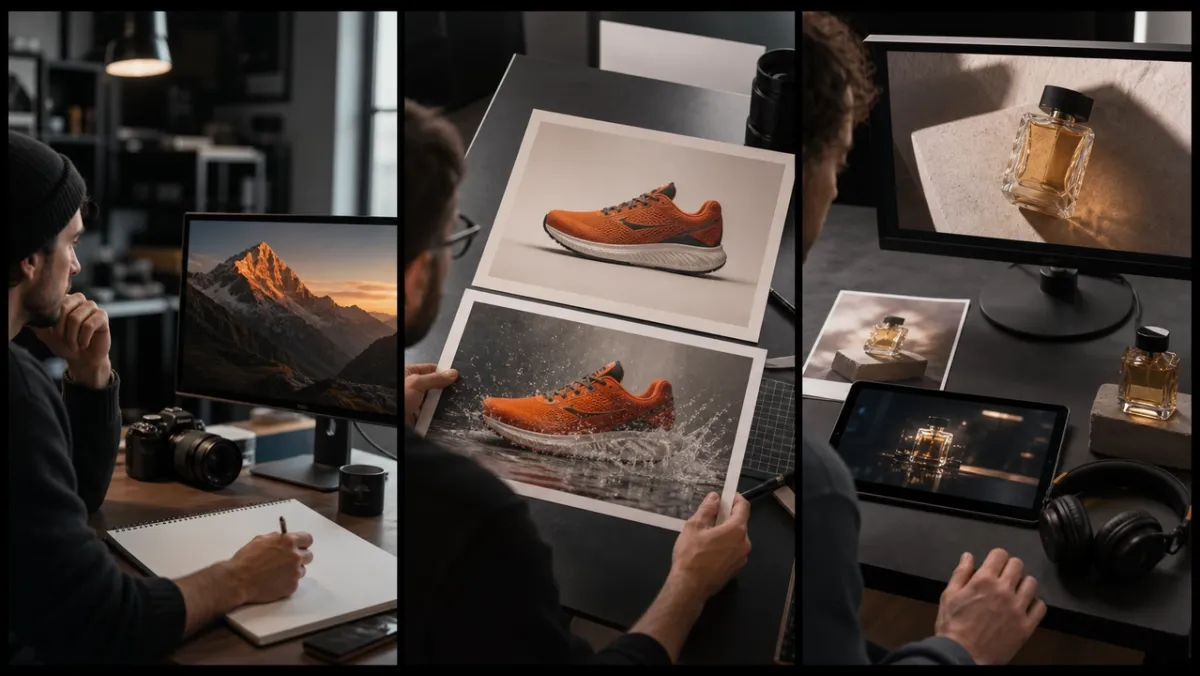
From left: use Video to develop a prompt-led scene, Transition when the first and end frames are known, and Reference when a focused asset pack needs to guide the result.
The model supports generated durations from 4 to 30 seconds. Choose 480p or 720p resolution, then set the aspect ratio that fits your delivery format for Video and Reference workflows. For a deadline-sensitive project, confirm the live model card, available controls, and estimated credits in your PixVerse workspace before you start production.
Build a Focused Reference Pack
The strongest first test is usually not the one with the most uploads. Start with a clear prompt and a compact set of assets that each have a specific job: protect product details, establish a character, guide a movement, or set the location and visual style.
Seedance 2.5 can accept up to 50 reference assets in a single Reference workflow. PixVerse supports up to 30 images, 10 video clips, and 10 audio clips; the combined duration for video references and for audio references is up to 30 seconds each. Audio should support an image or video-led brief rather than act as the only reference.
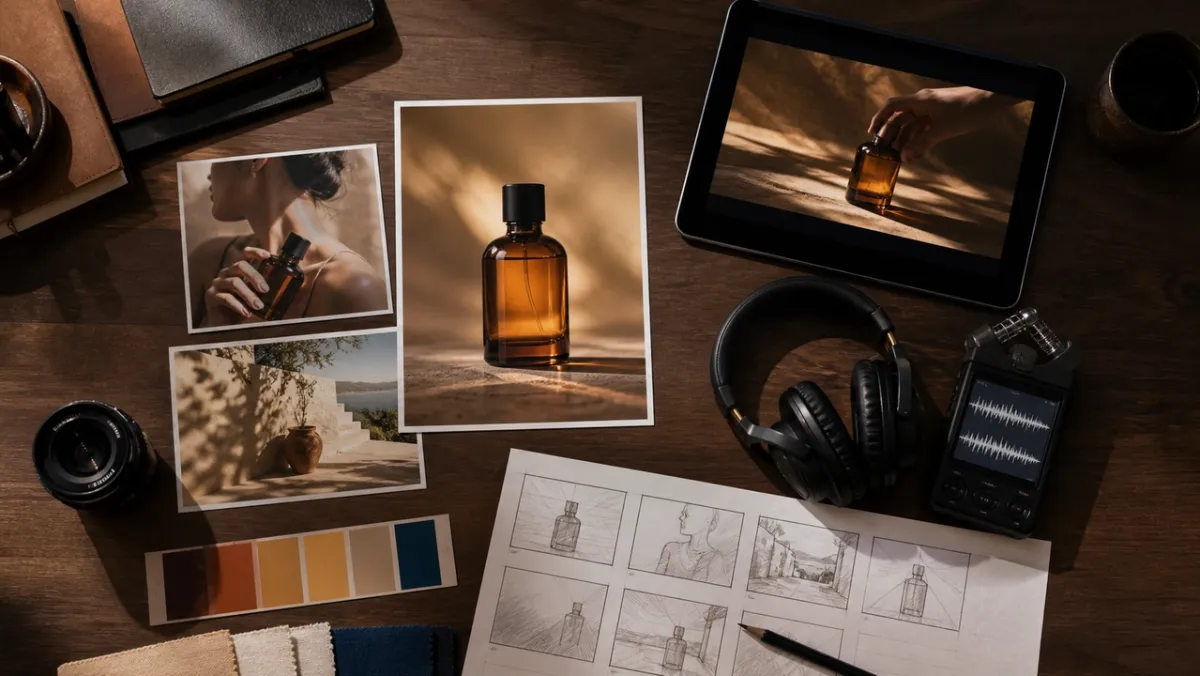
Give every reference one job: product accuracy, character or hand movement, setting and light, motion, sound, or shot order. A small aligned pack is easier to evaluate than a crowded collection of conflicting assets.
For a reliable creative test:
- Write the subject, action, setting, camera direction, and mood in one concise prompt.
- Attach only the image, video, or audio assets that improve that specific shot.
- Generate a short version first and review subject consistency, movement, lighting, and prompt adherence.
- Keep the prompt and the references that work as a reusable production pack.
For a more detailed brief structure and examples, read the Seedance 2.5 prompt guide.
Choose the Right Mode for the Shot
Use Video when the prompt or first frame carries the main idea. This is a practical starting point for product reveals, social clips, establishing shots, and short narrative moments.
Use Transition when you already know the visual before-and-after state. It can help connect a product’s closed and opened view, a daytime location and its evening counterpart, or two story beats that need a continuous visual handoff.
Use Reference when the shot needs more context than a single image can provide. A product image, style frame, short motion reference, and audio cue can work together when each one reinforces the same creative direction. Start with the smallest coherent set, then add assets only when they improve the output.
Seedance 2.5 and the PixVerse Model Lineup
Seedance 2.5 expands the choices available in PixVerse; it does not replace Seedance 2.0. The new model is useful when you want up to 30 seconds of generation or a broader reference-led input pack, while Seedance 2.0 remains a relevant option for projects that already use its established workflow.
If you are deciding which route to test, see the Seedance 2.5 vs. Seedance 2.0 comparison. For the wider rollout context and a practical first-project checklist, read the Seedance 2.5 features and access guide.
How to Start Creating on PixVerse
- Sign in to your PixVerse account.
- Open the Video creation workflow and choose Seedance 2.5 from the model list.
- Select Video, Transition, or Reference based on your intended input.
- Set the duration, resolution, and available framing controls for the mode.
- Add your prompt and only the assets that guide the result.
- Generate, review the clip, and reuse the strongest prompt-and-reference combination for the next version.
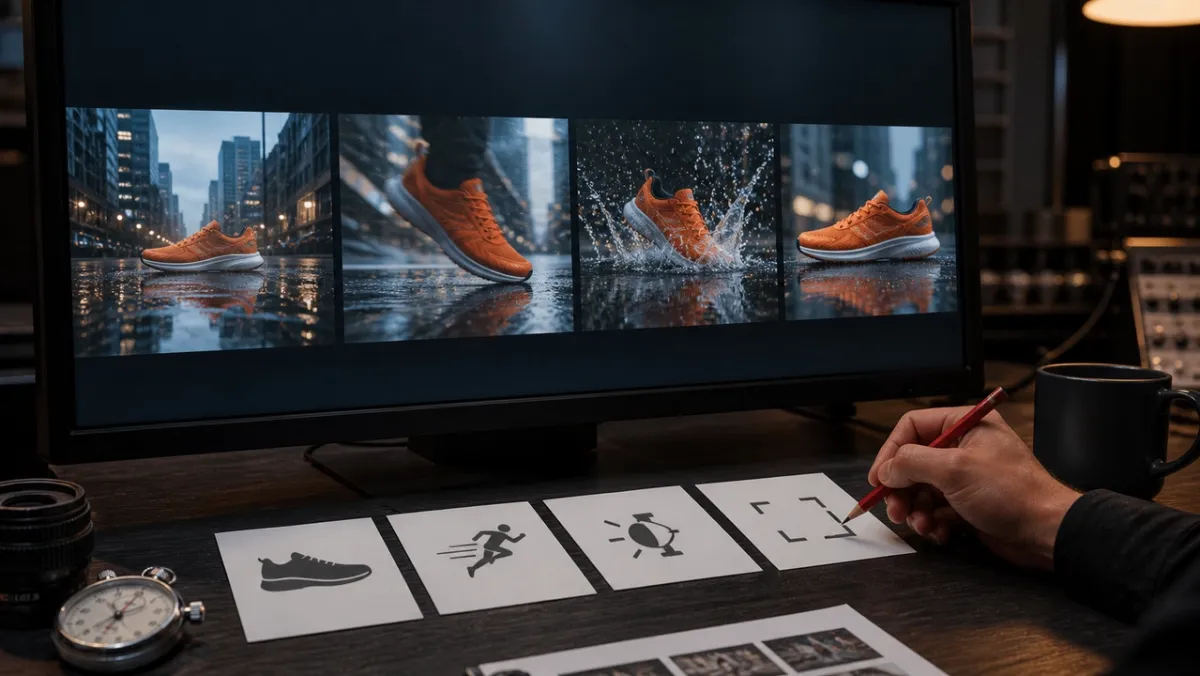
Review a short controlled sequence before scaling it: compare product or subject consistency, motion, lighting, and framing across the full run, not only the strongest single frame.
FAQ
Is Seedance 2.5 available on PixVerse?
Yes. Seedance 2.5 is available on PixVerse for Pro, Premium, and Ultra members. Check the model selector in your workspace for the options currently enabled for your account.
How long can Seedance 2.5 videos be?
Seedance 2.5 supports durations from 4 to 30 seconds. Start with a shorter test when you need to validate a prompt or a reference pack before developing a longer scene.
What inputs can I use?
You can create with a text prompt, a first-frame image, a pair of transition frames, or image, video, and audio references in Reference mode. The available controls are shown in the PixVerse workspace.
Does Seedance 2.5 replace Seedance 2.0?
No. Seedance 2.5 is an independent model option on PixVerse. Compare both workflows against the same brief and choose the one that best fits your intended duration, input needs, and production process.