Kling O3 and Kling 3.0 Review: Tests, Prompts & Comparison
We tested Kling O3 and Kling 3.0 on PixVerse across video, image, reference control, audio, and cost. See prompts, results, best use cases, and limits.
Kling O3 (also called Kling Video 3.0 Omni) and Kling 3.0 (Kling Video 3.0) are Kuaishou generation models for AI video and image creation. O3 is built around stronger reference control, Reference-to-Video, and up to 4K image output, while Kling 3.0 focuses on the same core video and image workflows at a lower iteration cost.
This Kling O3 and Kling 3.0 review compares both models across video workflows, image generation, reference control, native audio, and credit cost so you can decide when O3 is worth using and when Kling 3.0 is the better everyday model. On PixVerse, both models sit in the same workspace as PixVerse V6, Veo 3.1, Sora 2, and more, with no separate Kling account or API key required.
Quick Verdict: Should You Use Kling O3 or Kling 3.0?
Short answer: use Kling O3 when reference control matters more than credit cost. O3 is the better fit for reference-heavy video, 4K image output, product visuals, and character consistency tests where multiple source images help lock identity. Kling 3.0 is still the better first pass when you need cheaper prompt iteration, quick drafts, or a lower-cost way to test scenes before moving to O3.
For most PixVerse users, the best workflow is: draft with Kling 3.0, finalize with Kling O3. Start on Kling 3.0 Standard to test prompts and camera language, then switch to Kling O3 when you need Reference-to-Video, multi-image reference control, or 4K image detail.
Review takeaway: Kling O3 is the control-first model for reference assets and final-quality outputs; Kling 3.0 is the iteration-first model for faster, lower-cost prompt testing.
Kling O3 vs Kling 3.0: Quick Specs
Kling O3 and Kling 3.0 both cover video and image output. The main split is workflow intent: O3 is built for control-heavy generation, while 3.0 is the lower-cost prompt-first route.
| Feature | Kling O3 | Kling 3.0 |
|---|---|---|
| Also known as | Kling Video 3.0 Omni | Kling Video 3.0 |
| Video modes | T2V, I2V, Transition, R2V | T2V, I2V, Transition |
| Image modes | T2I, I2I | T2I, I2I |
| Max video duration | 15 seconds | 15 seconds |
| Image resolution | Up to 4K | Up to 2K |
| Reference image input | Up to 10 images for image / 4 images for R2V | Single image |
| Native audio | Yes | Yes |
| Multi-shot intelligent mode | Yes | Yes |
| Best for | Reference-to-video, 4K images, product consistency, character consistency | Fast draft clips, prompt iteration, budget testing |
| Main limitation | Higher credit cost and stronger dependency on clean reference inputs | Less reference control and no 4K image output |
What Is Reference-to-Video (R2V)?
Reference-to-Video is a mode exclusive to Kling O3. You upload up to 4 reference images of a character or object, and the model locks that visual identity throughout the generated video — maintaining consistent appearance, clothing, and features across different camera angles and scenes.
Unlike image-to-video, the reference images are not used as the first frame. They serve as visual anchors only, so the model composes the scene freely based on your text prompt while keeping the character or object looking the same throughout. This solves the common “character melting” problem where a subject’s appearance shifts mid-video.
R2V is useful for:
- Multi-shot storytelling: Keep the same character consistent across a sequence of clips
- Product showcase videos: Lock the appearance of a specific product while the camera moves around it
- Cinematic storyboarding: Maintain visual identity across different angles and lighting conditions
How We Tested Kling O3 and Kling 3.0
To make this Kling O3 review useful beyond a feature list, use the same test setup across both models whenever you compare outputs:
| Test setting | Method |
|---|---|
| Prompt control | Run the same prompt on Kling O3 and Kling 3.0 |
| Aspect ratio | Keep the same aspect ratio for each paired test |
| Duration | Use the same duration for video tests, such as 5 seconds for first-pass comparisons |
| Quality mode | Compare Standard with Standard and Pro with Pro |
| Audio | Keep native audio either on for both models or off for both models |
| Video workflows | Test T2V, I2V, Transition, and O3-only R2V separately |
| Image workflows | Test T2I and I2I with the highest available resolution for each model |
| Review criteria | Prompt adherence, reference consistency, material detail, text rendering, motion stability, audio sync, cost efficiency |
This setup keeps the comparison fair: same creative brief, same production constraint, different model choice. Where Kling O3 supports features Kling 3.0 does not, such as R2V and 4K image output, mark that as a capability gap instead of forcing a like-for-like score.
Video Test Results: Kling O3 vs Kling 3.0
The strongest way to review Kling O3 is to test it against use cases where reference control and motion matter.
Test 1: Character Consistency
| Field | Test setup |
|---|---|
| Goal | Keep the same person recognizable across camera angles |
| Workflow | Kling O3 R2V vs Kling 3.0 I2V or T2V |
| Prompt | A cinematic medium shot of the same woman walking through a rainy city street at night, neon reflections on wet pavement, natural facial expression, handheld tracking shot, realistic motion, shallow depth of field |
| What to inspect | Facial identity, clothing stability, hair shape, skin texture, motion coherence |
| Expected decision point | Use Kling O3 when the identity must remain locked across multiple shots; use Kling 3.0 for quick prompt tests before adding references |
Test 2: Product Ad Clip
| Field | Test setup |
|---|---|
| Goal | Preserve product shape, logo position, material finish, and reflections |
| Workflow | Kling O3 R2V or I2V vs Kling 3.0 I2V |
| Prompt | A premium commercial video of a matte black ceramic coffee mug on a walnut desk, morning window light, slow push-in camera, soft steam rising, sharp product edges, clean lifestyle composition |
| What to inspect | Edge stability, logo readability, ceramic texture, reflections, unwanted product deformation |
| Expected decision point | Use Kling O3 when a specific product has to remain visually accurate; use Kling 3.0 when the product identity is less strict |
Test 3: Multi-Shot Narrative and Audio Sync
| Field | Test setup |
|---|---|
| Goal | Compare multi-angle continuity and native audio usability |
| Workflow | T2V with Intelligent multi-shot mode and native audio enabled |
| Prompt | A short cinematic scene in a small design studio: a creator reviews a character sheet, points to a monitor, and says, "Keep the same character across every shot." Natural room tone, soft morning light, realistic dialogue timing |
| What to inspect | Shot-to-shot continuity, lip sync, ambient audio, dialogue clarity, subject identity across cuts |
| Expected decision point | Use native audio for fast concepting, but review dialogue, licensing needs, and final sound design before commercial publishing |
What Video Modes Does Kling Support?
Both models support three core AI video generation workflows:
- Text-to-Video (T2V): Describe your scene in a text prompt and generate a video clip from scratch.
- Image-to-Video (I2V): Upload a starting image and turn it into motion. Optionally provide an end frame to create a transition.
- Transition: Supply a start frame and an end frame. The model generates a smooth video transition between them.
Kling O3 adds a fourth mode:
- Reference-to-Video (R2V): Upload up to 4 reference images to lock character or object appearance across the entire clip (see the R2V section above for details).
Video Parameters
| Parameter | Options |
|---|---|
| Duration | 3 to 15 seconds (default: 5s) |
| Aspect ratio | 16:9, 9:16, 1:1 |
| Quality mode | Standard or Pro |
| Native audio | On or off — generates synchronized dialogue, sound effects, and ambient audio |
| Multi-shot | Intelligent mode for automatic multi-angle cinematic generation |
Kling O3 PixVerse Pricing: How Much Does Video Cost?
| Model | Mode | Video Only | With Audio |
|---|---|---|---|
| Kling O3 | Standard | 25 credits/s | 35 credits/s |
| Kling O3 | Pro | 35 credits/s | 45 credits/s |
| Kling 3.0 | Standard | 20 credits/s | 28 credits/s |
| Kling 3.0 | Pro | 25 credits/s | 35 credits/s |
A 5-second clip with Kling O3 Standard (video only) costs 125 credits. With audio, the same clip costs 175 credits. Kling 3.0 Standard brings that down to 100 credits for video only — a good starting point if you want to iterate quickly before committing to Pro quality.
Image Test: Does Kling O3 Beat Kling 3.0 for 4K Detail and Reference Control?
We ran the same prompts through Kling O3 and Kling 3.0 on PixVerse. For each test, compare native resolution, material detail, text rendering, facial consistency, and commercial usability. Kling O3 should be tested at up to 4K where available; Kling 3.0 should be tested at its highest available image setting.
| Test | What it measures | Prompt |
|---|---|---|
| Product texture | Material detail, reflection, edge clarity | Ultra-realistic product photography of a matte black ceramic coffee mug on a walnut desk, small white printed logo text "AURORA" on the mug, morning window light, soft shadow, 85mm lens, shallow depth of field, clean commercial composition, no extra text. |
| Human portrait | Skin, hair, natural expression | Photorealistic editorial portrait of a woman in her early 30s wearing a cream trench coat, natural skin texture, loose dark hair, soft overcast daylight, city street background, 50mm lens, realistic eyes, subtle expression, premium fashion magazine style. |
| Food / lifestyle | Color, detail, realism | High-end food photography of a matcha strawberry cake slice on a white ceramic plate, visible cream layers, fresh strawberries, powdered sugar, natural window light, linen tablecloth, realistic crumbs, macro detail, commercial bakery ad style. |
| Text rendering | Readable type and brand words | A clean tech product poster showing a silver wireless earbud case on a blue gradient studio background, large headline text "SOUND THAT MOVES" in crisp white sans-serif letters, small subheading "AI AUDIO 2026", premium ad layout, sharp typography. |
| Style / reference control | Style transfer and consistency | Use the uploaded reference image as the visual style guide. Create a futuristic perfume bottle campaign image with the same color palette, lighting mood, and material finish. Keep the bottle centered, luxury editorial composition, sharp reflections, no distorted label. |
Image Test Results
Product Texture Comparison

Comparison note: Kling O3 follows the matte ceramic brief more closely, with a cleaner product silhouette, readable AURORA logo, and softer commercial lighting. Kling 3.0 produces a punchier close-up with strong reflections and a legible logo, but the mug reads glossier than the prompt requested. For product texture accuracy, O3 is the stronger result; for a fast lifestyle close-up, Kling 3.0 remains usable.
Human Portrait Comparison
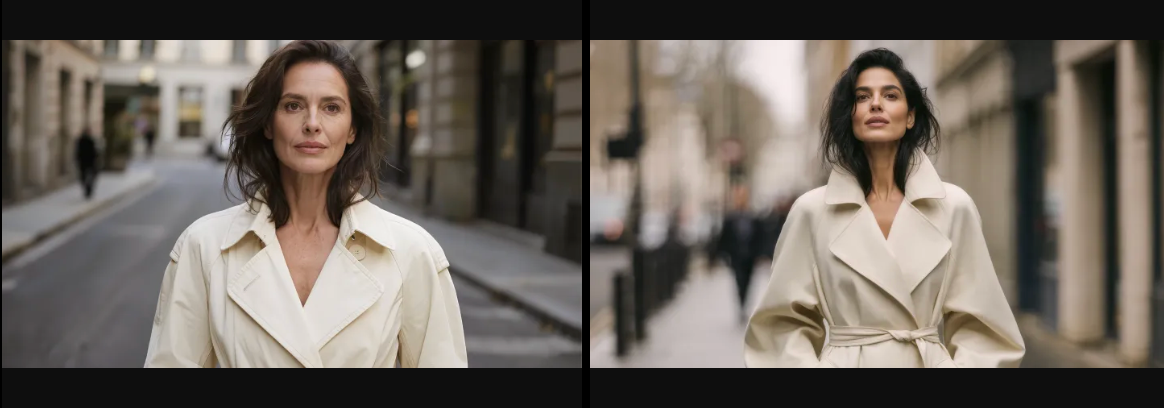
Comparison note: Kling O3 keeps more natural skin texture and a grounded editorial feel, though the subject appears slightly older and less polished than the prompt target. Kling 3.0 creates a cleaner fashion-magazine composition with a stronger trench-coat silhouette and smoother background separation, but the face is more idealized. For realism and texture, O3 has the edge; for polished editorial framing, Kling 3.0 performs well.
Food / Lifestyle Comparison

Comparison note: Kling O3 is more faithful to the prompt because it produces a true cake slice with visible layers, strawberries, powdered sugar, and close macro detail. Kling 3.0 generates a pleasing bakery-style scene, but the result shifts toward a rectangular cake portion and loses some of the requested slice composition. For prompt adherence and food-detail inspection, O3 is stronger; for general lifestyle ambience, Kling 3.0 is still visually attractive.
Text Rendering Comparison
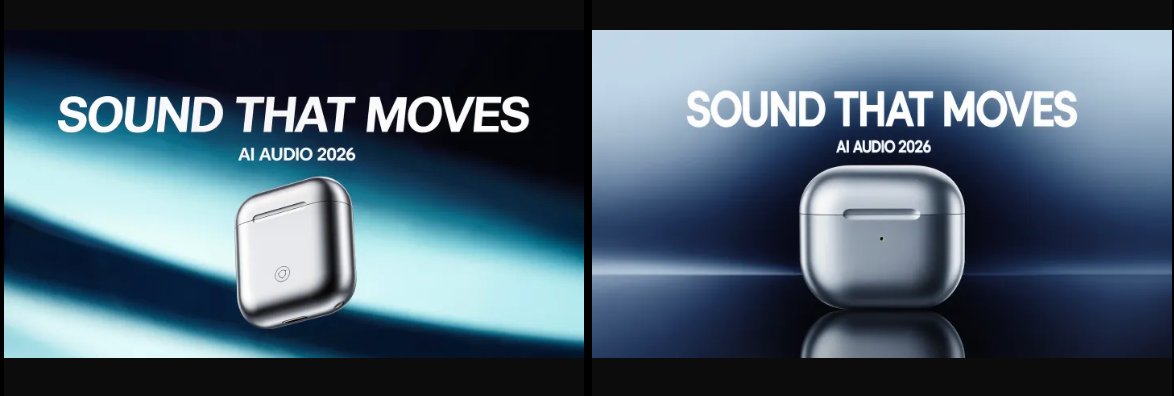
Comparison note: Both models render the main headline and subheading clearly enough to be usable for a test poster. Kling O3 creates a more dynamic ad layout with stronger diagonal motion and a floating product angle, while Kling 3.0 produces a cleaner centered packshot with a more conventional premium-tech composition. For typography readability, this sample is close; for brand-poster polish, the choice depends on whether you prefer O3’s motion-heavy style or Kling 3.0’s centered product layout.
Style / Reference Control Comparison

Comparison note: Kling O3 better preserves the luxury campaign mood, reflective material language, and cinematic lighting implied by the reference-control prompt. Kling 3.0 gives a cleaner centered bottle and a simpler commercial composition, but the scene feels less tied to the requested high-end reference atmosphere. For style transfer and material mood, O3 is stronger; for a straightforward centered product concept, Kling 3.0 is serviceable.
What Image Modes Does Kling Support?
Both models support:
- Text-to-Image (T2I): Generate images from text prompts with control over resolution and aspect ratio.
- Image-to-Image (I2I): Transform an existing image based on your prompt — useful for style transfer, editing, or remixing.
Kling O3 supports up to 10 reference images as input for stronger creative control. Kling 3.0 accepts a single reference image.
| Feature | Kling O3 | Kling 3.0 |
|---|---|---|
| Resolution | 1K, 2K, 4K | 1K, 2K |
| Reference images | Up to 10 | Single image |
| Aspect ratios | 16:9, 9:16, 1:1, 4:3, 3:4, 3:2, 2:3, 21:9 | Same 8 ratios |
How Much Do Kling Images Cost on PixVerse?
| Model | Resolution | Credits per Image |
|---|---|---|
| Kling O3 | 1K / 2K | 10 credits |
| Kling O3 | 4K | 20 credits |
| Kling 3.0 | 1K / 2K | 10 credits |
What Kling O3 Does Well
- Reference-heavy generation: O3 is the stronger choice when you bring clear reference images and need the same character, object, or style to persist.
- 4K image output: O3 is the only Kling option here with 4K image generation, making it more useful for marketing stills, product visuals, and review crops.
- Product and campaign consistency: Multi-image reference input helps when you need the output to follow a specific bottle, mug, package, person, or visual direction.
- Final-pass workflow on PixVerse: O3 works well after you use Kling 3.0 or another PixVerse model to explore prompt language and shot direction.
Where Kling O3 Still Struggles
- Higher credit cost: O3 costs more per second than Kling 3.0, especially with Pro mode and native audio enabled.
- Reference quality dependency: Blurry, inconsistent, low-light, or cluttered references can weaken R2V and image reference control.
- Hands, readable text, and multi-person continuity: As with most AI video models, complex hand motion, exact typography, and multiple characters in one scene should be reviewed carefully.
- Audio review is still required: Native audio can speed up previews, but dialogue, usage rights, noise, and commercial readiness should be checked before publishing.
- Not every prompt needs O3: If you are testing ideas, aspect ratios, or broad scene concepts, Kling 3.0 often gives a better cost-to-learning ratio.
How to Generate Video with Kling O3 or 3.0
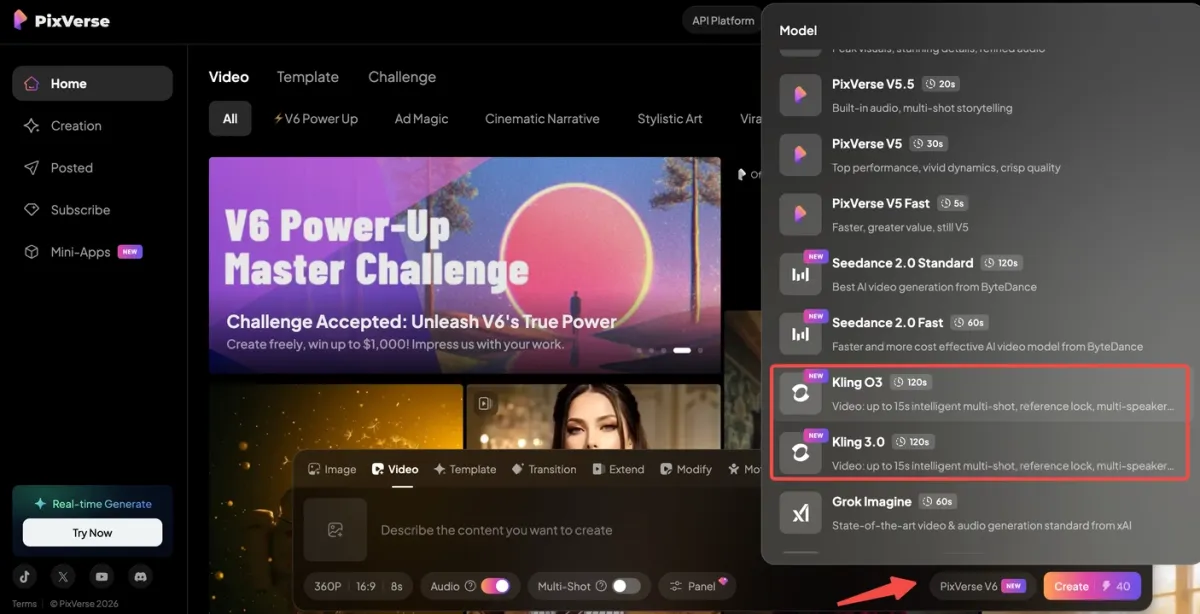
- Sign in to your PixVerse account
- Go to the Video section in the creation panel
- Select Kling O3 or Kling 3.0 from the model list
- Choose your quality mode: Standard or Pro
- Set your parameters: duration (3–15s), aspect ratio, and toggle audio on or off
- Enter your prompt — or upload a starting image for I2V, reference images for R2V (Kling O3 only), or both start and end frames for Transition
- Click Generate and wait for your result
For multi-shot video, enable the Intelligent shot mode. The model automatically composes multiple camera angles — wide establishing shots, medium close-ups, and detail shots — within a single generation, keeping visual identity consistent across each angle.
How to Generate Images with Kling O3 or 3.0
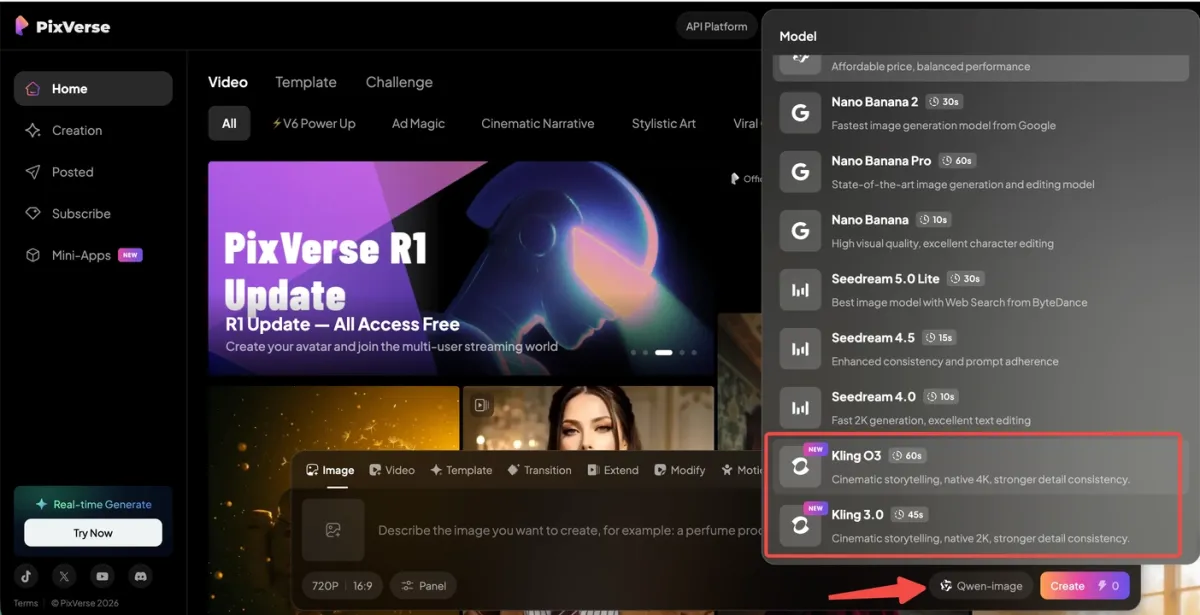
- Sign in to PixVerse
- Go to the Image section in the creation panel
- Select Kling O3 or Kling 3.0 from the model list
- Pick your resolution — 1K (default), 2K, or 4K (Kling O3 only)
- Choose an aspect ratio from the 8 available options
- Enter your prompt — optionally upload reference images (up to 10 for Kling O3, 1 for Kling 3.0)
- Generate your image
Final Verdict: Which Model Should You Use?
The two models share many core workflows, but they fit different decisions. Use this table before spending credits:
| User / project | Best model | Why |
|---|---|---|
| Creator testing a new prompt idea | Kling 3.0 Standard | Lower credit cost and fast iteration |
| Marketer producing a product demo | Kling O3 | Better fit for product reference control and 4K stills |
| Brand team needing campaign consistency | Kling O3 | Multi-image references and R2V help preserve visual identity |
| Storyboard artist testing shots | Kling 3.0 first, then O3 | Draft cheaply, then finalize important reference-led shots |
| Product image workflow | Kling O3 | 4K image support and more reference inputs |
| Budget iteration | Kling 3.0 | Better cost-to-learning ratio |
| Smooth transition between two frames | Either model | Both support Transition mode |
| Native audio concepting | Either model | Both support audio, but final commercial audio still needs review |
Verdict: Kling O3 is worth using when reference control, 4K output, and campaign consistency matter. Kling 3.0 is still the smarter everyday model for quick prompt drafts, lower-cost exploration, and early concept testing. The strongest PixVerse workflow is to use both: Kling 3.0 for exploration, Kling O3 for controlled final assets.
Kling O3 Prompts: Tips for Better Results
A few things that help get cleaner output from both Kling models:
- Be specific in your prompt: Instead of “a woman walking in a city,” try “a woman in a red coat walking through a rain-soaked Tokyo street at night, neon reflections on wet pavement, medium tracking shot.” Include subject, action, environment, lighting, and camera movement.
- Use multi-shot mode for narratives: Enable Intelligent shot mode to let the model compose multiple camera angles — wide establishing, medium close-up, detail — in a single generation.
- Start short, then extend: Generate a 3–5 second test clip first. Once you like the direction, generate a longer version at the same settings.
- Reference images matter for R2V: Use clear, well-lit photos showing the subject from multiple angles. Avoid busy backgrounds that compete with the subject.
- Toggle audio intentionally: Native audio adds dialogue, ambient sound, and effects — but it also costs more credits. Turn it off when you only need the visual track.
Who Can Access Kling O3 and 3.0 on PixVerse?
Video Models
Kling O3 and 3.0 video generation is available to Pro, Premium, and Ultra tier members. Ultra members receive a 40% credit discount on all Kling video generations.
Image Models
Kling O3 and 3.0 image generation access depends on your plan:
| Plan | Kling Image Access |
|---|---|
| Basic | Not available |
| Standard | Not available |
| Pro | Not available |
| Premium | Not available |
| Ultra | Unlimited at 0 credits |
Ultra members can generate unlimited Kling images at no credit cost. All other tiers can access Kling images through credit-based generation.
Why Use Kling on PixVerse?
Using Kling O3 and 3.0 through PixVerse gives you several advantages over accessing them separately:
- Everything in one workspace: Generate video and images with Kling, PixVerse V6, Veo 3.1, Sora 2, and more — without managing multiple accounts or API keys.
- Reference-to-Video for character consistency: Lock a character’s appearance across multiple shots using reference images, directly from the PixVerse creation panel.
- Flexible duration: Clips from 3 to 15 seconds cover everything from short social clips to longer cinematic narrative sequences.
- Native audio in one pass: Generate video with synchronized dialogue, sound effects, and ambient audio — no separate sound design step needed.
- Credit-friendly pricing: Kling 3.0 starts at 20 credits per second for video. Image generation starts at just 10 credits per image.
Frequently Asked Questions
What is the difference between Kling O3 and Kling 3.0?
Kling O3 (Video 3.0 Omni) is built for reference-led workflows. It includes Reference-to-Video (R2V), supports 4K image output, and accepts up to 10 reference images for image generation. Kling 3.0 (Video 3.0) is the simpler, prompt-first option at a lower credit cost. Both share T2V, I2V, and Transition capabilities.
Is Kling O3 worth it?
Kling O3 is worth it when you need stronger reference control, 4K image output, character consistency, or product consistency. If you are still testing prompts, Kling 3.0 usually gives better cost efficiency.
How does Reference-to-Video (R2V) work?
Upload up to 4 reference images of a character or object. The model uses these as visual anchors to keep that subject’s appearance consistent throughout the video. Unlike image-to-video, the reference images are not used as the first frame — the model composes the scene freely based on your prompt.
What prompts should I test first for Kling O3?
Start with one product prompt, one human portrait prompt, one text rendering prompt, and one reference-control prompt. Keep the same prompt across Kling O3 and Kling 3.0 so the comparison focuses on model behavior instead of prompt variation.
Can I use Kling O3 on PixVerse for free?
PixVerse provides daily free credits to all registered users. You can use those credits to generate Kling video or images. Video generation with Kling requires a Pro plan or higher. Ultra members get unlimited Kling image generation at 0 credits and a 40% discount on video.
What aspect ratios does Kling support for video?
Both Kling O3 and Kling 3.0 support three video aspect ratios: 16:9 (landscape), 9:16 (portrait), and 1:1 (square). For images, both support 8 ratios: 16:9, 9:16, 1:1, 4:3, 3:4, 3:2, 2:3, and 21:9.
How long can a Kling video be?
Both models generate clips from 3 to 15 seconds. The default is 5 seconds. You can set any whole number within that range.
Does Kling O3 generate audio with the video?
Yes. Both Kling O3 and Kling 3.0 support native audio generation. When audio is turned on, the model generates synchronized dialogue, sound effects, and ambient sound alongside the video. Audio generation costs additional credits (see the pricing table above).
Which is better for reference-to-video: Kling O3 or Kling 3.0?
Kling O3 is the better fit because R2V is exclusive to O3 in this PixVerse workflow. Kling 3.0 supports text-to-video, image-to-video, and transition, but it does not provide the same multi-reference R2V control.
Conclusion
Kling O3 and Kling 3.0 bring two useful creation paths to PixVerse. Kling 3.0 is the lower-cost way to explore ideas, test prompts, and produce quick drafts. Kling O3 is the better choice when the project depends on reference-to-video, 4K image output, character consistency, product accuracy, or style control.
Combined with PixVerse’s existing lineup — including our own V6 model, Veo 3.1, Sora 2, and more — Kling gives creators more control over how they move from prompt exploration to final production in one workspace.