5 Best Text-to-Video AI Generators in 2026 (Compared)
Compare PixVerse V6, Kling, Pika, Veed, and Pictory for text-to-video in 2026. See features, free tiers, output quality, and best-use cases.
The best text-to-video AI generator in 2026 depends on the video you are trying to make. Veo, Luma, and Runway are useful comparison points for cinematic realism; HeyGen and InVideo fit script-led marketing videos; Adobe Firefly and Canva AI make sense inside design suites; and PixVerse V6 is a strong first test when you need controllable short-form clips with character consistency, native audio, and room to iterate. For workflows beyond text prompts, the PixVerse AI video generator also brings image-led and other creation paths into the same workspace.
If you are searching for a free text-to-video AI generator, use the free tier to validate prompt quality, clip duration, watermark rules, export resolution, audio support, and retry cost before you build a full workflow around it. Our free AI video generator guide compares hosted free-credit tools and open-source options when you want a broader shortlist beyond text-to-video alone. Free access is best for testing whether the tool understands your prompt; paid credits or plans are usually where higher volume, cleaner exports, and production controls become easier to manage.
For PixVerse V6 specifically, the official 2026 spec is up to 1080p output, up to 15 seconds per generation, and credit consumption calculated per second, with 1080p billed at 18 credits/s without audio or 23 credits/s with audio in the PixVerse V6 docs. If your final delivery target is 4K, treat that as a post-production upscale, a distribution requirement, or a competitor-specific capability rather than PixVerse V6’s native output limit.
We spent several months testing text-to-video tools in real production scenarios: short ads, character continuity tests, cinematic prompt tests, social edits, and script-to-video workflows. This guide compares PixVerse V6, Kling, Pika, Veed, and Pictory, while also explaining where broader tools like Veo, Runway, HeyGen, InVideo, Firefly, and Canva fit in the decision.
Which Text-to-Video AI Generator Should You Use?
For cinematic realism, compare Veo, Luma Dream Machine, and Runway around lighting, camera movement, and polished film-style shots. We would use this bucket when the main question is visual fidelity, not speed or editing convenience.
For marketing, tutorials, and social videos, tools such as HeyGen, InVideo, and Veed.io can be easier when you need scripts, captions, avatar-style delivery, or fast publishing around the generated clip. These are not always the strongest raw video models, but they reduce the editing work around a campaign.
For design-platform workflows, Adobe Firefly and Canva AI are convenient when the video is part of a larger brand kit, slide deck, ad layout, or social design process. Choose this bucket when the surrounding creative workspace matters as much as the clip itself.
For controllable short-form generation, PixVerse V6 is the tool we would test first. It is especially useful when you need text-to-video, image-to-video, character reference, native audio, Extend, and Modify in one workspace instead of jumping between separate tools.
Text-to-Video Generators vs Script-to-Video Tools vs Video Editors
A text-to-video generator creates moving visuals directly from a written prompt. A script-to-video tool turns a topic or transcript into a structured video package, often with voiceover, stock media, avatars, or captions. A video editor helps polish, caption, resize, and publish clips after generation.
That distinction matters because many “best text-to-video AI” results mix all three categories. If you want raw generated footage, compare PixVerse, Kling, Pika, Veo, Runway, and Luma. If you want a marketing video from a script, also look at HeyGen, InVideo, Veed.io, or Canva AI.
How We Tested These Text-to-Video AI Generators
To keep testing objective, we moved away from simple beauty shots and judged models against a fixed checklist:
- Visual persistence: Does a character identity, outfit, prop, or product detail stay stable across the clip?
- Prompt adherence: Does the model follow the requested subject, action, lighting, and camera direction?
- Physical logic: Can it handle liquid, object contact, fast motion, or detailed hands without obvious warping?
- Audio alignment: If native audio is available, does the sound fit the frame timing and visual event?
- Production usability: Can the result be improved with references, editing tools, extension, or short iteration cycles?
The evaluation landscape is also becoming more rigorous. The CVPR 2025 HA-Video-Bench work points to human-alignment benchmarks for video quality, while video-generation research such as OpenAI’s video generation models as world simulators shows why scene consistency, camera motion, and physical plausibility matter.
Testing methodology: We used the same macro prompt, 5-second duration, 1080p target resolution where available, and a scoring checklist covering temporal stability, prompt adherence, physical logic, audio alignment, and production usability. Results below reflect hands-on testing plus documented product limits, not lab benchmark scores.
Prompt: A close-up 5s 1080P macro shot. A cybernetic hand has intricate gold filigree and pistons. The hand pours iridescent violet mercury. The liquid pours into a spinning crystal prism. The liquid reflects a neon laboratory. The mercury shatters into floating round droplets upon impact. Native audio includes a sharp metallic ping and a low hum.
For developers, PixVerse Platform Docs cover text-to-video generation, Extend generation, Modify workflows, and model pricing.
Best Text-to-Video AI Generators Reviewed
The 2026 market still includes several distinct tools worth comparing: PixVerse V6 for consistency and control, Kling AI for motion physics, Pika for creative effects, Veed.io for editing workflow, and Pictory.ai for repurposing existing content into interactive video. We also used Google Veo 3.1 as a cinematic benchmark for the same macro prompt. Here is how each tool fits into a production pipeline.
PixVerse V6 — Best for Control and Consistency
PixVerse V6 is a strong fit for creators who need a text-to-video AI generator that can move from first prompt to controlled iteration. V6 supports text-to-video, image-to-video, transition, and video extension workflows, with up to 1080p output and 1-15 second duration options according to the official V6 release docs.
What we found: PixVerse was most useful when the task needed repeatable characters, macro detail, native audio, and a way to keep improving a good clip instead of starting over. We also liked that short tests could turn into a workflow, because a useful take could move into image-to-video, Extend, or Modify instead of being discarded.
Test report: We found that PixVerse V6 handled macro detail well, especially the hand mechanics, gold filigree, and reflective textures. Its audio integration was the standout feature in this test because the soundscape stayed cleaner and more synchronized than many comparable outputs.
Pros:
- Free credits in the app are useful for testing short clips before committing to a production workflow.
- PixVerse V6 supports up to 1080p and up to 15 seconds per generation, including native audio options.
- Character reference and seed control help characters look consistent from one clip to the next.
- Extend and Modify workflows make it easier to iterate instead of regenerating everything from scratch.
Cons:
- Advanced controls and higher-volume workflows may require paid credits or subscription access.
Google Veo 3.1 — Best Cinematic Benchmark Reference
Google Veo 3.1 works best here as a high-fidelity benchmark when you want to judge cinematic realism, fluid surfaces, and visual polish against another model.
What we found: We found that Google Veo 3.1 showed strong fluid dynamics, simulating complex shape-shifting and surface tension of the liquid with rich, cinematic color grading. Native audio felt less polished than the visuals, with some unnatural buzzing and digital humming.
Kling AI — Best for Physical Motion Simulation
Kling AI is a strong competitor for anyone comparing AI text-to-video tools focused on realistic body physics. The earlier daily free-credit login offer is no longer available; see Kling for current plans. It remains well known for fluid, lifelike human movements in 2026.
What we found: Kling felt strongest when the prompt had a clear physical action, such as walking, running, turning, or object interaction. We had to simplify some busy prompts because detailed faces, hands, and fast contact points could still drift.
Pros:
- Human walking and running often look grounded and natural.
- It handles people interacting with objects better than many other models.
Cons:
- Limbs or faces can still drift occasionally in very complex scenes.
Pika — Best for Creative and Animation Effects
Pika focuses on the creative side of AI video, offering animation styles, stylized looks, sound effects, and lip-sync features. It is a solid free text-to-video AI generator for hobbyists and social media creators who care more about speed and style than strict realism.
What we found: Pika was easiest to enjoy when we treated it as a social-effect tool, not a realism benchmark. It helped us move quickly through stylized ideas, but we needed another tool when the brief required grounded physics or product consistency.
Pros:
- One of the better tools for 3D animation, claymation, and artistic filters.
- Automatically creates sound effects that match the video content.
- The built-in lip-syncing is simple and effective for character dialogue.
Cons:
- Credit resets and feature access depend on the current plan.
- It is not as strong as Kling for photorealistic live-action motion.
Veed.io — Best All-in-One Social Video Suite
Veed.io is a browser-based editor that includes a text-to-video AI generator. It is built for speed, allowing you to generate, edit, caption, and export a video in one place. Its free tier is useful for testing but often includes a watermark or output limits.
What we found: Veed.io reduced the handoff work after a clip was generated. We used it most naturally for captions, format changes, music, and export polish, while the generated footage itself felt less detailed than outputs from dedicated generation models.
Pros:
- Add text, music, captions, and transitions in one browser window.
- Fast path from prompt to post for social media.
- Useful for creators who need editing tools around the generated clip.
Cons:
- The free version may add a watermark and limit resolution.
- The generated clips can be less detailed than outputs from dedicated generation models.
Pictory.ai — Best for Repurposing Existing Content into Interactive Video
Pictory.ai helps business professionals create video content quickly without large budgets or additional headcount. It is especially useful for repurposing existing scripts, blog posts, web pages, documents, presentations, and long recordings into short, interactive, on-brand videos.
What we found: Pictory was most useful when the starting point was existing content. We pasted a blog URL and uploaded a slide deck, and it built the scenes, matched visuals, added an AI voice and captions, and applied brand styling with almost no manual editing. It also adds quizzes, chapters, and call-to-action buttons, which no other tool in this list offers.
Pros:
- Turns scripts, blogs, documents, and presentations into finished videos in minutes.
- Creates video summaries and short clips from long video recordings.
- Adds quizzes, chapters, and clickable calls to action, with analytics and SCORM export for training.
- One-stop solution with premium stock visuals, the latest GenAI models, voice-overs, avatars, and brand kits.
Cons:
- Built for business, marketing, and training videos rather than one-off cinematic clips.
Need a Low-Risk Way to Test Text-to-Video AI?
If your concept starts with a song, use our AI music video generator comparison instead. If it starts with a clothing catalog asset, the AI fashion video generator guide is a closer match for the workflow.
PixVerse is a practical place to start if you want to test text-to-video results before committing to a full workflow. Free credits can help you run a few short generations first, compare styles, and see whether the output fits your use case before moving into paid credits or heavier production.
It also works well as an all-in-one AI video workspace: you can test text-to-video, switch into image-to-video when a reference matters, improve a good clip with Extend or Modify, and explore other model options inside the broader PixVerse creation flow. If a member discount or limited-time offer is active in your account, check it after you know which styles and prompts are actually worth producing at scale.
For free-first testing, keep the first experiment narrow. Use one prompt, one aspect ratio, one duration, and one quality setting. Record the result, credit cost, watermark status, and retry reason before changing the prompt. That habit helps you learn whether the tool is failing because of the model, the prompt, the input image, or the production setting.
Use PixVerse first if you want to:
- test short AI videos without a large upfront commitment
- compare different creative directions in one workspace
- improve a good result instead of regenerating from scratch
- build short clips for ads, social posts, product scenes, or character sequences
How to Use PixVerse Text to Video AI for Consistent AI Video Generation
PixVerse V6 is built for creators who value control over randomness. By using reference images, seed control, Extend, and Modify, you can stop guessing and start directing your scenes. Here is how we use these features to get the most out of this text-to-video AI generator.
Step-by-Step: Locking Your Characters for Narrative Continuity
Character reference in PixVerse V6 helps you keep the same face and clothing across different scenes. This is an important step for anyone making a series where the protagonist must remain consistent.
We have found that the best way to use this feature is to start with a high-quality reference image. If you are using free credits or testing with a small credit balance, following these steps will save you from wasting credits on inconsistent renders:
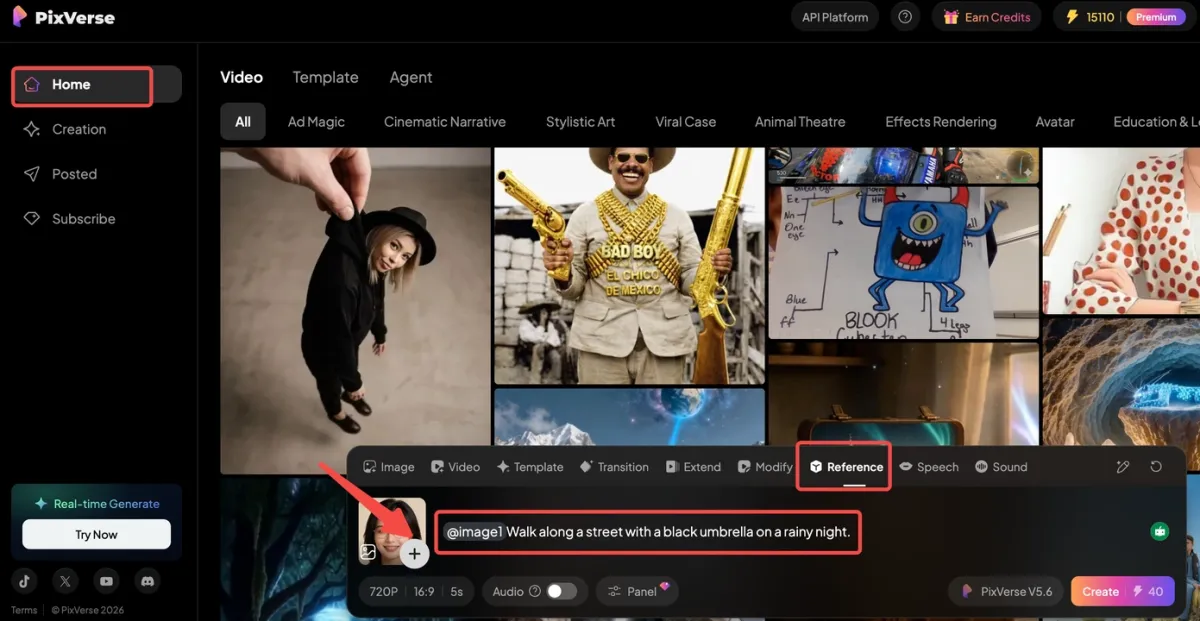
Step 1: From the home or creation interface, click the “Reference” tab in the bottom creation toolbar, upload a clear front-facing photo of your character, then write a prompt that only describes the character actions and the surrounding scene (do not include any details about their appearance).
Step 2: Keep the “Seed” value fixed to maintain consistent character visuals across different scenes, set “Create Count” to 1 for initial testing, then click the “Create” button to render your video.
Tips and parameter notes
Seed
Seed is a numerical identifier that controls the randomness of AI generation. When using the same reference image, prompt, and other settings, an identical Seed will produce nearly identical results—this locks in your character face, clothing, and overall visual style. For a series, always use the same Seed to ensure your protagonist stays consistent.
Create Count
Create Count determines how many videos the AI will generate in one click. A higher number gives you more versions to pick from but uses more credits. Start with 1 to test your prompt and reference image, then increase it only when you are ready to produce multiple consistent clips for your series.
Step-by-Step: Directing Movement with Modify
PixVerse Modify gives you manual control over object changes and local edits. Instead of hoping the AI moves or edits things correctly, you can define the target area and describe the change you want.
The original “Motion Brush” feature has been integrated into these mode options in the updated UI. For movement control, you can use the “Type Anything” mode to describe object motion instead of drawing a path manually.
Step 1: From the home or creation interface, click the “Modify” tab in the bottom creation toolbar to open the editing panel, then switch to the “Mode” section to access object manipulation tools.
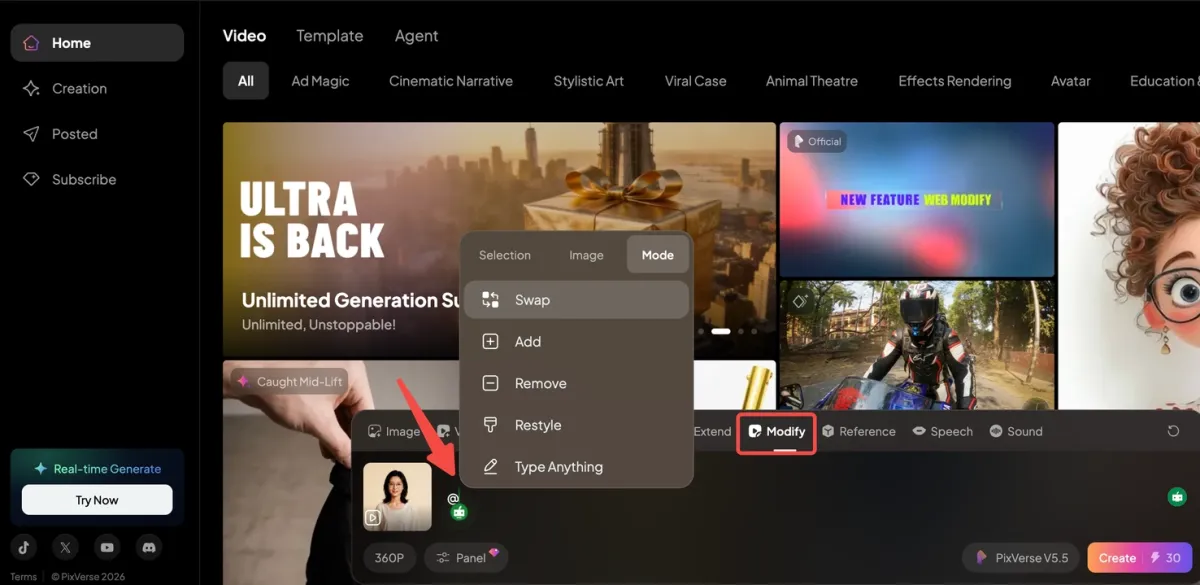
Step 2: Choose a mode (Swap/Add/Remove/Restyle/Type Anything) based on your editing goal, then use the selection brush to paint over the target area in your content.
Step 3: For modes like Swap or Add, upload a reference image or input text to define the new content. For Restyle or Type Anything, enter a prompt to specify the desired style or changes.
Step 4: Adjust any available intensity sliders to refine the effect strength, then confirm to apply the edits and generate your updated video.
Tips and parameter notes
Swap
Best for replacing a main subject. If you want to swap a character with another person while keeping the scene lighting and background intact, this mode works perfectly.
Add
Ideal for inserting small elements. If you need to add a cat on the table or a street lamp in the background without disrupting the original composition, choose this mode.
Remove
Perfect for cleaning up distractions. If you want to erase a random object in the background to make the scene look more polished, this is the right choice.
Restyle
Great for local style changes. If you hope to turn a realistic character into a cartoon style without altering the shape or position of the object, use this mode.
Type Anything
Use this for custom edits. If you want to make the character wave their hand or add a smile to the face, it replaces the old Motion Brush to control movement or small details.
FAQ
Why does the face of my character change in every clip?
This is called “identity drift.” Most models do not have a memory of previous shots unless you give them a reference system. To reduce drift, use a text-to-video AI generator with character reference or seed control, such as PixVerse V6. By uploading a reference image and reusing stable generation settings, you anchor the AI to one specific face and outfit.
What is the best text-to-video AI generator for cinematic videos?
For cinematic benchmark shots, compare tools such as Veo, Luma, Runway, Kling, and PixVerse rather than choosing from a generic ranking. Veo and Luma are useful for polished realism tests, Runway is a relevant creative-direction comparison point, and PixVerse is stronger when the clip needs repeatable control and iteration.
What is the difference between text-to-video and script-to-video?
Text-to-video starts from a prompt and generates moving visuals. Script-to-video starts from a topic, transcript, or written script and often adds voiceover, captions, stock media, avatars, or editing automation. PixVerse is a text-to-video and AI video generation workspace, while tools such as Pictory.ai are useful when an existing content library is the starting point for a more packaged video workflow.
Is there a truly free AI text-to-video generator without a watermark?
Truly unlimited free tools usually have lower quality, watermarks, or queue limits. The best 2026 workaround is using credit-based models that refresh regularly, testing short clips first, and upgrading only when you need higher volume or advanced controls.
What is the best free text-to-video AI generator for beginners?
The best free text-to-video AI generator for beginners is the one that lets you test a real prompt quickly, understand credit use, and improve the result without learning a complex editing stack. PixVerse is a practical first test when you want short prompt-to-video clips with the option to move into image-to-video, Extend, Modify, reference images, and native audio after the first result.
Can I use a free text-to-video AI generator for commercial work?
Use free text-to-video tools for evaluation, not as a shortcut around rights review. Before publishing a commercial video, check the current tool terms, watermark rules, export quality, music or voice rights, input ownership, and whether commercial use requires a paid plan. This is especially important for ads, client deliverables, ecommerce product claims, and branded social campaigns.
How do I generate videos longer than 10 seconds?
Many models still work best as short clips. PixVerse V6 supports 1-15 second generation in the official V6 docs, and the Extend generation API can continue a clip forward from an existing video.
Generating a full minute in one go can lead to warping or continuity issues. We prefer creating shorter PixVerse clips, extending the best takes, and stitching scenes together in a controlled edit.
Is PixVerse good for text-to-video generation?
PixVerse is a good text-to-video AI option when you care about short, controllable clips rather than one-off demos. V6 supports 1-15 second generation, up to 1080p output, native audio options, and workflows such as image-to-video, Extend, and Modify, which helps when you need to keep improving a clip.
Sora vs Veo vs PixVerse: which one is better in 2026?
For a deeper comparison, read our Sora vs Veo vs PixVerse guide. In short, Sora and Veo are useful reference points for cinematic realism, while PixVerse V6 is the practical pick when you need controllable, repeatable clips with consistent characters and native audio.
Think of cinematic benchmark tools as high-end test stages and PixVerse V6 as a daily production workspace. If you need to produce consistent content and maintain character persistence across short clips, PixVerse is the more practical option for regular creator workflows.
Conclusion
Picking the best text-to-video AI generator in 2026 is about matching the tool to the job: cinematic realism, social editing, script-led marketing, design workflows, or controllable short-form generation. PixVerse V6 is the option we would test first when you need character consistency, native audio, up to 1080p output, and controllable 1-15 second clips in one workflow.
The best creators are not just prompting; they are directing, testing, extending, and editing until the clip is ready to use. Start with one short prompt, compare the output against your real use case, then only scale the workflow that gives you repeatable results.