How to Use Gemini Omni Flash on PixVerse: Workflow Guide
Learn how to use Gemini Omni Flash on PixVerse for text-to-video, image-to-video, reference images, prompts, settings, and use cases.
Gemini Omni Flash is now part of the PixVerse model workflow for creators who want short AI videos from text prompts, images, and reference images. If the model is enabled on your PixVerse account, you can use it for text-to-video, image-to-video, and reference image-to-video generation, then compare the result with other models in the PixVerse AI video model workspace.
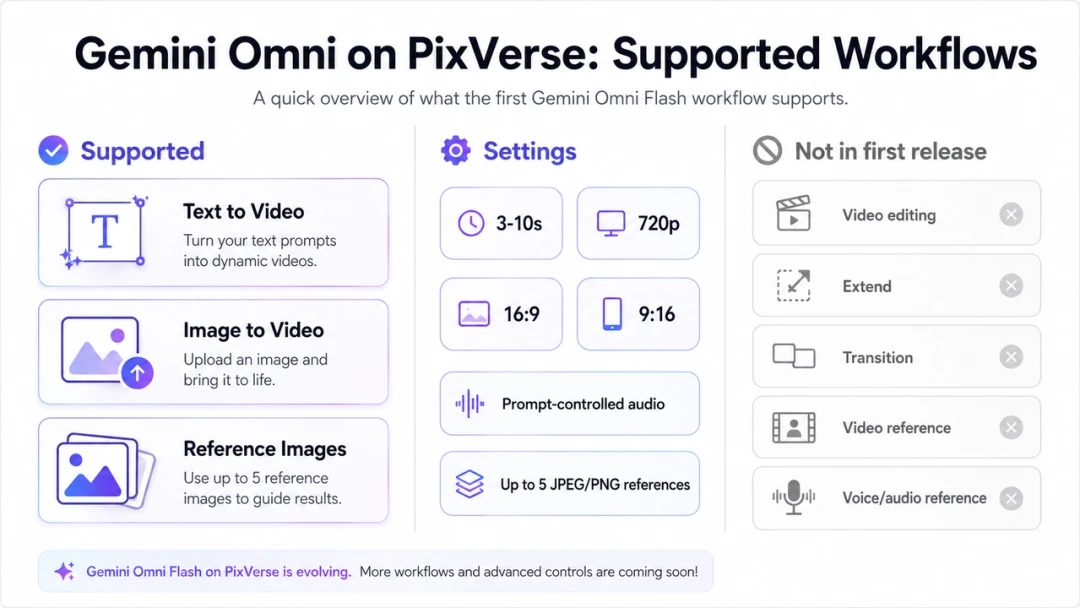
As of July 2, 2026, PixVerse support focuses on generation rather than the full Google API editing workflow. That means you can create 3-10 second 720p videos, choose 16:9 or 9:16, guide synchronized audio through the prompt, and upload up to five JPEG or PNG reference images. Video editing, video extension, transition, video reference, and voice or audio reference are not part of the first PixVerse Gemini Omni Flash release.
This guide shows how to use Gemini Omni Flash on PixVerse, how to write better Gemini Omni Flash prompts, and how to apply the model to five practical creator workflows: product teasers, educational explainers, character introductions, app hero loops, and fashion or lookbook concepts.
Gemini Omni Flash on PixVerse: What Is Supported
Gemini Omni Flash is a preview Gemini API model designed for conversational video generation and editing. Google’s official Gemini API docs describe the model as multimodal, with text, image, audio, and video understanding in the broader API context, plus world knowledge and iterative natural-language refinement through the Interactions API.
PixVerse brings Gemini Omni Flash into a creator-facing video workflow, but the first PixVerse release uses a narrower production surface than the full API. For publishing, planning, and SEO accuracy, treat these as separate scopes.
| Area | Gemini Omni Flash on PixVerse first release | Practical note |
|---|---|---|
| Text-to-video | Supported | Best for original scenes, explainers, ads, and quick creative drafts. |
| Image-to-video | Supported | Best for product photos, illustrations, posters, and still campaign assets. |
| Reference image-to-video | Supported | Upload up to five JPEG or PNG images and refer to them as @image1 through @image5. |
| Duration | 3-10 seconds | Choose the shortest duration that can carry the idea clearly. |
| Resolution | 720p | Review details before using the output in paid campaigns or client delivery. |
| Aspect ratio | 16:9 or 9:16 | Use 16:9 for web, YouTube, decks, and landing pages; use 9:16 for Shorts, TikTok, and Reels. |
| Audio | Prompt-controlled synchronized audio | Describe ambience, effects, music mood, or silence inside the prompt. |
| Video editing | Not in the first PixVerse release | Google’s API supports editing, but PixVerse starts with generation workflows. |
| Extend or transition | Not in the first PixVerse release | Use other PixVerse models when extension or first/last frame transition is the core job. |
| Video or voice reference | Not in the first PixVerse release | Use text prompts and image references instead. |
For model-level details, Google lists gemini-omni-flash-preview as the API model code and documents 3-10 second 720p output at 24 FPS in its Gemini Omni Flash model page. For general video generation strategy, Google’s video generation overview separates Gemini Omni Flash from Veo and points to different workflow strengths.
How to Use Gemini Omni Flash on PixVerse
The PixVerse workflow is designed for creators, marketers, and teams that need a usable short video rather than a developer API implementation. The key is to decide the input type first, then write a prompt that gives Gemini Omni Flash enough production direction.
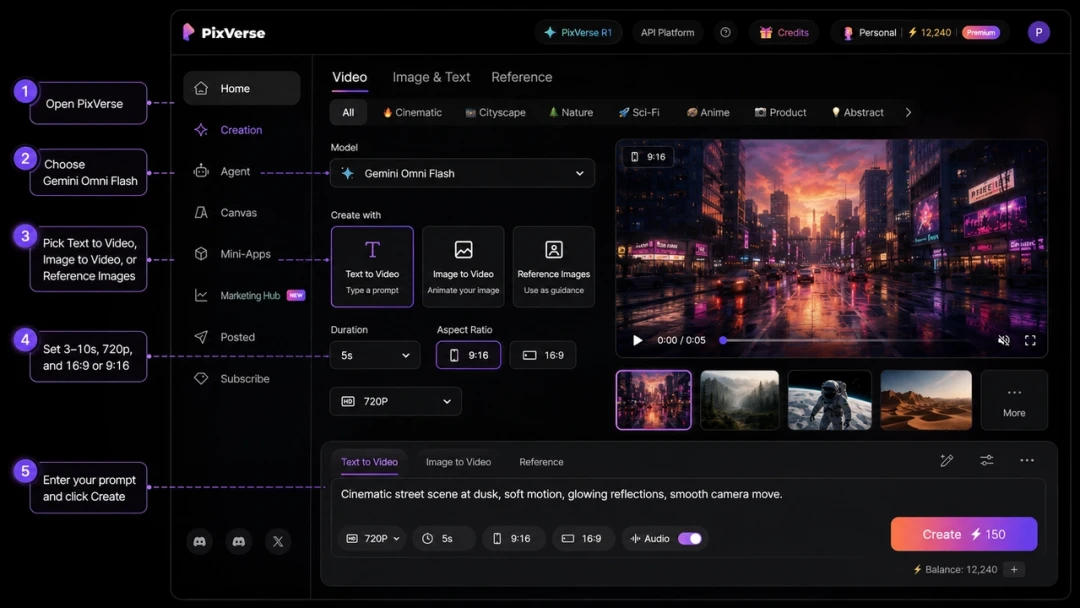
Step 1: Open PixVerse and Choose Gemini Omni Flash
Log in to PixVerse and start a video generation workflow. In the model selector, choose Gemini Omni Flash when it is available for your account. PixVerse places Gemini Omni Flash alongside other model options, so you can later compare the same creative brief across PixVerse V6, PixVerse C1, Veo, Sora, Kling, Seedance, and other available models.
If Gemini Omni Flash does not appear yet, check your account availability, plan access, and product rollout status. Model access and credit rules can change, so the in-product model selector and generation estimate should be treated as the current source for your account.
Step 2: Choose Text, Image, or Reference Image Workflow
Use text to video AI when the scene can be described without a source image. This works well for original concepts, education clips, social visuals, short ads, and cinematic idea testing.
Use image to video AI when you already have a still image that should become the visual base. Product photos, campaign key visuals, sketches, posters, packaging images, and thumbnails are good candidates.
Use reference image-to-video when multiple images should guide subject identity, style, object details, or composition. PixVerse supports up to five JPEG or PNG references for the first Gemini Omni Flash workflow. In your prompt, refer to the uploaded files as @image1, @image2, and so on.
Step 3: Set Duration and Aspect Ratio
Choose a duration between 3 and 10 seconds. For a single product motion, 5-6 seconds is usually enough. For an explainer, character intro, or mini story, 8-10 seconds gives the model more room to show a beginning, middle, and end.
Choose 9:16 if the clip is meant for Shorts, TikTok, Reels, or mobile-first ads. Choose 16:9 for YouTube, landing pages, sales decks, product pages, and widescreen brand videos. If you need both formats, generate them separately instead of cropping one final clip into every channel.
Step 4: Write a Production-Ready Prompt
Google’s Gemini Omni Flash docs recommend detailed prompts with scene description, camera movement, lighting, and mood. The Omni prompt guide also notes that if you need one uninterrupted scene, you should explicitly ask for a single continuous shot and no scene cuts.
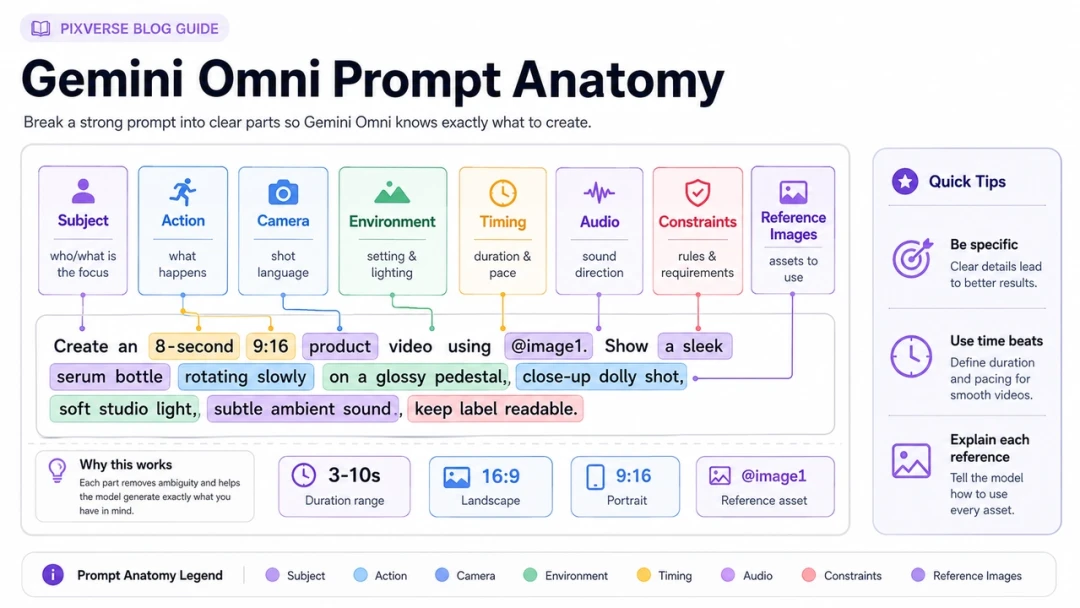
On PixVerse, a strong Gemini Omni Flash prompt should include:
- Subject: the person, product, object, place, or concept in the scene.
- Action: what changes during the clip.
- Camera: close-up, wide shot, push-in, orbit, handheld, locked-off, overhead, or macro.
- Lighting and mood: daylight, neon, soft studio light, documentary, polished commercial, playful, calm, dramatic.
- Environment: location, background elements, weather, materials, props, and texture.
- Audio: ambience, sound effects, music mood, voiceover style, or no dialogue.
- Timing: when key actions should happen in a 3-10 second clip.
- Constraints: no logos, no copyrighted characters, no celebrity likeness, no extra text, or no scene cuts.
Step 5: Generate, Review, and Iterate
After generation, review the clip against the job it needs to do. A beautiful result is not always a usable result. Check whether the subject stayed consistent, product details survived, text is readable, audio matches the motion, and the final frame is useful for posting or editing.
For commercial work, also review rights and safety. Avoid prompts that copy protected characters, real people, brand logos, songs, voice styles, or platform-specific assets you do not have permission to use. For a deeper copyright and SynthID discussion, see our Gemini Omni Flash safety guide.
Gemini Omni Flash Prompt Guide for PixVerse
Gemini Omni Flash is useful because it can reason across visual instructions, timing, and scene intent. It still needs clear direction. Treat the prompt like a compact production brief rather than a one-line wish.
Use a Scene-First Structure
Start with the visible scene before style language. “A matte black insulated bottle on a wet stone table at sunrise” gives the model more control than “make a premium bottle ad.” Add camera movement after the subject is clear, then specify sound and timing.
Use this pattern:
Create a [duration] [aspect ratio] video. The subject is [specific subject]. The action is [specific motion]. The camera [movement and framing]. The environment is [place, lighting, materials, weather, props]. Audio: [ambience, sound effects, music mood, dialogue, or silence]. Constraints: [what to preserve and what to avoid].
Make Single-Shot Requests Explicit
By default, Gemini Omni Flash may create a short sequence with multiple shots. If the output needs to feel like one camera take, write “single continuous shot,” “no scene cuts,” or “one unbroken scene” directly in the prompt.
This matters for product videos, fashion motion, food shots, and any clip where a cut could break continuity. For more narrative clips, cuts can be useful, but specify when they should happen.
Give Audio Direction Inside the Prompt
Gemini Omni Flash on PixVerse can create synchronized audio through the prompt. Do not leave sound to chance. A product teaser might need soft clicks and room ambience. A sports clip might need crowd energy and sneaker squeaks. An explainer might need no dialogue and only subtle object sounds.
If the audio should stay clean, say so. If there should be no spoken words, say “no dialogue.” If the clip needs only ambience, describe the ambience instead of asking for a famous song or a known artist style.
Use Timing When the Clip Has Multiple Beats
For 8-10 second clips, timecodes can keep the model closer to your intended structure. Google’s prompt guide gives examples of timing instructions, and the same idea works well for PixVerse creator prompts.
[0-2s] Establish the product on the table. [2-5s] Camera pushes in as water droplets slide across the surface. [5-8s] The product rotates slightly and the background lights brighten.
Keep the timeline simple. Too many events in a 10-second clip can make the model miss the most important action.
Use Reference Images Deliberately
When using PixVerse reference images, tell Gemini Omni Flash what role each image should play. A reference image can represent subject identity, product shape, costume, color palette, lighting, pose, or composition. It should not be left ambiguous.
Example reference wording:
Use @image1 as the exact product reference. Preserve the bottle shape, cap color, and label placement. Use @image2 only as the lighting and background mood reference. Do not copy any logos or people from @image2.
This is especially important when using more than one reference. The more images you upload, the more explicit your prompt should be about what each image controls.
5 Gemini Omni Flash Use Cases on PixVerse
The best Gemini Omni Flash prompts are tied to a real production job. Use the following cases as starting points, then adjust the product, references, duration, aspect ratio, and audio for your brand.
Use Case 1: Product Photo to Vertical Video Ad
This is a strong fit when you have a still product photo and need a short mobile ad concept. Use image-to-video or reference image-to-video, keep the product identity stable, and avoid asking the model to invent unreadable packaging details.
- Best for: ecommerce teasers, marketplace videos, paid social drafts, product launch visuals.
- Recommended setup: 9:16, 6-8 seconds, image-to-video or one product reference image.
- Review closely: logo accuracy, label text, object geometry, reflections, and final product visibility.
Video model: Gemini Omni Flash on PixVerse
Video prompt:
Create an 8-second 9:16 product video using @image1 as the exact product reference. Preserve the product shape, cap, color, label placement, and main silhouette. The product stands on a wet dark stone surface at sunrise. [0-2s] Macro close-up of water droplets on the product surface. [2-5s] The camera slowly pushes back as warm sunlight catches the edges. [5-8s] The product rotates slightly and stops centered for a clean end frame. Audio: soft water droplets, subtle room tone, no dialogue, no music imitation. Constraints: no extra logos, no extra text, no celebrity likeness, no scene cuts.
Why it works: the prompt protects the product identity, gives a simple three-beat timeline, and asks for one clean visual payoff instead of too many transformations.
Use Case 2: Educational Explainer with World Knowledge
Google positions Gemini Omni Flash around world knowledge as well as video generation. On PixVerse, that makes Gemini Omni Flash useful for short visual explainers where the clip needs to translate an idea into a clear metaphor.
- Best for: science explainers, product education, classroom visuals, creator learning content.
- Recommended setup: 16:9 or 9:16, 8-10 seconds, text-to-video.
- Review closely: factual accuracy, labels, accidental extra text, and whether the metaphor is easy to understand.
Video model: Gemini Omni Flash on PixVerse
Video prompt:
Create a 10-second 16:9 educational explainer video about how a solar panel turns sunlight into electricity. Use a tactile paper-craft style on a clean dark tabletop. [0-3s] A paper sun sends warm yellow rays toward a simple blue solar panel. [3-6s] Tiny glowing dots move through a drawn circuit path. [6-10s] A small paper house lights up gently. Camera: overhead locked-off shot with small natural stop-motion movements. Text: only the labels “sunlight”, “panel”, and “electricity”, each readable and spelled exactly. Audio: soft paper movement, tiny electrical chime, no voiceover. Constraints: no extra words, no human hands, no brand logos.
Why it works: the prompt gives a physical metaphor, sets exact labels, and limits the visual field so the model does not turn a simple explainer into clutter.
Use Case 3: Character Introduction from Reference Images
Reference images are useful when a creator needs a consistent character look for a short intro. The key is to identify what each uploaded image controls: face, outfit, pose, color palette, or environment.
- Best for: creator avatars, game concepts, original characters, short story pilots, pitch visuals.
- Recommended setup: 16:9, 8-10 seconds, up to three reference images.
- Review closely: identity drift, hands, costume consistency, and similarity to protected IP.
Video model: Gemini Omni Flash on PixVerse
Video prompt:
Create a 9-second 16:9 original character intro. Use @image1 as the character identity reference and preserve the face shape, hairstyle, jacket color, and overall silhouette. Use @image2 only as the lighting and city background mood reference. The character stands on a quiet rooftop at dusk, turns toward the camera, and lifts a small glowing map device. Camera: slow medium close-up push-in, single continuous shot, no scene cuts. Lighting: soft blue evening sky with warm orange rim light. Audio: distant city ambience and a gentle electronic hum from the map device. Constraints: original character only, no superhero costumes, no franchise references, no logos, no dialogue.
Why it works: it separates character identity from mood reference, avoids IP-adjacent language, and keeps the motion simple enough for a short identity test.
Use Case 4: App or SaaS Hero Loop
Gemini Omni Flash can help create abstract interface-inspired visuals for landing pages, launch decks, or social product explainers. Do not rely on it for exact UI copy. Use it for motion language, atmosphere, and conceptual interface loops.
- Best for: startup hero videos, product launch pages, investor decks, feature teasers.
- Recommended setup: 16:9, 6-8 seconds, text-to-video.
- Review closely: typography, interface logic, brand similarity, and whether the clip loops cleanly.
Video model: Gemini Omni Flash on PixVerse
Video prompt:
Create a 7-second 16:9 hero loop for an original AI planning app. A translucent floating timeline interface appears above a clean desk, with abstract cards, dots, and lines organizing themselves into a calm weekly plan. Camera: slow left-to-right slider movement, shallow depth of field, single continuous shot. Lighting: natural morning light, white desk, soft shadows, minimal color accents in teal and warm yellow. Audio: subtle interface clicks and soft ambient tone, no voiceover. Text: no readable app name, no readable task text, no logos. End frame should visually match the opening frame so the clip can loop smoothly.
Why it works: the prompt avoids brittle exact UI text and asks for a loopable visual system, which is more realistic for generated video than a fully accurate product interface.
Use Case 5: Fashion Lookbook or Style Mood Video
Fashion prompts work best when the model has a clear subject, outfit, movement, camera, and lighting direction. If you use references, specify whether each image controls clothing, pose, color palette, or location.
- Best for: lookbook concepts, creator mood boards, campaign drafts, stylist previews.
- Recommended setup: 9:16, 8-10 seconds, reference image-to-video.
- Review closely: garment details, body proportions, hands, fabric behavior, and whether the output resembles a real person without permission.
Video model: Gemini Omni Flash on PixVerse
Video prompt:
Create a 10-second 9:16 fashion lookbook video. Use @image1 as the outfit reference and preserve the coat length, fabric texture, color palette, and shoe style. Use @image2 as the studio lighting reference only. A fictional model walks slowly across a minimal concrete studio, pauses, turns one shoulder toward camera, and the coat moves naturally with the step. Camera: vertical full-body framing, smooth dolly movement, no scene cuts. Lighting: large softbox from the left, gentle shadow on the floor. Audio: quiet studio ambience and soft footsteps, no music imitation, no dialogue. Constraints: fictional model, no celebrity likeness, no brand logos, no extra text.
Why it works: it anchors the garment details, tells the model how the body should move, and removes the biggest commercial risks: real-person likeness, logos, and music imitation.
Best Practices Before Publishing Gemini Omni Flash Videos
Generation is only the first step. Before a Gemini Omni Flash clip goes into a campaign, landing page, social post, or client deck, review it like a production asset.
Start with visual accuracy. Product videos should preserve shape, label placement, color, and materials. Character videos should avoid drifting into a recognizable celebrity or protected character. Explainers should be checked for factual accuracy, readable labels, and unnecessary text.
Then check audio. Prompt-generated sound can make a short video feel more complete, but it should not imitate a known song, singer, score, voice, or audio signature. If the clip will be used commercially, use original, licensed, or approved audio direction.
Finally, check rights and disclosure. Google’s Gemini Omni Flash docs state that generated videos include SynthID watermarking, and safety filters apply to prompts and outputs. Depending on the channel, you may also need AI-content labeling, platform disclosure, model-use review, or client approval.
Gemini Omni Flash on PixVerse vs Google Gemini API
PixVerse and the Gemini API serve different creator needs. PixVerse gives non-developer creators a model workflow inside a multi-model AI video platform. The Gemini API gives developers direct access to model capabilities, parameters, and integration patterns.
| Need | Use Gemini Omni Flash on PixVerse | Use Gemini API |
|---|---|---|
| Creator workflow | Yes | Only if your team builds the interface. |
| Text-to-video and image-to-video | Yes | Yes. |
| Up to five PixVerse image references | Yes | API media handling differs by implementation. |
| Natural-language editing | Not in PixVerse first release | Documented in Google’s API workflow. |
| App integration | Use PixVerse Web/App/Canvas | Build with the Interactions API. |
| Multi-model comparison | Yes, PixVerse provides multiple model options | You need to integrate alternatives yourself. |
For most creators, PixVerse is the faster way to try Gemini Omni Flash in a practical video workflow. For developers building custom products, the Gemini API Omni documentation is the primary source for model code, task parameters, media input, video delivery, and API limitations.
FAQ
Is Gemini Omni Flash available on PixVerse?
Yes. PixVerse is adding Gemini Omni Flash as a video model across Web, App, and Canvas. Availability can depend on account access, plan rules, rollout timing, and in-product model availability.
What does Gemini Omni Flash support on PixVerse?
The first PixVerse release supports text-to-video, image-to-video, and reference image-to-video. Current settings include 3-10 second 720p video, 16:9 or 9:16 aspect ratio, prompt-controlled audio, and up to five JPEG or PNG references.
How do I write a good Gemini Omni Flash prompt?
Write the prompt like a small production brief. Include subject, action, camera movement, lighting, environment, timing, audio, and constraints. If you need one uninterrupted shot, say “single continuous shot” and “no scene cuts.” If using references, explain what each image controls.
What is not supported yet?
Video editing, extension, transition, video references, and voice or audio references are not part of the first PixVerse Gemini Omni Flash release. Use another PixVerse workflow when those controls matter more than Gemini Omni Flash generation.
Is Gemini Omni Flash on PixVerse free?
Plan access and credit consumption can change, so check the PixVerse model selector and in-product credit estimate before generating. Google’s Gemini API has separate pricing and access rules.
Conclusion
The best way to use Gemini Omni Flash on PixVerse is to match the model to the right job: short original videos, product photo animation, image-reference concepts, educational explainers, and social-ready creative drafts. Keep the first PixVerse release scope in mind: text-to-video, image-to-video, and reference image-to-video are supported, while editing, extension, transition, video reference, and voice reference are not included yet.
For stronger results, write prompts as production briefs. Describe the subject, action, camera, environment, timing, audio, and constraints. Then review the output for visual accuracy, rights, safety, and channel fit before publishing.
Use PixVerse to compare Gemini Omni Flash with other video models for the same brief, then keep the version that fits the channel, asset rights, and production goal best.