PixVerse와 GPT-6 Astra로 시네마틱 영상 만들기: 크리에이터 가이드와 활용 사례
PixVerse와 GPT-6 Astra의 제어 가능한 AI 비디오 워크플로로 시네마틱 영상, 모션 그래픽, 인터랙티브 경험을 제작하세요.
GPT-6 Astra와 PixVerse는 기획, 로컬 크리에이티브 도구, AI 비디오 생성을 하나의 실용적인 제작 과정으로 연결합니다. PixVerse with GPT-6 Astra를 통해 크리에이터는 ChatGPT의 구조화된 브리프에서 시작해 로컬에서 3D 또는 편집 에셋을 준비하고, PixVerse 플러그인으로 승인된 레퍼런스를 시네마틱 영상, 모션 그래픽 또는 인터랙티브 크리에이티브 작업으로 바꿀 수 있습니다.
이 워크플로는 텍스트 전용 비디오 프롬프트보다 더 많은 제어가 필요한 크리에이터를 위한 것입니다. 카메라 경로를 시험하는 감독, 편집 가능한 프리비주얼라이제이션을 만드는 3D 아티스트, 캐릭터나 제품 레이아웃을 보호해야 하는 팀, 마무리 작업을 준비하는 편집자가 활용할 수 있습니다. Astra는 데스크톱 환경에서 창작 작업을 정리하고 실행하도록 돕고, PixVerse는 의도적으로 준비한 레퍼런스를 완성된 시각 결과물로 전환하는 생성 단계를 제공합니다.
핵심 요점
- Astra로 창작 브리프를 구조화된 제작 작업으로 만들고 PixVerse로 최종 AI 비디오 패스를 진행합니다.
- 프리뷰 비디오는 움직임, 카메라, 레이아웃을 제어하고 정지 이미지는 외관, 재질, 조명을 제어하게 하세요.
- 짧고 검토하기 쉬운 샷부터 시작하고, 수정에 대비해 편집 가능한 장면, 원본 레퍼런스, 승인된 결과물을 보존하세요.
PixVerse와 함께 사용하는 GPT-6 Astra란 무엇인가요?
PixVerse Astra 페이지는 GPT-6 Astra를 ChatGPT 데스크톱 앱을 통해 PixVerse와 함께 제작하는 방법으로 소개합니다. 핵심은 간단합니다. 자세한 제작 브리프로 장면을 정의하고 시각 레퍼런스를 만들거나 준비한 다음, 설치된 플러그인을 통해 관련 입력을 PixVerse로 보냅니다.
비디오 제작에서는 역할을 유용하게 나눌 수 있습니다. 3D 프리뷰 또는 레퍼런스 비디오는 공간 레이아웃, 액션 타이밍, 구도, 카메라 움직임을 설정합니다. 별도의 외관 레퍼런스는 재질, 조명, 환경, 색상, 피사체 디자인을 설정합니다. PixVerse는 분리된 이러한 창작 신호를 따르면서 최종 비디오를 생성할 수 있습니다.
이는 콘셉트, 프리비즈, 생성, 검토 사이에서 반복 가능한 핸드오프가 필요한 프로젝트에 특히 가치가 있습니다. 모든 생성 테이크가 레퍼런스와 완전히 동일하다는 의미는 아닙니다. 팀은 결과물을 검토하고 승인된 버전을 보존하며, 특정 요구 사항이 명확히 충족되지 않은 샷만 다시 생성해야 합니다.
Astra 워크플로에서 PixVerse를 사용하는 이유
PixVerse는 이 워크플로의 AI 비디오 생성 레이어입니다. 생성을 분리된 마지막 단계로 다루는 대신, 창작 과정에서 준비한 시각 자료, 즉 움직임용 그레이 모델 애니메이션과 원하는 마무리용 레퍼런스 이미지를 활용할 수 있습니다.
이를 통해 복잡한 장면을 더 의도적으로 작업할 수 있습니다.
- 최종 생성 패스 전에 카메라 움직임과 프레이밍을 계획할 수 있습니다.
- 이후 수정할 수 있도록 3D 장면, 애니메이션 또는 편집 프로젝트를 유지할 수 있습니다.
- 하나의 프롬프트에 레이아웃, 타이밍, 외관, 움직임을 모두 해결하도록 요청하는 대신 각 레퍼런스에 명확한 역할을 부여할 수 있습니다.
- 긴 편집본에 결합하기 전에 각 샷의 연속성, 해부학, 가림, 타이밍, 시각적 결함을 검토할 수 있습니다.
더 폭넓은 제작 옵션을 위해 PixVerse는 AI 비디오 생성, 텍스트 투 비디오, 이미지 투 비디오 워크플로도 지원합니다. 구조화된 계획과 외부 제작 에셋이 도움이 되는 창작 작업에서는 Astra 통합이 특히 유용합니다.
GPT-6 Astra와 PixVerse 시작하기
PixVerse Astra 공식 페이지의 설정은 세 단계입니다.
- ChatGPT 데스크톱 앱을 다운로드하고 로그인합니다.
- ChatGPT용 PixVerse 플러그인을 설치합니다.
- Astra 활용 사례에서 시작해 제작 브리프를 자신의 장면에 맞게 조정하고 PixVerse로 제작합니다.
생성 전에 각 에셋이 무엇을 제어해야 하는지 결정하세요. 이 작은 계획 단계는 저세부 프리뷰 하나에 최종 이미지의 모든 요소를 정의하도록 요구하는 흔한 실패를 막아 줍니다.
| 입력 | 제어에 가장 적합한 요소 | 집중할 내용 |
|---|---|---|
| 그레이 모델 또는 화이트 모델 비디오 | 카메라 경로, 타이밍, 공간 레이아웃, 액션, 프레이밍 | 최종 재질이 아닌 지오메트리와 움직임 |
| 정지 레퍼런스 이미지 | 외관, 조명, 텍스처, 색상 팔레트, 피사체 아이덴티티 | 최종 시각 방향 |
| 장면 파일 또는 편집 프로젝트 | 수정, 리깅, 레이아웃 변경, 핸드오프 | 편집 가능한 소스 작업 |
| PixVerse 생성 브리프 | 안정적으로 유지할 것과 강화할 수 있는 것 | 명확한 제약과 검토 기준 |
신뢰할 수 있는 제작 루프
전체 영화가 아니라 짧고 테스트 가능한 시퀀스로 시작하세요. 작업에 맞는 도구에서 블로킹, 카메라 움직임 또는 액션을 만듭니다. 깨끗한 프리뷰를 내보내고 외관 레퍼런스를 준비하며, 연속성이 중요할 때는 샷마다 하나의 PixVerse 작업을 만듭니다.
그다음 정상 재생 속도로 테이크 전체를 검토합니다. 카메라 흐름, 오브젝트 수, 피사체 위치, 읽기 쉬운 액션, 손이나 바퀴의 접촉, 지면 접촉, 원치 않는 컷이나 레이아웃 변경이 없는지처럼 장면에서 가장 중요한 요구 사항을 확인하세요. 샷이 실패하면 원인이 프리뷰, 외관 레퍼런스, 생성 지시 중 어디에 있는지 판단한 뒤 영향을 받은 부분만 바꾸세요.
제작 카테고리별 네 가지 Astra 워크플로
이 네 가지 사례는 서로 다른 네 가지 제작 요구를 다룹니다. 각 워크플로는 공개 글에서 결과물과 재사용 가능한 제작 경로에 집중하며, 기본 레퍼런스 에셋은 표시하지 않습니다.
| 카테고리 | 사례 | 적합한 용도 |
|---|---|---|
| 영화 프리비즈 | 3D 레이스카 충돌 시뮬레이션 | 빠른 차량 액션, 카메라 트래킹, 샷 연속성 계획 |
| 3D 모델링 | 경찰차 추격 장면 만들기 | 그레이 모델 스테이징을 사실적인 액션 시퀀스로 전환 |
| 게임 개발 | 3D 1인칭 마법사 작업대 만들기 | 제어된 1인칭 인터랙티브 장면 구축 |
| 인터넷 문화 | 라이브 고양이 밈 무대 만들기 | 아이덴티티가 일관된 캐릭터 중심 밈 퍼포먼스 제작 |
영화 프리비즈: 3D 레이스카 충돌 시뮬레이션
이 워크플로는 최종 PixVerse 패스 전에 움직임, 차량 순서, 카메라 방향을 명확하게 유지해야 하는 스타일화된 자동차 추격 장면을 위해 설계되었습니다.
최종 비디오
전체 워크플로 프롬프트
Create an original GTA-inspired cartoon car chase using this workflow: Design: Define one main driver, one getaway car, one pursuing car, and one urban environment. Keep their designs consistent. Plan three 4-second shots: rear tracking pursuit, side tracking through a sharp turn, and a wide exit shot. Build in Blender: Create clean gray models and functional character and vehicle rigs. No textures or UV unwrapping are required. Animate and test: Animate the driver, steering, wheel rotation, vehicles, and cameras. Maintain coherent travel direction and vehicle order. Fix clipping, floating wheels, sliding tires, broken poses, and hands losing contact with the steering wheel. Render in Blender: Render frames 1–288 at 1280×720, 24 fps. Assemble actual Blender-rendered frames into a complete 12-second gray-model master. Export each shot separately and render matching gray stills as shape and composition references. Video prompt: Use Seedance 2.5 at 720p, processing each shot separately. Use the Blender clips as motion references and the gray stills as shape references. Define a consistent cartoon color palette. Preserve camera movement, action timing, character and vehicle designs, and vehicle count. Review and deliver: Inspect both complete videos for visual defects and continuity. Repair Blender issues and regenerate only failed Seedance shots, with at most two retries per shot. Deliver the editable .blend, the native 720p Blender gray-model video, the separately labeled 720p Seedance version, and a brief assessment of remaining limitations.
3D 모델링: 경찰차 추격 장면 만들기
액션 장면에 사실적인 시각 마무리가 필요하면서 구도, 차량 궤적, 타이밍을 위한 편집 가능한 3D 계획을 유지해야 할 때 유용한 사례입니다.
최종 비디오
전체 워크플로 프롬프트
Create an original GTA-inspired car chase with a photorealistic, live-action cinematic finish, using this workflow: Design: Define the driver, two cars, and urban environment. Plan three 4-second shots: rear tracking pursuit, side tracking through a sharp turn, and a wide exit shot. Keep identities and vehicle order consistent. Build in Blender: Create clean gray models and functional character and vehicle rigs. No textures or UV unwrapping are required. Animate and test: Animate the vehicles, wheel rotation, steering, driver, and cameras. Fix clipping, floating wheels, sliding tires, broken poses, and hands losing contact with the steering wheel. Render in Blender: Render the complete 12-second gray-model video at 1280×720, 24 fps, using actual Blender-rendered frames. Export each 4-second shot separately and extract its first frame. Image prompt: Transform each shot’s gray first frame into a photorealistic cinematic reference image in PixVerse. Preserve composition, perspective, subject positions, and vehicle count. Replace simplified gray geometry with realistic people, detailed cars, believable architecture, natural materials, and cinematic lighting. Keep the same driver, car designs, colors, and lighting across all three images. Avoid cartoon, toy-like, low-poly, or clay-render styling. Video prompt: Use Seedance 2.5 at 720p, supplying the cinematic reference image together with its corresponding gray-model video. The image defines appearance and realism; the video defines camera movement, spatial layout, vehicle trajectories, and action timing. Generate each shot separately. Review and deliver: Check realism, identity consistency, vehicle count, motion, and shot continuity. Repair faulty shots, with at most two retries per shot. Deliver the editable .blend, native 720p Blender gray-model video, cinematic reference images, separately labeled 12-second Seedance version, and a brief assessment of remaining limitations.
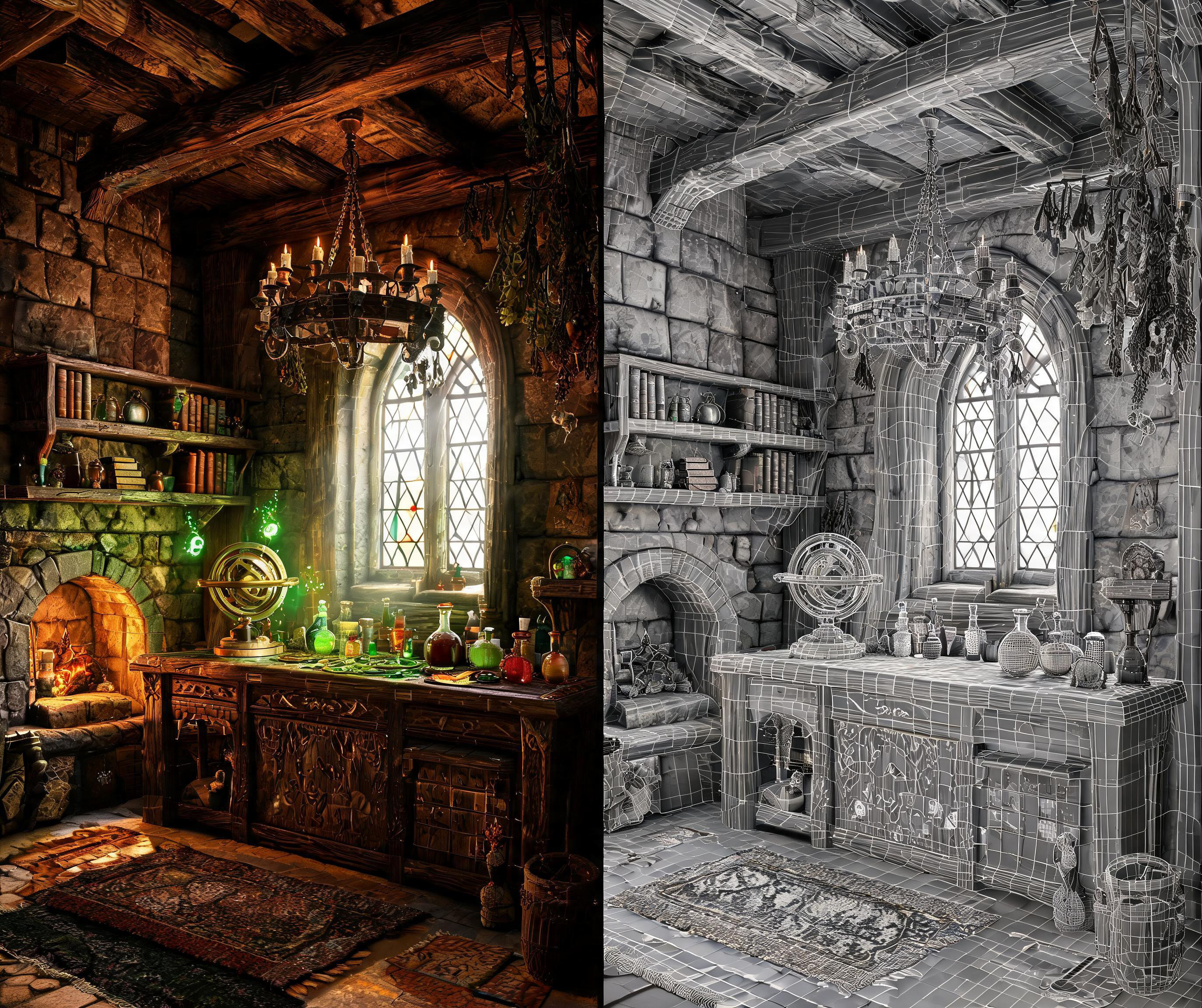
게임 개발: 3D 1인칭 마법사 작업대 만들기
이 1인칭 사례는 게임플레이 가독성에 집중합니다. 한 손, 하나의 소품, 연속적인 카메라 이동, 안정적인 방 레이아웃을 갖춥니다.
최종 비디오
전체 워크플로 프롬프트
Create a 12-second, single-take white-model animation in Blender based on the attached reference image https://media.pixverse.ai/asset/media/WizardRoom.jpg, then use PixVerse with Seedance 2.5 to transform the exported animation into a cinematic, Witcher-3-inspired wizard workshop sequence. In Blender, use the reference image to guide the room layout, architecture, furniture, and props. Build an editable low-poly scene with clean meshes and UVs, using simple white or light-gray materials. Include stone walls, wooden shelves, an arched window, a fireplace, books, an astronomical instrument, and an alchemy table filled with potion bottles. Keep the silhouettes readable and the room proportions believable. Animate a low first-person viewpoint with exactly one right hand holding one potion. Begin with the bottle resting near the lower-right edge while the character looks around the workshop and toward the window. Raise the potion naturally, pause to examine it, shift focus onto the bottle, then lower it while turning toward the fireplace and glowing reagents. Leave a small gap between the palm and bottle while maintaining believable fingertip contact. Use smooth changes in speed, gentle curved head movements, subtle breathing, and slight arm lag. Check the complete action at normal playback for clipping, awkward grip, abrupt turns, and excessive shaking. Keep the Blender fireplace simple: use logs, low embers, and flickering light. Avoid solid cones or flame-shaped meshes, which can be interpreted as glowing rocks. Prepare a separate fireplace detail from the reference image to guide the final appearance. Video prompt: Export the complete white-model MP4. Generate a 12-second video with PixVerse, using the Blender-exported white-model video as the camera, action, and spatial reference, the attached image as the scene appearance reference, and the fireplace detail as the fire reference. Preserve the continuous shot, low viewpoint, single-hand potion action, room layout, and timing. Enrich the scene with weathered stone, carved wood, worn leather, iron fittings, and realistic glass. Combine cool window light and drifting dust with warm fireplace illumination and softly glowing magical liquids. Create natural wood fire with thin, irregular flames curling between charred logs, glowing embers, occasional sparks, and subtle smoke. Keep the hand anatomy, bottle shape, fire movement, and focus transitions consistent throughout. Review the full generated video, especially the hand action and fireplace. Deliver the white-model MP4, the PixVerse-rendered MP4, and the editable Blender project.
인터넷 문화: 라이브 고양이 밈 무대 만들기
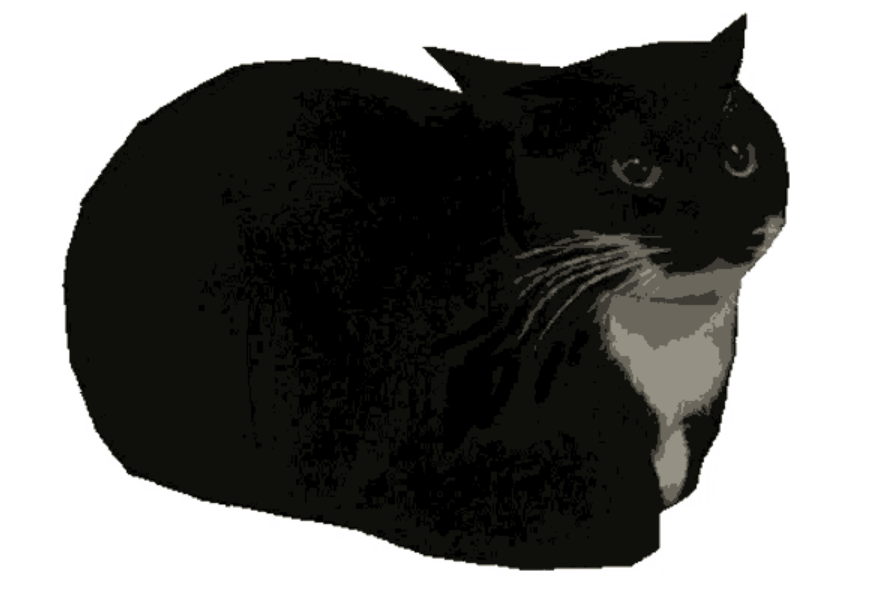
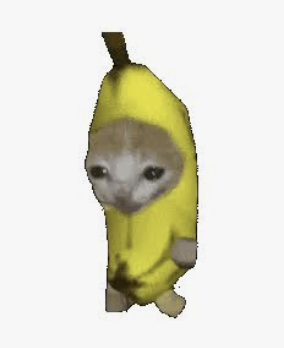
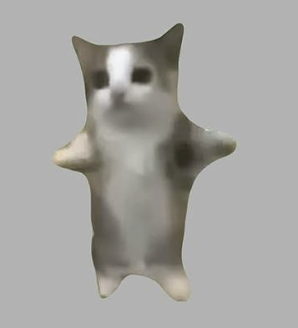
이 워크플로는 인지도가 높은 다섯 캐릭터의 밈 캐스트를 무대 공연에 활용합니다. 더 긴 시퀀스에서 캐릭터 아이덴티티의 일관성이 필요한 크리에이터 중심 소셜 포맷에 유용한 템플릿입니다.
최종 비디오
전체 워크플로 프롬프트
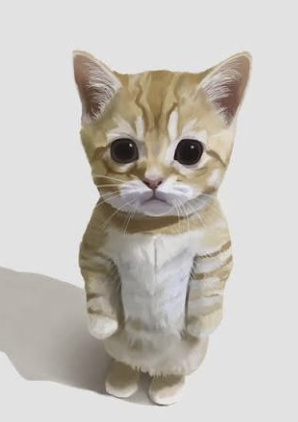
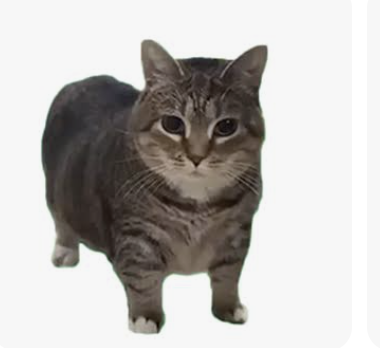
First download these five reference images: https://media.pixverse.ai/asset/media/CATMEME3.png, https://media.pixverse.ai/asset/media/CATMEME1.png, https://media.pixverse.ai/asset/media/CATMEME0.png, https://media.pixverse.ai/asset/media/CATMEME4.png, and https://media.pixverse.ai/asset/media/CATMEME2.png. Inspect their contents and arrange the characters from left to right as the banana-suit cat, black tuxedo loaf, brown tabby, gray-white happy cat, and orange kitten. Build an editable Blender neon concert stage with a glossy black floor, LED side walls, a raised center platform, and the exact backdrop text “MEME LIVE / PixVerse.” Preserve the reference appearances using shallow photo-textured models with the same character photograph visible on both front and back. Keep all five cats bouncing on separate fixed marks; only the black tuxedo loaf and brown tabby continuously spin. Create a 15-second, 24fps animation with flashing concert lights, a wide opening, individual cat close-ups, and a circling crane ending. Inspect and fix the scene, then export the editable project, a Cycles-rendered color video, a matching gray model video, and the exact color first frame. Image prompt: Use PixVerse to redraw that first frame with strong photographic realism, dramatic cyan–magenta lighting, and realistic stage materials while preserving the layout, characters, and text. Video prompt: Use Seedance 2.5 in PixVerse to generate the final video using the redrawn scene as the appearance reference, all five downloaded character images as identity references, and the gray video as the motion and camera reference. Validate upload requirements and proportionally resize reference copies when necessary. Inspect character consistency, spinning reverse textures, lighting, and camera cuts; deliver exactly 15 seconds at 1080p and 24fps without audio. Save and package all final assets and editable sources locally, move superseded versions to Trash after verification, and open the final Blender project in its animated camera view with playback running.
Astra에서 PixVerse 결과를 개선하는 팁
복잡한 장면을 생성으로 보내기 전에 다음 지침을 사용하세요.
- 창작 권한을 명시하세요. 이미지가 외관을 제어하는지, 프리뷰가 움직임과 레이아웃을 제어하는지 말하세요.
- 각 샷을 짧고 목적 있게 유지하세요. 특정 카메라 움직임은 여러 경쟁 액션이 있는 긴 시퀀스보다 검사하기 쉽습니다.
- 변하지 않아야 하는 요소를 명시하세요. 바뀌면 안 되는 캐릭터, 차량, 소품, 건축물, 오브젝트 수, 카메라 움직임을 언급하세요.
- 실패 사례를 설명하세요. 샷에 중요할 때 원치 않는 컷, 깜빡임, 추가 피사체, 가림, 부유, 레이아웃 변경, 불안정한 해부학을 제외하세요.
- 정상 속도로 검토하세요. 빠른 장면은 정지 프레임에서는 그럴듯해도 움직임에서는 실패할 수 있습니다.
- 소스 에셋을 유지하세요. 편집 가능한 장면, 레퍼런스 이미지, 프리뷰, 생성 설정, 승인된 결과물을 함께 보관하면 수정 주기가 빨라집니다.
FAQ: GPT-6 Astra와 PixVerse
Astra와 PixVerse로 제작하려면 3D 장면이 필요한가요?
아닙니다. 공간, 카메라 움직임, 타이밍, 상호작용을 의도적으로 제어해야 할 때 3D 장면이 가장 도움이 됩니다. 레퍼런스 이미지와 간결한 창작 브리프에서 시작할 수도 있습니다. 복잡한 액션, 건축물, 다중 샷 스토리텔링에서는 편집 가능한 프리뷰가 생성 과정에 더 명확한 움직임과 레이아웃 레퍼런스를 제공합니다.
프리뷰 비디오와 레퍼런스 이미지를 모두 사용하는 이유는 무엇인가요?
서로 다른 문제를 해결하기 때문입니다. 프리뷰 비디오는 카메라 움직임, 구도, 공간 레이아웃, 액션 타이밍을 정의합니다. 레퍼런스 이미지는 재질, 조명, 색상, 피사체 외관을 정의합니다. 역할을 분리하면 어떤 요소를 안정적으로 유지해야 하고 어떤 요소를 PixVerse가 강화해야 하는지 명확히 말하기 쉬워집니다.
PixVerse 샷을 승인하기 전에 무엇을 검토해야 하나요?
첫 프레임만 보지 말고 전체 샷을 검토하세요. 카메라 연속성, 프레이밍, 피사체 아이덴티티, 오브젝트 수, 해부학 또는 기계 구조, 지면 접촉, 가림, 움직임 타이밍, 시각적 결함, 관련 있는 경우 오디오를 확인합니다. 이후 수정의 명확한 출발점이 되도록 승인된 비디오와 그 소스 레퍼런스를 모두 저장하세요.
이 워크플로는 후반 작업도 지원할 수 있나요?
네. 후반 작업을 마무리와 품질 관리 단계로 다루세요. 소스 프로젝트와 납품 사양을 보존하고 적절한 스코프와 시각 검토로 각 샷을 평가하며, 보정 가능한 그레이드 문제와 새 소스 또는 새 테이크가 필요한 생성 문제를 구분합니다.
다음 제어 가능한 AI 비디오 워크플로 만들기
아이디어에 하나의 텍스트 프롬프트 이상이 필요할 때 GPT-6 Astra x PixVerse가 특히 유용합니다. Astra로 제작 작업을 구체화하고 중요한 레퍼런스를 만들거나 정리한 뒤, PixVerse로 완성된 시각 결과물을 생성하세요. 짧은 장면 하나에서 시작해 모든 레퍼런스에 명확한 역할을 부여하고, 프로젝트에서 잃을 수 없는 요소를 중심으로 검토 루프를 만드세요.
준비되셨나요? PixVerse GPT-6 Astra 페이지를 열고 ChatGPT에 PixVerse 플러그인을 설치한 다음, 다음 프로젝트에 맞춰 재현하거나 조정할 활용 사례를 선택하세요.