PixVerse と GPT-6 Astra でシネマティック動画を制作:クリエイターガイドと活用事例
PixVerse と GPT-6 Astra の制御された AI 動画ワークフローで、シネマティック動画、モーショングラフィックス、インタラクティブ体験を制作します。
GPT-6 Astra と PixVerse は、企画、ローカルのクリエイティブツール、AI動画生成を、実用的な制作フローにまとめます。PixVerse with GPT-6 Astraでは、クリエイターは ChatGPT の構造化されたブリーフから始め、3D または編集用アセットをローカルで準備し、PixVerse プラグインで承認済みの参照素材をシネマティック動画、モーショングラフィックス、またはインタラクティブなクリエイティブ作品へと変換できます。
このワークフローは、テキストだけの動画プロンプトよりも制御が必要なクリエイター向けです。カメラルートを試す監督、編集可能なプリビズを作る3Dアーティスト、キャラクターや製品レイアウトを守りたいチーム、仕上げ作業を準備する編集者に適しています。Astra はデスクトップ環境でクリエイティブタスクの整理と実行を支援し、PixVerse は意図的に用意した参照を最終的なビジュアルへ変換する生成工程を提供します。
要点
- Astra でクリエイティブブリーフを構造化された制作タスクにし、PixVerse で最終 AI 動画パスを行います。
- プレビュー動画には動き、カメラ、レイアウトを、静止画には外観、マテリアル、照明を担当させます。
- 短くレビューしやすいショットから始め、編集可能なシーン、参照元、承認済み出力を残して改訂に備えます。
PixVerse と GPT-6 Astra とは?
PixVerse Astra のページでは、GPT-6 Astra を ChatGPT デスクトップアプリ経由で PixVerse と制作する方法として紹介しています。考え方はシンプルです。詳細な制作ブリーフでシーンを定義し、視覚的な参照を作成または準備してから、インストール済みプラグインを通じて必要な入力を PixVerse に送ります。
動画制作では、役割を分けられます。3Dプリビューまたは参照動画は空間レイアウト、アクションのタイミング、構図、カメラ移動を定め、別の外観参照はマテリアル、照明、環境、色、被写体デザインを定めます。PixVerse は、分離されたこれらのクリエイティブ信号に沿って最終動画を生成できます。
これは、コンセプト、プリビズ、生成、レビューの間に再現可能な受け渡しが必要なプロジェクトで特に役立ちます。すべての生成テイクが参照と完全に同一になるという約束ではありません。チームは出力を確認し、承認済みバージョンを保存し、特定の要件を満たさなかったショットだけを再生成するべきです。
Astra ワークフローで PixVerse を使う理由
PixVerse は、このワークフローにおける AI 動画生成レイヤーです。生成を切り離された最終工程として扱うのではなく、クリエイティブプロセスで用意した視覚素材、つまり動き用のグレーモデルアニメーションと、仕上がり用の参照画像を利用できます。
これにより、複雑なシーンをより意図的に扱えます。
- 最終生成の前にカメラ移動とフレーミングを計画できます。
- 3Dシーン、アニメーション、編集プロジェクトを後の改訂用に維持できます。
- 1つのプロンプトにレイアウト、タイミング、外観、動きをすべて解決させるのではなく、参照ごとに明確な役割を与えられます。
- 長い編集に組み込む前に、各ショットの連続性、人体、遮蔽、タイミング、視覚的欠陥を確認できます。
さらに幅広い制作オプションとして、PixVerse は AI動画生成、テキストから動画、画像から動画 のワークフローも提供します。構造化された計画と外部の制作アセットが役立つ場合、Astra 連携は特に有用です。
GPT-6 Astra と PixVerse の始め方
PixVerse Astra 公式ページのセットアップは3ステップです。
- ChatGPT デスクトップアプリをダウンロードしてサインインします。
- ChatGPT 用 PixVerse プラグインをインストールします。
- Astra のユースケースから始め、制作ブリーフを自分のシーンに合わせて調整し、PixVerse で制作します。
生成前に、各アセットが何を制御するためのものかを決めてください。この小さな計画により、細部の少ないプレビューに最終画像のすべてを定義させるというよくある失敗を防げます。
| 入力 | 制御に最適なもの | 注力する内容 |
|---|---|---|
| グレーモデルまたはホワイトモデル動画 | カメラパス、タイミング、空間レイアウト、アクション、フレーミング | 最終マテリアルではなく、ジオメトリと動き |
| 静止参照画像 | 外観、照明、テクスチャ、カラーパレット、被写体のアイデンティティ | 最終的なビジュアルの方向性 |
| シーンファイルまたは編集プロジェクト | 改訂、リギング、レイアウト変更、引き継ぎ | 編集可能なソース作業 |
| PixVerse 生成ブリーフ | 安定させる要素と強化できる要素 | 明確な制約とレビュー基準 |
信頼できる制作ループ
長編作品ではなく、短くテスト可能なシーケンスから始めます。作業に合うツールでブロッキング、カメラ移動、アクションを作ります。クリーンなプレビューを出力し、外観参照を準備し、連続性が重要な場合はショットごとに PixVerse タスクを作成します。
その後、通常の再生速度でテイク全体を確認します。カメラの流れ、オブジェクト数、被写体位置、読み取れるアクション、手や車輪の接触、地面接触、不要なカットやレイアウト変更がないことなど、シーンで最も重要な要件を確認してください。ショットが失敗した場合は、原因がプレビュー、外観参照、生成指示のどれにあるかを見極め、影響した部分だけを変更します。
制作カテゴリ別の4つの Astra ワークフロー
これら4つの例は、異なる4つの制作ニーズをカバーします。各ワークフローは、公開記事では成果と再利用可能な制作パスに焦点を当て、元の参照アセットは表示しません。
| カテゴリ | 例 | 最適な用途 |
|---|---|---|
| 映画プリビズ | 3Dレーシングカー衝突をシミュレート | 高速車両アクション、トラッキングカメラ、ショット連続性の計画 |
| 3Dモデリング | パトカー追跡シーンを作成 | グレーモデルのステージングを写実的アクションへ変換 |
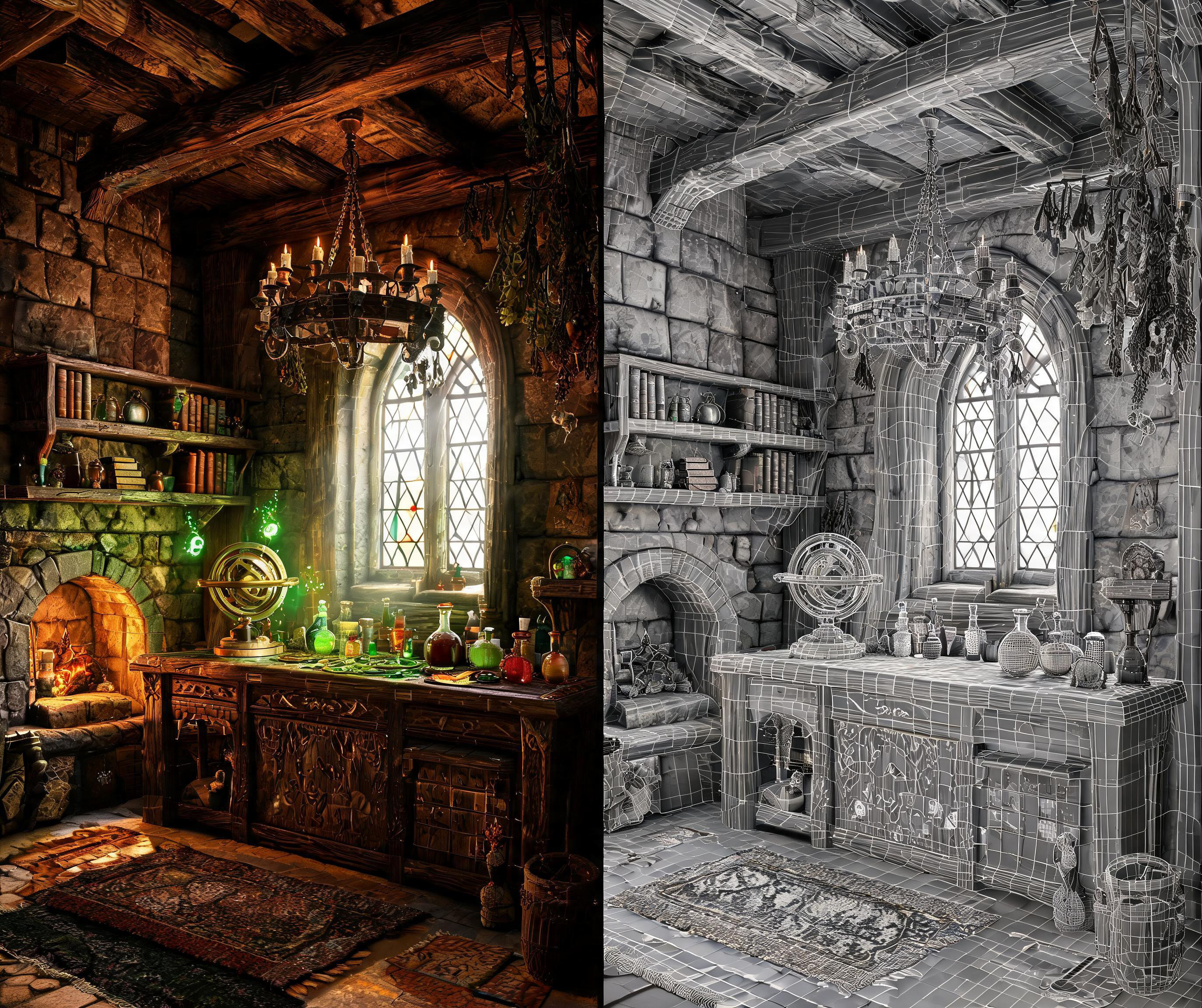
| ゲーム開発 | 3D一人称視点の魔法使いの作業台を作成 | 制御された一人称インタラクティブシーンの構築 |
| インターネットカルチャー | ライブ猫ミームステージを構築 | 一貫したアイデンティティを持つキャラクター主導のミームパフォーマンス制作 |
映画プリビズ:3Dレーシングカー衝突をシミュレート
このワークフローは、最終 PixVerse パスの前に、動き、車両の順序、カメラ方向を明確に保つ必要があるスタイライズされたカーチェイス向けです。
最終動画
完全なワークフロープロンプト
Create an original GTA-inspired cartoon car chase using this workflow: Design: Define one main driver, one getaway car, one pursuing car, and one urban environment. Keep their designs consistent. Plan three 4-second shots: rear tracking pursuit, side tracking through a sharp turn, and a wide exit shot. Build in Blender: Create clean gray models and functional character and vehicle rigs. No textures or UV unwrapping are required. Animate and test: Animate the driver, steering, wheel rotation, vehicles, and cameras. Maintain coherent travel direction and vehicle order. Fix clipping, floating wheels, sliding tires, broken poses, and hands losing contact with the steering wheel. Render in Blender: Render frames 1–288 at 1280×720, 24 fps. Assemble actual Blender-rendered frames into a complete 12-second gray-model master. Export each shot separately and render matching gray stills as shape and composition references. Video prompt: Use Seedance 2.5 at 720p, processing each shot separately. Use the Blender clips as motion references and the gray stills as shape references. Define a consistent cartoon color palette. Preserve camera movement, action timing, character and vehicle designs, and vehicle count. Review and deliver: Inspect both complete videos for visual defects and continuity. Repair Blender issues and regenerate only failed Seedance shots, with at most two retries per shot. Deliver the editable .blend, the native 720p Blender gray-model video, the separately labeled 720p Seedance version, and a brief assessment of remaining limitations.
3Dモデリング:パトカー追跡シーンを作成
アクションシーンに写実的な仕上がりが必要で、構図、車両の軌道、タイミングのために編集可能な3Dプランも保持したい場合に有用です。
最終動画
完全なワークフロープロンプト
Create an original GTA-inspired car chase with a photorealistic, live-action cinematic finish, using this workflow: Design: Define the driver, two cars, and urban environment. Plan three 4-second shots: rear tracking pursuit, side tracking through a sharp turn, and a wide exit shot. Keep identities and vehicle order consistent. Build in Blender: Create clean gray models and functional character and vehicle rigs. No textures or UV unwrapping are required. Animate and test: Animate the vehicles, wheel rotation, steering, driver, and cameras. Fix clipping, floating wheels, sliding tires, broken poses, and hands losing contact with the steering wheel. Render in Blender: Render the complete 12-second gray-model video at 1280×720, 24 fps, using actual Blender-rendered frames. Export each 4-second shot separately and extract its first frame. Image prompt: Transform each shot’s gray first frame into a photorealistic cinematic reference image in PixVerse. Preserve composition, perspective, subject positions, and vehicle count. Replace simplified gray geometry with realistic people, detailed cars, believable architecture, natural materials, and cinematic lighting. Keep the same driver, car designs, colors, and lighting across all three images. Avoid cartoon, toy-like, low-poly, or clay-render styling. Video prompt: Use Seedance 2.5 at 720p, supplying the cinematic reference image together with its corresponding gray-model video. The image defines appearance and realism; the video defines camera movement, spatial layout, vehicle trajectories, and action timing. Generate each shot separately. Review and deliver: Check realism, identity consistency, vehicle count, motion, and shot continuity. Repair faulty shots, with at most two retries per shot. Deliver the editable .blend, native 720p Blender gray-model video, cinematic reference images, separately labeled 12-second Seedance version, and a brief assessment of remaining limitations.
ゲーム開発:3D一人称視点の魔法使いの作業台を作成
この一人称視点の例は、ゲームプレイの読みやすさに焦点を置きます。1本の手、1つの小道具、連続するカメラ移動、安定した部屋のレイアウトです。
最終動画
完全なワークフロープロンプト
Create a 12-second, single-take white-model animation in Blender based on the attached reference image https://media.pixverse.ai/asset/media/WizardRoom.jpg, then use PixVerse with Seedance 2.5 to transform the exported animation into a cinematic, Witcher-3-inspired wizard workshop sequence. In Blender, use the reference image to guide the room layout, architecture, furniture, and props. Build an editable low-poly scene with clean meshes and UVs, using simple white or light-gray materials. Include stone walls, wooden shelves, an arched window, a fireplace, books, an astronomical instrument, and an alchemy table filled with potion bottles. Keep the silhouettes readable and the room proportions believable. Animate a low first-person viewpoint with exactly one right hand holding one potion. Begin with the bottle resting near the lower-right edge while the character looks around the workshop and toward the window. Raise the potion naturally, pause to examine it, shift focus onto the bottle, then lower it while turning toward the fireplace and glowing reagents. Leave a small gap between the palm and bottle while maintaining believable fingertip contact. Use smooth changes in speed, gentle curved head movements, subtle breathing, and slight arm lag. Check the complete action at normal playback for clipping, awkward grip, abrupt turns, and excessive shaking. Keep the Blender fireplace simple: use logs, low embers, and flickering light. Avoid solid cones or flame-shaped meshes, which can be interpreted as glowing rocks. Prepare a separate fireplace detail from the reference image to guide the final appearance. Video prompt: Export the complete white-model MP4. Generate a 12-second video with PixVerse, using the Blender-exported white-model video as the camera, action, and spatial reference, the attached image as the scene appearance reference, and the fireplace detail as the fire reference. Preserve the continuous shot, low viewpoint, single-hand potion action, room layout, and timing. Enrich the scene with weathered stone, carved wood, worn leather, iron fittings, and realistic glass. Combine cool window light and drifting dust with warm fireplace illumination and softly glowing magical liquids. Create natural wood fire with thin, irregular flames curling between charred logs, glowing embers, occasional sparks, and subtle smoke. Keep the hand anatomy, bottle shape, fire movement, and focus transitions consistent throughout. Review the full generated video, especially the hand action and fireplace. Deliver the white-model MP4, the PixVerse-rendered MP4, and the editable Blender project.
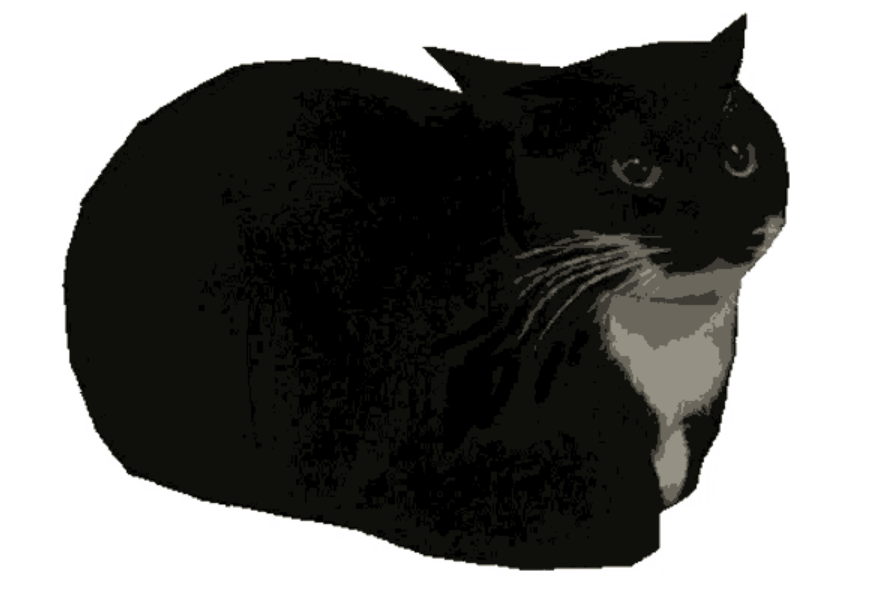
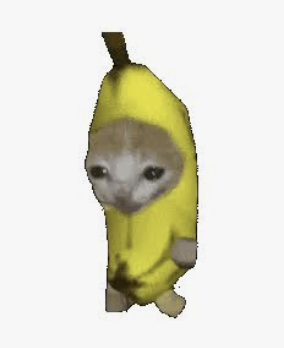
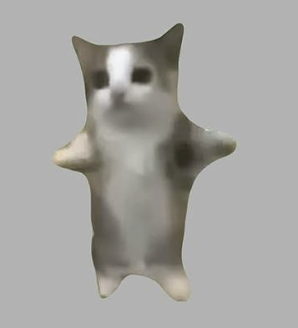
インターネットカルチャー:ライブ猫ミームステージを構築
このワークフローは、個性豊かな5キャラクターのミームキャストをステージパフォーマンスに使用します。長いシーケンスでアイデンティティの一貫性が必要な、クリエイター主導のソーシャル形式のテンプレートとして有用です。
最終動画
完全なワークフロープロンプト
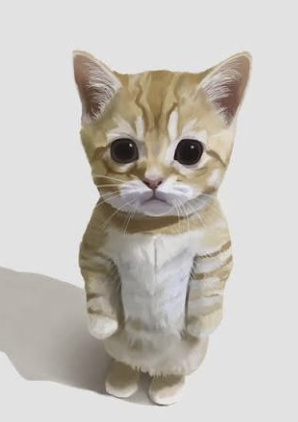
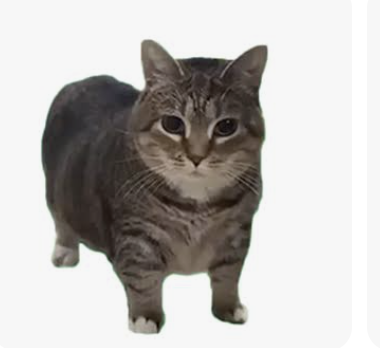
First download these five reference images: https://media.pixverse.ai/asset/media/CATMEME3.png, https://media.pixverse.ai/asset/media/CATMEME1.png, https://media.pixverse.ai/asset/media/CATMEME0.png, https://media.pixverse.ai/asset/media/CATMEME4.png, and https://media.pixverse.ai/asset/media/CATMEME2.png. Inspect their contents and arrange the characters from left to right as the banana-suit cat, black tuxedo loaf, brown tabby, gray-white happy cat, and orange kitten. Build an editable Blender neon concert stage with a glossy black floor, LED side walls, a raised center platform, and the exact backdrop text “MEME LIVE / PixVerse.” Preserve the reference appearances using shallow photo-textured models with the same character photograph visible on both front and back. Keep all five cats bouncing on separate fixed marks; only the black tuxedo loaf and brown tabby continuously spin. Create a 15-second, 24fps animation with flashing concert lights, a wide opening, individual cat close-ups, and a circling crane ending. Inspect and fix the scene, then export the editable project, a Cycles-rendered color video, a matching gray model video, and the exact color first frame. Image prompt: Use PixVerse to redraw that first frame with strong photographic realism, dramatic cyan–magenta lighting, and realistic stage materials while preserving the layout, characters, and text. Video prompt: Use Seedance 2.5 in PixVerse to generate the final video using the redrawn scene as the appearance reference, all five downloaded character images as identity references, and the gray video as the motion and camera reference. Validate upload requirements and proportionally resize reference copies when necessary. Inspect character consistency, spinning reverse textures, lighting, and camera cuts; deliver exactly 15 seconds at 1080p and 24fps without audio. Save and package all final assets and editable sources locally, move superseded versions to Trash after verification, and open the final Blender project in its animated camera view with playback running.
Astra から PixVerse への結果を高めるヒント
複雑なシーンを生成に送る前に、次のガイドラインを使用してください。
- クリエイティブの決定権を明示します。 画像が外観を、プレビューが動きとレイアウトを制御するかを伝えます。
- 各ショットを短く、目的を明確に保ちます。 特定のカメラ移動は、競合するアクションが多い長いシーケンスより確認しやすくなります。
- 不変条件を明記します。 変えてはいけないキャラクター、車両、小道具、建築、オブジェクト数、カメラ移動を示します。
- 失敗例を説明します。 必要に応じて、不要なカット、ちらつき、余分な被写体、遮蔽、浮遊、レイアウト変更、不安定な人体を除外します。
- 通常速度で確認します。 速いシーンは静止画では説得力があっても、動きでは失敗する場合があります。
- ソースアセットを保持します。 編集可能なシーン、参照画像、プレビュー、生成設定、承認済み出力をまとめて保存し、改訂を速くします。
FAQ:GPT-6 Astra と PixVerse
Astra と PixVerse で制作するには3Dシーンが必要ですか?
いいえ。空間、カメラ移動、タイミング、インタラクションを意図的に制御したい場合、3Dシーンが最も役立ちます。参照画像と簡潔なクリエイティブブリーフから始めることもできます。複雑なアクション、建築、多ショットのストーリーテリングでは、編集可能なプレビューが生成により明確な動きとレイアウトの参照を与えます。
プレビュー動画と参照画像を両方使う理由は?
異なる問題を解決するためです。プレビュー動画はカメラ移動、構図、空間レイアウト、アクションのタイミングを定めます。参照画像はマテリアル、照明、色、被写体の外観を定めます。役割を分けると、安定させる要素と PixVerse が強化すべき要素を明確にできます。
PixVerse のショットを承認する前に何を確認すべきですか?
最初のフレームだけでなく、ショット全体を確認してください。カメラの連続性、フレーミング、被写体のアイデンティティ、オブジェクト数、人体またはメカニクス、地面接触、遮蔽、動きのタイミング、視覚的欠陥、必要に応じて音声を確認します。後の修正の明確な出発点となるよう、承認済み動画とその元の参照を保存してください。
このワークフローはポストプロダクションにも対応できますか?
はい。ポストプロダクションを仕上げと品質管理の段階として扱ってください。ソースプロジェクトと納品仕様を残し、適切なスコープと視覚レビューで各ショットを評価し、カラーグレーディングで修正できる問題と、新しいソースまたはテイクが必要な生成上の問題を区別します。
次の制御可能な AI 動画ワークフローを作る
アイデアに1つのテキストプロンプト以上が必要な場合、GPT-6 Astra x PixVerse は特に役立ちます。Astra で制作タスクを形にし、重要な参照を作成または整理し、PixVerse で完成したビジュアルを生成します。短い1シーンから始め、すべての参照に明確な役割を与え、プロジェクトで失えない要素を中心にレビューのループを作りましょう。
試してみませんか? PixVerse GPT-6 Astra ページを開き、ChatGPT に PixVerse プラグインをインストールして、次のプロジェクト向けに再現または調整するユースケースを選んでください。