使用 PixVerse 和 GPT-6 Astra 制作电影感视频:创作者指南与应用案例
通过 PixVerse 与 GPT-6 Astra 的可控 AI 视频工作流,制作电影感视频、动态图形和互动体验。
GPT-6 Astra 与 PixVerse 将规划、本地创作工具和 AI 视频生成连接为一条实用的制作路径。通过 PixVerse with GPT-6 Astra,创作者可以从 ChatGPT 中的结构化创作简报开始,在本地准备 3D 或剪辑资产,再使用 PixVerse 插件将已确认的参考素材转化为电影感视频、动态图形或互动创作成果。
这套工作流适合需要比纯文本视频提示词更强控制力的创作者:测试镜头路径的导演、搭建可编辑预演的 3D 艺术家、需要保护角色或产品布局的团队,以及准备后期精修的剪辑师。Astra 可在桌面环境中帮助组织和执行创作任务;PixVerse 则提供生成环节,将有明确意图的参考素材变为最终视觉成片。
核心要点
- 使用 Astra 将创意简报转化为结构化制作任务,再使用 PixVerse 完成最终 AI 视频生成。
- 让预览视频控制运动、镜头和布局;让静帧图像控制外观、材质和光线。
- 从短小、便于审核的镜头开始,并保留可编辑场景、源参考和已确认的输出,方便修改。
什么是搭配 PixVerse 使用的 GPT-6 Astra?
PixVerse Astra 页面将 GPT-6 Astra 介绍为一种可通过 ChatGPT 桌面应用与 PixVerse 协同创作的方式。核心思路很简单:使用详细的制作简报定义场景,构建或准备视觉参考,再通过已安装的插件将相关输入发送至 PixVerse。
对于视频制作,这形成了清晰的职责划分。3D 预演或参考视频可以建立空间布局、动作时序、构图和镜头运动;独立的外观参考则可以建立材质、光线、环境、色彩和主体设计。PixVerse 随后可在遵循这些明确分离的创作信号的同时生成最终视频。
当项目需要在概念、预演、生成和审核之间建立可复用的交接流程时,这一点尤其有价值。这并不意味着每条生成结果都会与参考完全一致。团队应审核输出、保留已确认版本,并且只对明确未满足要求的镜头重新生成。
为什么要在 Astra 工作流中使用 PixVerse?
PixVerse 是该工作流中的 AI 视频生成层。它不会把生成当作脱离流程的最后一步,而是能够使用创作过程中准备的视觉素材:用于运动的灰模动画,以及用于目标画面的参考图像。
这让创作者能够更有计划地处理复杂场景:
- 在最终生成之前规划镜头运动和构图。
- 保留 3D 场景、动画或剪辑工程,以便后续修改。
- 为不同参考赋予清晰职责,而非要求单一提示词同时解决布局、时序、外观和运动。
- 将镜头合成为更长剪辑前,审核连续性、人体结构、遮挡、时序和视觉瑕疵。
若想了解更多创作方式,PixVerse 还支持 AI 视频生成、文生视频 和 图生视频 工作流。当创作任务受益于结构化方案和外部制作资产时,Astra 集成尤其适用。
如何开始使用 GPT-6 Astra 与 PixVerse
PixVerse Astra 官方页面提供了三个设置步骤:
- 下载并登录 ChatGPT 桌面应用。
- 安装 适用于 ChatGPT 的 PixVerse 插件。
- 从 Astra 用例开始,根据你的场景调整制作简报,并使用 PixVerse 创作。
生成前,请先决定每项资产需要控制什么。这一小步规划可避免常见问题:要求一条细节不足的预览同时定义最终画面的全部内容。
| 输入 | 最适合控制 | 应聚焦于 |
|---|---|---|
| 灰模或白模视频 | 镜头路径、时序、空间布局、动作、取景 | 几何与运动,而非最终材质 |
| 静帧参考图 | 外观、光线、纹理、色彩方案、主体身份 | 最终视觉方向 |
| 场景文件或剪辑工程 | 修改、绑定、布局变更、交接 | 可编辑的源工程 |
| PixVerse 生成简报 | 必须保持稳定的内容与可增强的内容 | 明确的限制与审核标准 |
可靠的制作循环
先从短小、可测试的片段开始,而不是完整影片。在适合任务的工具中完成走位、镜头运动或动作。导出干净的预览,准备外观参考,并在连续性重要时为每个镜头创建一个 PixVerse 任务。
然后以正常播放速度审核完整成片。检查场景中最重要的要求:镜头流动、物体数量、主体位置、动作可读性、手部或车轮接触、地面接触,以及没有不需要的切镜或布局变化。若镜头失败,应先判断原因来自预览、外观参考还是生成指令,然后仅改动受影响的部分。
按制作类别划分的四个 Astra 工作流
以下四个案例覆盖四种不同的制作需求。每套工作流都让公开文章聚焦于成片和可复用制作路径,而不展示底层参考资产。
| 类别 | 案例 | 最适合 |
|---|---|---|
| 影视预演 | 模拟 3D 赛车碰撞 | 规划高速车辆动作、跟拍镜头和镜头连续性 |
| 3D 建模 | 创建警车追逐场景 | 将灰模走位转化为写实动作序列 |
| 游戏开发 | 创建 3D 第一人称巫师工作台 | 构建可控的第一人称互动场景 |
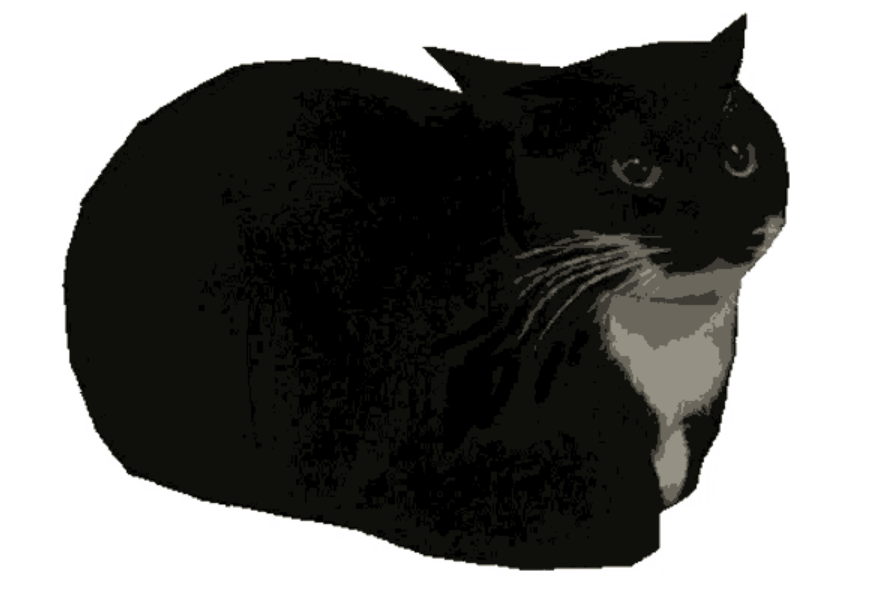
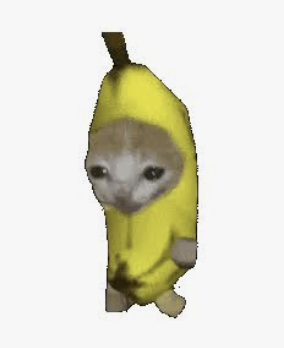
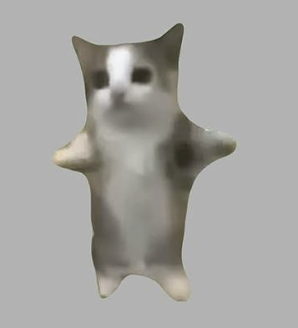
| 网络文化 | 搭建猫咪 Meme 直播舞台 | 制作身份一致、以角色为中心的 Meme 表演 |
影视预演:模拟 3D 赛车碰撞
这套工作流面向风格化赛车追逐;在最终 PixVerse 生成前,动作、车辆顺序和镜头方向都必须保持清晰可读。
最终视频
完整工作流提示词
Create an original GTA-inspired cartoon car chase using this workflow: Design: Define one main driver, one getaway car, one pursuing car, and one urban environment. Keep their designs consistent. Plan three 4-second shots: rear tracking pursuit, side tracking through a sharp turn, and a wide exit shot. Build in Blender: Create clean gray models and functional character and vehicle rigs. No textures or UV unwrapping are required. Animate and test: Animate the driver, steering, wheel rotation, vehicles, and cameras. Maintain coherent travel direction and vehicle order. Fix clipping, floating wheels, sliding tires, broken poses, and hands losing contact with the steering wheel. Render in Blender: Render frames 1–288 at 1280×720, 24 fps. Assemble actual Blender-rendered frames into a complete 12-second gray-model master. Export each shot separately and render matching gray stills as shape and composition references. Video prompt: Use Seedance 2.5 at 720p, processing each shot separately. Use the Blender clips as motion references and the gray stills as shape references. Define a consistent cartoon color palette. Preserve camera movement, action timing, character and vehicle designs, and vehicle count. Review and deliver: Inspect both complete videos for visual defects and continuity. Repair Blender issues and regenerate only failed Seedance shots, with at most two retries per shot. Deliver the editable .blend, the native 720p Blender gray-model video, the separately labeled 720p Seedance version, and a brief assessment of remaining limitations.
3D 建模:创建警车追逐场景
当动作场景需要写实的视觉效果,同时又要保留可编辑的 3D 方案以控制构图、车辆轨迹和时序时,这个案例十分适用。
最终视频
完整工作流提示词
Create an original GTA-inspired car chase with a photorealistic, live-action cinematic finish, using this workflow: Design: Define the driver, two cars, and urban environment. Plan three 4-second shots: rear tracking pursuit, side tracking through a sharp turn, and a wide exit shot. Keep identities and vehicle order consistent. Build in Blender: Create clean gray models and functional character and vehicle rigs. No textures or UV unwrapping are required. Animate and test: Animate the vehicles, wheel rotation, steering, driver, and cameras. Fix clipping, floating wheels, sliding tires, broken poses, and hands losing contact with the steering wheel. Render in Blender: Render the complete 12-second gray-model video at 1280×720, 24 fps, using actual Blender-rendered frames. Export each 4-second shot separately and extract its first frame. Image prompt: Transform each shot’s gray first frame into a photorealistic cinematic reference image in PixVerse. Preserve composition, perspective, subject positions, and vehicle count. Replace simplified gray geometry with realistic people, detailed cars, believable architecture, natural materials, and cinematic lighting. Keep the same driver, car designs, colors, and lighting across all three images. Avoid cartoon, toy-like, low-poly, or clay-render styling. Video prompt: Use Seedance 2.5 at 720p, supplying the cinematic reference image together with its corresponding gray-model video. The image defines appearance and realism; the video defines camera movement, spatial layout, vehicle trajectories, and action timing. Generate each shot separately. Review and deliver: Check realism, identity consistency, vehicle count, motion, and shot continuity. Repair faulty shots, with at most two retries per shot. Deliver the editable .blend, native 720p Blender gray-model video, cinematic reference images, separately labeled 12-second Seedance version, and a brief assessment of remaining limitations.
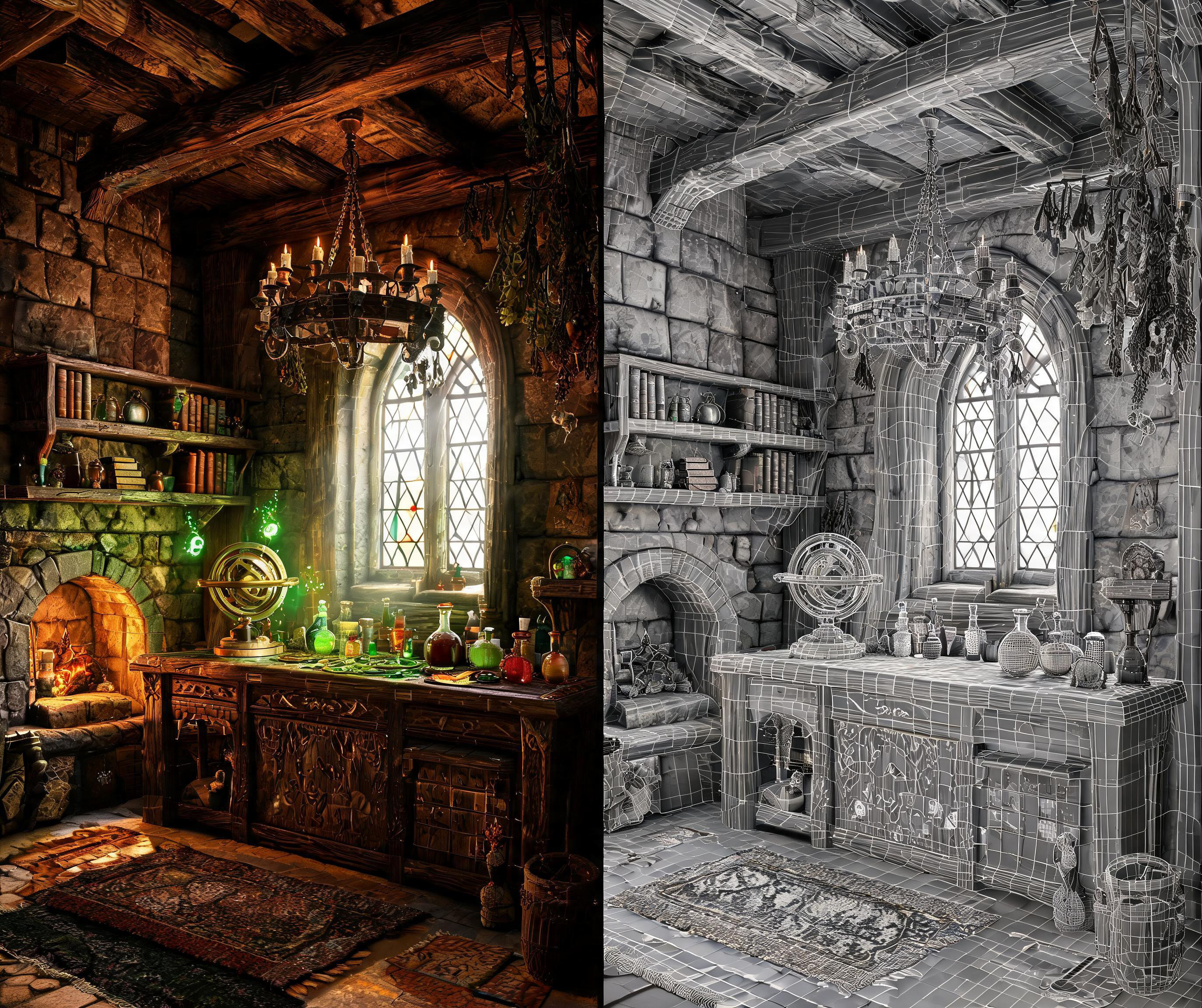
游戏开发:创建 3D 第一人称巫师工作台
这个第一人称案例专注于游戏可读性:一只手、一个道具、连续镜头运动和稳定的房间布局。
最终视频
完整工作流提示词
Create a 12-second, single-take white-model animation in Blender based on the attached reference image https://media.pixverse.ai/asset/media/WizardRoom.jpg, then use PixVerse with Seedance 2.5 to transform the exported animation into a cinematic, Witcher-3-inspired wizard workshop sequence. In Blender, use the reference image to guide the room layout, architecture, furniture, and props. Build an editable low-poly scene with clean meshes and UVs, using simple white or light-gray materials. Include stone walls, wooden shelves, an arched window, a fireplace, books, an astronomical instrument, and an alchemy table filled with potion bottles. Keep the silhouettes readable and the room proportions believable. Animate a low first-person viewpoint with exactly one right hand holding one potion. Begin with the bottle resting near the lower-right edge while the character looks around the workshop and toward the window. Raise the potion naturally, pause to examine it, shift focus onto the bottle, then lower it while turning toward the fireplace and glowing reagents. Leave a small gap between the palm and bottle while maintaining believable fingertip contact. Use smooth changes in speed, gentle curved head movements, subtle breathing, and slight arm lag. Check the complete action at normal playback for clipping, awkward grip, abrupt turns, and excessive shaking. Keep the Blender fireplace simple: use logs, low embers, and flickering light. Avoid solid cones or flame-shaped meshes, which can be interpreted as glowing rocks. Prepare a separate fireplace detail from the reference image to guide the final appearance. Video prompt: Export the complete white-model MP4. Generate a 12-second video with PixVerse, using the Blender-exported white-model video as the camera, action, and spatial reference, the attached image as the scene appearance reference, and the fireplace detail as the fire reference. Preserve the continuous shot, low viewpoint, single-hand potion action, room layout, and timing. Enrich the scene with weathered stone, carved wood, worn leather, iron fittings, and realistic glass. Combine cool window light and drifting dust with warm fireplace illumination and softly glowing magical liquids. Create natural wood fire with thin, irregular flames curling between charred logs, glowing embers, occasional sparks, and subtle smoke. Keep the hand anatomy, bottle shape, fire movement, and focus transitions consistent throughout. Review the full generated video, especially the hand action and fireplace. Deliver the white-model MP4, the PixVerse-rendered MP4, and the editable Blender project.
网络文化:搭建猫咪 Meme 直播舞台
该工作流使用由五个辨识度鲜明角色组成的 Meme 阵容进行舞台表演,是需要在更长片段中保持角色身份一致的创作者社交内容模板。
最终视频
完整工作流提示词
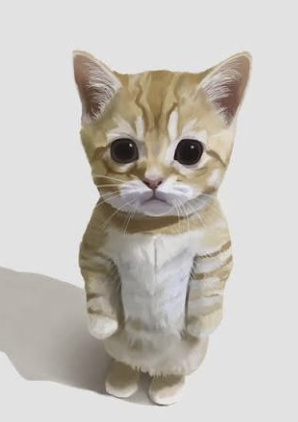
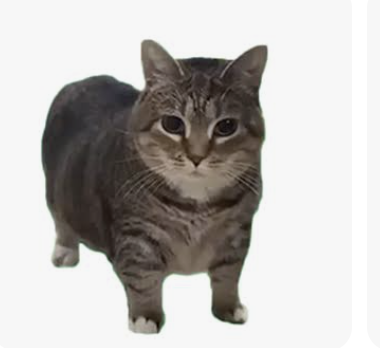
First download these five reference images: https://media.pixverse.ai/asset/media/CATMEME3.png, https://media.pixverse.ai/asset/media/CATMEME1.png, https://media.pixverse.ai/asset/media/CATMEME0.png, https://media.pixverse.ai/asset/media/CATMEME4.png, and https://media.pixverse.ai/asset/media/CATMEME2.png. Inspect their contents and arrange the characters from left to right as the banana-suit cat, black tuxedo loaf, brown tabby, gray-white happy cat, and orange kitten. Build an editable Blender neon concert stage with a glossy black floor, LED side walls, a raised center platform, and the exact backdrop text “MEME LIVE / PixVerse.” Preserve the reference appearances using shallow photo-textured models with the same character photograph visible on both front and back. Keep all five cats bouncing on separate fixed marks; only the black tuxedo loaf and brown tabby continuously spin. Create a 15-second, 24fps animation with flashing concert lights, a wide opening, individual cat close-ups, and a circling crane ending. Inspect and fix the scene, then export the editable project, a Cycles-rendered color video, a matching gray model video, and the exact color first frame. Image prompt: Use PixVerse to redraw that first frame with strong photographic realism, dramatic cyan–magenta lighting, and realistic stage materials while preserving the layout, characters, and text. Video prompt: Use Seedance 2.5 in PixVerse to generate the final video using the redrawn scene as the appearance reference, all five downloaded character images as identity references, and the gray video as the motion and camera reference. Validate upload requirements and proportionally resize reference copies when necessary. Inspect character consistency, spinning reverse textures, lighting, and camera cuts; deliver exactly 15 seconds at 1080p and 24fps without audio. Save and package all final assets and editable sources locally, move superseded versions to Trash after verification, and open the final Blender project in its animated camera view with playback running.
提升 Astra 到 PixVerse 效果的技巧
在将复杂场景发送至生成环节前,请使用以下准则:
- 明确创作控制权。 说明图像是否控制外观、预览是否控制运动和布局。
- 让每个镜头短小且目标明确。 相比含有多个相互竞争动作的长片段,特定镜头运动更容易审核。
- 说明不可变条件。 指出不能改变的角色、车辆、道具、建筑、物体数量或镜头运动。
- 描述失败情况。 当这些问题对镜头很重要时,排除不需要的切镜、闪烁、多余主体、遮挡、漂浮、布局变化或不稳定的人体结构。
- 以正常速度审核。 快速场景在静帧中可能看似可信,却会在运动中失败。
- 保留源资产。 将可编辑场景、参考图、预览、生成设置和已确认输出放在一起,以加快修改循环。
FAQ:GPT-6 Astra 与 PixVerse
我需要 3D 场景才能使用 Astra 和 PixVerse 创作吗?
不需要。当你需要有意识地控制空间、镜头运动、时序或互动时,3D 场景最有帮助。你也可以从参考图和简洁的创作简报开始。对于复杂动作、建筑或多镜头叙事,可编辑预览会为生成过程提供更明确的运动和布局参考。
为什么同时使用预览视频和参考图?
它们解决的是不同问题。预览视频可以定义镜头运动、构图、空间布局和动作时序;参考图可以定义材质、光线、色彩和主体外观。将这些职责分开,更容易明确哪些元素必须稳定,以及哪些元素可以由 PixVerse 增强。
在确认 PixVerse 镜头前应审核什么?
请审核完整镜头,而不仅是第一帧。检查镜头连续性、取景、主体身份、物体数量、人体结构或机械结构、地面接触、遮挡、运动时序、视觉瑕疵,以及相关时的音频。保存已确认视频及其源参考,以便后续修改拥有明确的起点。
这套工作流能支持后期制作吗?
可以。请将后期视为精修和质量控制阶段:保留源工程和交付规格,使用合适的示波器和视觉审核评估每个镜头,并区分可通过调色修复的问题与需要新源素材或新生成结果的问题。
创建你的下一个可控 AI 视频工作流
当一个创意不止需要单一文本提示词时,GPT-6 Astra x PixVerse 最能发挥价值。使用 Astra 梳理制作任务,创建或组织关键参考,再使用 PixVerse 生成最终视觉结果。从一个短场景开始,为每项参考赋予明确职责,并围绕项目不能失去的要素建立审核循环。
准备好尝试了吗?打开 PixVerse GPT-6 Astra 页面,在 ChatGPT 中安装 PixVerse 插件,并选择一个用例来复刻或调整为你的下一个项目。