Canva AI Video Generator Alternatives for Creators and Teams
Compare Canva Create a Video Clip with PixVerse, Runway, Flow, CapCut, and Adobe for social clips, brand content, editing, and scalable workflows.
Canva Create a Video Clip is a Canva AI feature powered by Google Veo 3 that turns a text prompt into an 8-second video with synchronized sound. It is a strong fit for Canva users who want quick visual concepts, pitch deck openers, social posts, and lightweight campaign assets inside a familiar design editor.
That convenience also creates the first decision point. Canva is optimized for short prompt-to-video moments inside a design workflow; at launch, the feature is limited to 8-second clips and an initial 5 generations per month. Those limits are reasonable for quick ideation, but they matter if the goal is a series of social clips, an image-to-video workflow, multi-scene storytelling, deeper model control, or automated production.
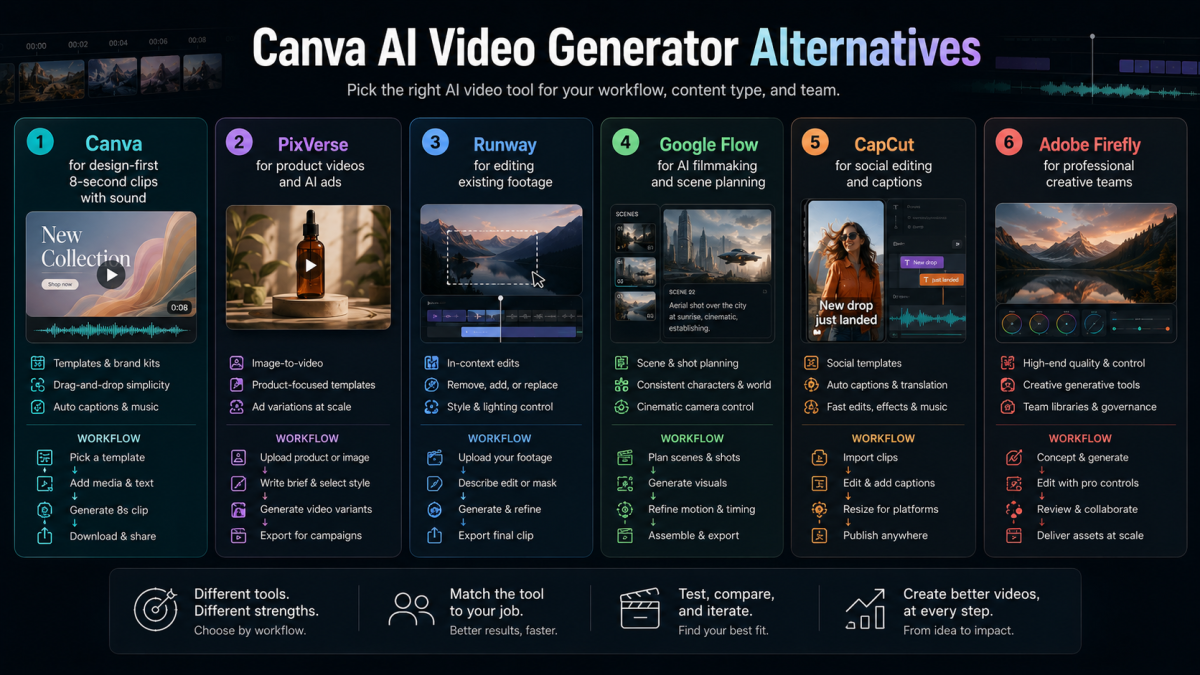
That is where the Canva AI video generator alternative question becomes useful. The answer is not that every creator should leave Canva, but that each production job needs the right tool: PixVerse for original video generation, image-to-video, templates, and scalable workflows; Runway for editing existing footage; Google Flow for AI filmmaking; CapCut for social finishing; and Adobe Firefly for professional creative teams.
This article is for creators, marketers, designers, educators, brand teams, and agency operators deciding whether Canva’s new AI video feature is enough, or whether a more video-native workflow would save time. The comparison is based on public product documentation and announcements available as of May 27, 2026.
What Is Canva Create a Video Clip?
Canva’s official announcement describes Create a Video Clip as a Canva AI feature powered by Google Veo 3. Users enter a text prompt, generate an 8-second video with sound, and then continue editing in Canva Video Editor with brand elements, music, text, and other design assets.
Canva also says the feature is available to users on Pro, Teams, Enterprise, and Nonprofit plans. At launch, Canva lists an initial limit of 5 video generations per month. The same announcement says Veo 3 is also rolling out to Leonardo.Ai paid users, which makes Canva’s move part of a larger design-platform trend rather than a one-off feature release.
The practical details are straightforward:
- Model and input: Canva integrates Google Veo 3 and starts from a text prompt, so users can generate video without footage, images, or a timeline project.
- Output length: The launch version creates 8-second clips, which is useful for openers, hooks, and short creative assets, but not enough for every video workflow.
- Sound: The clip can include synchronized sound, making it closer to a usable social asset than a silent visual demo.
- Editing path: The clip opens in Canva Video Editor, where Canva’s real strength is design assembly, brand elements, text, music, and layouts.
- Usage limit: The initial 5-generation monthly limit is fine for light exploration, but restrictive for teams that need many test variants.
The important shift is workflow. Canva is placing AI video inside the same environment where users already make social posts, presentations, brand kits, thumbnails, and campaign designs. That is attractive for design-first users, but it does not automatically solve every AI video production job.
How We Evaluated Canva AI Video Generator Alternatives
This comparison focuses on workflow fit, not product logos. The useful question is not “which tool is best overall?” It is “which tool gives this user the fastest path from input to usable output?” We evaluated each product against six practical factors:
- Starting input: whether the workflow begins with text, a reference image, existing footage, a brand kit, a script, or a timeline.
- Output target: whether the goal is a social clip, brand asset, pitch opener, cinematic scene, edited footage, product demo, or professional asset.
- Control level: whether users can guide visual consistency, camera motion, aspect ratio, sound, captions, templates, or model choice.
- Iteration volume: whether the tool supports one polished clip, many creative variants, or API-scale generation.
- Finishing workflow: whether it helps with captions, music, timeline edits, brand design, and platform exports.
- Failure risk: where the workflow is most likely to break, such as visual fidelity, over-editing, usage limits, credits, rights, or team handoff.
This is also why a fair Canva comparison needs more than one alternative. A creator, a filmmaker, a social editor, a brand team, and a design team may all be comparing Canva AI video options, but they do not need the same tool.
Where Canva Works Best
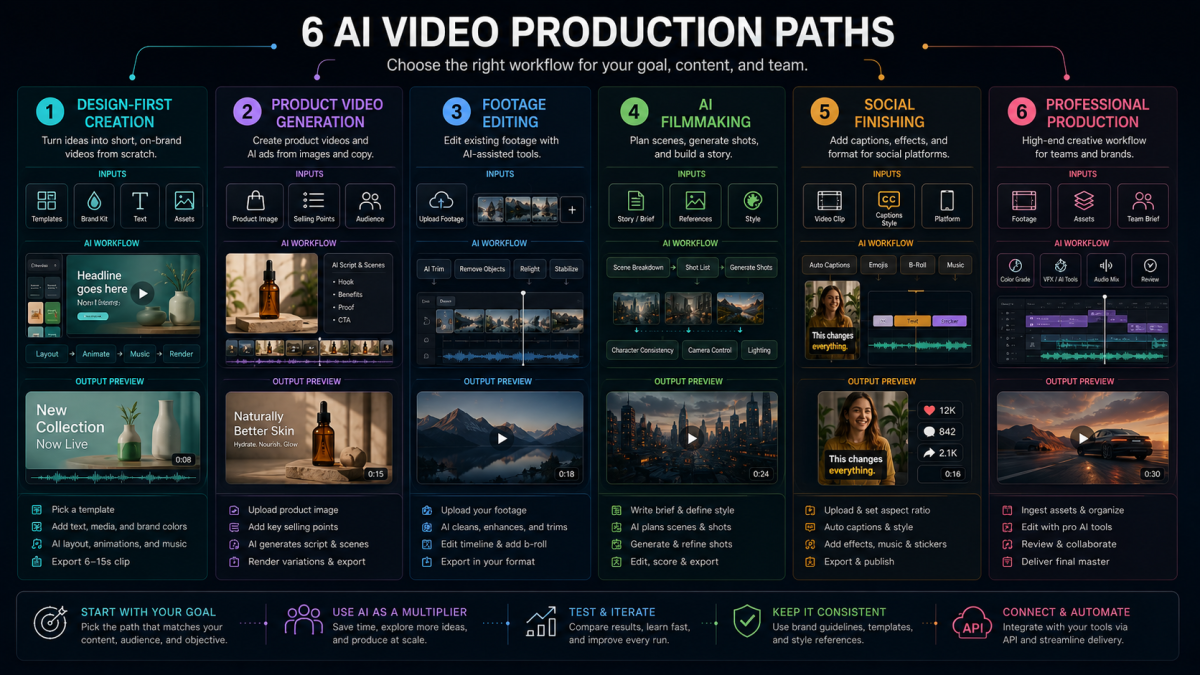
Canva works best when video generation supports a broader design asset. If your team already builds presentations, social graphics, thumbnails, campaign layouts, or brand materials in Canva, Create a Video Clip can add motion without introducing another production environment.
The strongest Canva use case is quick creative packaging. A founder can generate an 8-second visual opener for a pitch deck. A social media manager can create a moving background for a campaign post. A teacher or nonprofit team can create a short scene and then add Canva text, colors, and music without learning a video model interface.
Canva is especially useful for:
- Pitch deck openers and lightweight presentation moments.
- Social posts that need motion inside a branded layout.
- Simple campaign concepts before a team commits to heavier production.
- Canva-native teams that already rely on Brand Kit, templates, and shared design review.
- Non-video-specialist users who want a guided design editor more than model control.
The limitation is not creativity; it is production shape. A design-first workflow is excellent when the final asset is a layout, slide, or post. It is less direct when the output target is a repeatable video series, a reference-led image-to-video workflow, a footage-editing job, or a programmable generation pipeline.
Where Canva May Not Be Enough
Canva may feel constrained when the job is not “make one short clip” but “make enough video assets to test, publish, and scale.” Creators, marketers, educators, brand teams, and agencies often need reference images, multiple aspect ratios, several hook variants, scene continuity, or a repeatable review process.
Common signs that a Canva-only workflow may not be enough:
- Reference-led image-to-video: many workflows begin with a character image, product photo, brand asset, or storyboard frame, not only a text prompt, so PixVerse image-to-video or reference workflows may fit better.
- Batch creative variations: an initial 5-generation monthly limit does not support serious testing, where teams need many hooks, ratios, and near-miss variants.
- Existing footage edits: Canva’s generation feature is not built primarily around transforming a source video shot, while Runway and Adobe-style workflows are closer to that job.
- Multi-scene AI filmmaking: Canva is lighter and design-first, while film workflows need scene continuity, asset planning, and more control over motion.
- Social finishing at speed: Canva can edit, but creator-style pacing, captions, trends, and mobile exports may still need a social editor such as CapCut.
- Professional production handoff: agencies may need timeline review, licensed asset workflows, and Creative Cloud integration, where Adobe is usually a more natural fit.
None of this makes Canva weak. It means Canva is strongest when AI video is a design ingredient. A dedicated video generation platform is stronger when video is the main deliverable.
Canva and the Alternatives: Tool-by-Tool Workflow Review
Canva Create a Video Clip: Best for Design-First AI Video Assets
Canva is the baseline for this comparison because it solves a real problem: many users do not want a separate video model, prompt lab, editor, asset library, and export flow. They want a short video idea inside the same design workspace where the final post, slide, or campaign asset will be finished.
Its strength is continuity with Canva’s ecosystem. A generated clip can become part of a deck, a social carousel, a brand announcement, a classroom asset, a nonprofit campaign, or a quick concept board. For teams with a shared Canva workspace, that can reduce friction more than a technically stronger generator would.
Where Canva struggles is repeated production. A creator testing 20 Shorts concepts, a brand team producing a content series, or a developer automating video generation will outgrow the launch limits quickly. Canva also abstracts away much of the model and workflow control, which is friendly for casual users but restrictive for teams that need repeatable settings.
Choose Canva when the output is a designed asset with a short video element. Be careful when the output is a high-volume video series, a reference-driven visual system, or an API workflow.
PixVerse: Best for Image-to-Video, Templates, and Scalable Video Workflows
PixVerse is a strong Canva AI video generator alternative when the job begins with a reference image, brand asset, character idea, product photo, campaign concept, template, or repeatable generation workflow. Canva is useful when the video supports a design. PixVerse is more useful when the video itself is the production target.
For creators and teams, this difference matters. A creator may have a character image, a storyboard frame, a product photo, a prompt series, or a social format to repeat. Starting from those concrete inputs is often more efficient than starting from a blank text prompt. PixVerse can support image-to-video, social clips, templates, product demos, audio-aware generation, and platform/API workflows.
The PixVerse V6 platform docs list text-to-video, image-to-video, transition, extension, reference-to-video, audio generation options, 1-15 second duration in supported workflows, and 360p to 1080p quality options. For ecommerce and marketing teams, the PixVerse AI video ad generator guide also describes one product-focused workflow where users can upload a product image, add details, and generate commercial-style assets with scenes, voiceover, captions, and music.
PixVerse is not a replacement for every editor. Teams still need to review visual consistency, captions, voiceover, product or brand accuracy, rights, and export settings. But it is a better first stop than Canva when the core work is image-to-video, video-native templates, multi-variant creative, or automated production.
Runway: Best for Editing Existing Footage and Cinematic Variants
Runway is a better Canva alternative when you already have footage and want to transform it. Runway’s Aleph 2.0 page describes a workflow where users edit one frame and the model carries that change through the video while preserving what should stay the same. Runway also says Aleph 2.0 supports clips up to 30 seconds at 1080p.
That makes Runway especially useful for creative teams that need versioning, restyling, or shot-level changes. A brand can change a product color in existing footage. A filmmaker can test a new background or visual style. An agency can create seasonal video variants without rebuilding every shot from scratch.
Runway is less direct when the user has no footage and only has static reference images, brand assets, or a prompt series. It can generate and edit impressive visuals, but the workflow often requires more creative direction, post-production judgment, and credit planning. For image-to-video or template-led source generation, PixVerse may start closer to the input asset; for finished-footage transformation, Runway is the more natural tool.
Choose Runway when the source video already exists or when cinematic visual exploration matters more than structured batch production. Be careful when the goal is high-volume variant generation from static assets, because the workflow can become too manual.
Google Flow and Gemini Omni: Best for AI Filmmaking and Agentic Scene Planning
Google Flow is relevant because Canva’s new feature is powered by Google Veo 3, but Flow serves a different user. Google’s Flow launch post describes Flow as an AI filmmaking tool built around Veo, Imagen, and Gemini, with ingredients, camera controls, Scenebuilder, and asset management.
Google’s newer Flow update adds Gemini Omni Flash, Flow Agent, custom Flow Tools, and mobile apps. Google says Omni Flash can create from any input starting with video, supports conversational iteration, and improves character consistency by preserving identity and voice across scenes. It also says features can vary by Google AI subscription tier, platform, and region.
This makes Flow a strong option for creators who think in scenes rather than posts. It is useful for storyboards, cinematic experiments, video-based iteration, character continuity, and planning a multi-scene idea with an assistant. It is also attractive to teams already paying for Google AI tools.
Flow is not the clearest answer for every workflow. A social media manager who wants captions and trend editing may prefer CapCut. A team trying to turn reference images into repeatable short clips may prefer PixVerse. A designer who wants an 8-second visual inside a Canva deck may simply stay in Canva. Flow is strongest when the work resembles AI filmmaking or scene development.
CapCut: Best for Social Editing, Captions, and Creator-Style Finishing
CapCut belongs in this comparison because many people evaluating Canva AI video are really trying to solve a social video job. The user does not only need a generated clip. They need captions, music, pacing, stickers, text overlays, mobile edits, and export formats that fit TikTok, Reels, Shorts, and paid social.
CapCut’s AI video editor page describes script generation, AI avatars, AI voiceover, auto-synced captions, music, export settings, and additional editing tools. It also highlights social-friendly features such as auto captions, text-to-speech, noise reduction, and reframing tools.
CapCut is strongest after a good clip exists. A creator can generate video assets in PixVerse, Canva, Runway, Flow, or Adobe, then bring them into CapCut for fast social finishing. This is often the most practical workflow for TikTok, Reels, and Shorts because the last 20% of the edit determines whether the clip feels native to the platform.
CapCut is not the best first tool when visual consistency, model control, or high-end generation is the main problem. Treat it as a finishing and packaging layer, not as the only source of original AI video.
Adobe Firefly and Premiere: Best for Professional Creative Teams
Adobe is a strong option for teams that care about production handoff, commercial safety, and timeline editing. The Adobe Firefly AI video generator page describes text-to-video, image-to-video, product shot animation, B-roll generation, camera controls, partner model choice, and editing on a layered timeline. Adobe also says Firefly can generate 5-second 1080p MP4 video, and that commercial usage eligibility depends on the model used.
Adobe’s advantage is not just generation. It is the broader creative ecosystem: Firefly, Premiere Pro, After Effects, Photoshop, Illustrator, review workflows, stock assets, and professional team habits. For agencies and internal creative teams, this can matter more than raw prompt speed.
Adobe may be too heavy for a casual Canva user. It is not the fastest path for someone who wants one short social post or a quick pitch opener. It is also not always the cleanest workflow if the user wants many variants from reference images, campaign prompts, or social formats.
Choose Adobe when the output must enter a professional creative pipeline. Use it for brand-safe visual exploration, timeline finishing, B-roll, presentation visuals, and teams that already live in Creative Cloud.
Canva vs Other AI Video Generators: Workflow Comparison
Canva should be compared against other AI video tools by workflow, not by a generic feature checklist. The same 8-second video can be a pitch opener, a social hook, a brand visual, a product demo, a storyboard shot, or B-roll. Each job favors a different tool.
| Workflow question | Canva | PixVerse | Runway | Google Flow | CapCut | Adobe Firefly / Premiere |
|---|---|---|---|---|---|---|
| Best starting input | Text prompt inside a design workflow | Reference image, prompt, template, brand asset, API job | Existing footage or visual concept | Scene idea, ingredients, references, prompt | Existing clip, script, social idea | Prompt, image, footage, creative brief |
| Best output | Branded design asset with a short clip | Image-to-video, template clip, social asset, product demo, API job | Edited footage, cinematic variant, visual concept | AI filmmaking scene or multi-step creative project | Social-ready edit with captions and pacing | Professional clip, B-roll, timeline-ready asset |
| Best user | Canva-native designer or marketer | Creator, marketer, ecommerce team, agency, developer | Filmmaker, creative director, advanced editor | Google AI user, filmmaker, scene planner | Social creator, TikTok/Reels editor | Agency, brand team, professional editor |
| Main limitation | Launch generation volume and clip length | Needs human QA for visual consistency, claims, and rights | Less structured for high-volume source generation | Access and limits vary by subscription, platform, and region | Not the strongest source generator | Heavier workflow and plan complexity |
| Strongest pairing | Canva plus PixVerse or CapCut | PixVerse plus Canva, CapCut, or API | Runway plus Adobe or CapCut | Flow plus Adobe or YouTube workflows | CapCut plus any generator | Adobe plus Firefly, Runway, or PixVerse assets |
For many teams, the answer is a stack. Generate original clips, reference-led videos, or reusable templates in PixVerse, edit existing footage in Runway, explore scenes in Flow, polish social clips in CapCut, and use Canva or Adobe when layout and production handoff matter.
Good Use Cases for Canva and AI Video Generator Alternatives
Good AI video workflows are specific. They define the input, output, review criteria, and final channel before generation begins.
Useful examples include:
- Pitch deck opener: Canva works well because the generated clip can move directly into slides with brand text and layout.
- Creator series visual hook: PixVerse is a strong fit when the workflow starts from a reference image, character idea, or repeatable prompt style.
- Product photo to video demo: PixVerse can also fit product-led workflows because the process can start from product imagery and commercial intent.
- TikTok, Reels, or Shorts variant testing: PixVerse plus CapCut is practical because PixVerse generates assets while CapCut handles captions, music, pacing, and social polish.
- Editing an existing ad without reshooting: Runway fits because Aleph-style editing starts from the video you already have.
- AI scene planning for a short film: Google Flow fits because it is designed around ingredients, scenes, camera control, and agentic iteration.
- Professional brand video pipeline: Adobe Firefly and Premiere fit teams that need timeline review, licensed asset workflows, and Creative Cloud handoff.
- Social post with motion and brand kit: Canva remains useful when Brand Kit, templates, and design assembly are the main value.
- Automated creative workflow: PixVerse Platform is better suited to repeatable generation than a design editor.
One practical example: a creator planning a 10-part Shorts series should not start by asking every tool for a random cinematic scene. They should test one reference frame, one 9:16 scene brief, one sound direction, and three opening hooks. That test will reveal whether the generator can preserve the visual style, create useful motion, and produce enough variants for the series.
Failure Cases That Waste AI Video Credits
Bad AI video workflows usually fail before the model runs. The prompt is too broad, the input asset is weak, the success criteria are unclear, or the team chooses a tool built for a different job.
The most common failure cases are:
- Using Canva for high-volume creative testing: a few launch generations cannot cover enough hooks, ratios, and variants. Use a video-first workflow or API when iteration volume matters.
- Using a text prompt for exact visual continuity: character details, product labels, brand assets, or scene style can drift. Start from a clean reference image when accuracy matters and review every output.
- Using Runway when no source footage exists: the tool’s editing strengths are underused. Generate source assets first in an image-to-video, template, or scene generation workflow.
- Using CapCut as the only generation layer: the final edit may be strong, but original visual assets may be weak. Generate higher-quality source clips first, then finish in CapCut.
- Choosing Adobe for a one-off casual post: the workflow may be heavier than the task requires. Use Canva or CapCut for lightweight social assets.
- Publishing without QA: claims, audio, captions, likeness, brand details, or rights may be wrong. Add a review checklist before export or paid distribution.
The common pattern is overloading one tool. Canva is not a complete AI video production stack. PixVerse is not a replacement for every social editor. Runway is not always the fastest source generator. CapCut is not a full cinematic model suite. Adobe is not always the lightest path for a small team. Choose by job, not by hype.
How to Test AI Video Generators Before Choosing One
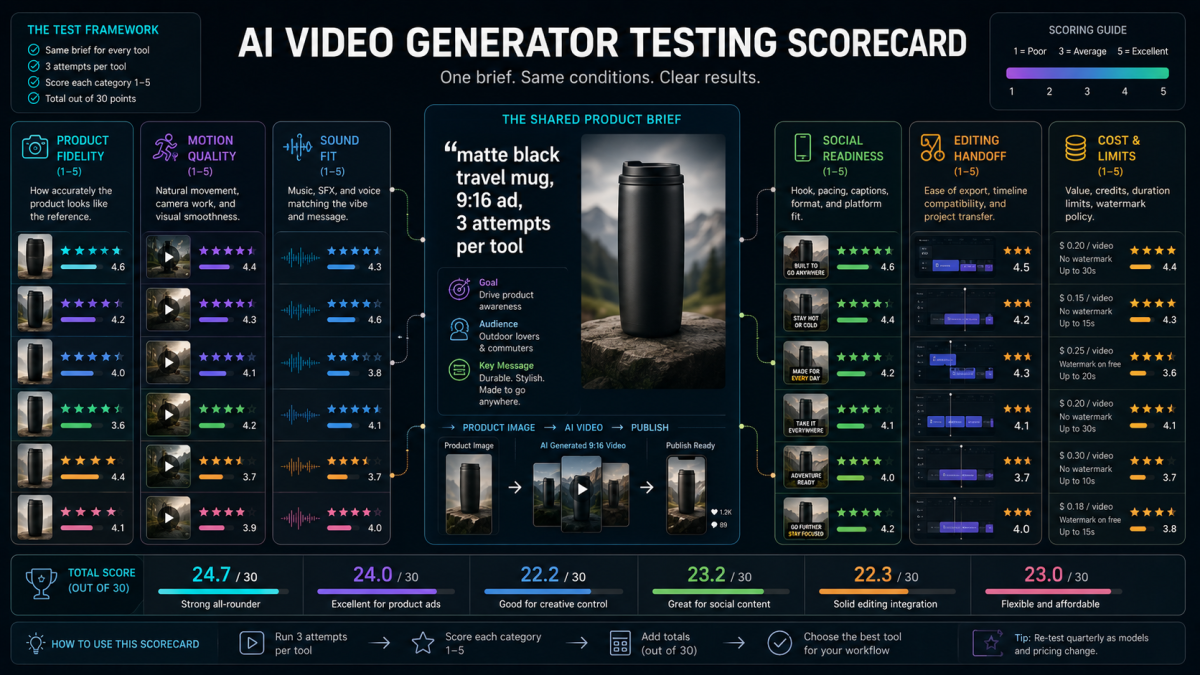
Before committing to a tool, run the same controlled brief across the options that fit your use case. Side-by-side results make it easier to judge fit and prevent a team from choosing based only on polished demos.
Use this test structure:
- Pick one real input asset: a reference image, a short clip, a pitch slide, a product photo, or a campaign prompt.
- Define one output: 9:16 social clip, 16:9 hero clip, 1:1 social post, deck opener, product demo, or footage edit.
- Limit the test: 3 attempts or 15 minutes per tool.
- Score the result: visual consistency, motion quality, sound, editability, platform fit, and total workflow time.
- Track the handoff: can the clip move into Canva, CapCut, Adobe, a publishing workflow, or an API pipeline?
- Keep the winner and regenerate close variants instead of starting from scratch.
Example representative test brief:
Generate a 9:16 video ad for a matte black insulated travel mug. The mug should stay accurate, the lid should remain visible, and the camera should move from a close-up of steam to a wider cafe table shot. Include subtle sound design, no extra text, no distorted logo, and leave space for captions.
An ad brief is a useful representative test because it compresses several common AI video requirements into one clip: reference fidelity, camera motion, sound, caption space, social framing, and handoff into an editor or publishing workflow.
When you score the outputs, inspect six areas:
- Visual consistency: subject shape, style, color, scale, and important reference details.
- Motion usefulness: camera move, product reveal, pacing, and scene clarity.
- Sound fit: whether audio supports the scene without creating review risk.
- Social readiness: safe caption area, vertical framing, first-second hook, and export path.
- Editing handoff: whether the clip can move cleanly into Canva, CapCut, Adobe, or a campaign workflow.
- Cost and limits: how many usable outputs the team can afford to generate.
The companion video can visualize the testing workflow with this short motion-graphic brief:
Create a 16:9 editorial motion graphic video, 10-12 seconds, for an article section titled "How to Test AI Video Generators Before Choosing One".

Scene flow:
1) Open with one clean product input: a matte black insulated travel mug on a neutral studio surface.
2) The same brief duplicates into six tool lanes labeled Canva, PixVerse, Runway, Google Flow, CapCut, and Adobe.
3) Show a small timer and constraint card: "3 attempts / 15 minutes per tool".
4) Each lane generates a different thumbnail-style result: design opener, product video, edited footage, AI scene, social edit, professional timeline.
5) A testing scorecard slides in with animated score bars for product fidelity, motion quality, sound fit, social readiness, editing handoff, and cost or limits.
6) End with the strongest result selected, then branching into three close variants.

Visual style:
Premium SaaS editorial dashboard, clean dark neutral interface, crisp video thumbnails, subtle timeline motion, soft blue and green accent colors, realistic product detail, smooth camera push-in, no real brand logos, no clutter, minimal readable text only, no small paragraphs, no watermark.
AI Video Generator With Sound: Canva, PixVerse, and the Workflow Question
Canva’s update is important because it makes sound part of a mainstream design workflow. Silent AI video often feels unfinished, especially for social clips, explainers, product demos, and presentation openers. A generated clip with synchronized sound can reach the editing stage faster.
Sound still needs context. A pitch opener may only need ambience. A tutorial may need clear narration. A product demo may need voiceover, captions, music, and sound effects. A TikTok clip may need trend timing. A professional timeline may need licensed music, room tone, and audio cleanup.
For audio-heavy workflows:
- Use Canva Create a Video Clip for a short concept with generated sound.
- Use PixVerse templates or product workflows when the clip needs scenes, captions, voiceover, and music.
- Use PixVerse V6 when the main need is video-first generation with audio options.
- Use CapCut for social captions, music timing, and mobile edits.
- Use Google Flow and Flow Music for scene-based filmmaking or music-video direction.
- Use Adobe Premiere / Firefly ecosystem for professional timeline sound and production handoff.
Always review audio before publishing. Check voiceover accuracy, music rights, caption text, claims, brand details, and platform policies. Sound can improve quality, but it can also create brand and compliance risk if no one reviews it.
Frequently Asked Questions
Is Canva AI video free?
Canva’s launch announcement says Create a Video Clip is available to users on Pro, Teams, Enterprise, and Nonprofit plans, with an initial limit of 5 generations per month. Check Canva’s current plan page before planning a campaign because availability, limits, and pricing can change.
How long are Canva AI videos?
At launch, Canva says Create a Video Clip generates 8-second video clips. That length fits pitch openers, social hooks, and quick concept visuals. It may be too short or too limited for teams producing multi-scene videos, recurring creator formats, reference-led clips, or higher-volume campaign assets.
Does Canva AI video include sound?
Yes. Canva says Create a Video Clip generates video with sound from a text prompt. That is useful when you want a short clip with synced audio before design editing inside Canva.
What is the best Canva alternative for creators and teams?
PixVerse is the strongest fit when the goal is original video generation from reference images, prompts, templates, brand assets, or repeatable creative tests. Canva is useful for design-first assets, while PixVerse is better aligned with image-to-video, video-native templates, multi-variant creation, and API workflows.
Which Canva alternative is best for editing existing video?
Runway is a strong choice when the source video already exists and needs controlled changes. Aleph 2.0 is positioned around editing one frame and applying that change through a clip while preserving the rest of the video.
Which tool should I use after generating an AI video?
Use the editor that matches the final channel. Canva is useful for branded layouts and presentations. CapCut is useful for TikTok, Reels, Shorts, captions, and creator-style pacing. Adobe is useful for professional timeline review and production handoff.
Can I make TikTok, Reels, or Shorts videos with AI tools?
Yes. Generate a 9:16 social video asset, create several hook variants, then finish captions, music, pacing, and platform text in a social editor. Review visual consistency, claims, audio, rights, and commercial terms before publishing or running paid campaigns.
Can AI video generators support API workflows?
Some can. PixVerse Platform is relevant when a team needs programmatic text-to-video or image-to-video generation, webhook-based retrieval, and repeatable creative operations. Canva is not primarily positioned as an AI video API workflow.
Final Recommendation
Canva Create a Video Clip is useful for design-first creators who want a short video with sound inside the same editor they already use for social posts, decks, and brand assets. It is not trying to replace every AI video generator.
For original video generation, image-to-video workflows, templates, social variants, product demos, and scalable production, start with PixVerse. For existing footage edits, compare Runway. For AI filmmaking and agentic scene planning, test Google Flow. For social finishing, use CapCut. For professional creative teams and timeline handoff, Adobe Firefly and Premiere are the better fit.
The strongest choice is the tool that matches the production job: input, output, review process, and final channel.
For hands-on guidance from the first idea through a finished video, PixVerse AI Video Agent can help shape the workflow.